
This guide shows you how to create a proforma invoice and save it as a draft.
Go to: Sales > Proforma Invoice
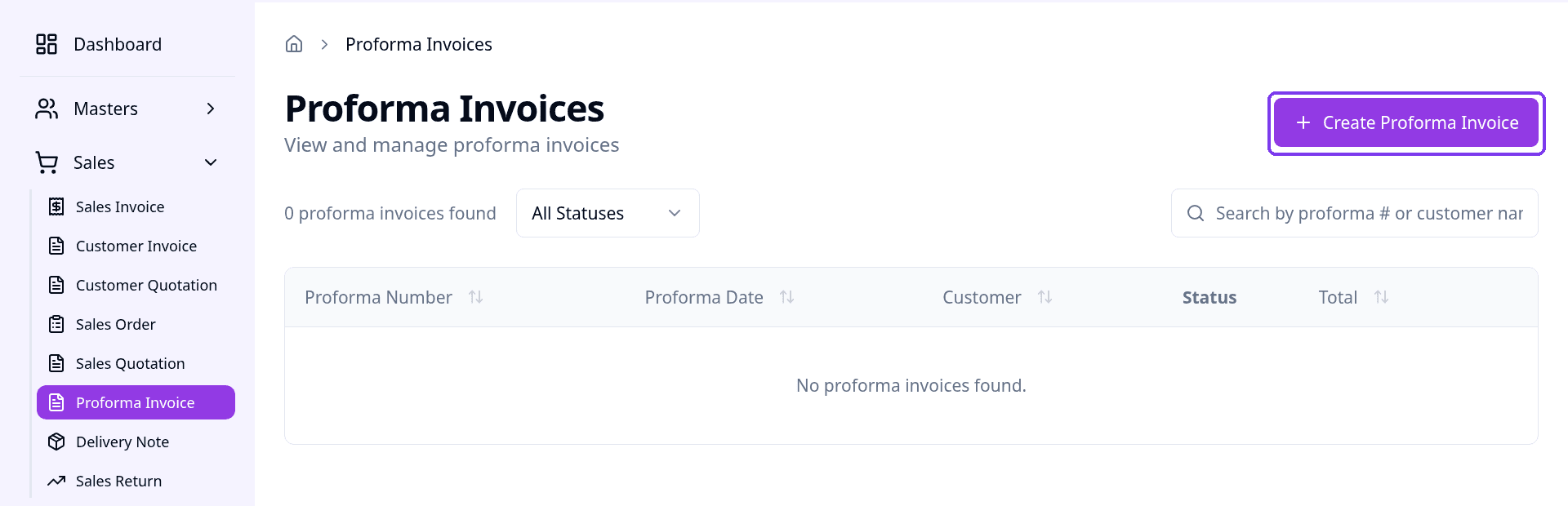
Step 1: Click Create Proforma Invoice
Click Create Proforma Invoice. The New Proforma Invoice form opens.
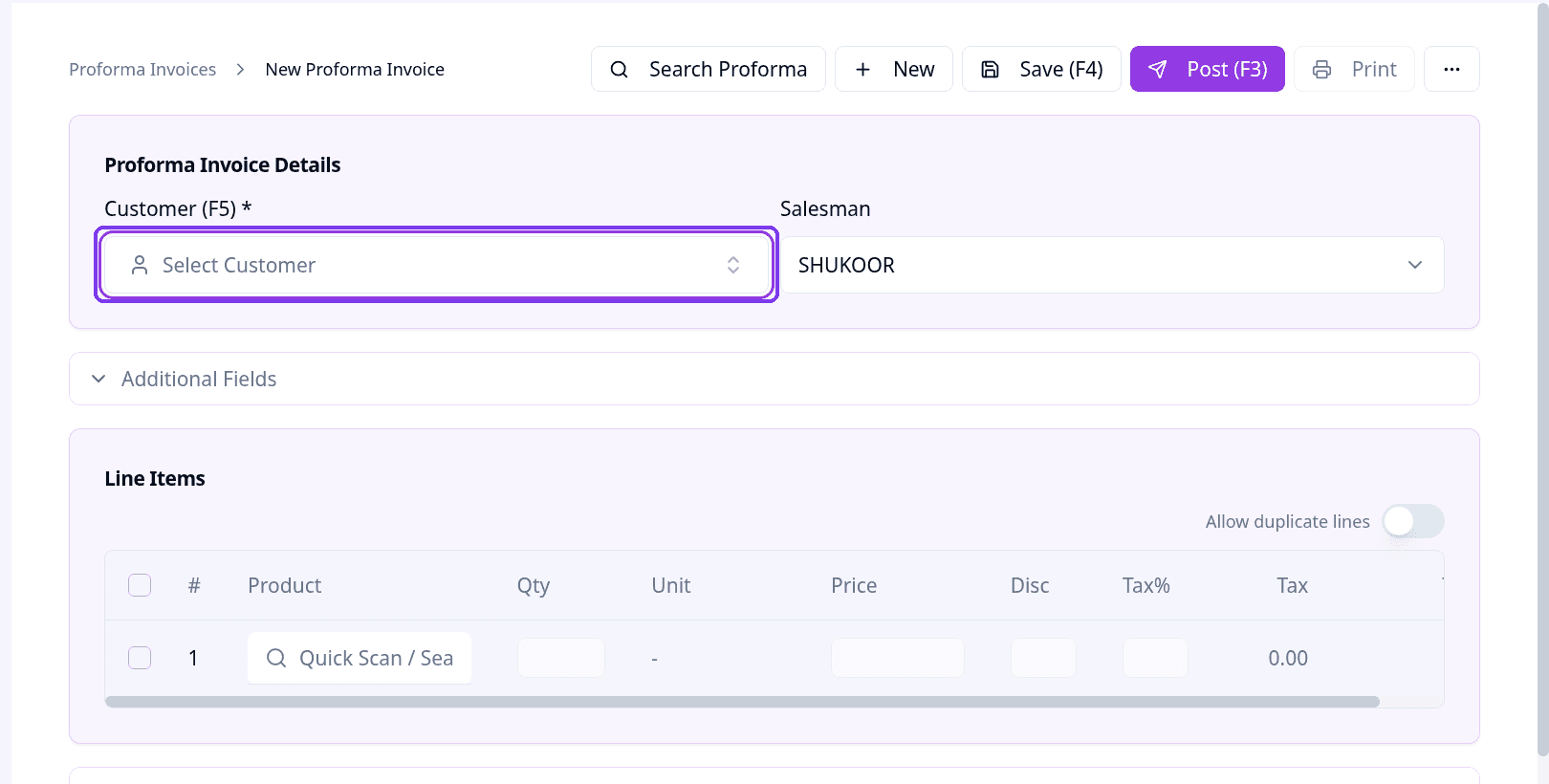
Step 2: Choose the customer
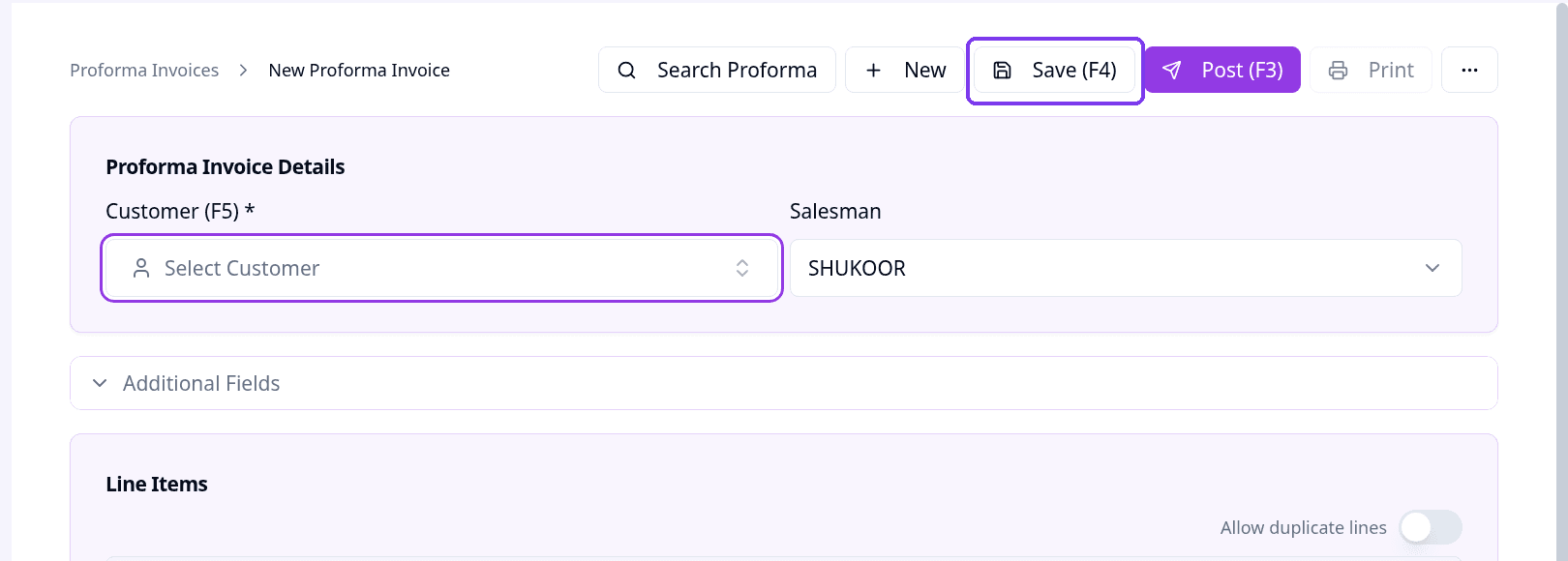
Select the Customer. This field is required.
Step 3: Add products
Add a product and enter the Qty.
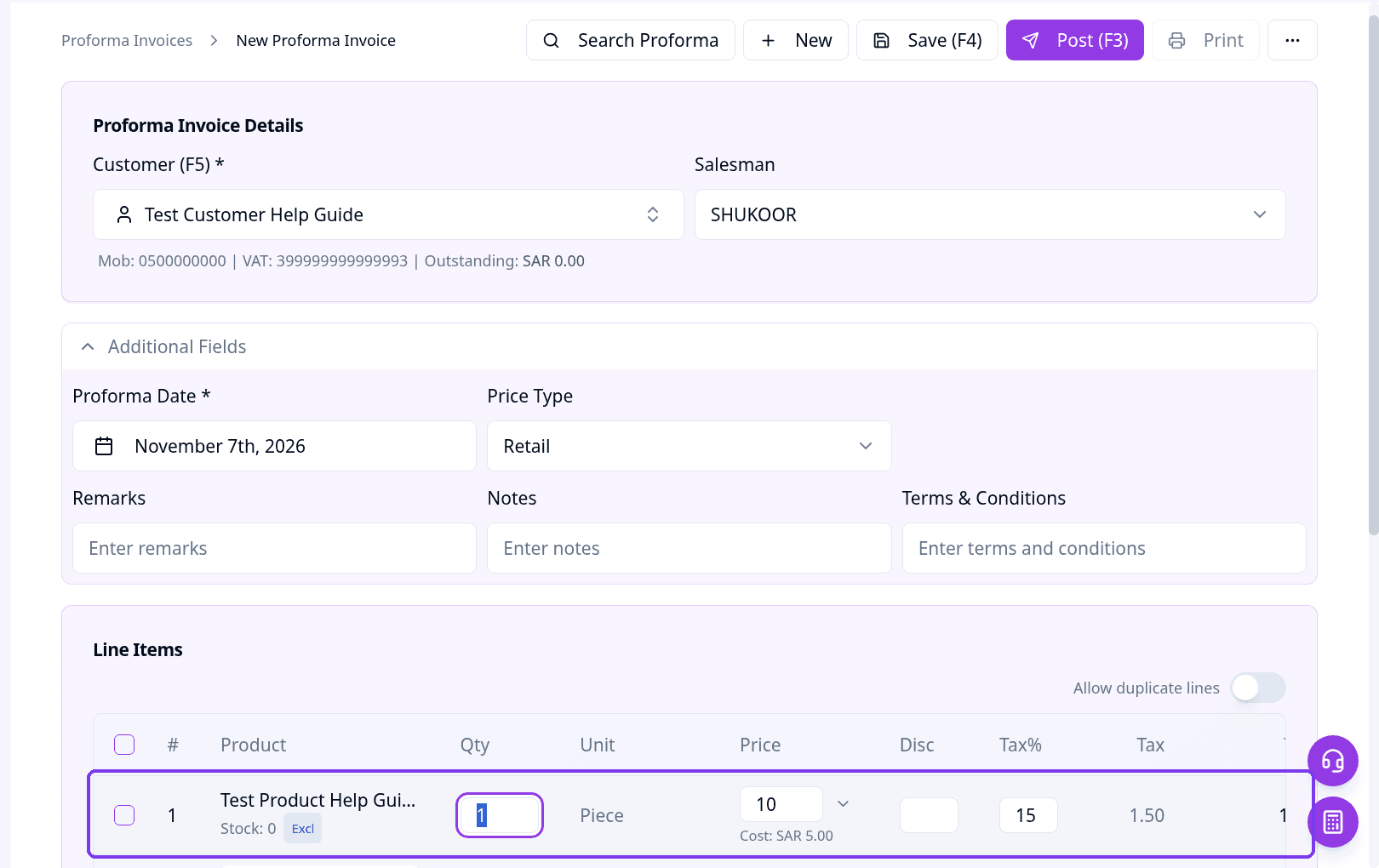
Step 4: Check the additional fields
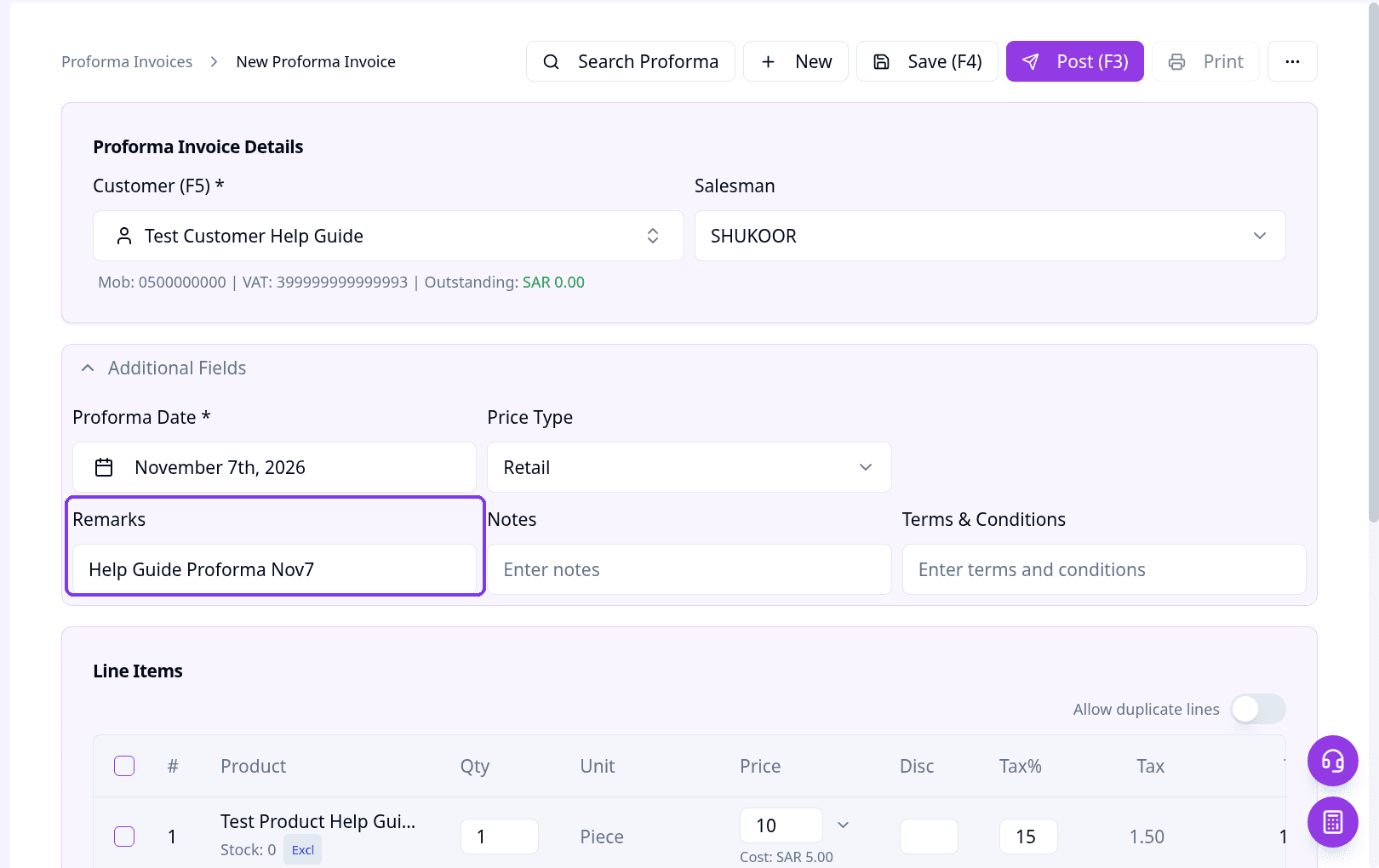
Open Additional Fields if you need to change the Proforma Date.
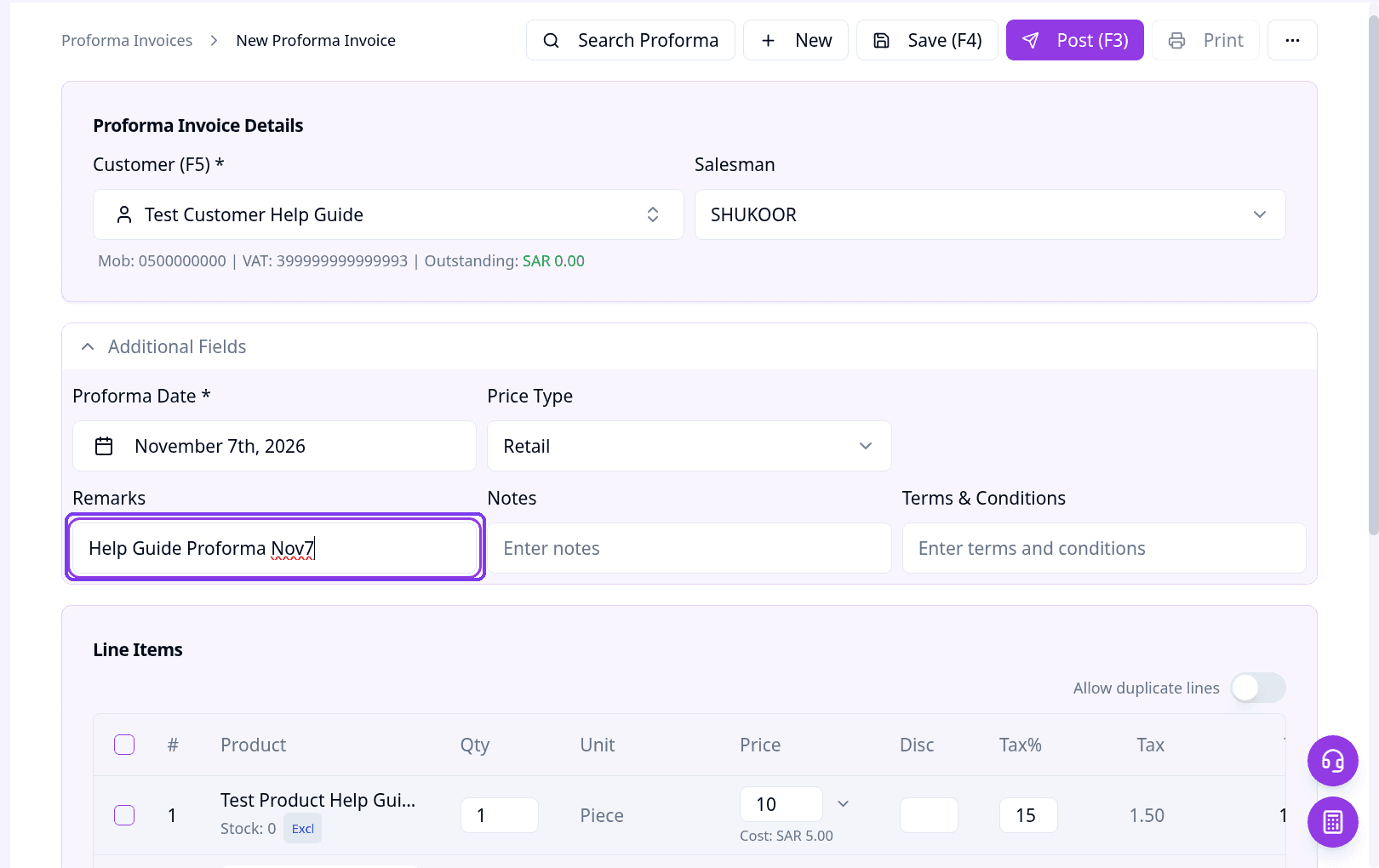
Step 5: Save the proforma invoice as a draft
Click Save (F4). The form then clears so you can start a new proforma invoice.
Step 6: Find and open your saved draft
Drafts do not show in the Proforma Invoices list. Click Search Proforma and look under Draft Proforma Invoices.
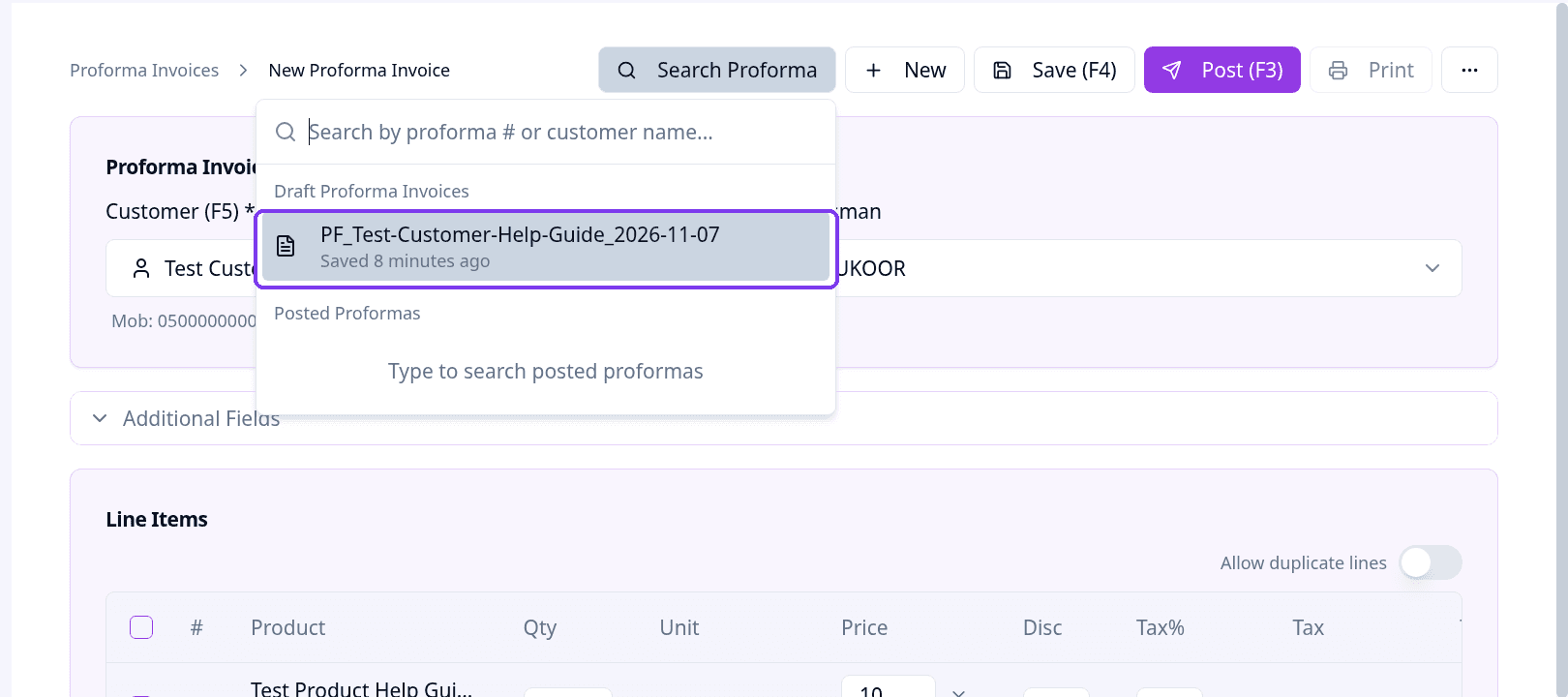
Click the draft to open it. A message appears saying Proforma invoice loaded successfully.
Important Notes
- Customer and Proforma Date are required.
- Saved drafts do not show in the Proforma Invoices list. Use Search Proforma to find them.