This guide shows you how to convert a posted Sales Order into a Sales Invoice.
Go to: Sales > Sales Order
Step 1: Create and post a sales order
Click Create Sales Order, enter the customer and product lines, then click Post (F3).
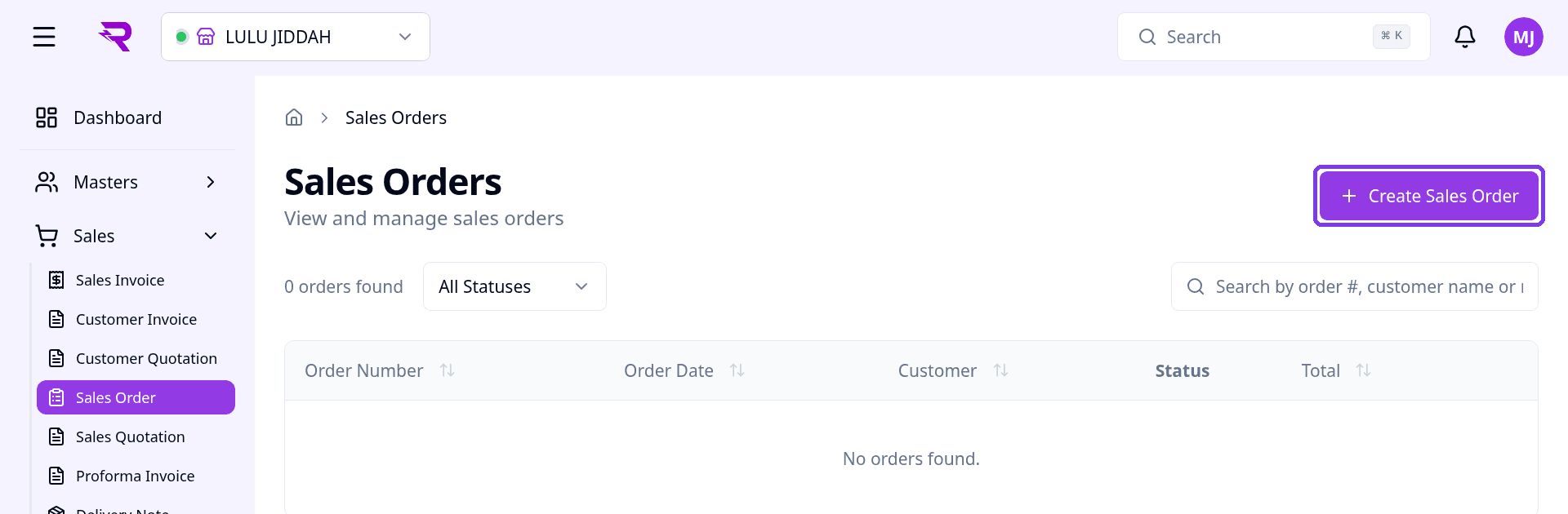
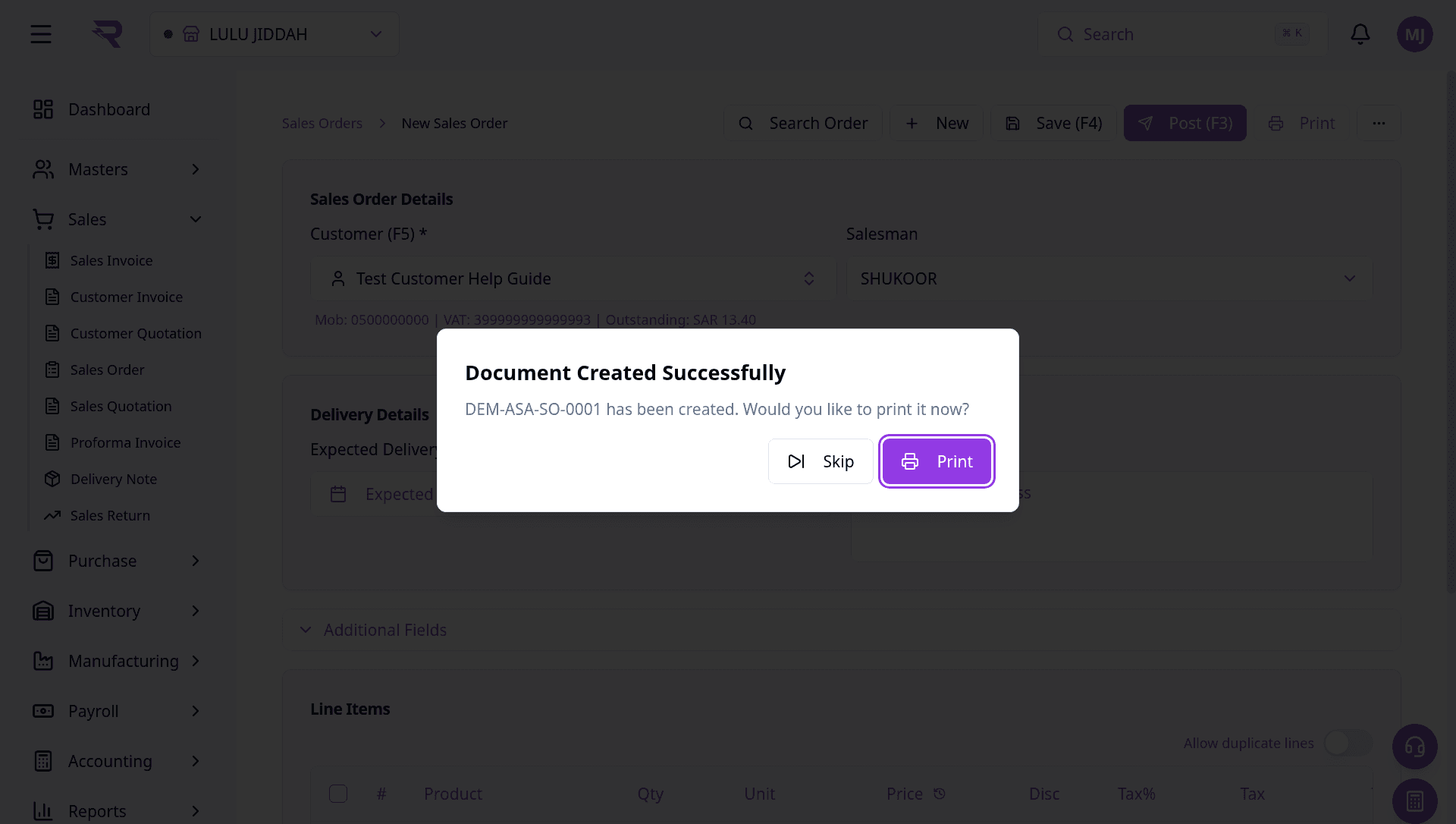
A dialog shows the new order number and offers to print it. Click Skip if you do not want to print.
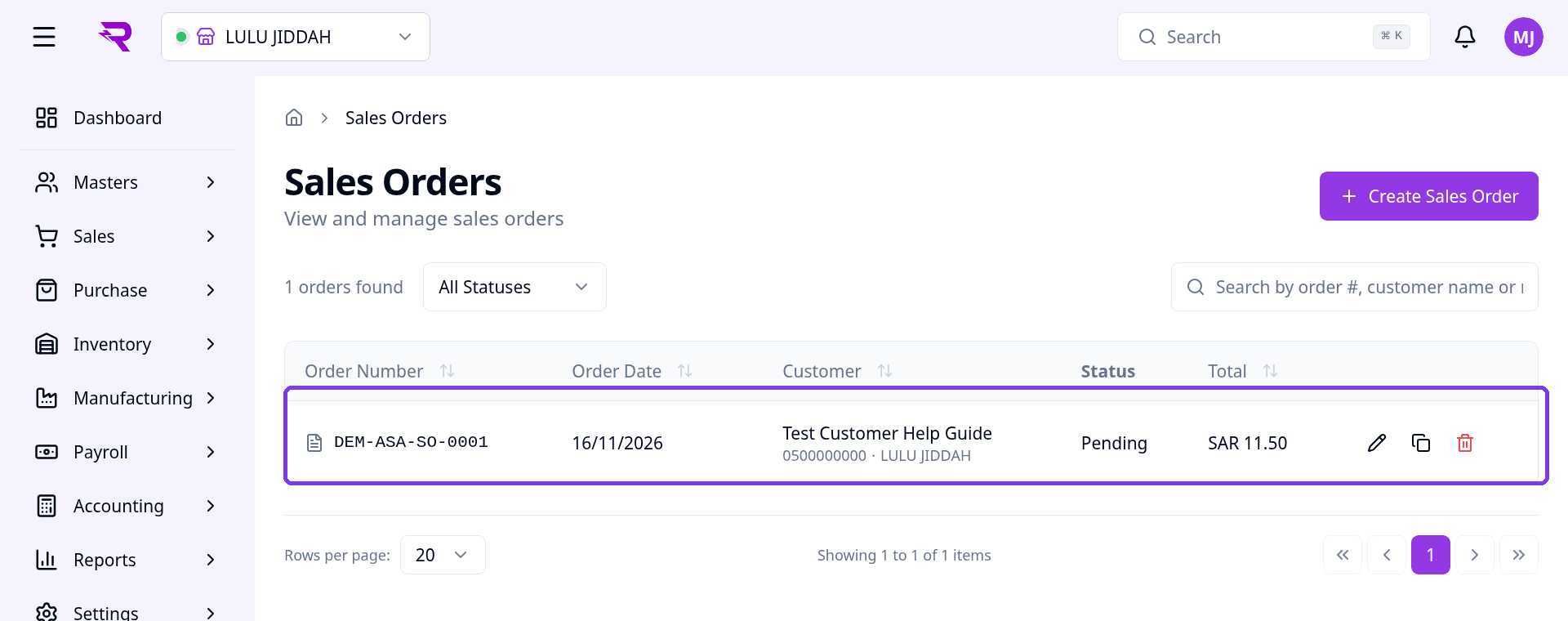
The Sales Orders list shows the posted order. In this walkthrough, the status is Pending.
Step 2: Click Convert to Sales Invoice
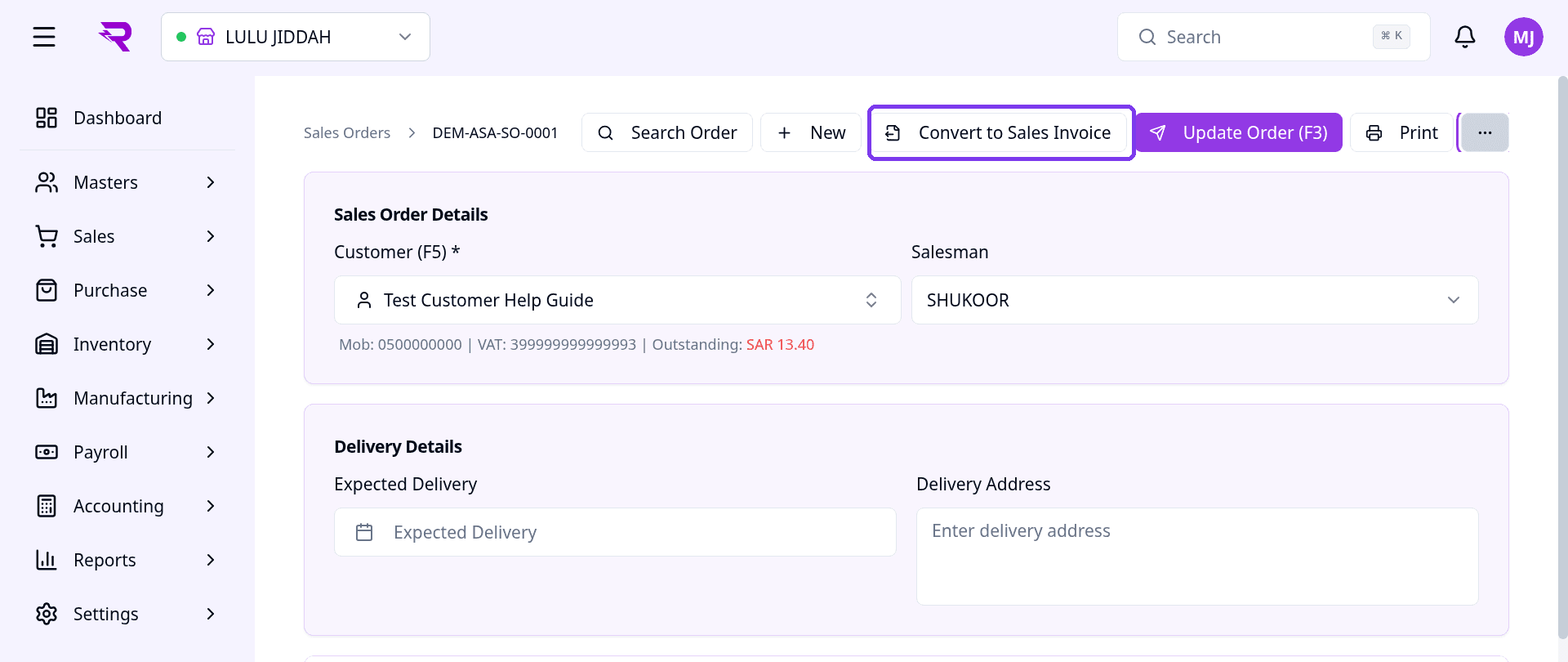
Open the posted order and click Convert to Sales Invoice.
A prefilled Sales Invoice opens with the customer and product lines from the order. An Imported from line shows the sales order number. A toast confirms the order was converted to a Sales Invoice.
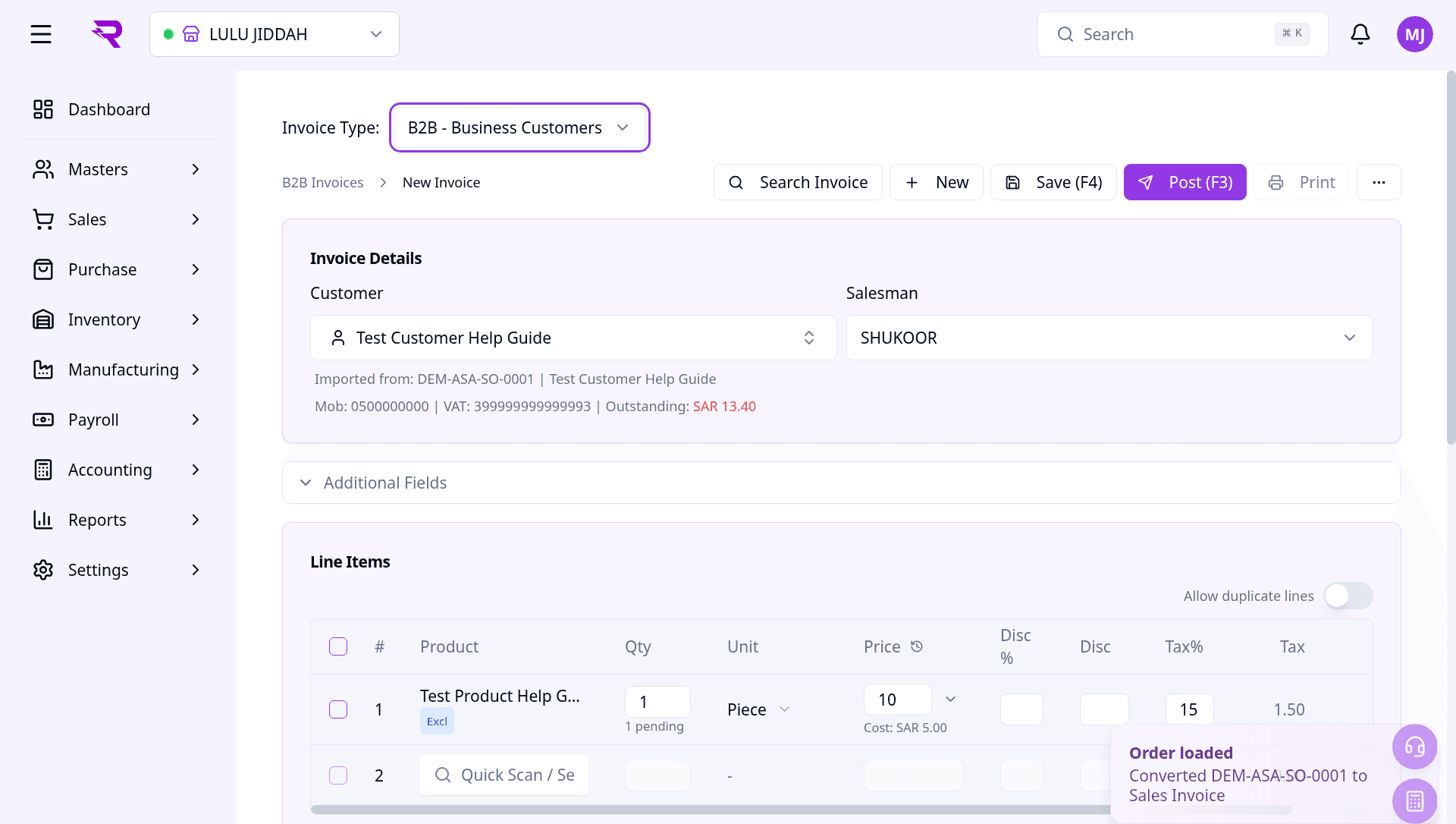
Step 3: Post the invoice
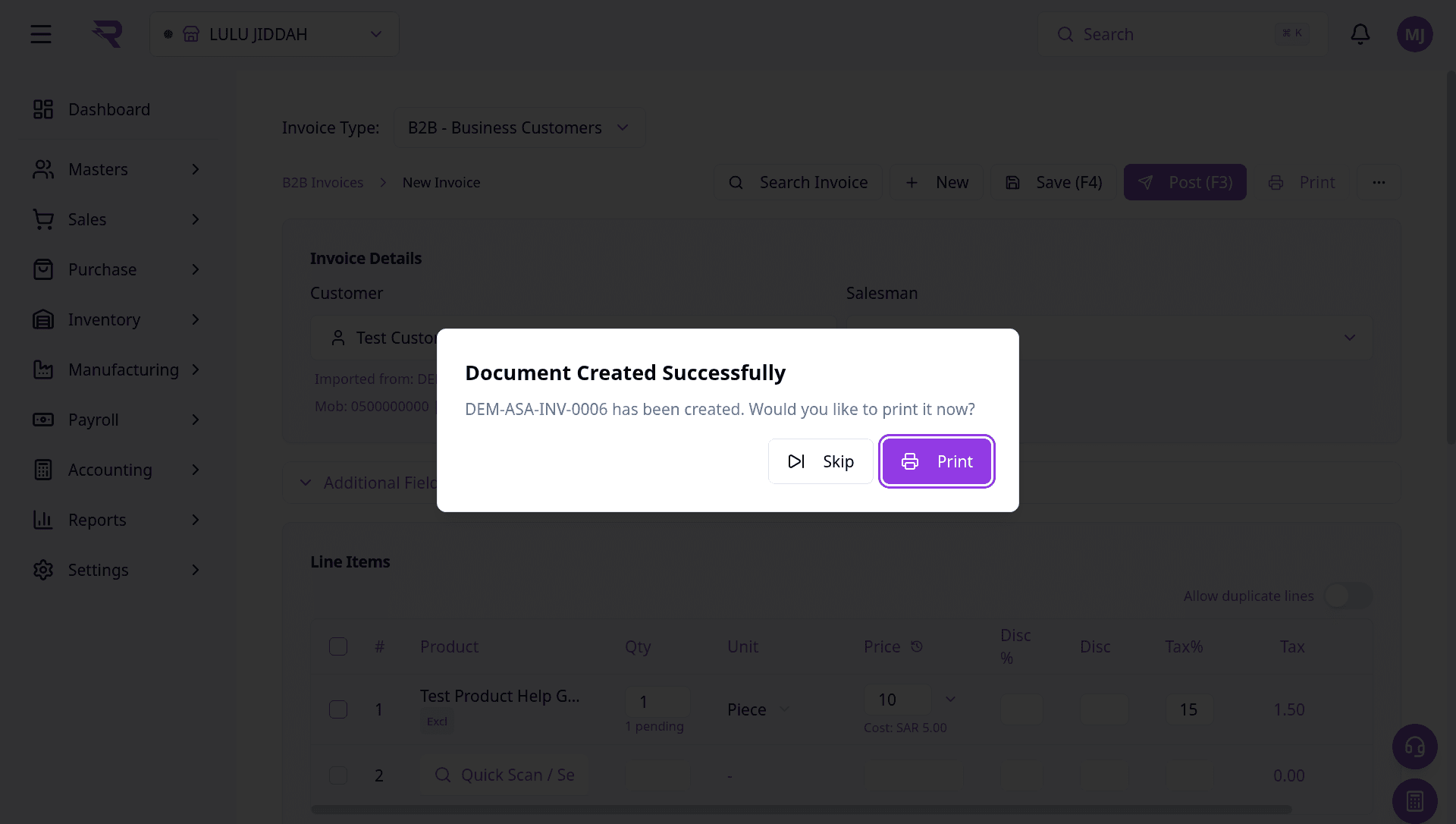
Review the invoice, then click Post (F3). A dialog shows the new invoice number and offers to print it. Click Skip if you do not want to print.