
This guide shows you how to create a sales quotation in RAAD ERP. You choose the customer, add products and save or post the quotation.
Go to: Sales > Sales Quotation
Step 1: Open Sales Quotation
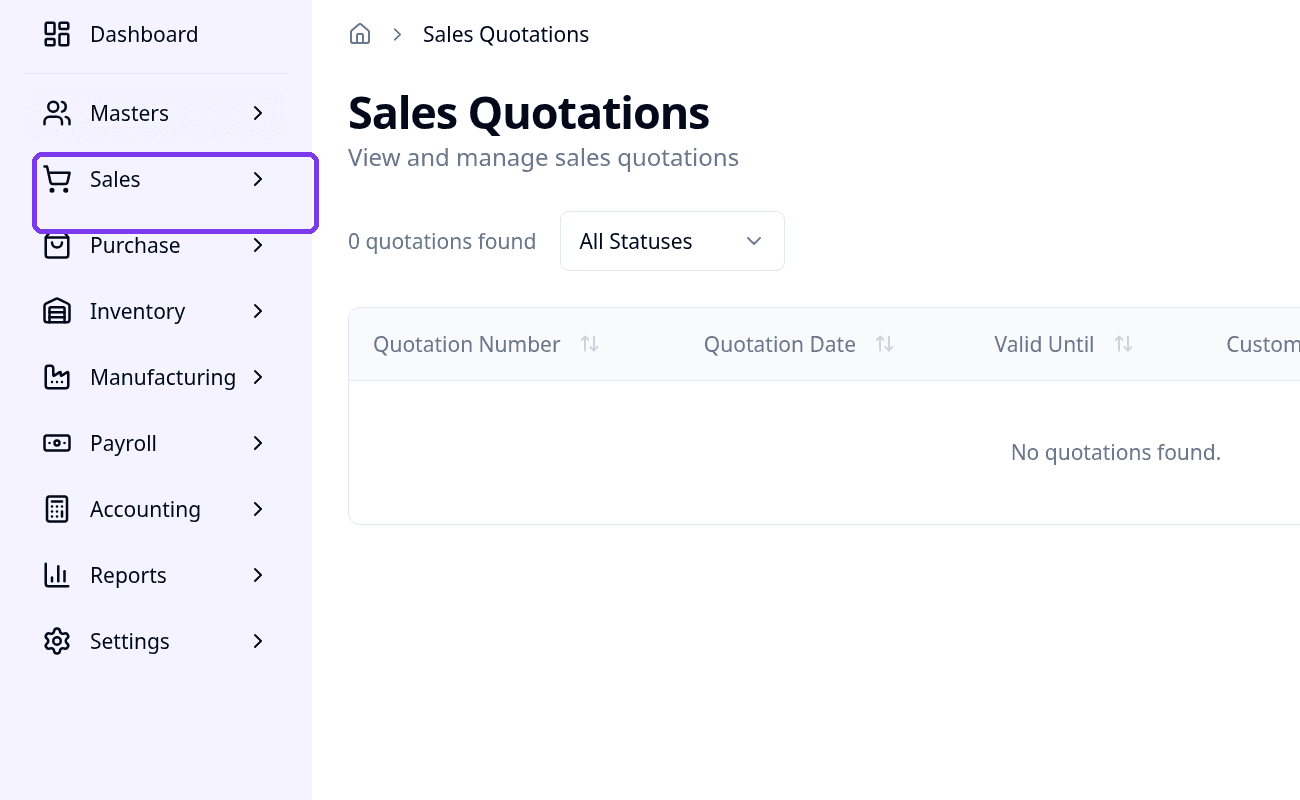
On a computer, click Sales in the left sidebar. On a phone, tap the menu button (☰) at the top left, then tap Sales.
Click or tap Sales Quotation. The Sales Quotations list opens.
Step 2: Click Create Quotation
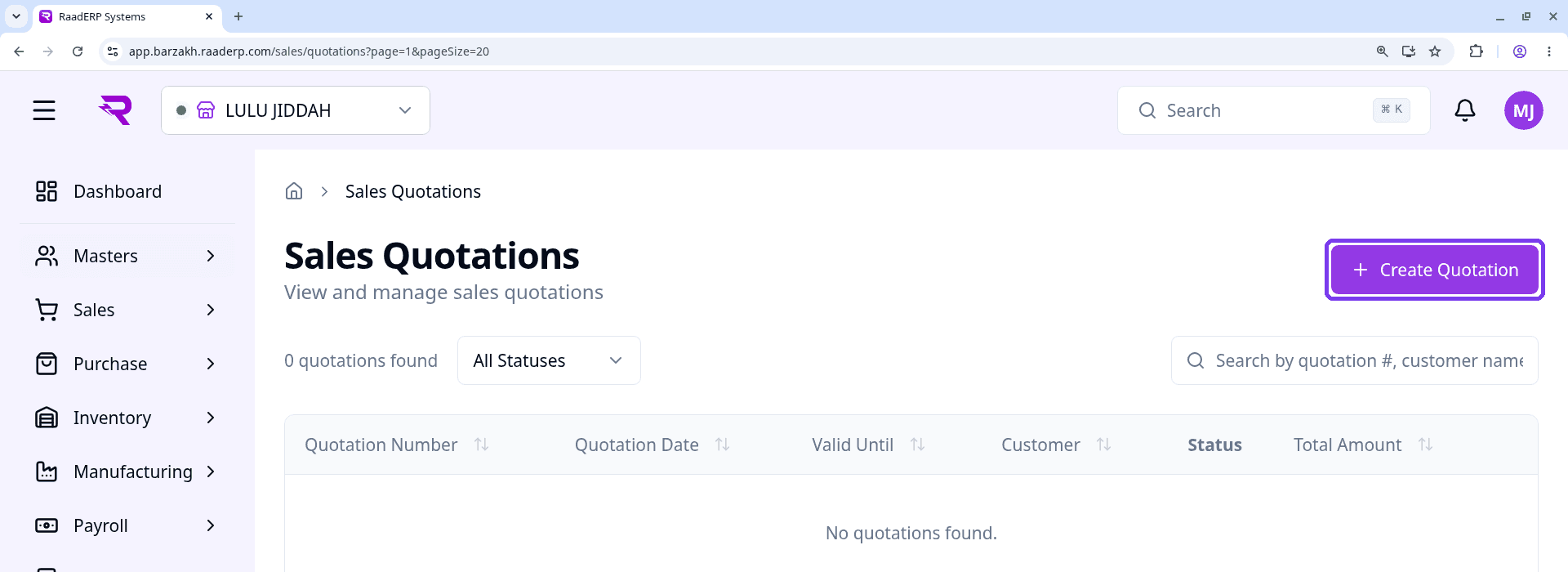
The Sales Quotations page lists your quotations with their number, date, customer, status and total amount.
Click Create Quotation at the top right. A new quotation form opens.
Step 3: Select the customer
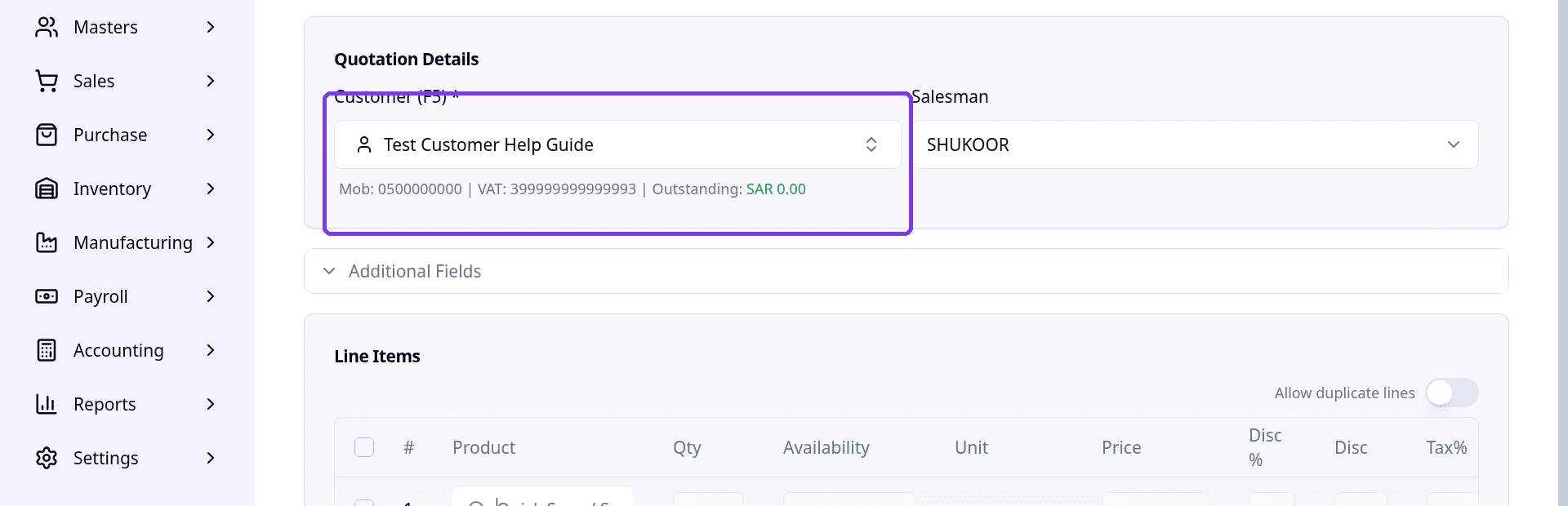
In Quotation Details, click Customer and search for the customer. Select them from the list. This field is required.
The customer's mobile, VAT number and outstanding balance appear below the field.
Step 4: Set salesman and other details (optional)
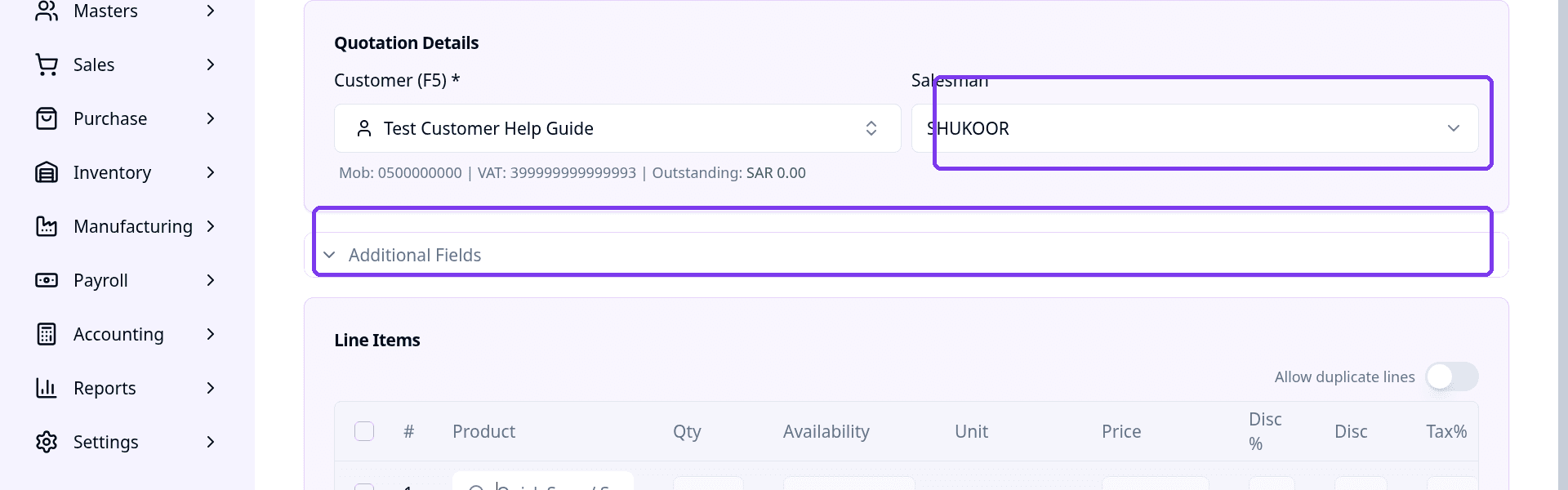
You can change the Salesman, or leave the one that is filled in for you.
Click Additional Fields to open more options. Quotation Date is required and is set to today. You can also set Valid Until, Price Type, Remarks, Notes and PO Number.
Step 5: Add products in Line Items
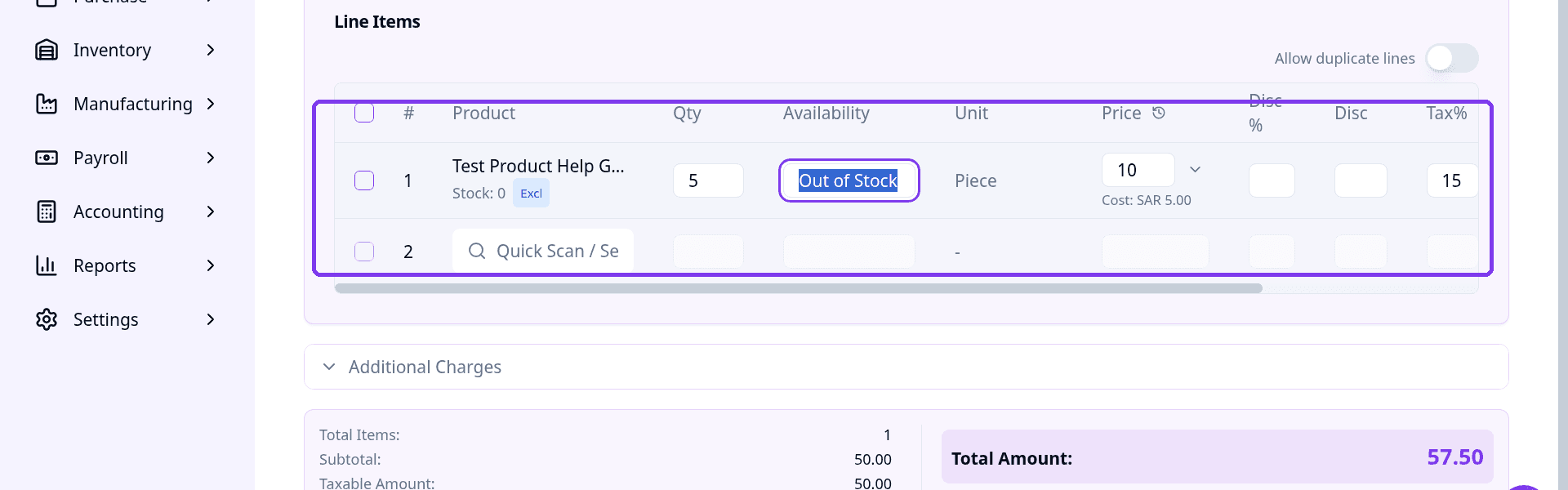
In Line Items, click the product search box and type the product name or scan its barcode. Select the product.
Enter the Qty. The Unit, Price and Tax% fill in for you. You can change the price or add a discount in Disc % or Disc.
The tax and line total are worked out for you. A new empty line appears so you can add the next product.
Step 6: Add extra charges (optional)
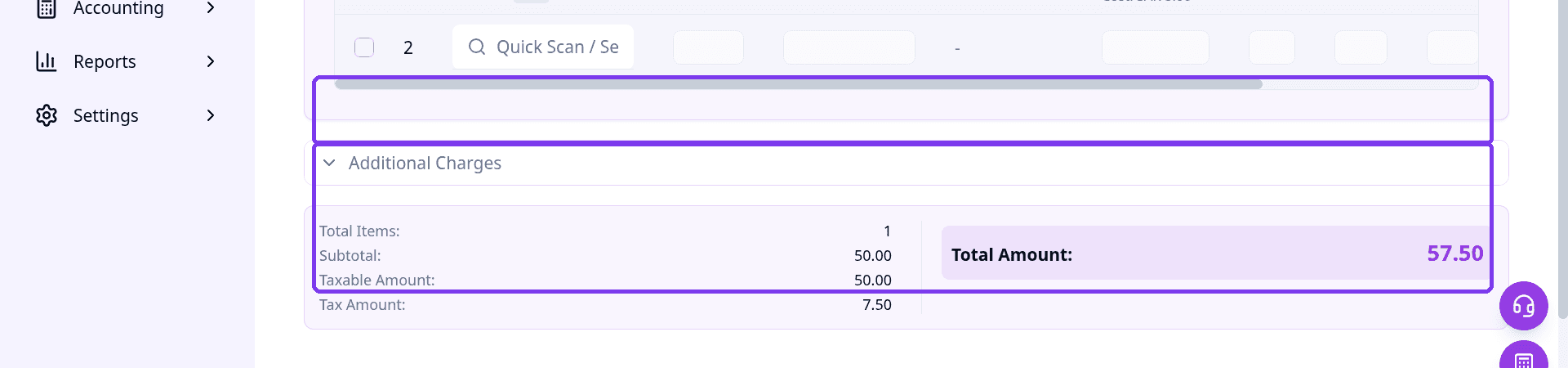
Click Additional Charges to add Shipping / Freight, Other Expenses, Cash Discount or Round Off (+/-).
Leave these at 0.00 if you do not need them. The totals on the right show the Subtotal, Tax Amount and Total Amount.
Step 7: Save or post the quotation
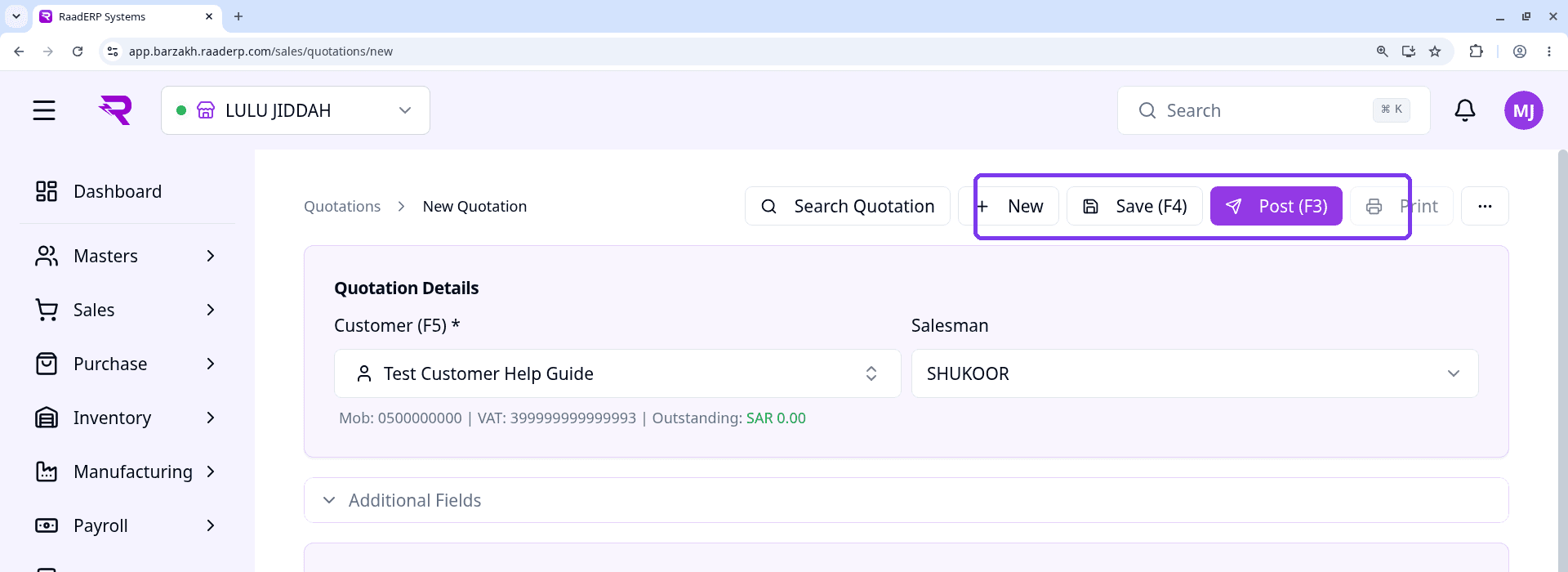
Click Save (F4) to save a draft, or Post (F3) to finalise the quotation.
Print becomes available after you save. After a product line is added, a Convert to Invoice button is also available.
Important Notes
- Customer and Quotation Date are required. Quotation Date is set to today.
- Saved drafts may not appear in the main Sales Quotations list. Use the Search Quotation button at the top of the form to find them.