
This guide shows you how to copy a sales quotation into a new sales invoice in RAAD ERP.
Go to: Sales > Sales Quotation
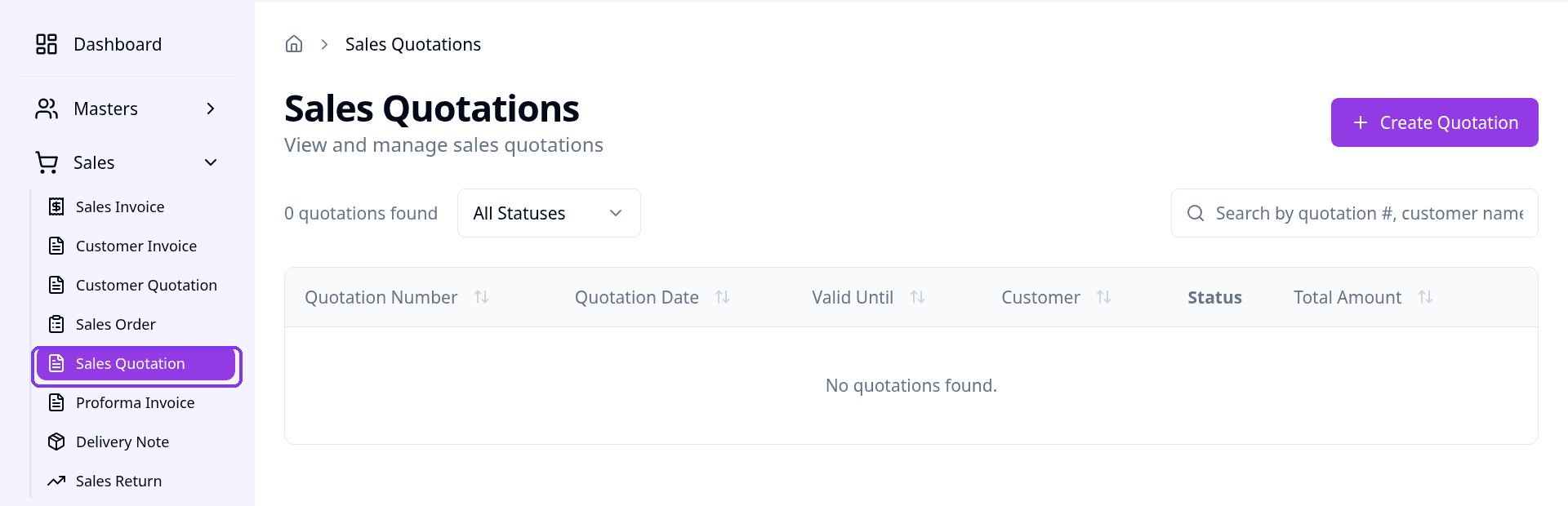
Step 1: Open the quotation
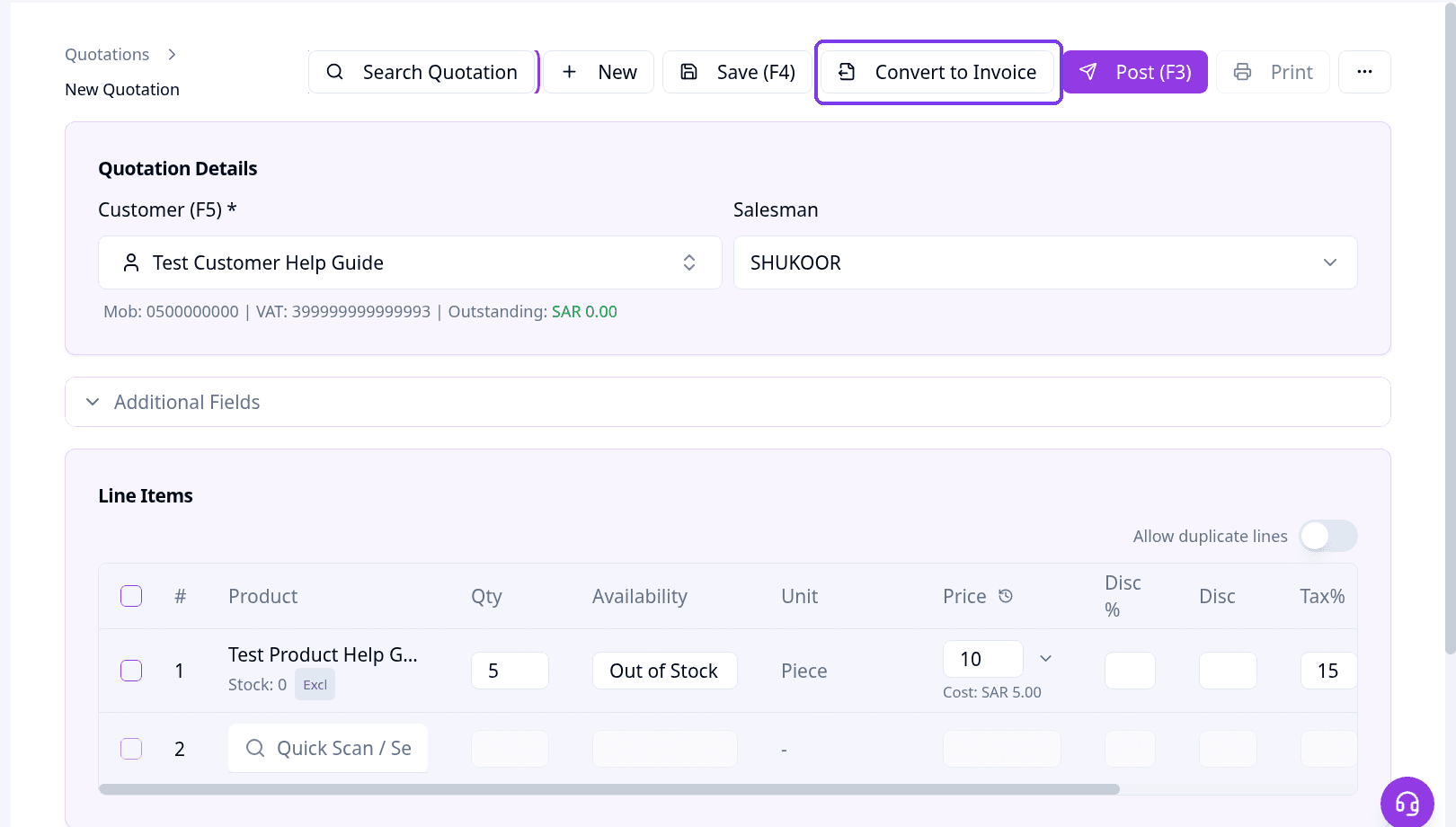
Open the quotation you want to turn into an invoice. To find a saved draft, click Search Quotation and look under Drafts.
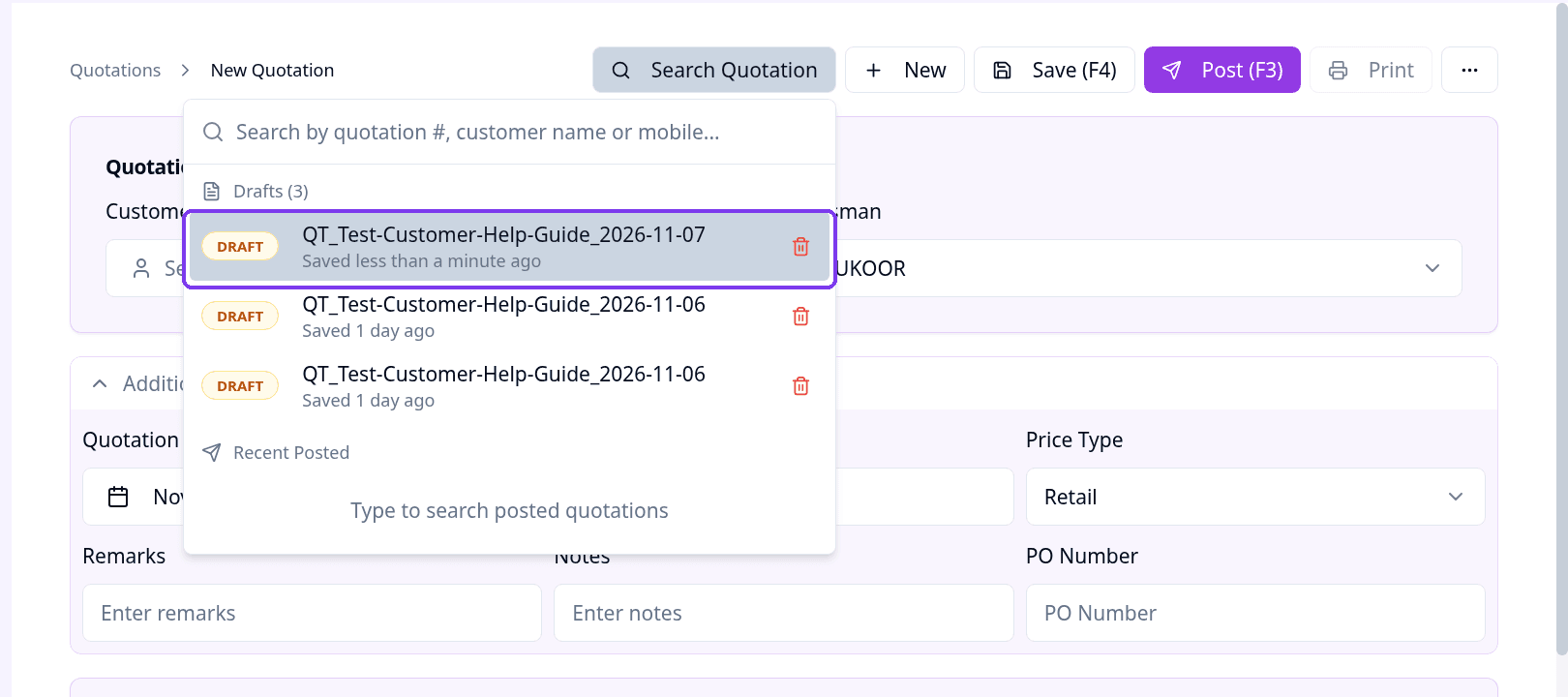
Step 2: Check the quotation
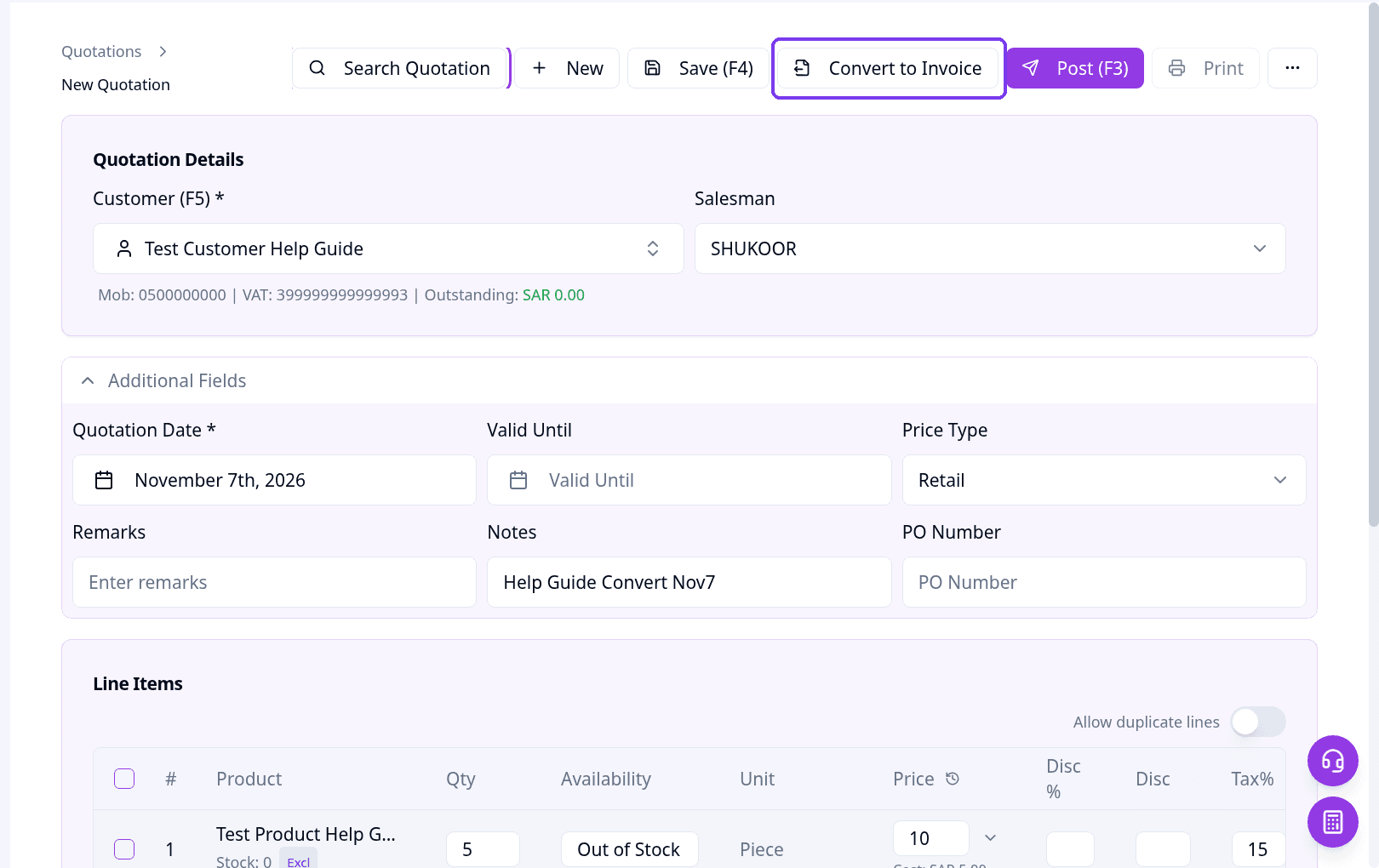
Check that the customer, products, quantities, prices and notes are correct.
Step 3: Click Convert to Invoice
Click Convert to Invoice. A new sales invoice opens, with the message "Quotation converted to Sales Invoice".
Step 4: Check every copied value
Check every copied value before you save. The Unit column may show a dash (-) instead of the unit from the quotation, so check it. The invoice is a new draft and is not saved yet.
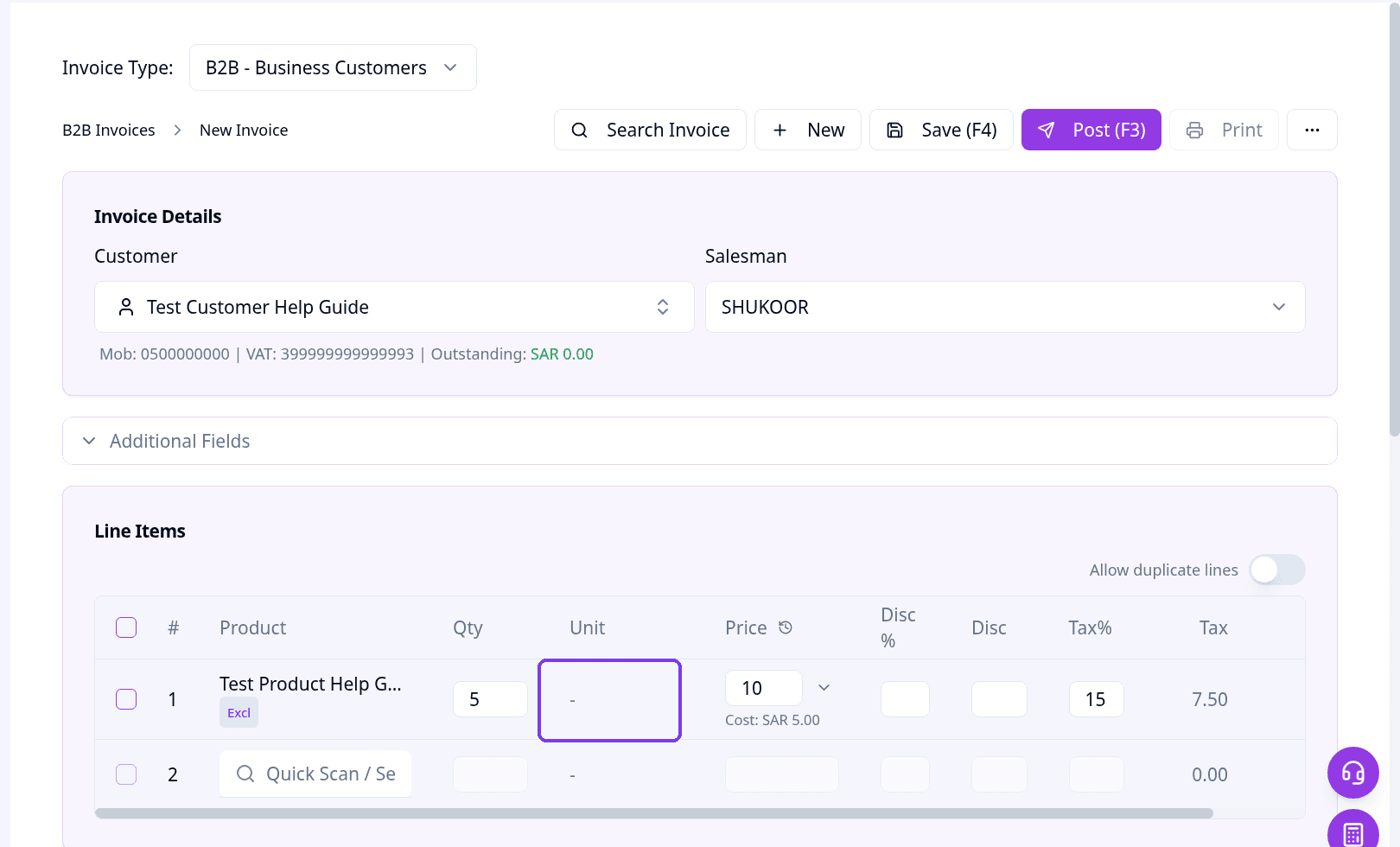
Also check invoice details that were not on the quotation, such as the payment method and account. Some quotation fields may not be copied, so add them again if you need them.
Step 5: Finish the invoice
Finish the invoice with Save (F4) or Post (F3). The quotation itself stays a draft after converting.
Important Notes
- The converted invoice is an unsaved draft. Check the Unit column before you save.
- The quotation stays a draft after converting.