
Use a Customer Quotation to quote a service or charge. You enter description and rate lines; there is no product or unit field.
Go to: Sales > Customer Quotation
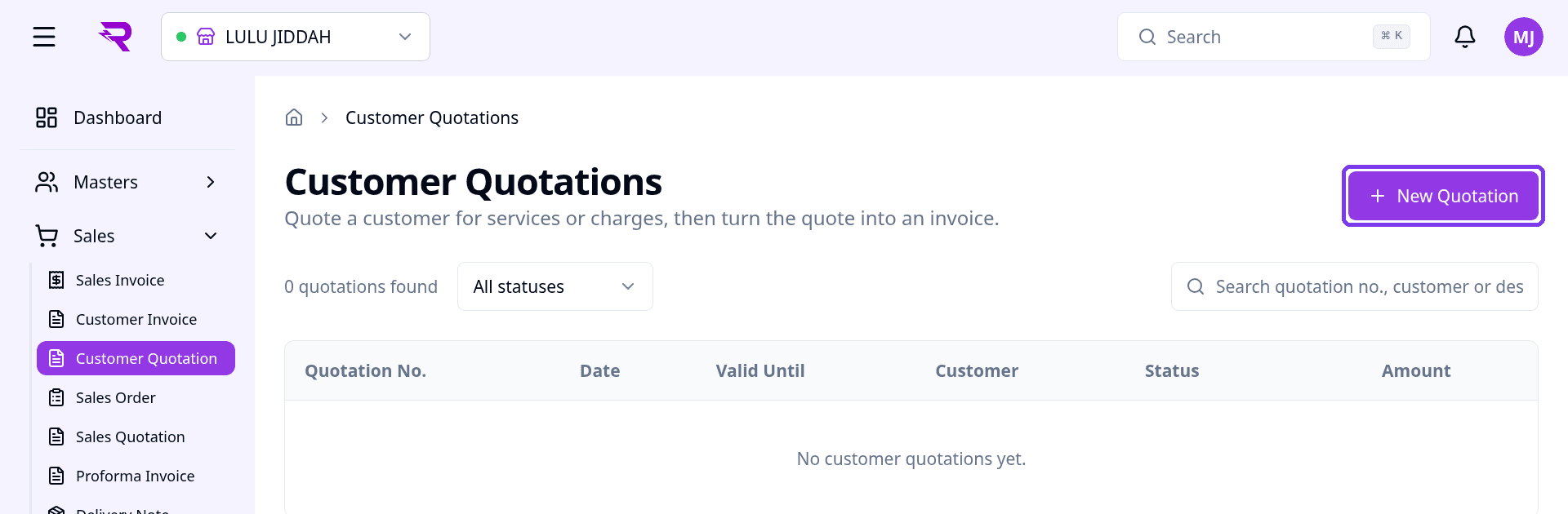
Step 1: Click New Quotation
The Customer Quotations page lists existing quotations. Click New Quotation.
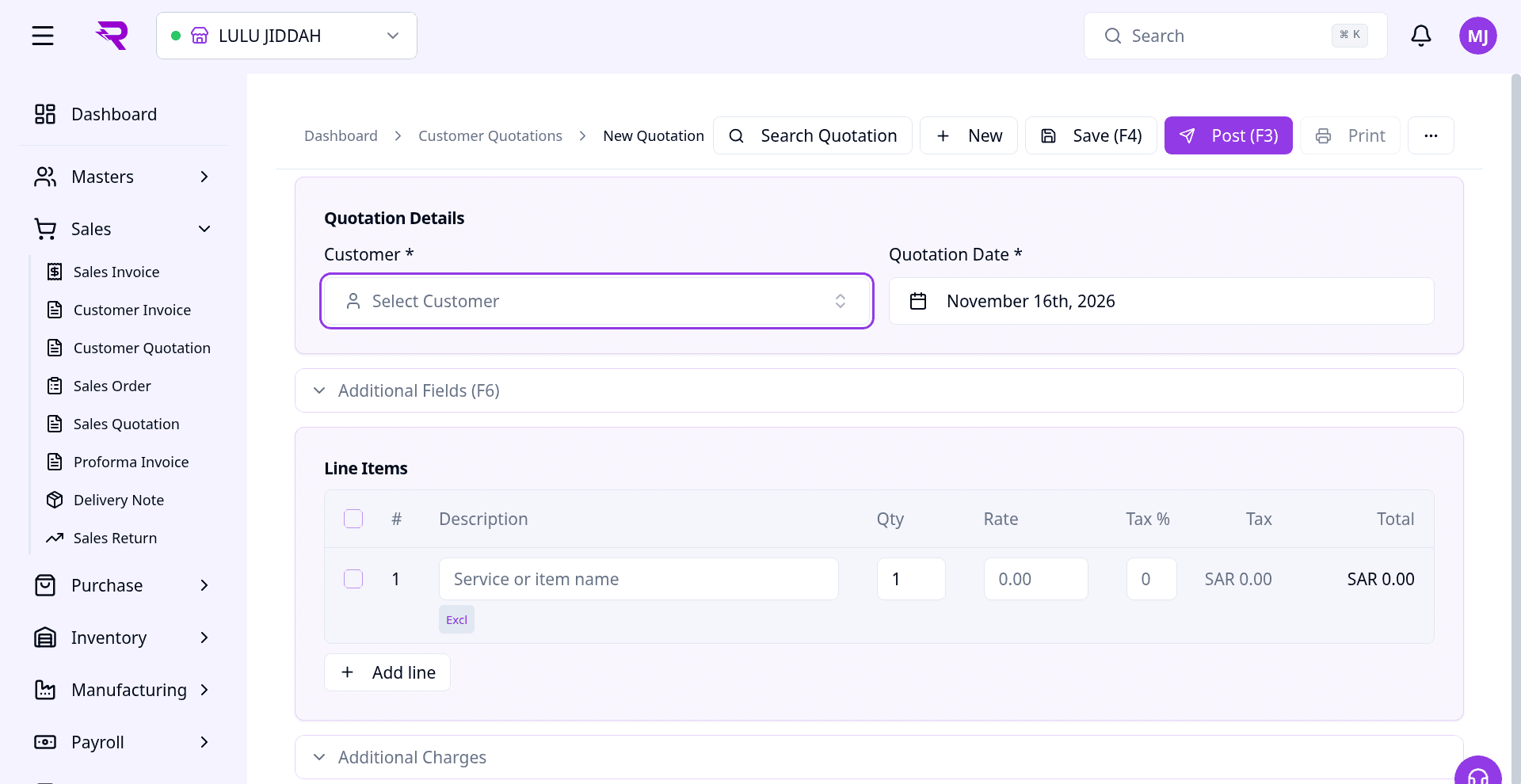
Step 2: Enter the quotation details
Customer and Quotation Date are required. Quotation Date is filled in; change it if needed.
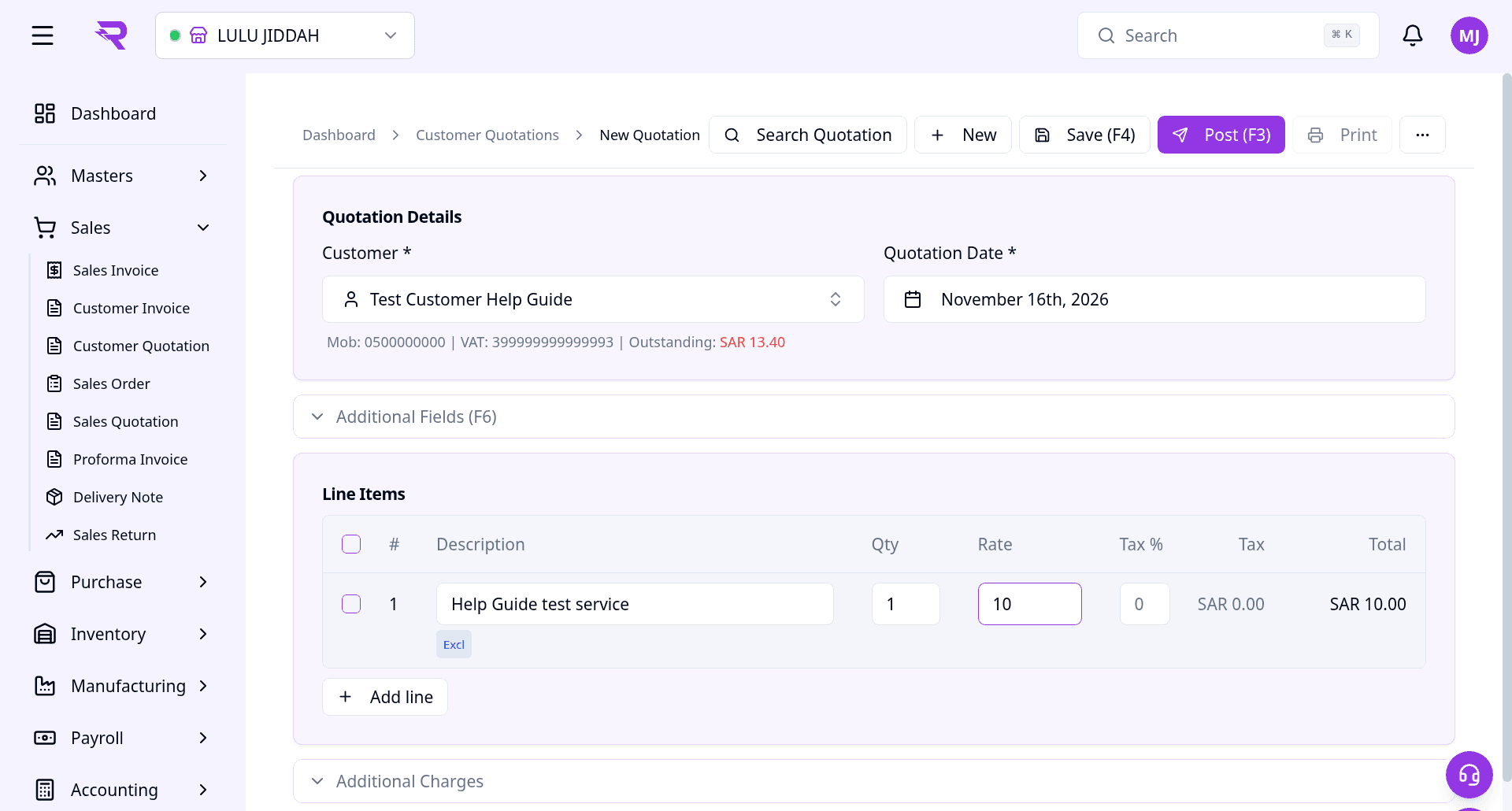
Step 3: Add a description and rate
Add a line with a Description and a Rate. Quantity defaults to 1.
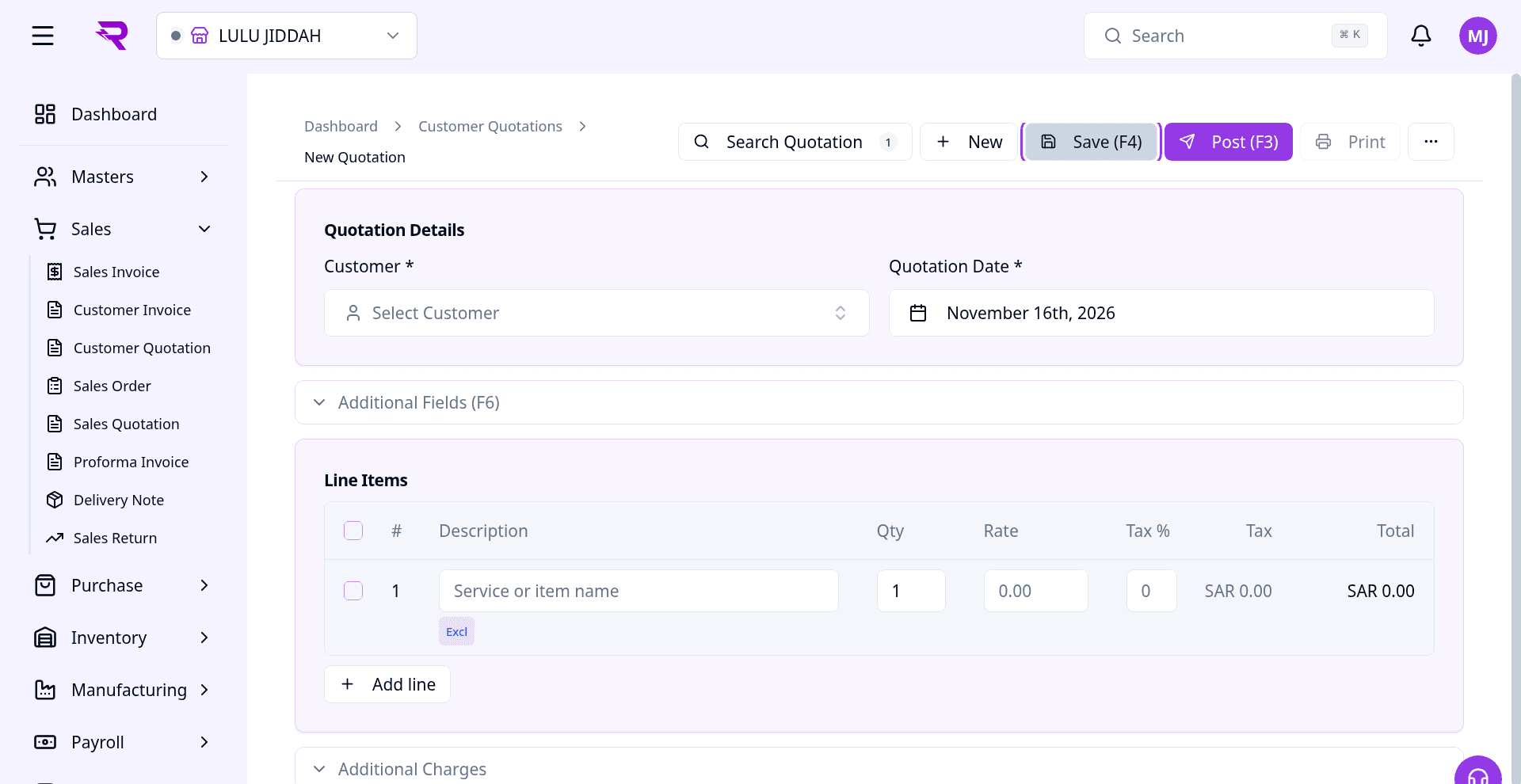
Step 4: Save the draft
Click Save (F4). The form clears so you can start another quotation. A badge on Search Quotation shows the saved draft; you can reopen it from there.
Step 5: Post the quotation
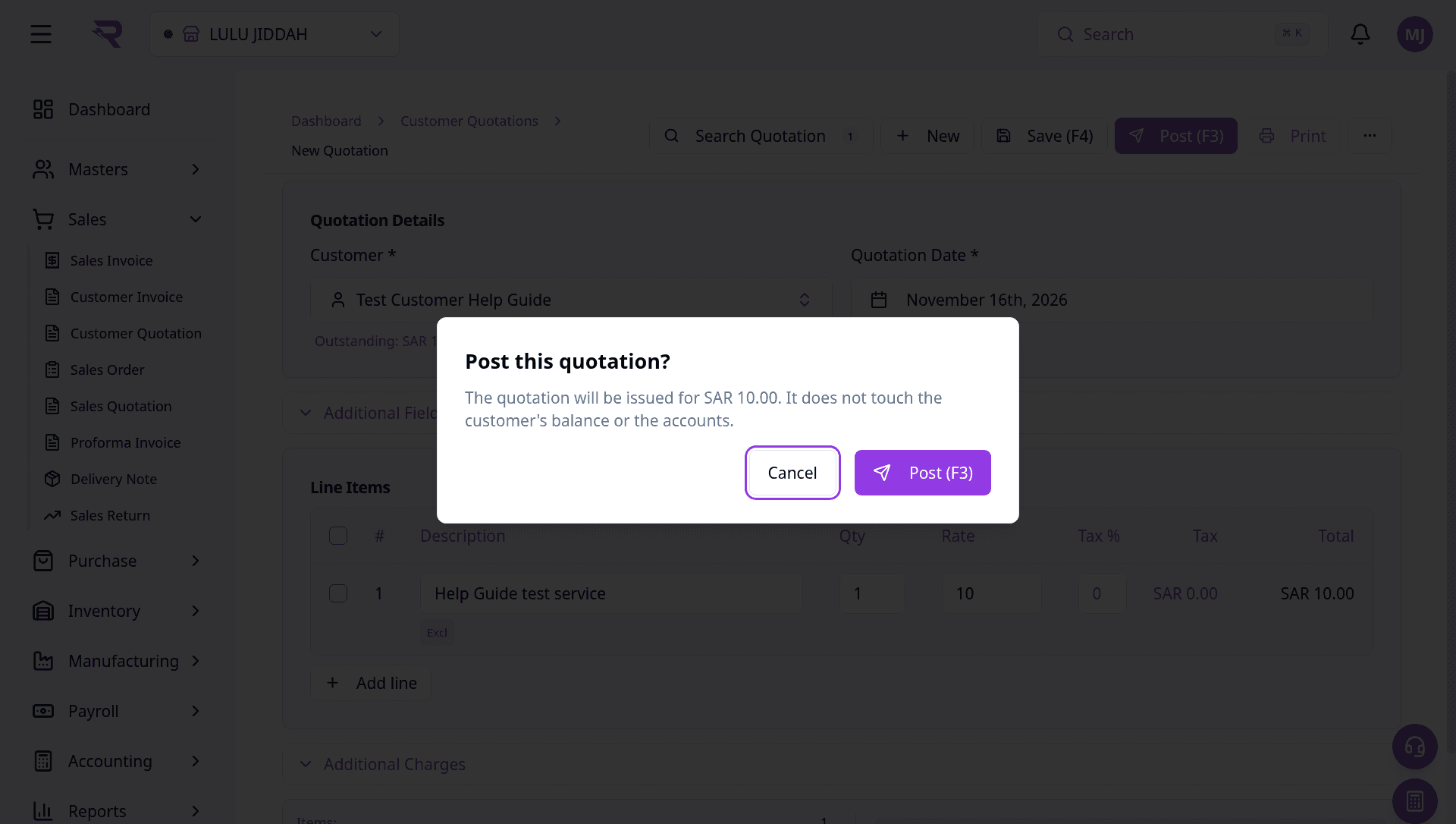
Click Post (F3). A confirmation says posting does not touch the customer's balance or the accounts, and that the quotation can later be converted to an invoice or cancelled.
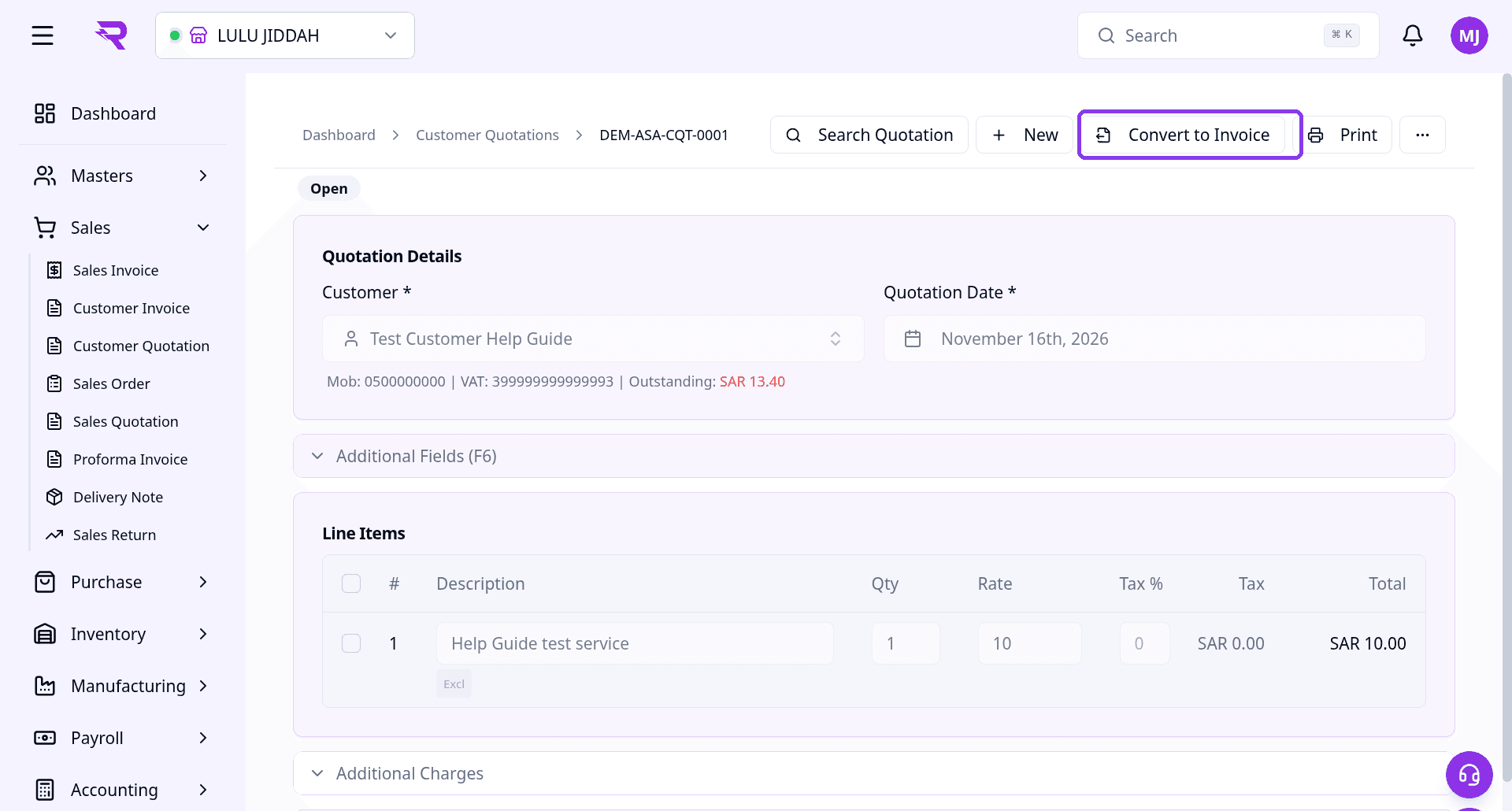
After you confirm, the quotation is numbered in the Customer Quotation series and its status is Open. Convert to Invoice appears on the toolbar.
Important Notes
- Convert to Invoice is available after you post the quotation. This guide does not cover the conversion steps.