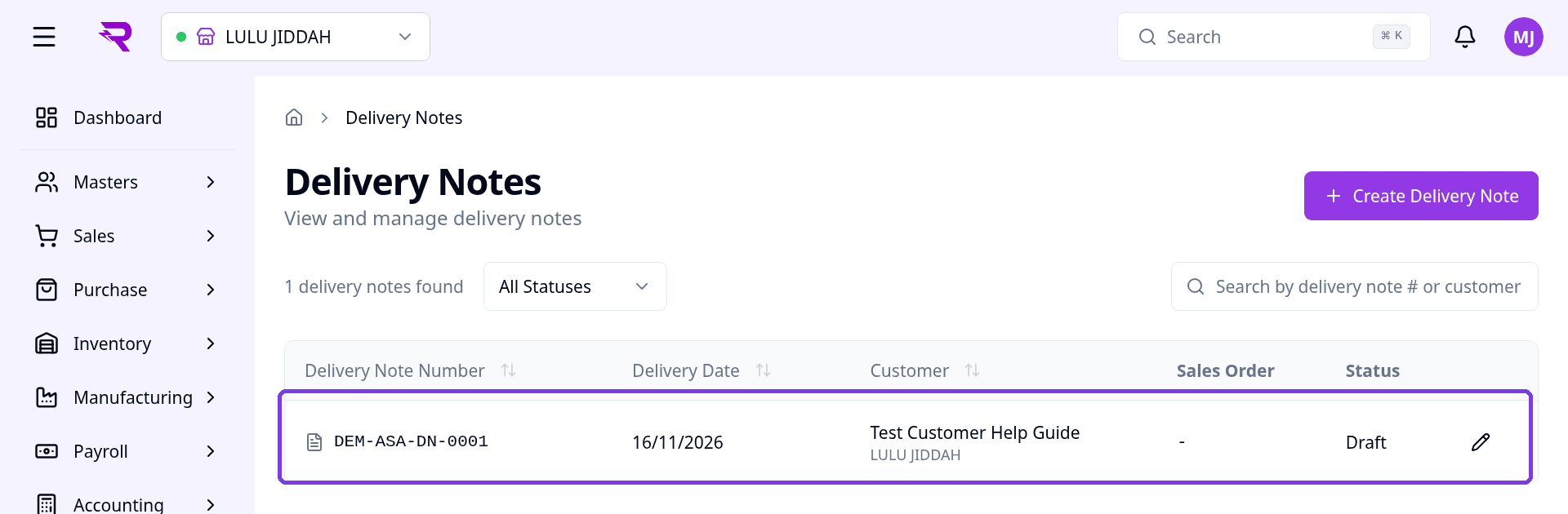
This guide shows you how to create a delivery note, save it as a draft, and post it.
Go to: Sales > Delivery Note
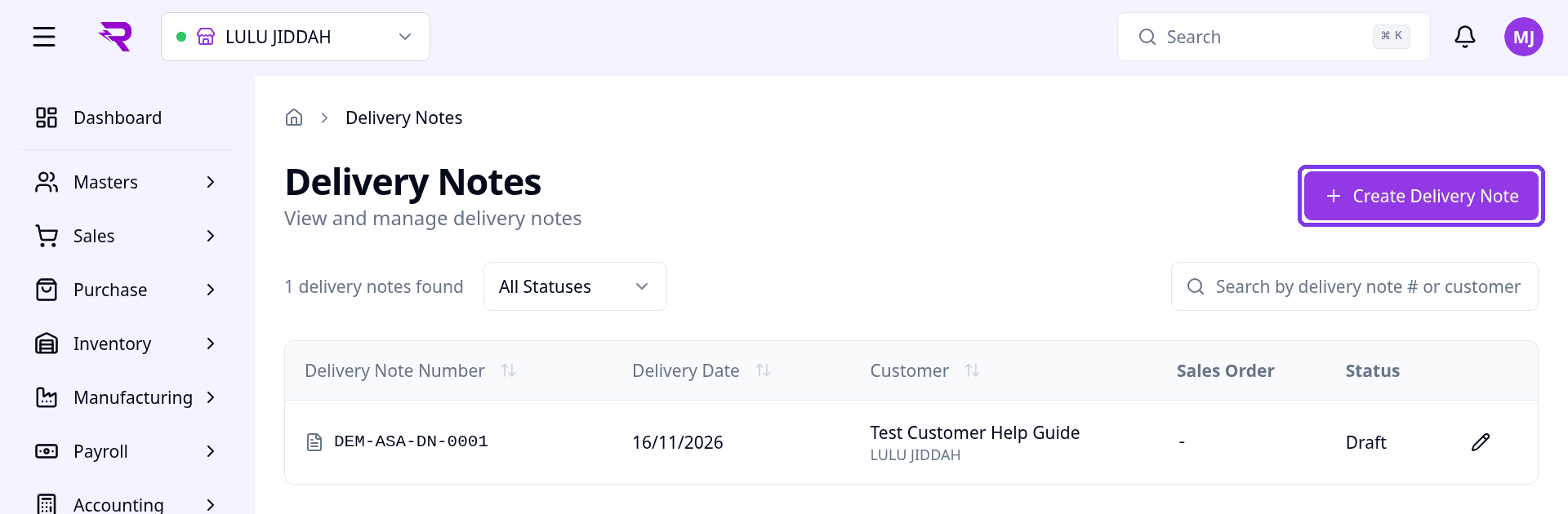
Step 1: Click Create Delivery Note
The Delivery Notes page lists existing notes. Click Create Delivery Note.
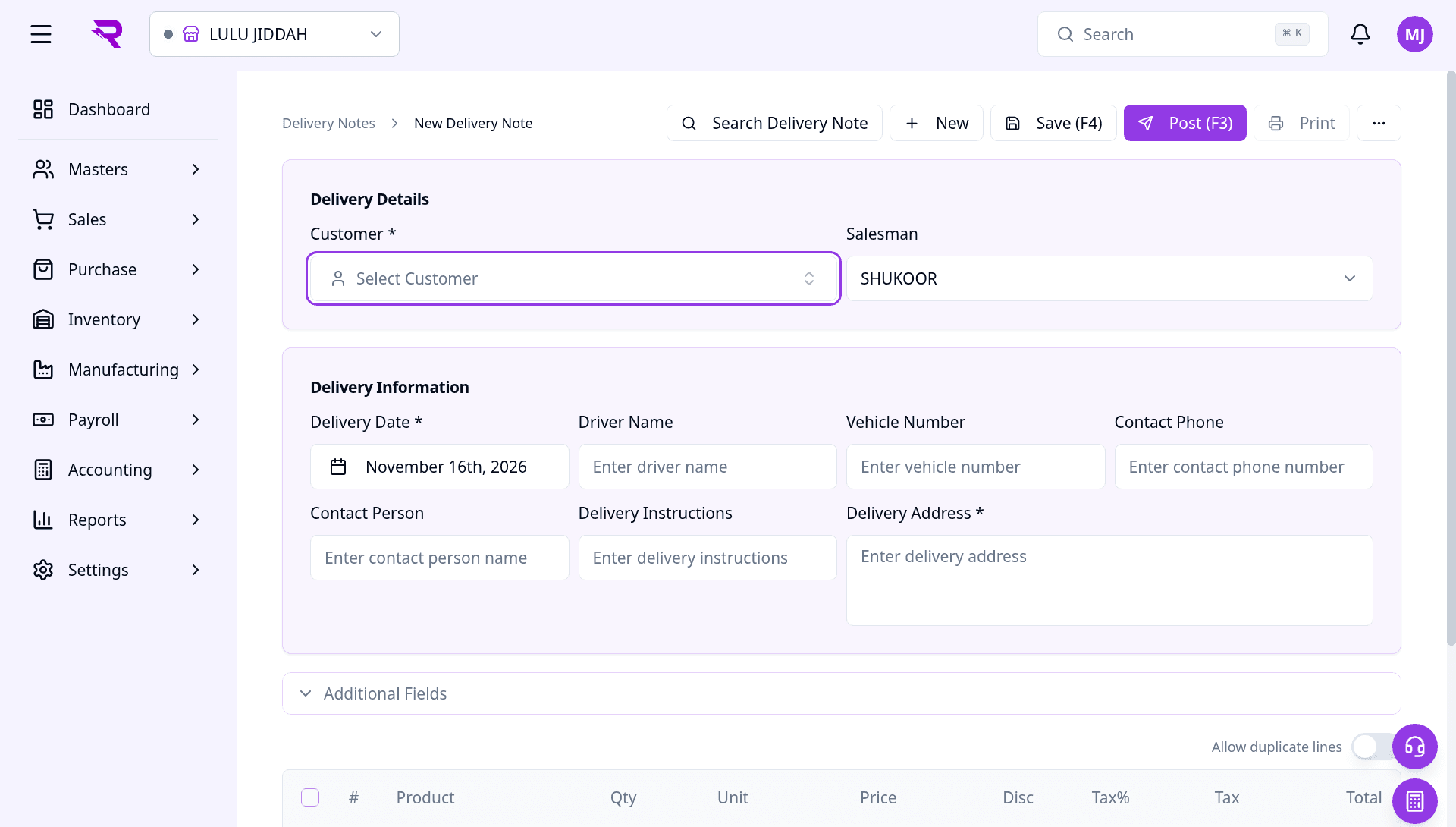
Step 2: Enter the delivery details
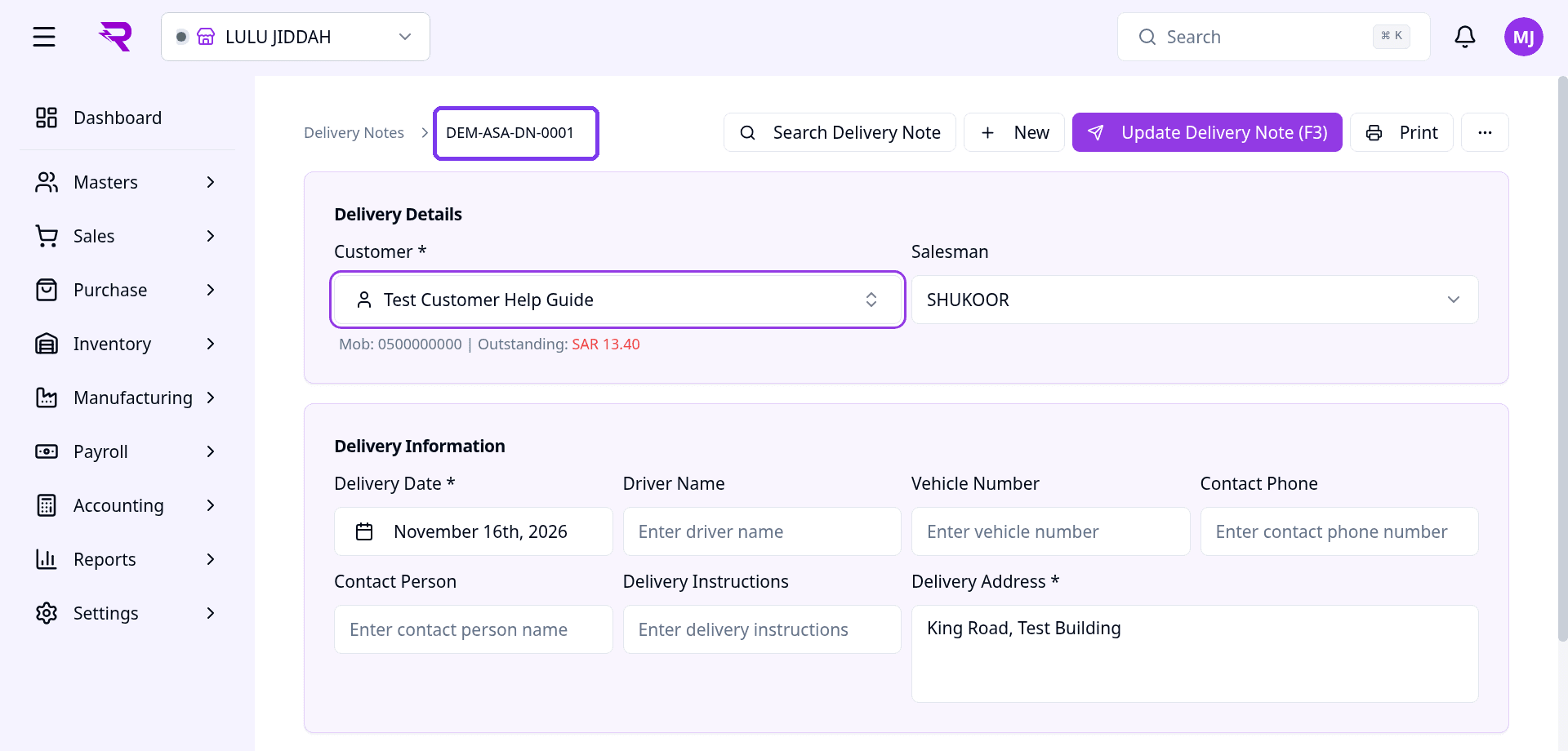
Customer, Delivery Date, and Delivery Address are required. Delivery Date is filled in; change it if needed. Other fields include Salesman, Driver Name, Vehicle Number, Contact Phone, Contact Person, and Delivery Instructions.
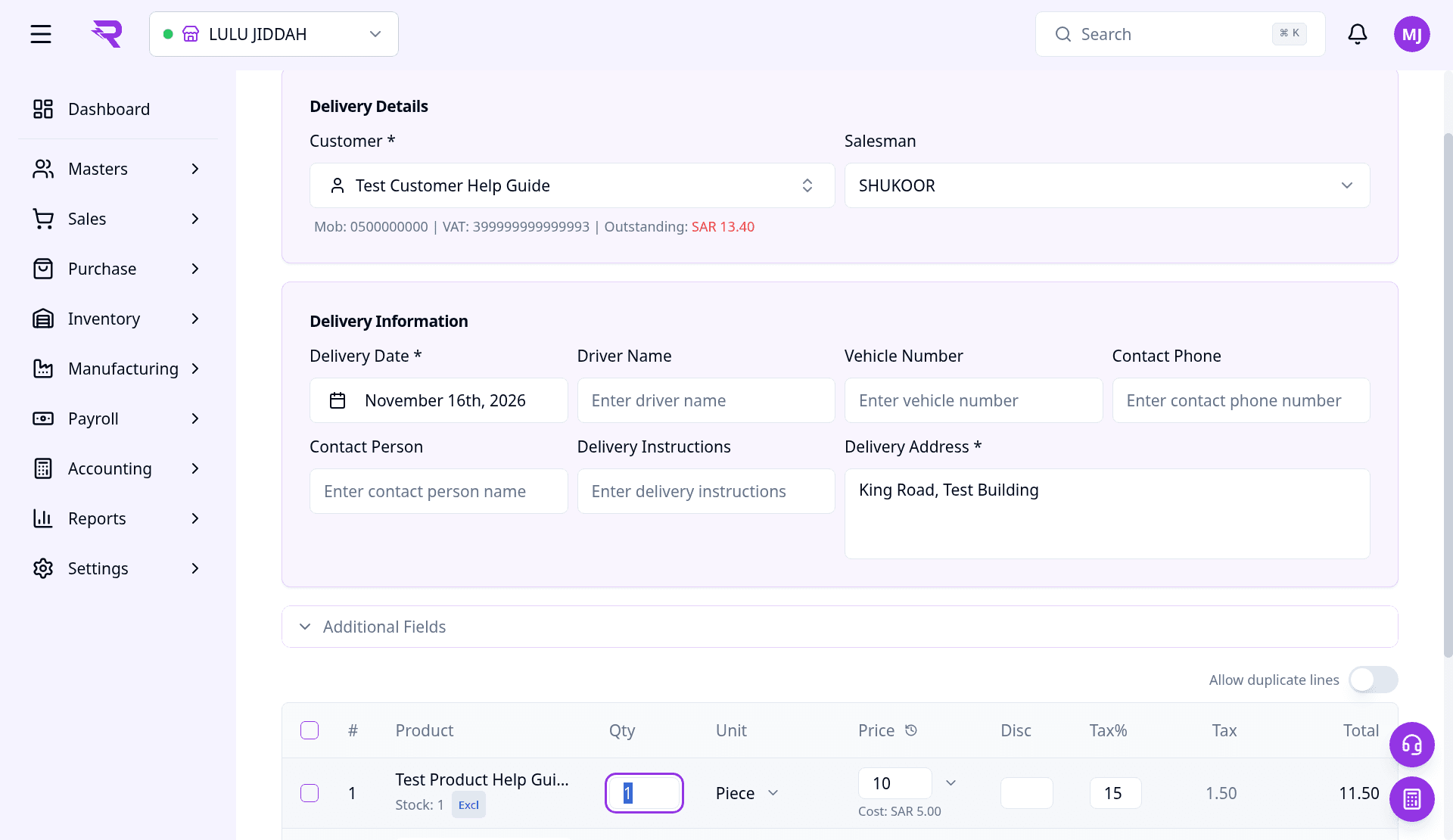
Step 3: Add a product
Select a customer; Delivery Address may fill in from the customer record. Add a product line and set the quantity if you need to change it.
Step 4: Save the draft
Click Save (F4). A toast confirms the draft is saved; you can reopen it from Search Delivery Note.
Step 5: Post the delivery note
Click Post (F3). A confirmation dialog shows the new delivery note number and asks if you want to print it. Choose Skip if you do not want to print. The number appears on the form.
Step 6: Check the Delivery Notes list
The list shows the note with its number. In this walkthrough, the status is Draft.