
This guide shows you how to add an asset account in the chart of accounts, using the Asset type and a parent such as Fixed Assets.
Go to: Accounting > Chart of Accounts
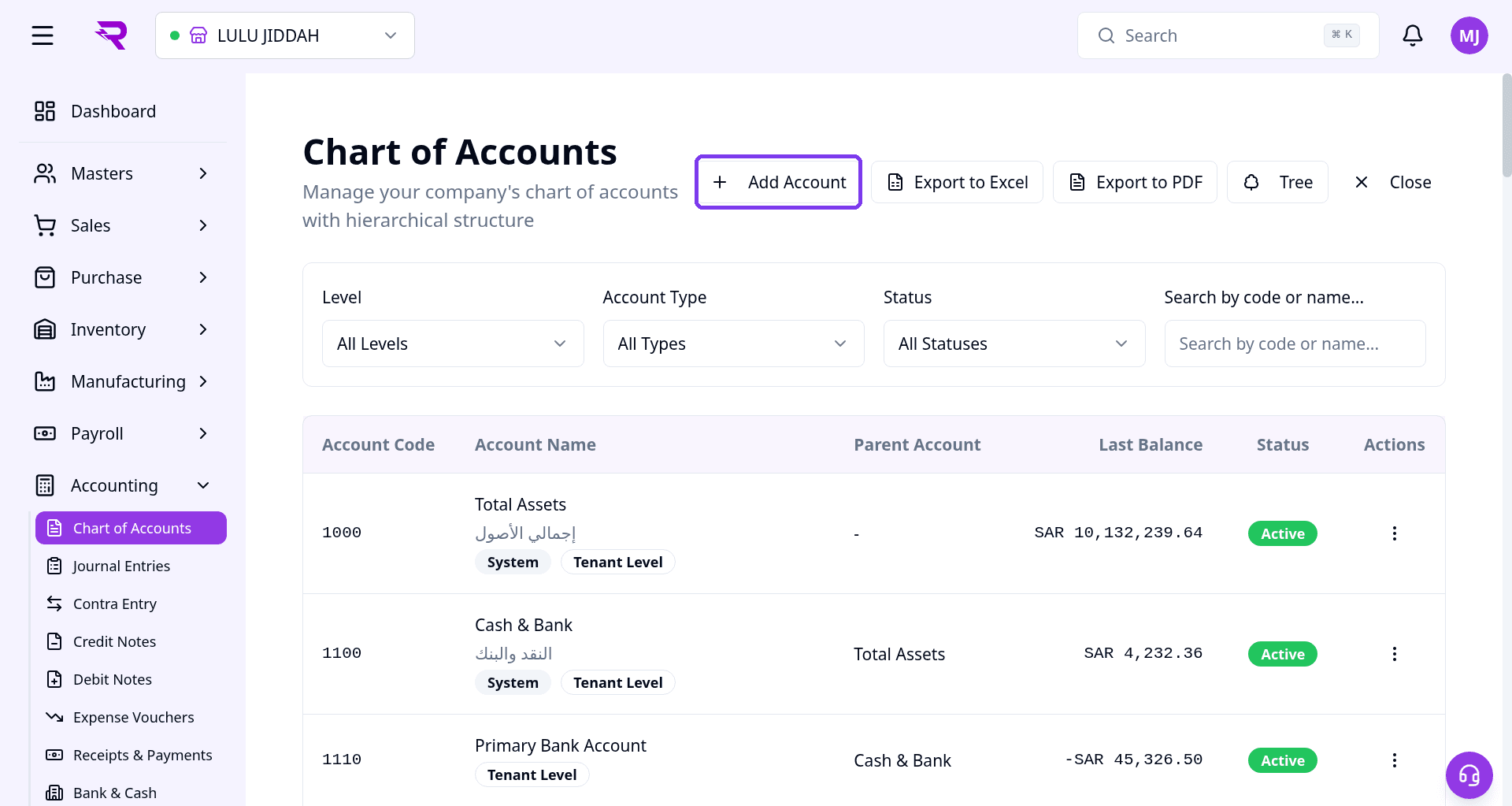
Step 1: Click Add Account
Click Add Account to open the form.
Step 2: Enter the asset account details
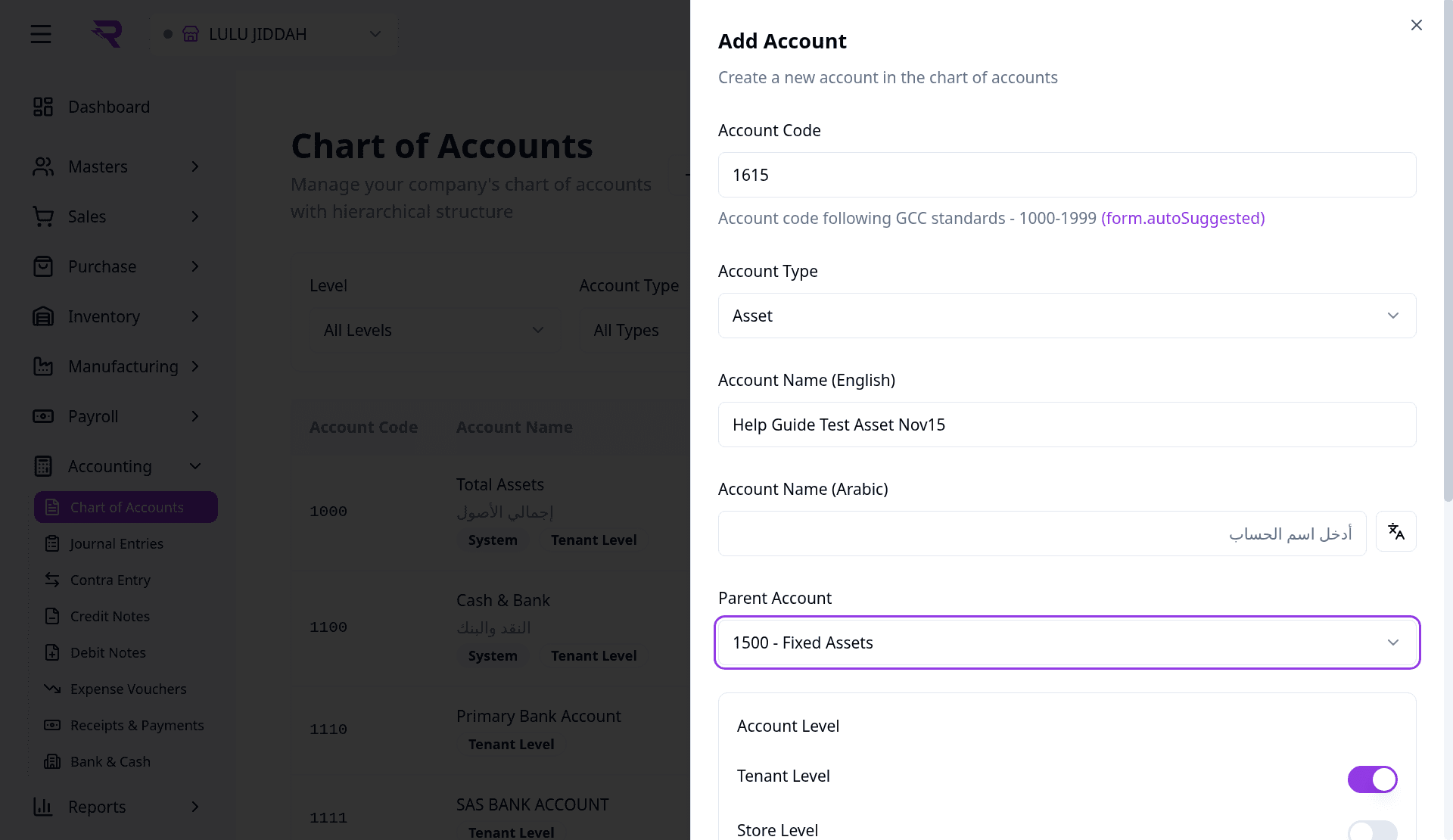
Keep Account Type as Asset (it defaults to Asset) and use the auto-suggested account code in the 1000–1999 range. Enter the Account Name (English) and the required Account Name (Arabic) — even if it has no asterisk — and choose a Parent Account such as Fixed Assets if the account belongs to that group.
Step 3: Click Create Account
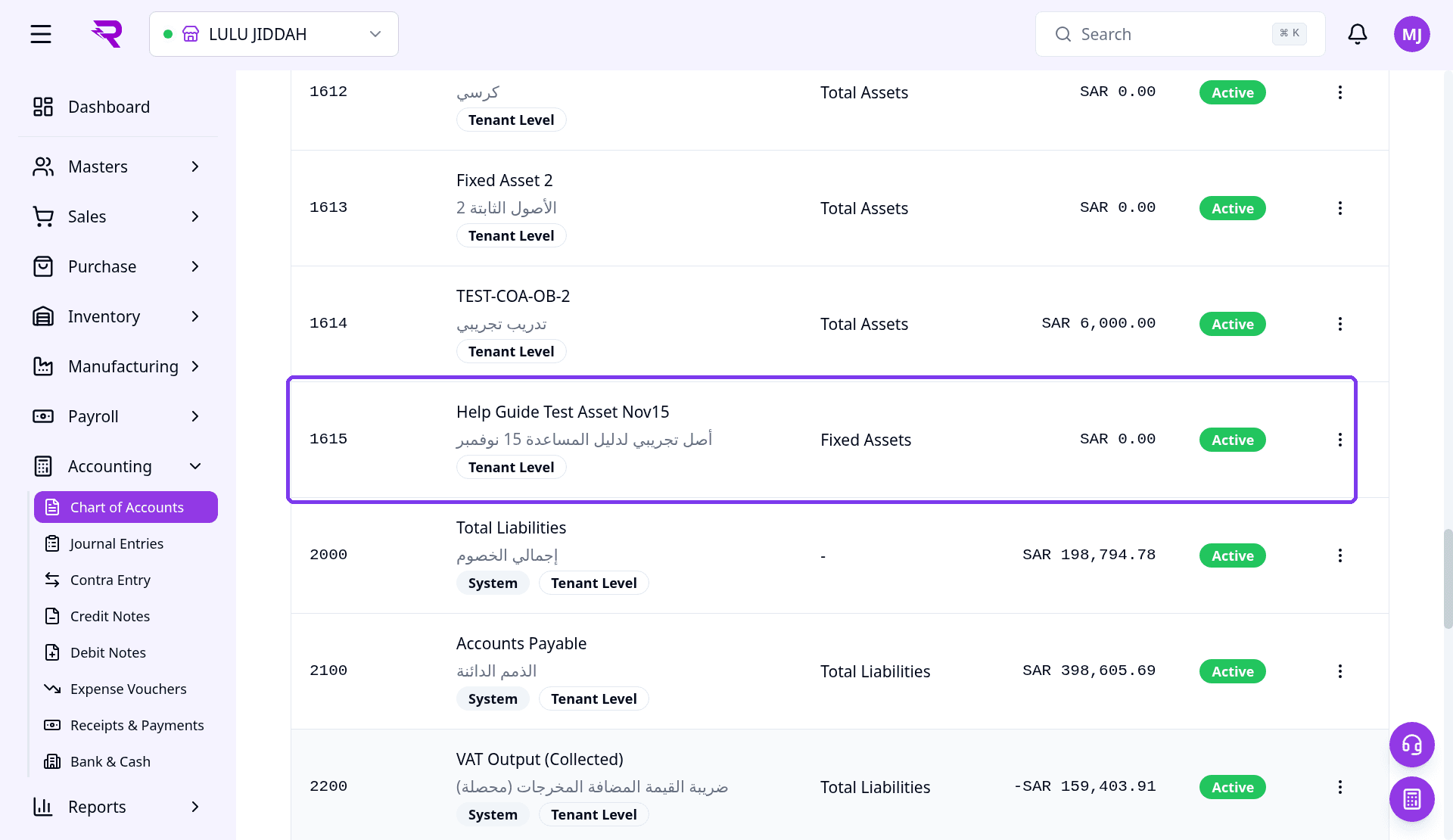
Click Create Account. The form closes and the new account appears in the list.
Important Notes
- Leave Opening Balance and As of Date blank unless you are moving existing books into RAAD ERP.