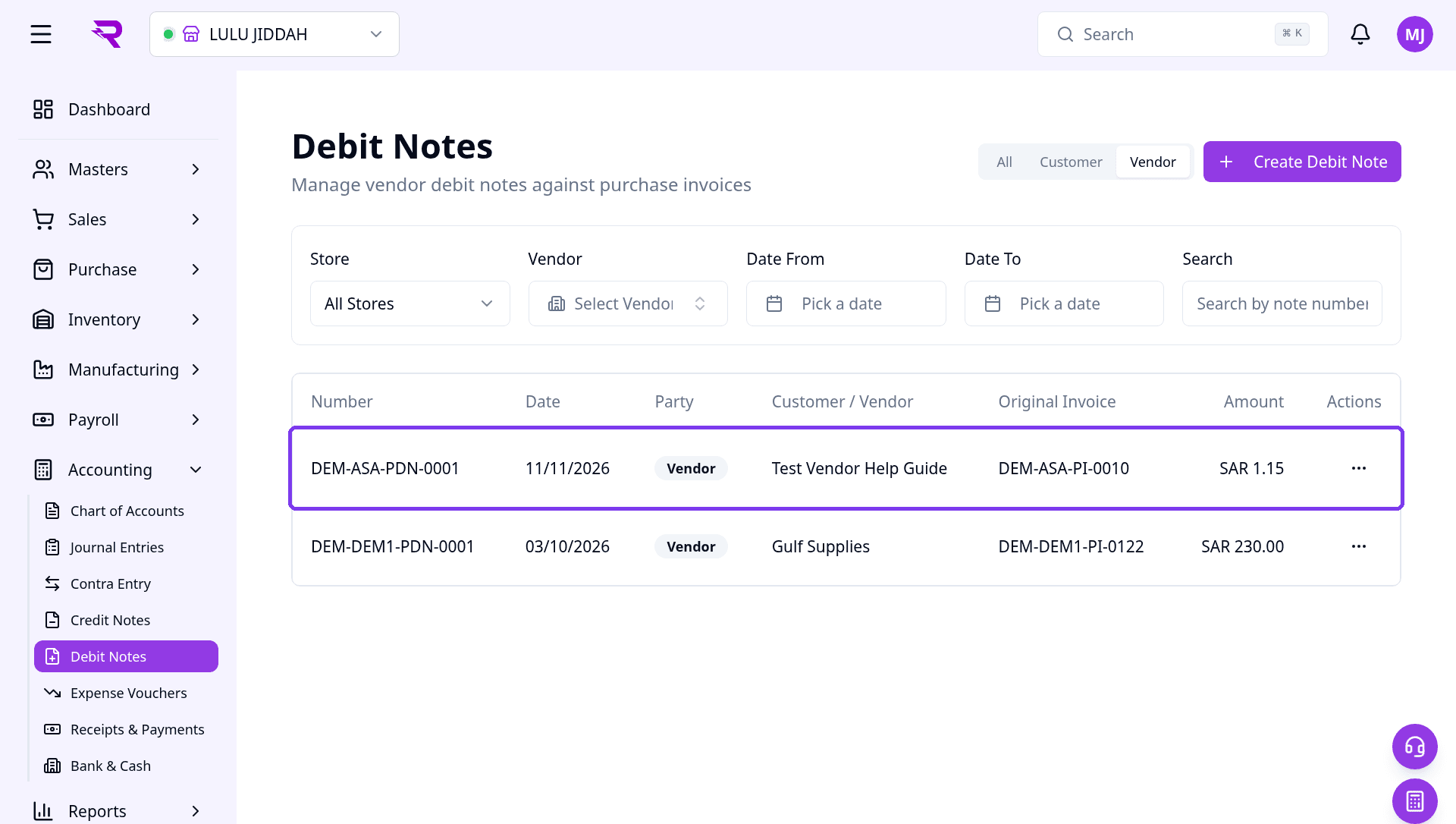
This guide shows you how to create a debit note against a vendor in RAAD ERP.
Go to: Accounting > Debit Notes
Step 1: Open a vendor debit note
Select the Vendor tab, then click Create Debit Note.
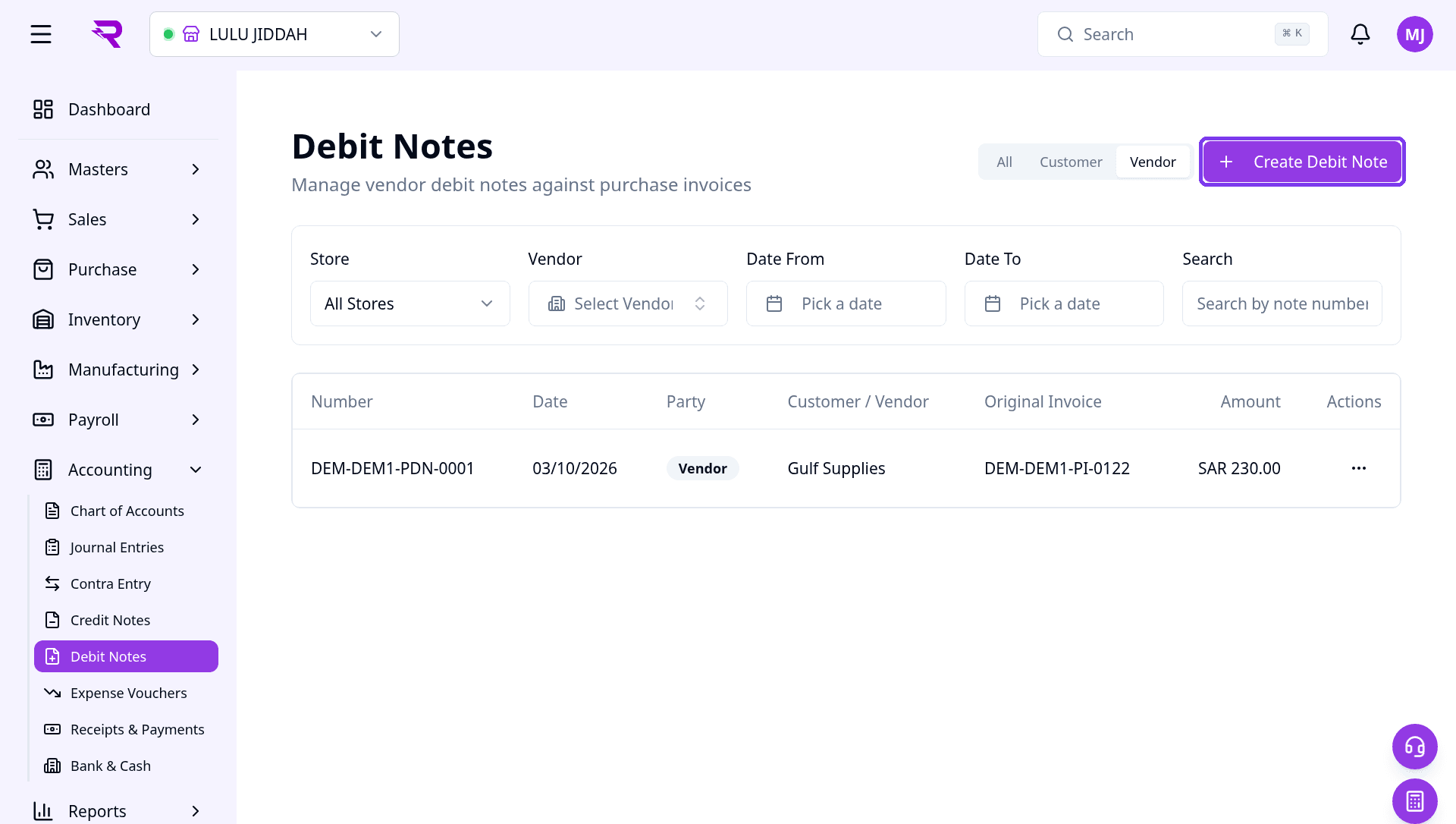
Step 2: Enter the debit note details
Vendor, Purchase Invoice, Note Date, and Reason are required. Purchase Invoice stays disabled until you select a vendor. On Additional Charges, enter Description, Qty, and Unit Price, and use the Charge selector if you need a type such as Freight or Other.
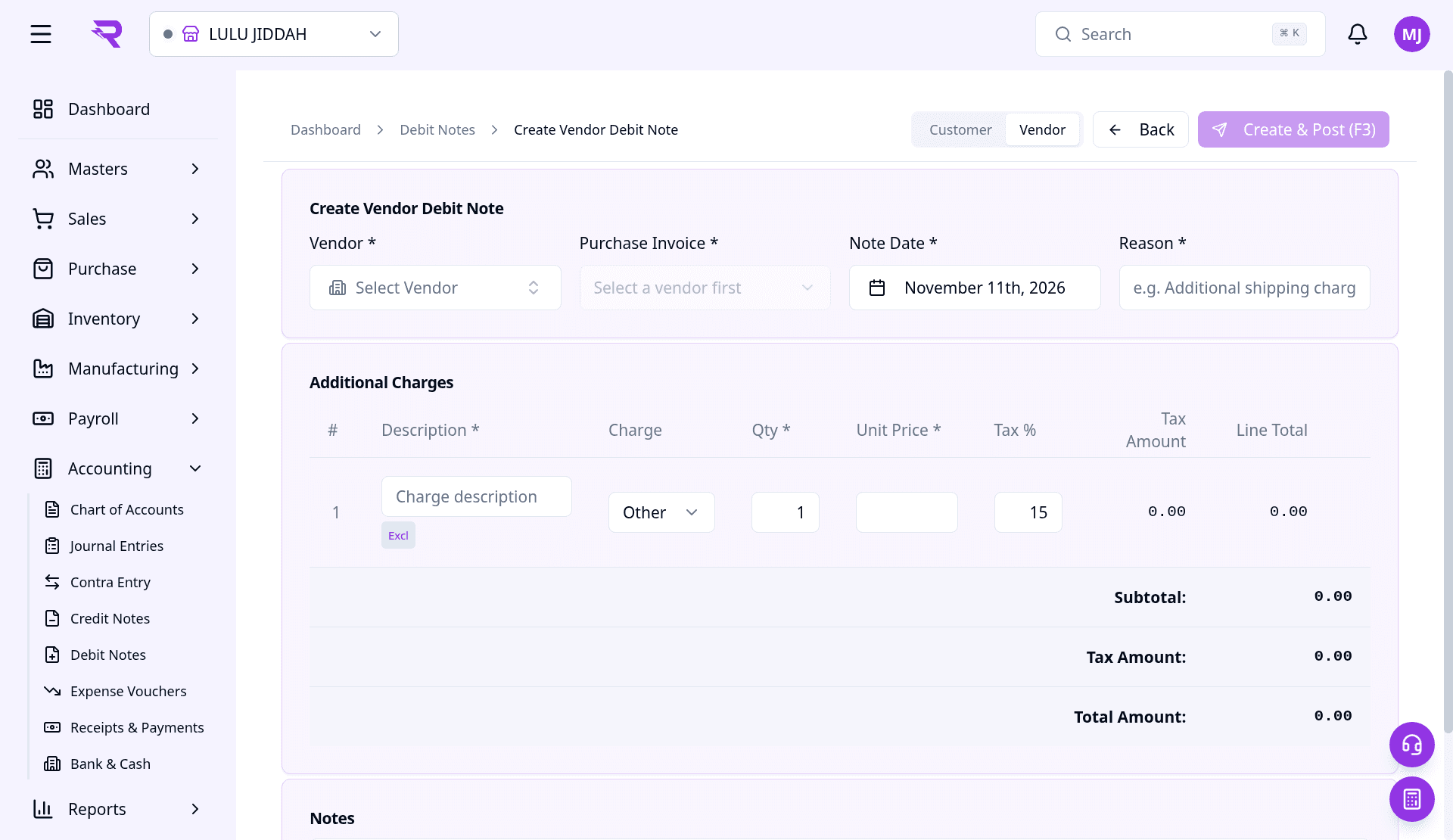
Step 3: Post the debit note
Click Create & Post (F3). The note appears in the list, and a success toast reads “Vendor note posted.”