
This guide shows you how to record a vendor payment and post it.
Go to: Accounting > Receipts & Payments
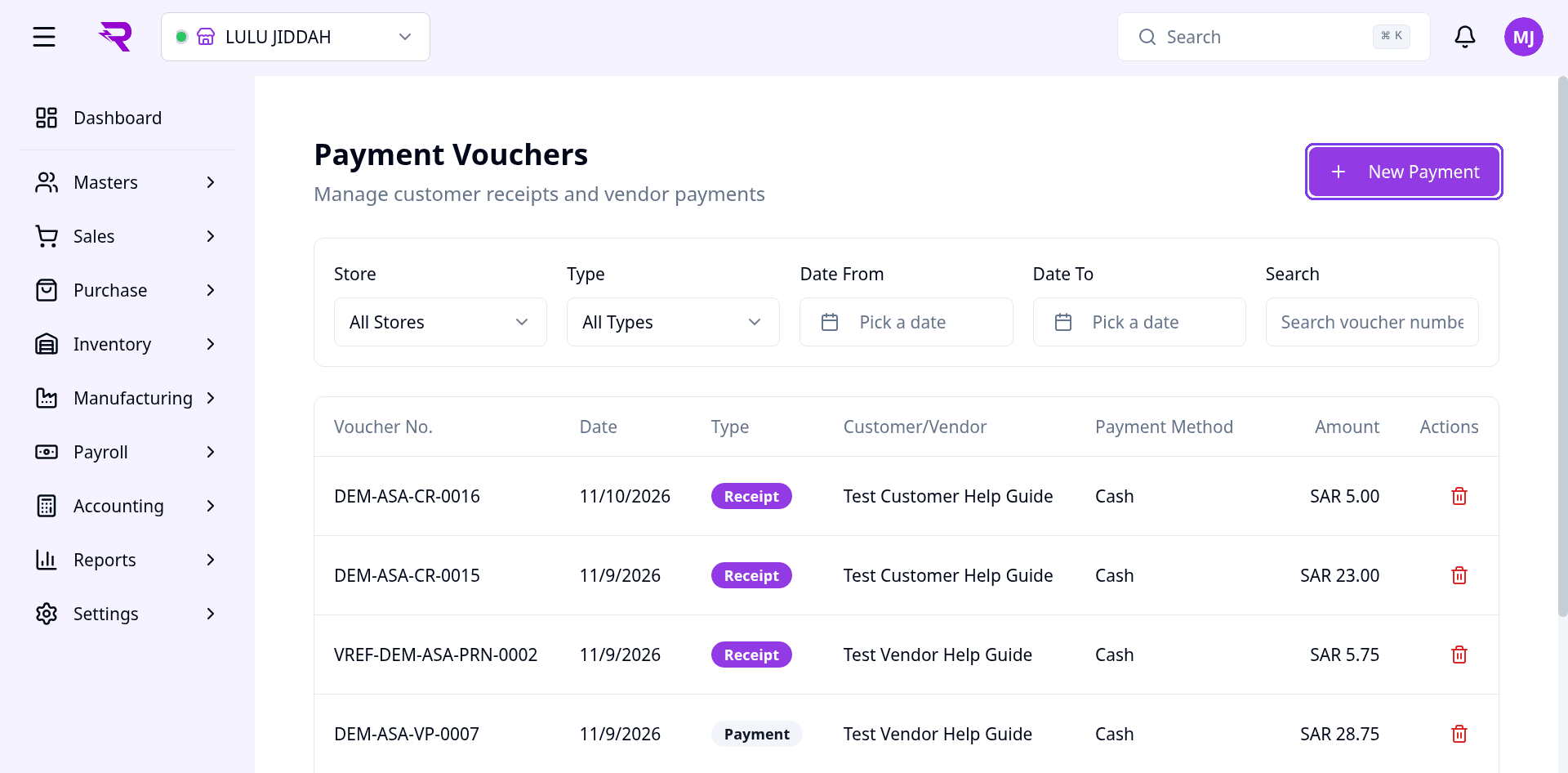
Step 1: Click New Payment and choose Vendor Payment
Click New Payment, then choose Vendor Payment.
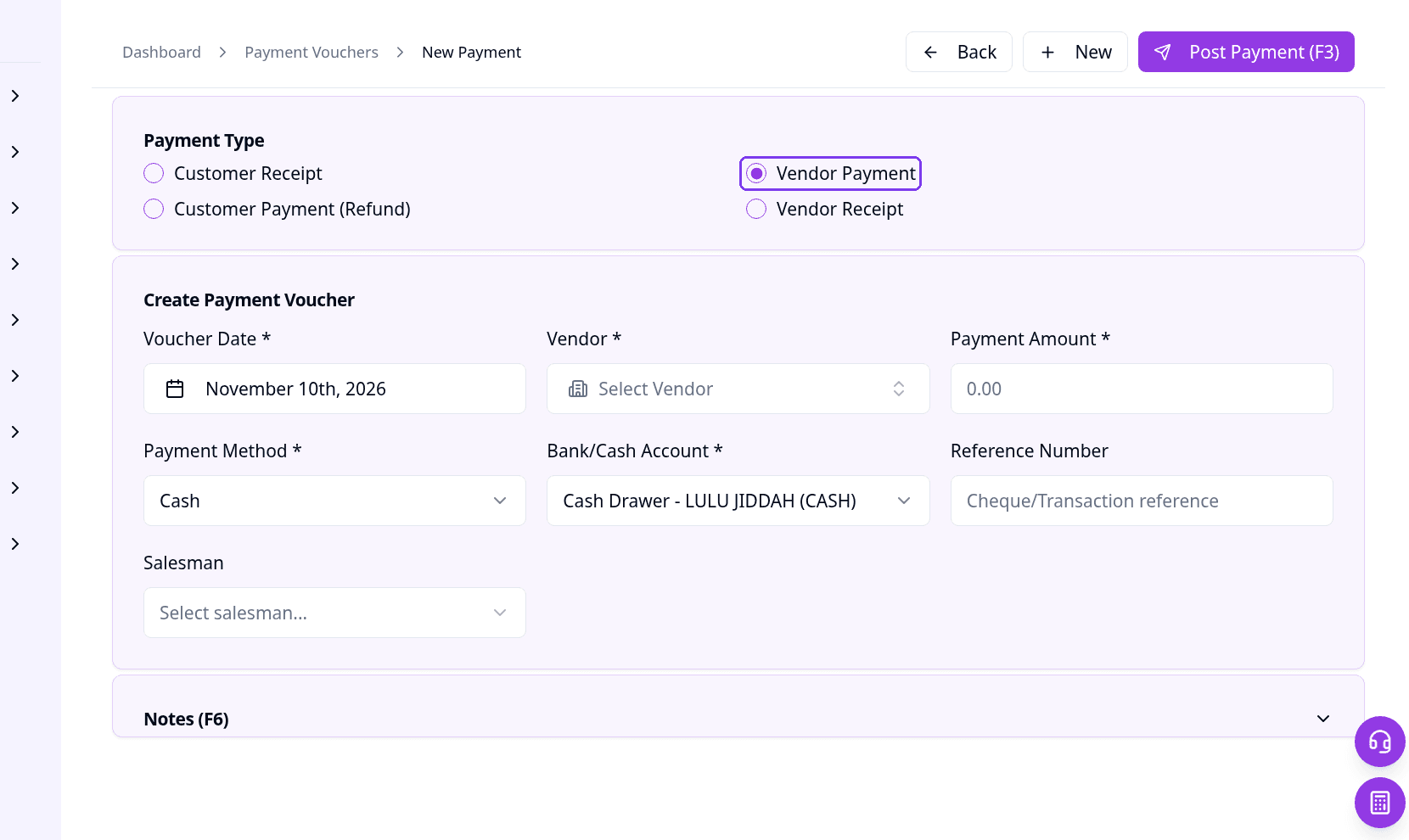
Step 2: Select the vendor
Select the Vendor.
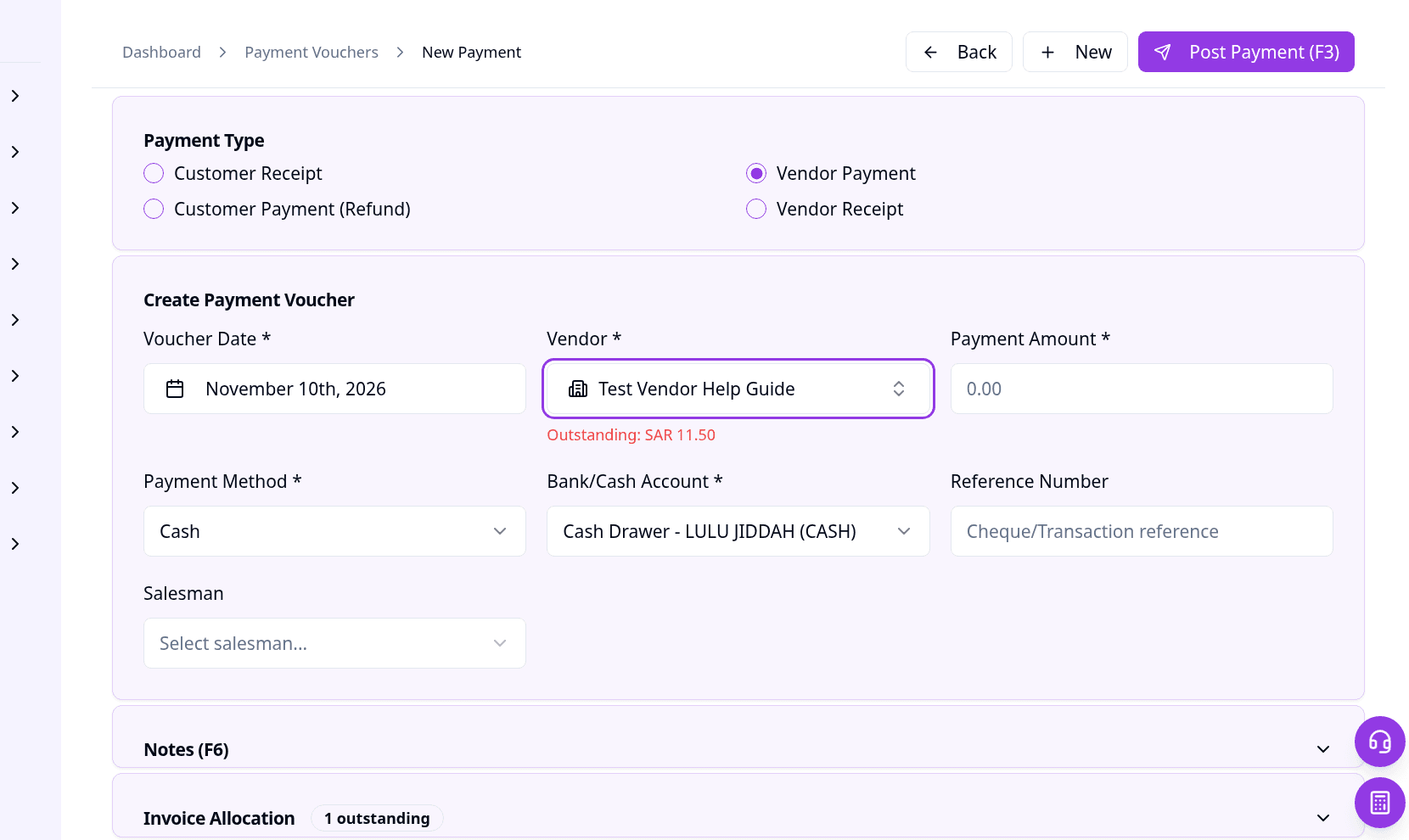
Step 3: Enter the amount
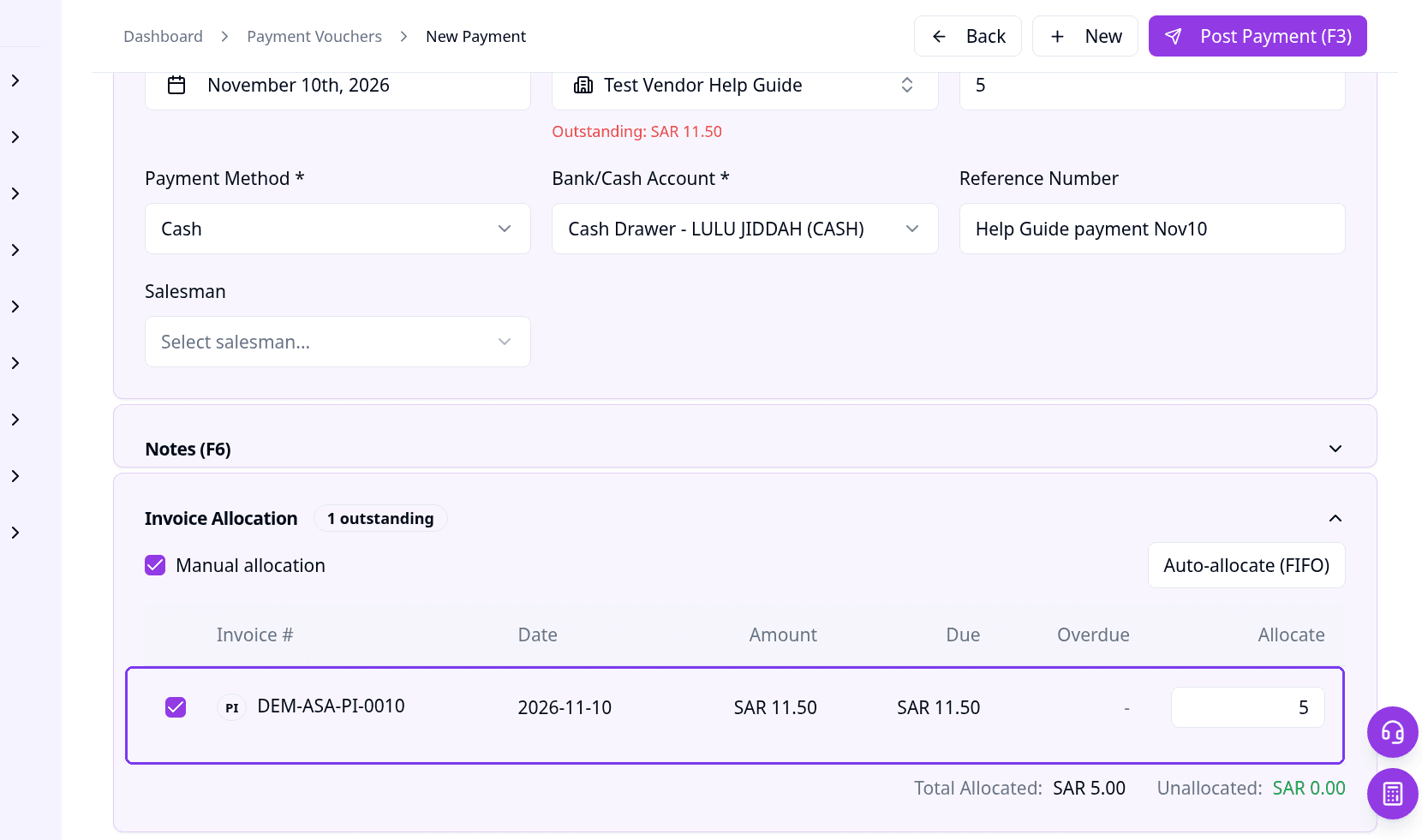
Enter the Payment Amount. Check the Payment Method and Bank/Cash Account.
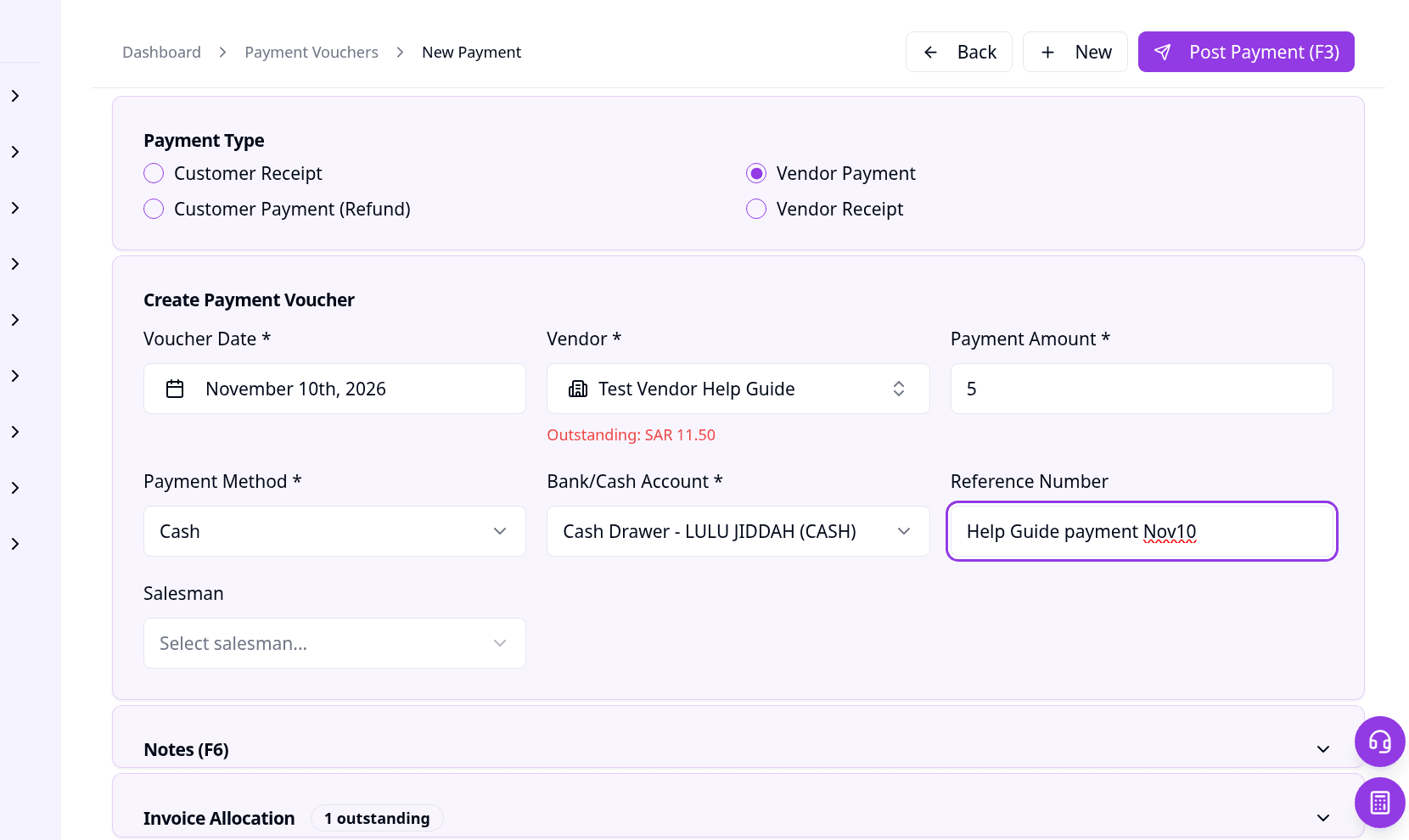
Step 4: Allocate the payment to an invoice
Open Invoice Allocation. Payments are allocated to the oldest unpaid invoices first, unless you check Manual allocation and select the invoice.
Any unallocated amount is recorded as an advance payment.
Step 5: Post the payment
Click Post Payment (F3). The payment is posted immediately. A message appears: "Payment voucher created successfully".
Step 6: See the payment in the list
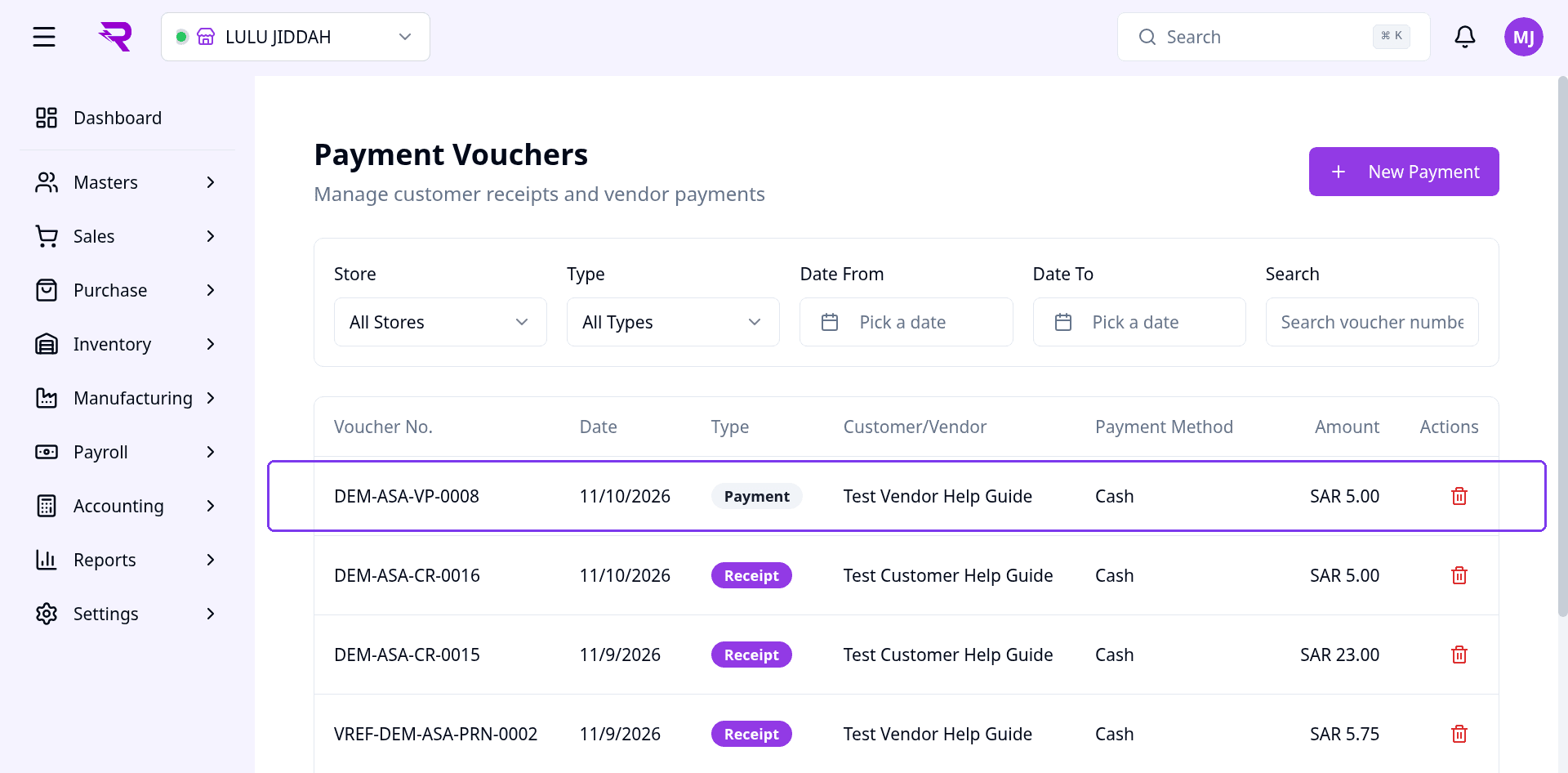
Your new payment appears in the Payment Vouchers list.
Important Notes
- You need a posted unpaid purchase invoice to allocate a vendor payment to it.
- Post Payment (F3) posts the payment immediately. There is no Save or draft option on this form.
- If you do not use manual allocation, the payment is allocated to the oldest unpaid invoices first. Any unallocated amount is recorded as an advance payment.