
This guide shows you how to add complimentary (gift) products on a customer receipt in RAAD ERP.
Go to: Accounting > Receipts & Payments
Step 1: Add a complimentary item
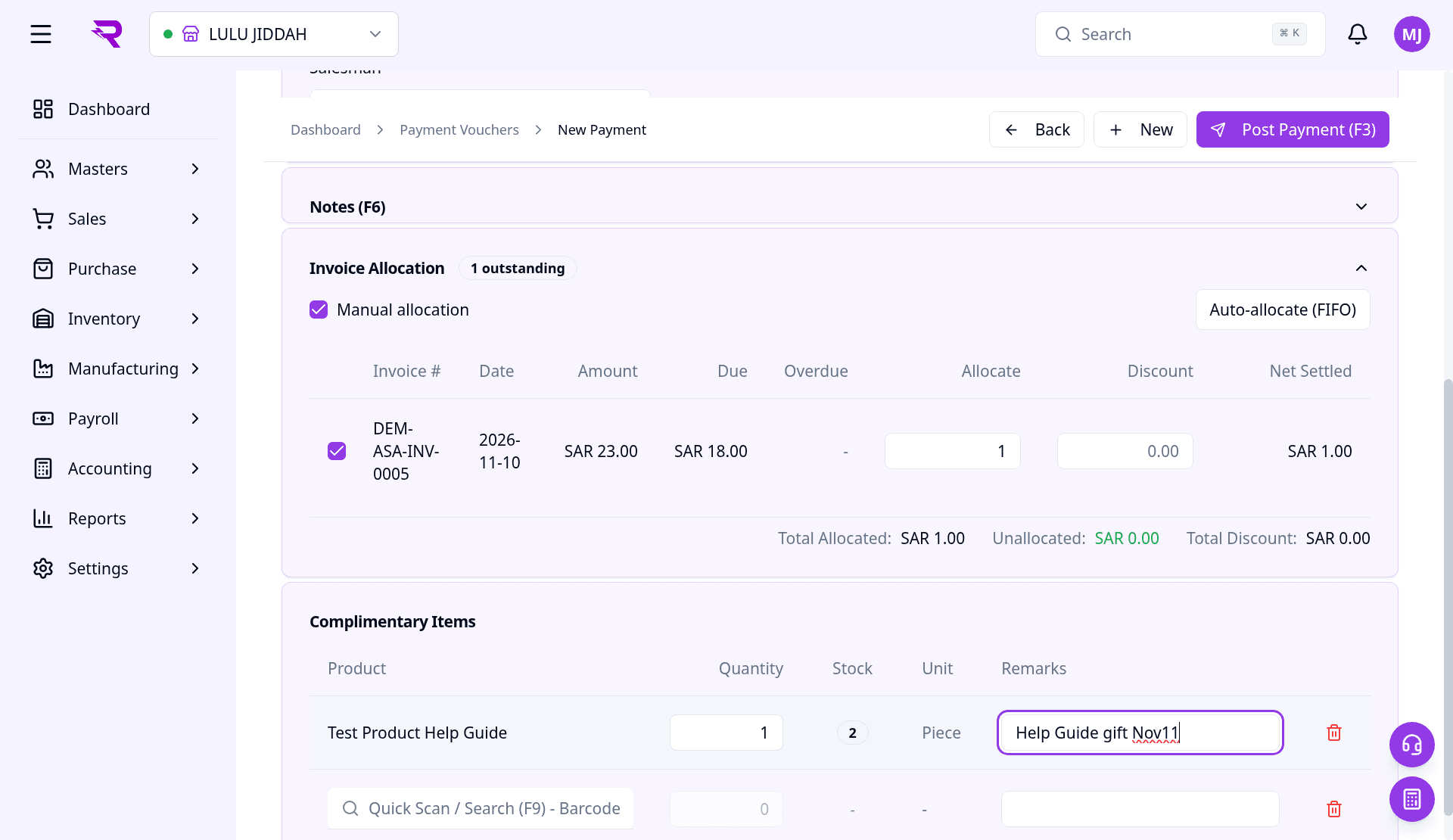
On the same New Payment form as the customer receipt, go to Complimentary Items and select a Product. A toast confirms “Added to gift”. Quantity becomes available after you select a product. Enter the Quantity and, optionally, Remarks.
Step 2: Confirm the item on the saved receipt
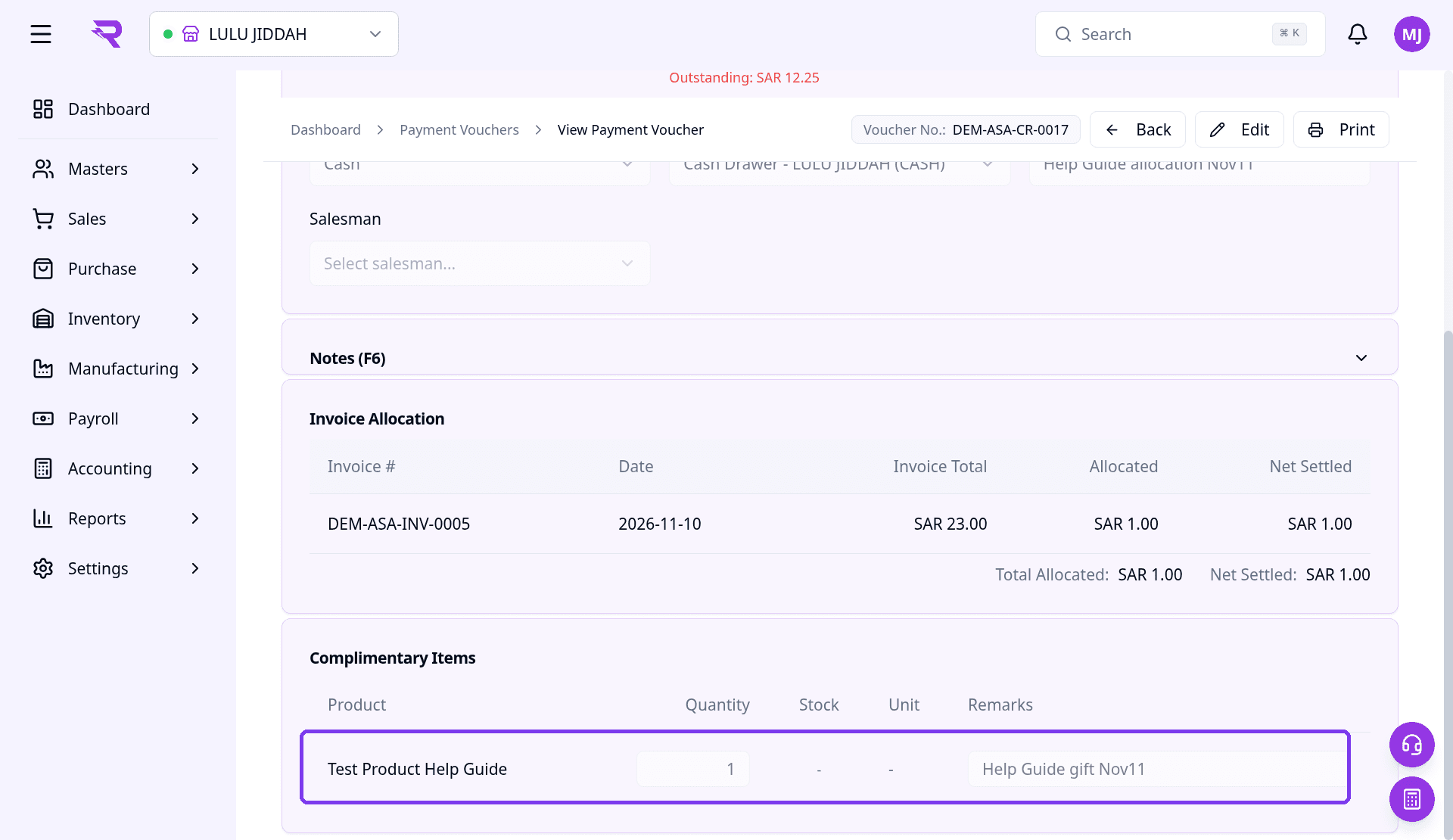
After you post the receipt, the saved voucher shows the complimentary item.
Notes
- Complimentary items are added on the same receipt as the payment, not as a separate voucher.
- A receipt with a payment amount of zero was not tested.