
This guide shows you how to allocate a customer receipt to outstanding invoices in RAAD ERP.
Go to: Accounting > Receipts & Payments
Step 1: Click New Payment
Keep Customer Receipt selected. Enter the Customer and Payment Amount. Voucher Date, Payment Method, and Bank/Cash Account are also required.
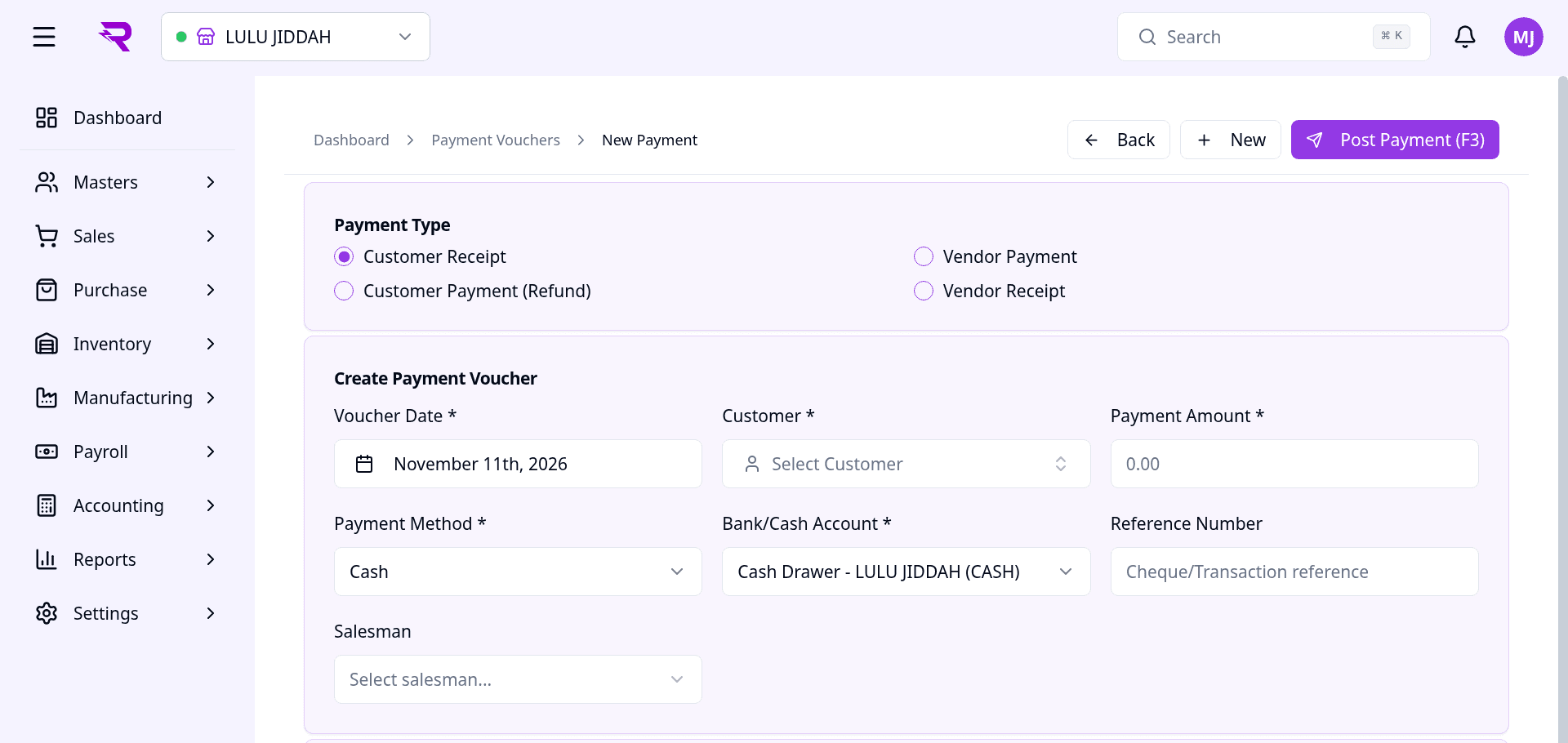
Step 2: Review Invoice Allocation
After you select a customer, Invoice Allocation appears. By default, the payment is allocated automatically to the oldest invoices first (FIFO).
Step 3: Allocate invoices yourself, if needed
To choose invoices yourself, check Manual allocation, then check an invoice. Allocate is filled and can be edited. Any unallocated amount is recorded as an advance.
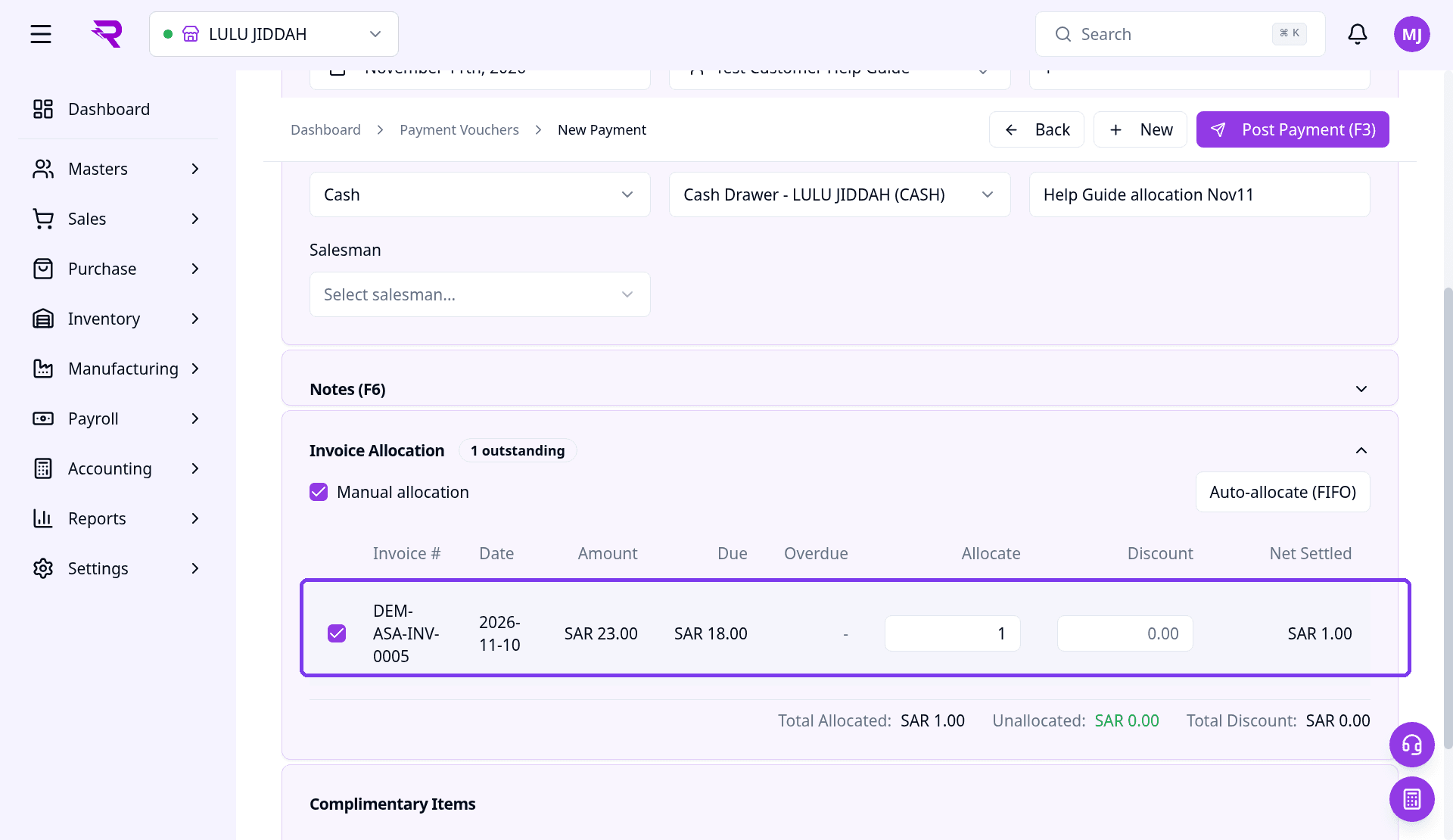
Step 4: Click Post Payment
Click Post Payment (F3) to save the receipt.
Step 5: Confirm the allocated receipt
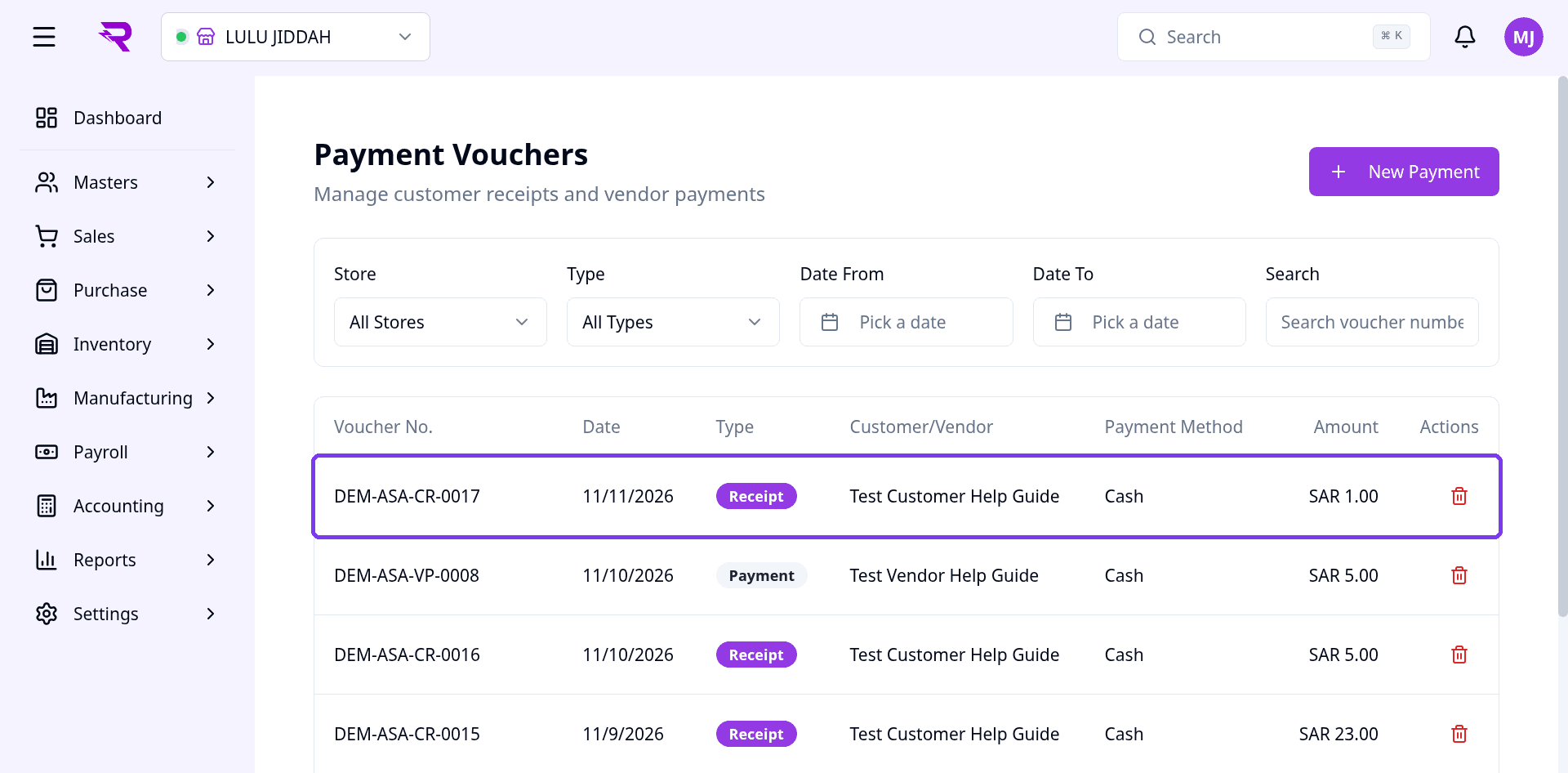
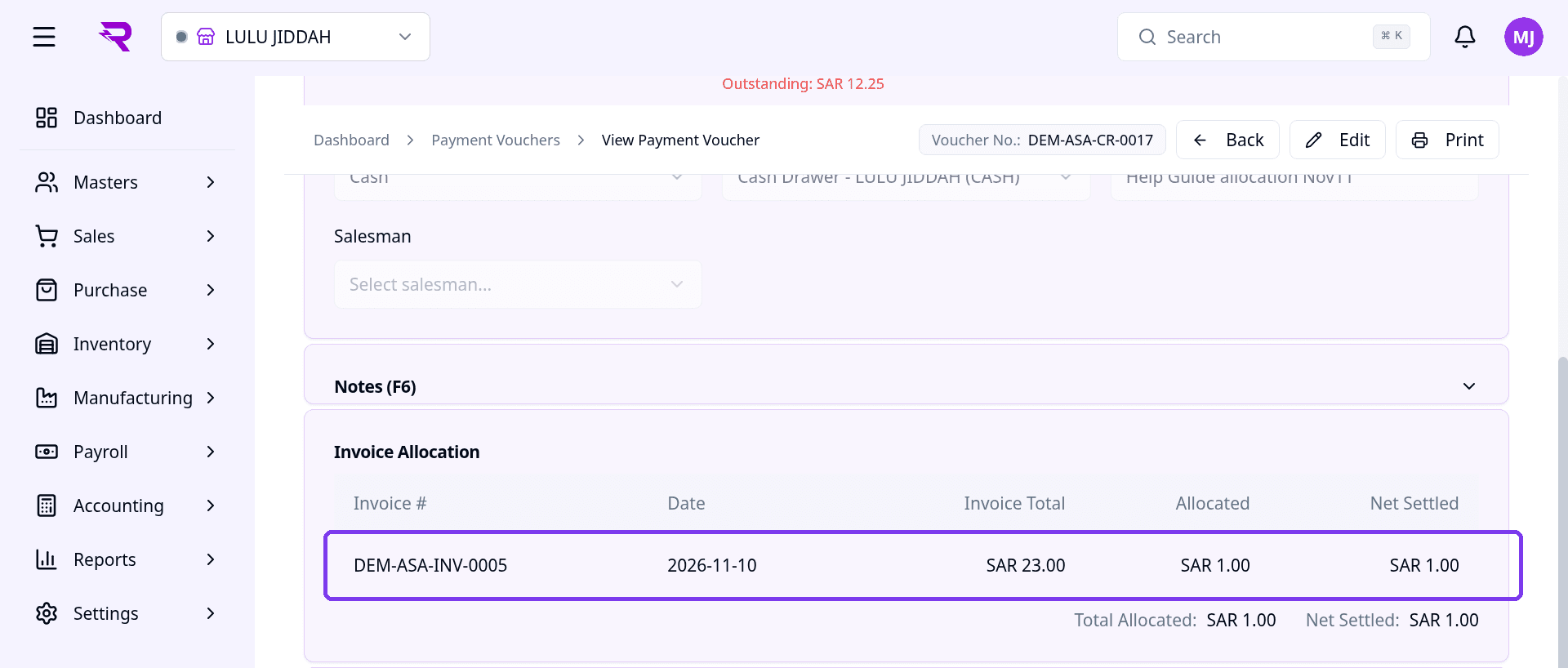
The receipt appears in the Payment Vouchers list. Open it to see the allocated invoice.
Notes
- Customer, Payment Amount, Voucher Date, Payment Method, and Bank/Cash Account are required.
- Only one outstanding invoice was available in this walkthrough.