This guide shows you how to create a standalone expense voucher — one that is not linked to a purchase invoice.
Go to: Accounting > Expense Vouchers
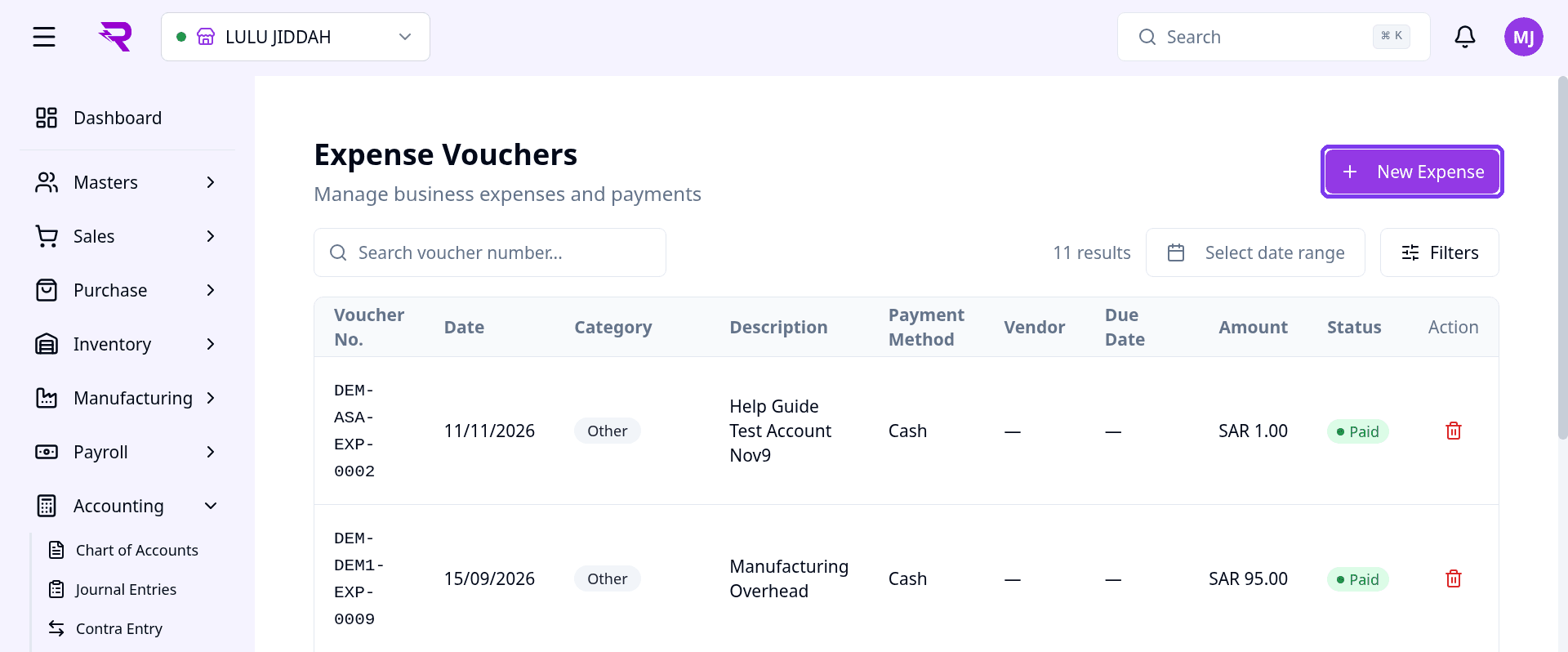
Step 1: Click New Expense
Click New Expense to open a blank voucher.
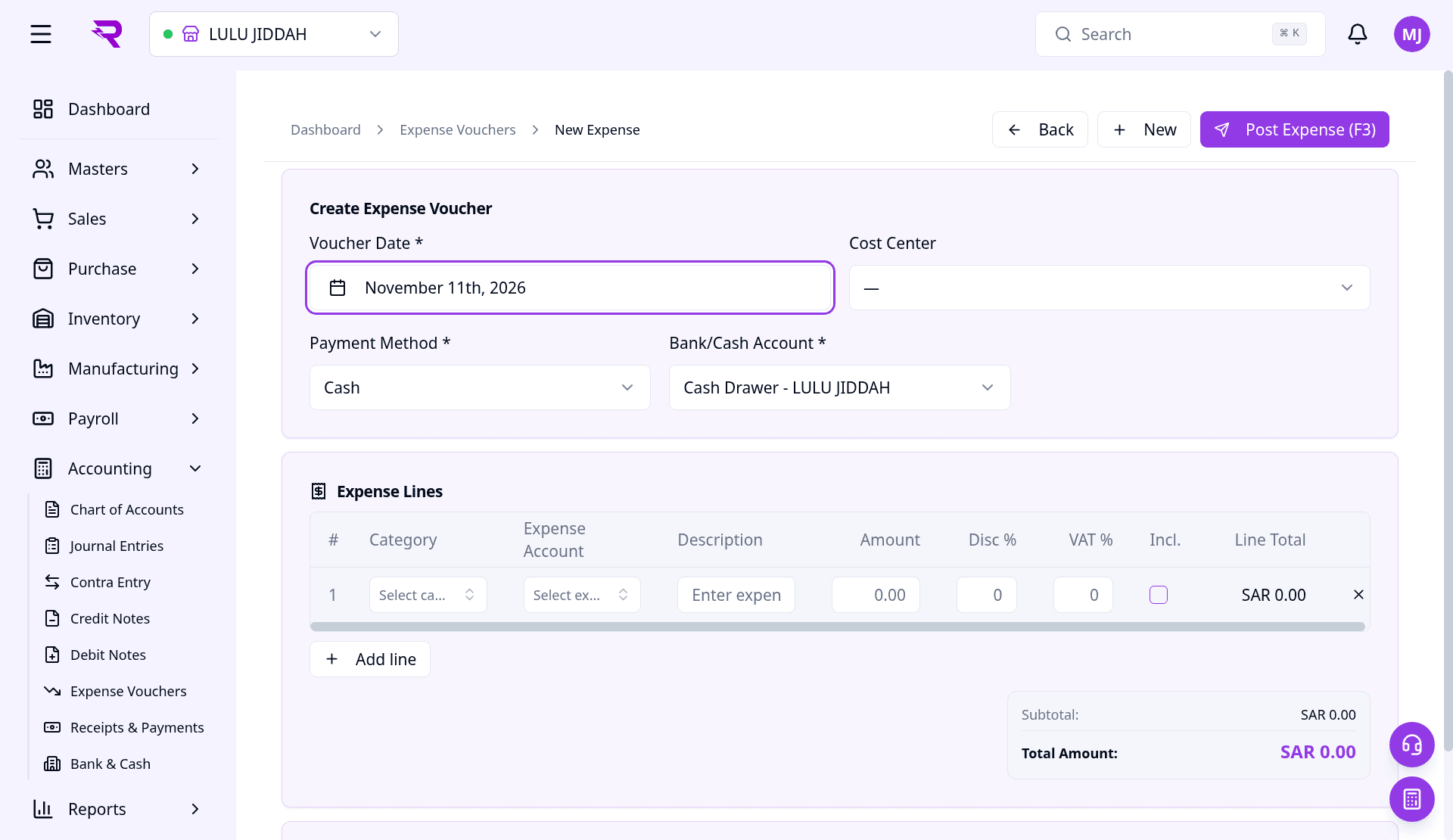
Step 2: Enter the voucher details
Voucher Date and Payment Method are required. When Payment Method is Cash, also select a Bank/Cash Account. Add the expense lines, then click Post Expense (F3).
Step 3: Confirm the posted voucher
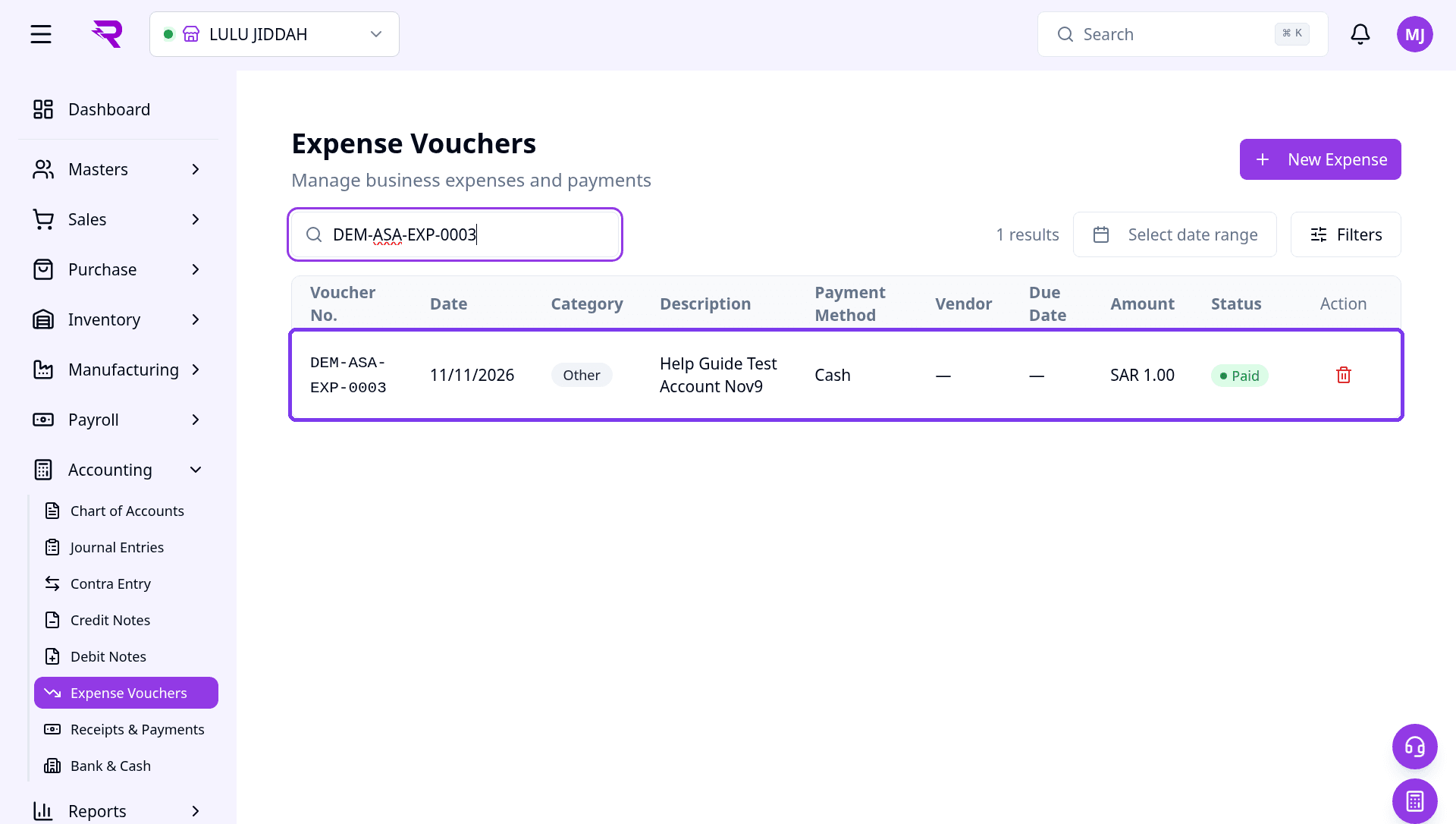
The voucher appears in the list, and a success toast reads “Expense voucher created and posted successfully.” The Description column shows the expense account name.