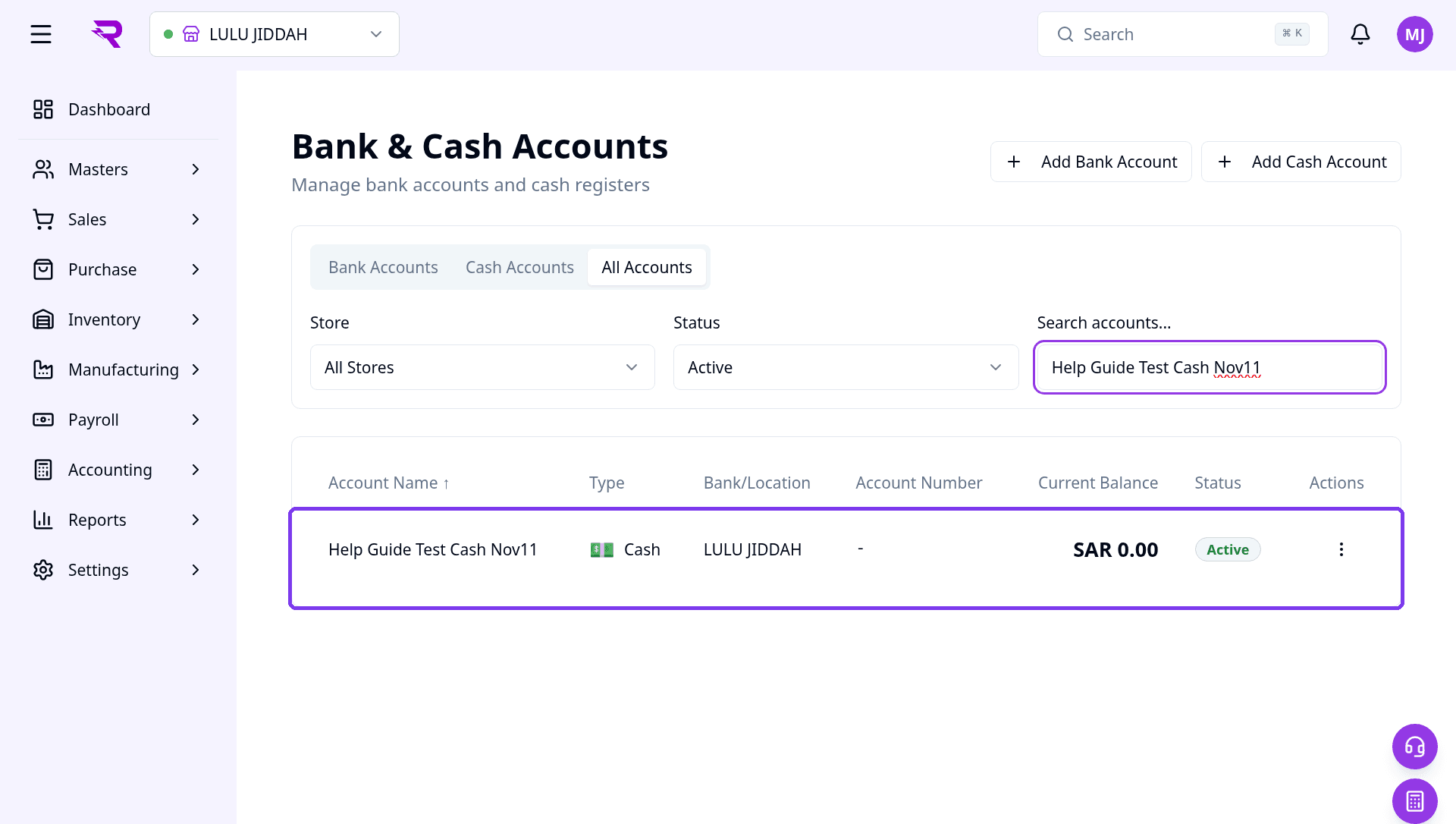
This guide shows you how to add a cash account on the Bank & Cash page.
Go to: Accounting > Bank & Cash
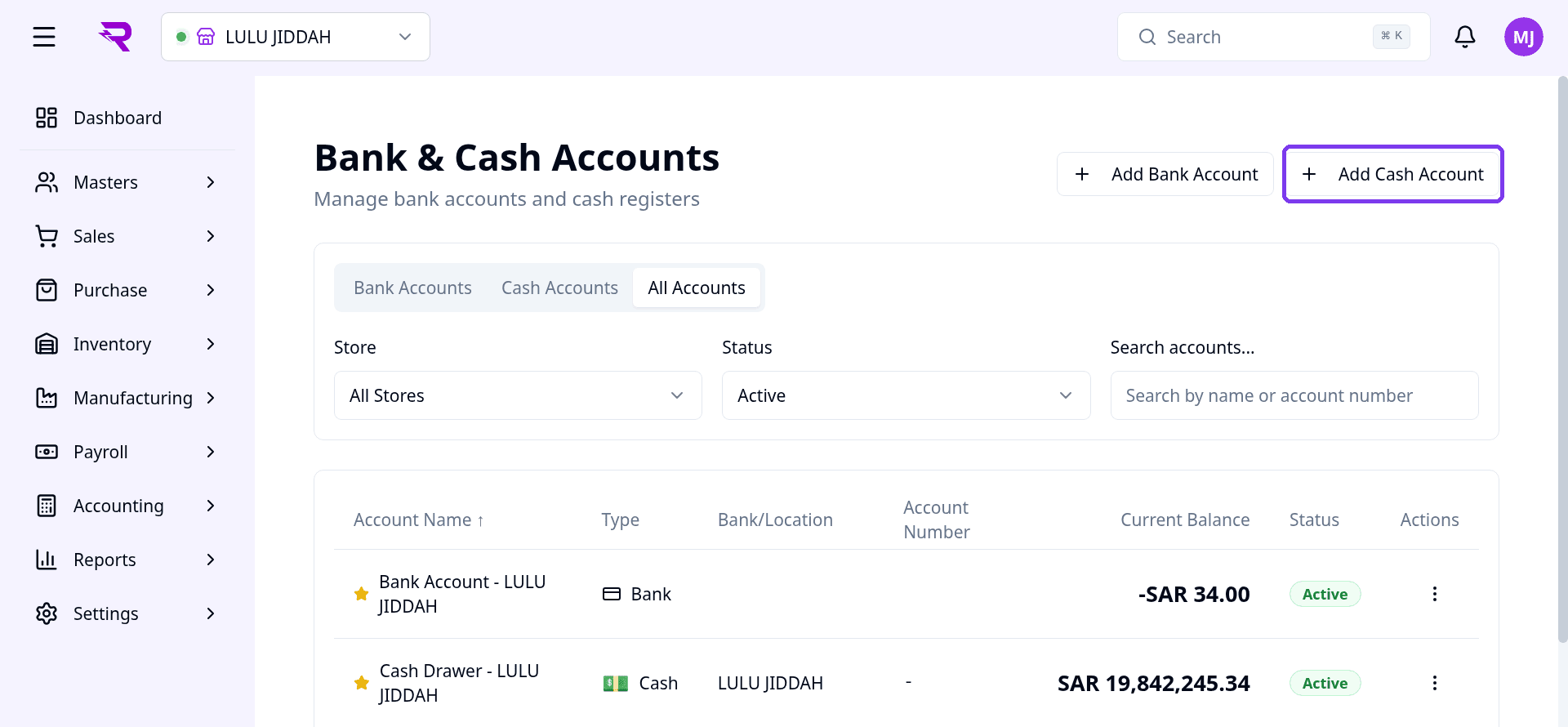
Step 1: Click Add Cash Account
Click Add Cash Account.
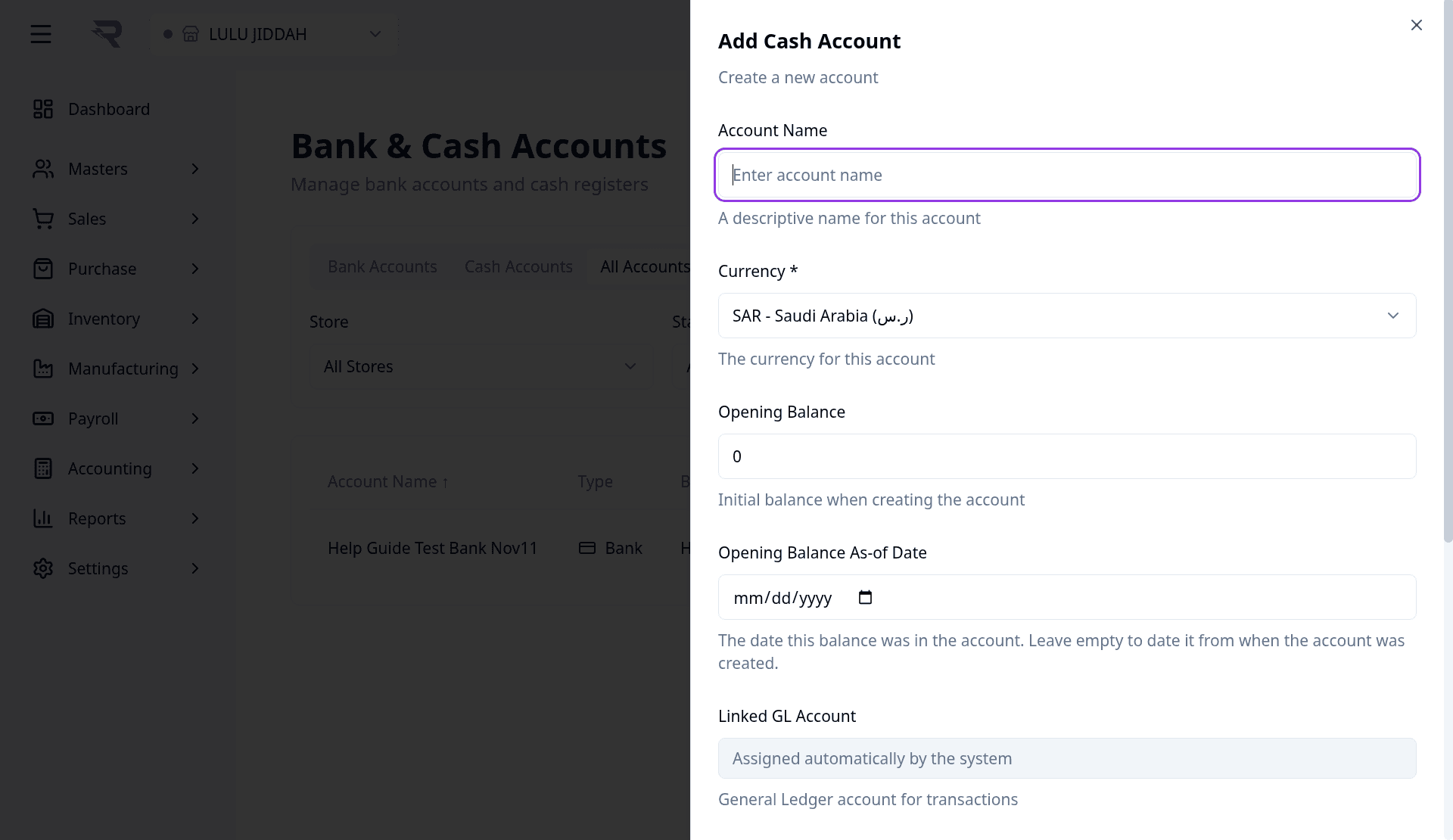
Step 2: Enter the account details
Account Name and Currency are required. You can also set Opening Balance and Opening Balance As-of Date. Linked GL Account is assigned automatically by the system. Store is also required when it appears on the form.
Step 3: Save the account
Click Save. A success toast reads “Account created successfully.” The new cash account then appears in the list.