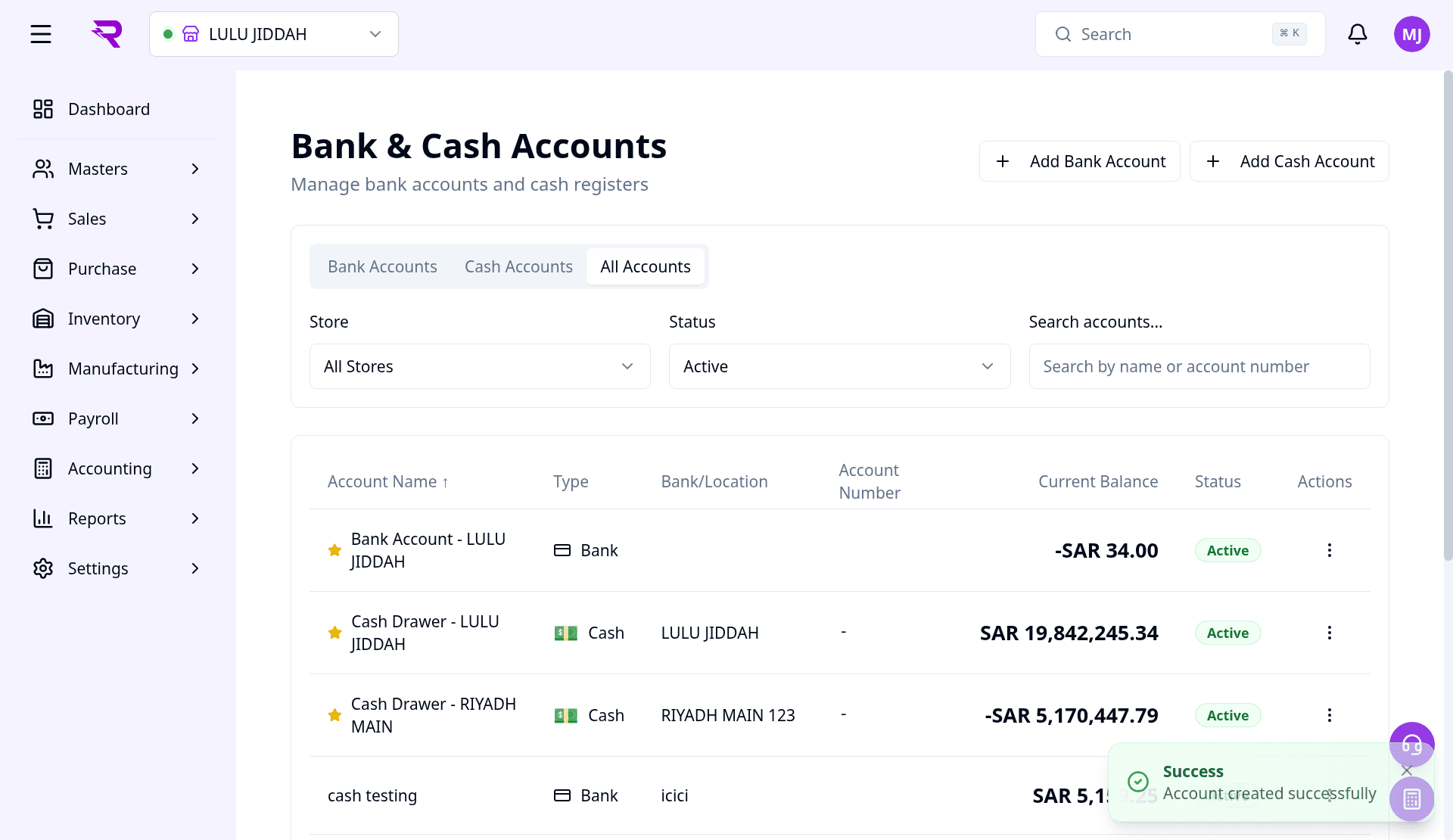
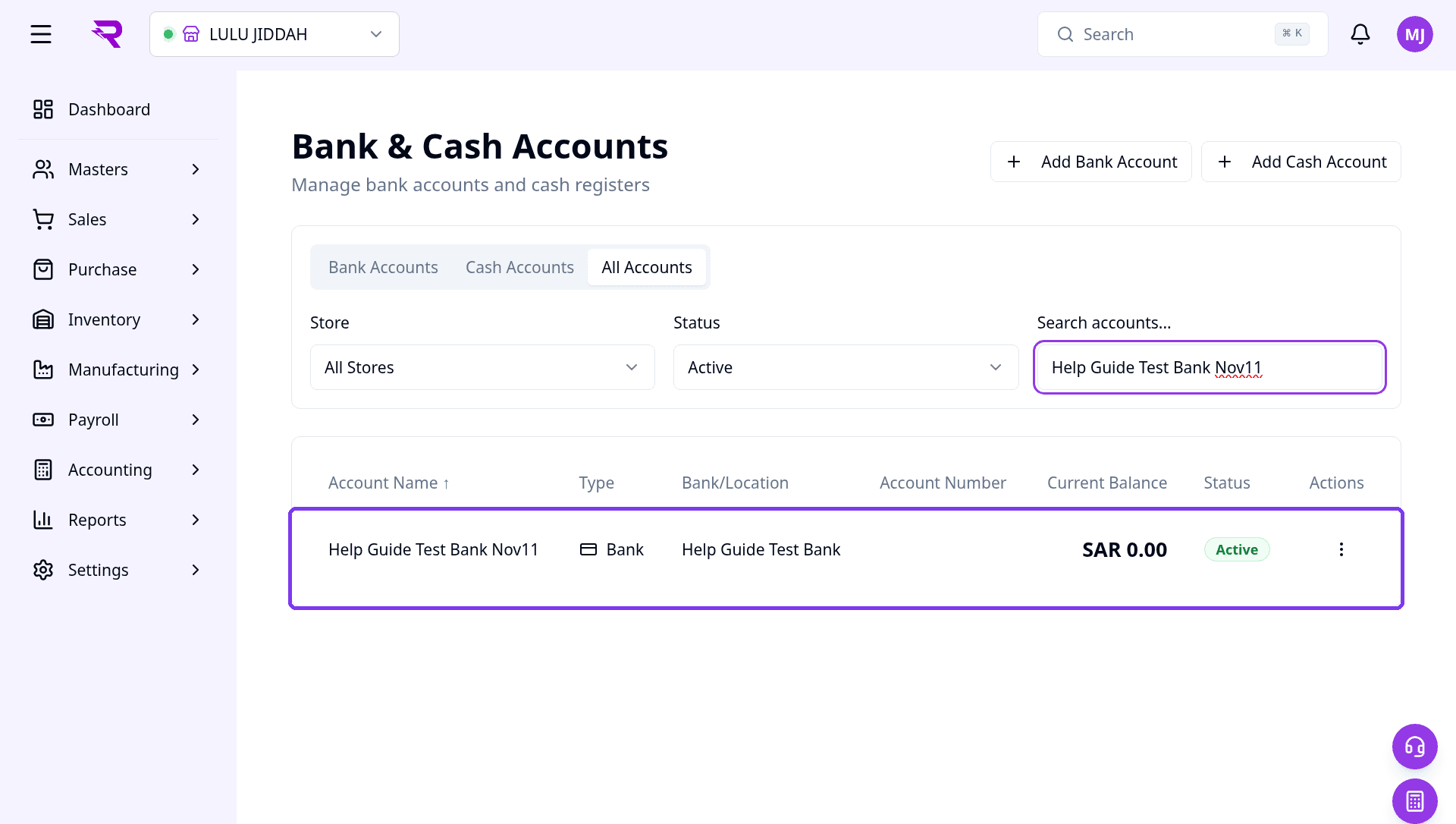
This guide shows you how to add a bank account on the Bank & Cash page. The account type is chosen by Add Bank Account or Add Cash Account, not in the Chart of Accounts.
Go to: Accounting > Bank & Cash
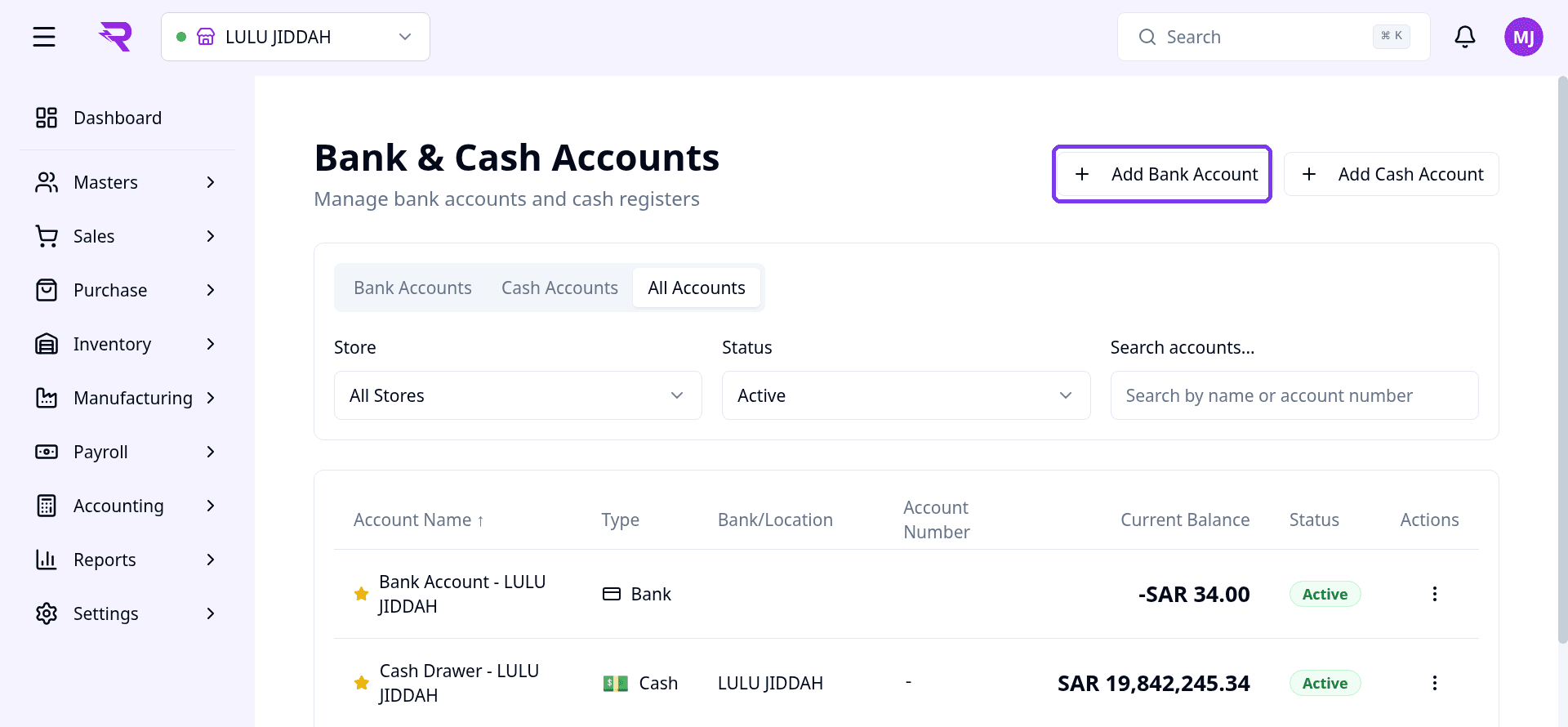
Step 1: Click Add Bank Account
Click Add Bank Account. The page has Bank Accounts, Cash Accounts, and All Accounts tabs.
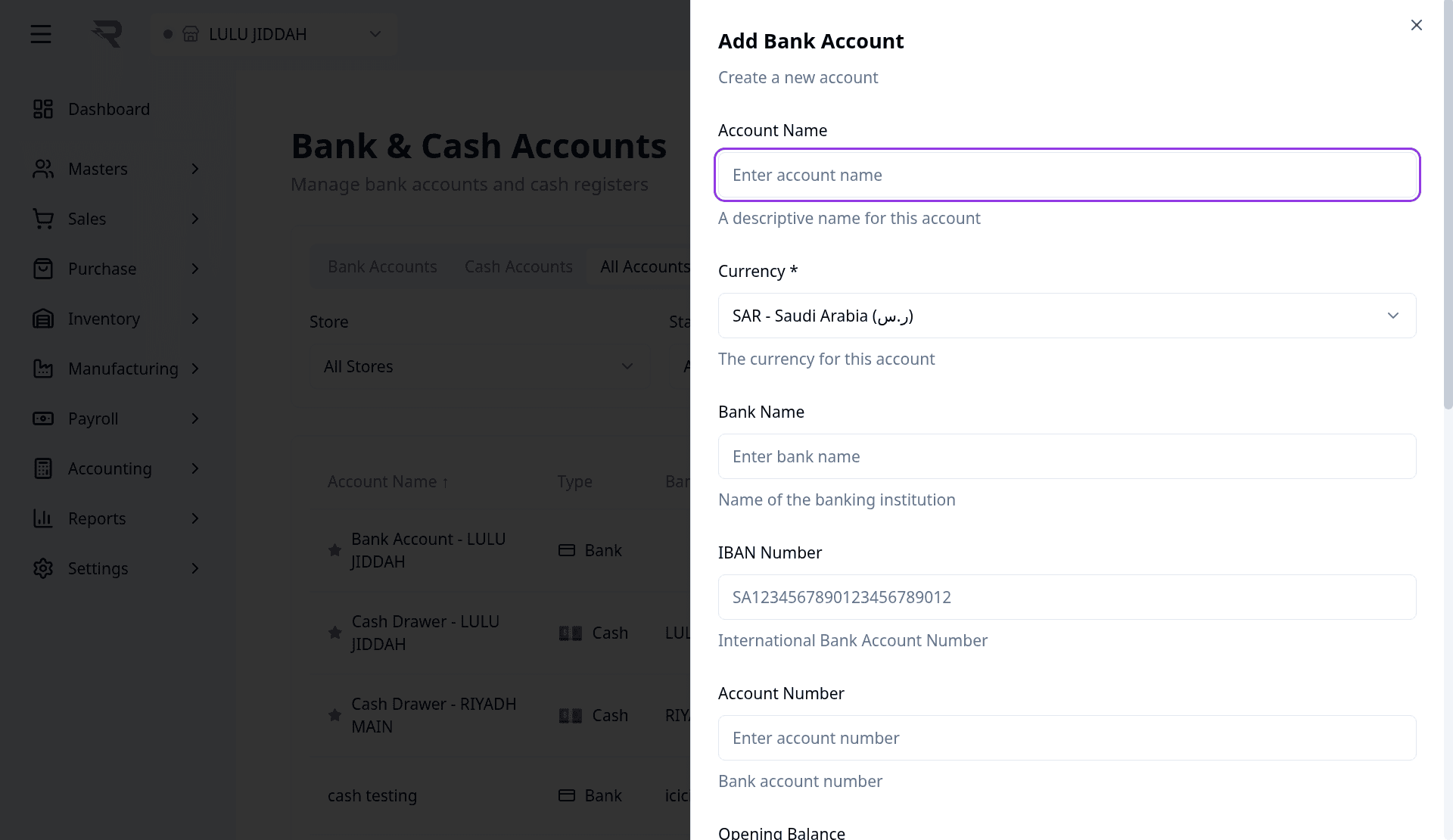
Step 2: Enter the account details
Account Name and Currency are required. Bank Name is also required, even though it has no asterisk — saving without it returns “Bank name is required for bank accounts.” You can add IBAN Number, Account Number, and Opening Balance if needed.
Step 3: Save the account
Click Save. A success toast reads “Account created successfully.”