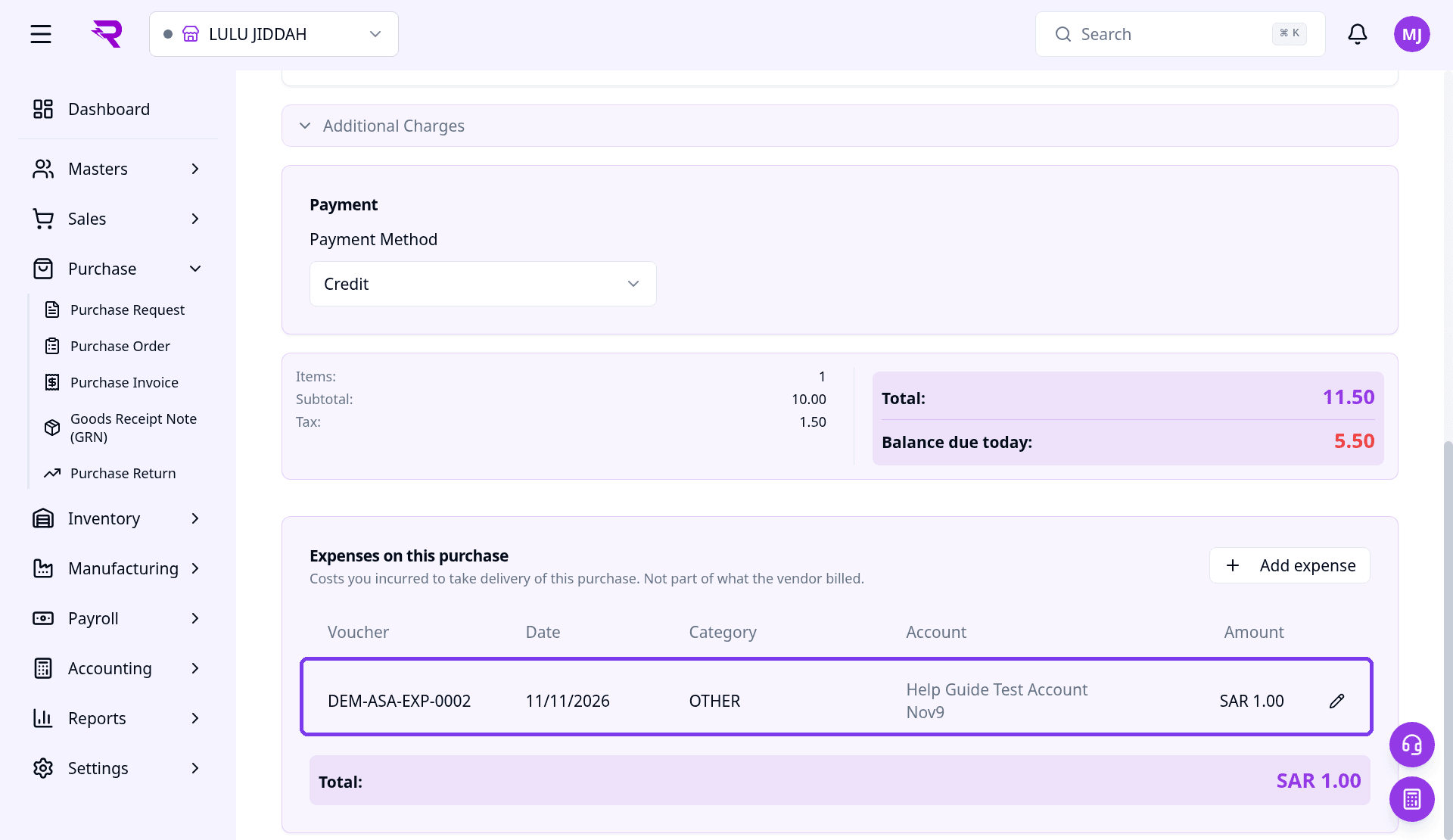
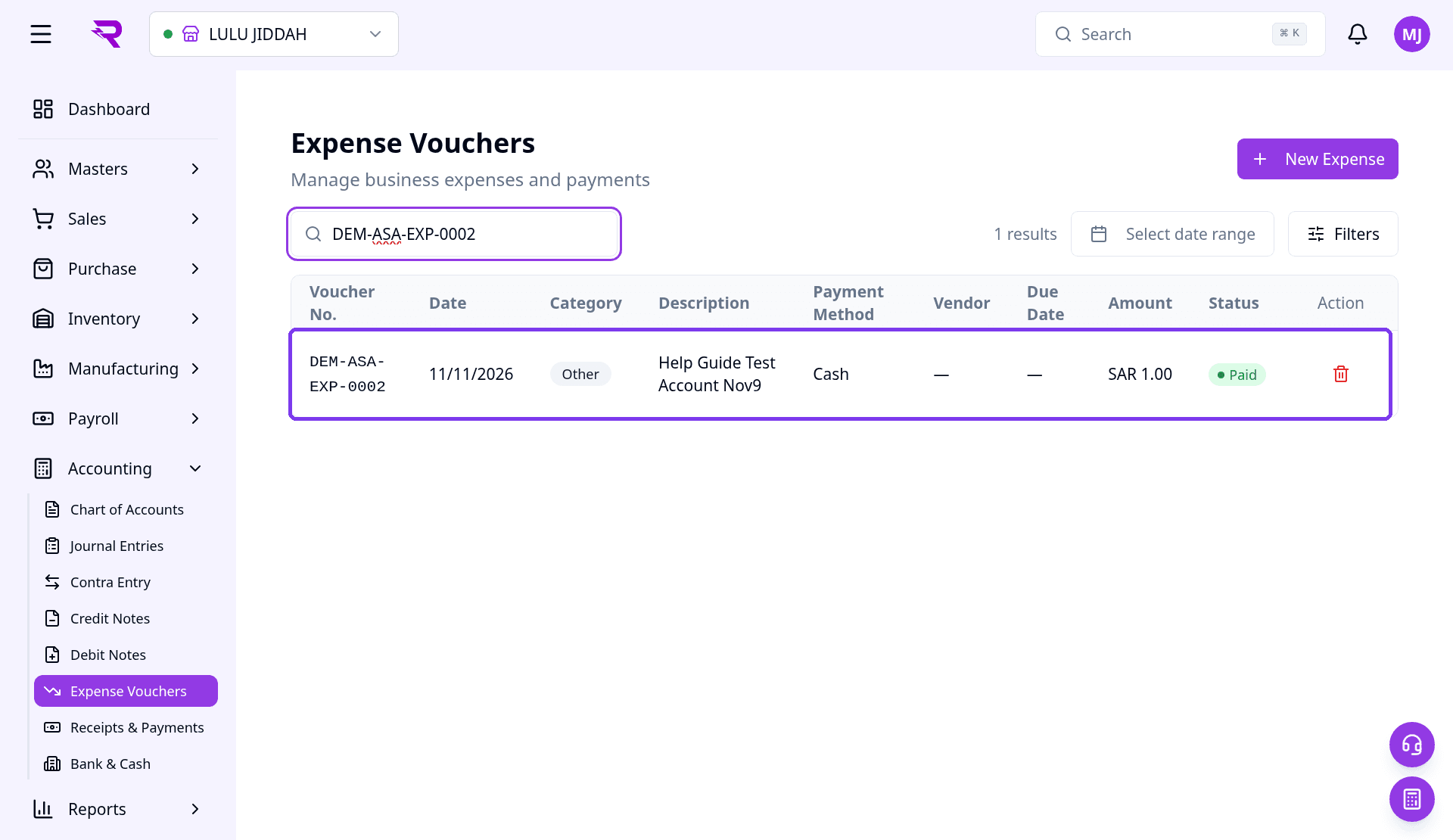
This guide shows you how to record a separate expense against a vendor purchase invoice in RAAD ERP.
Go to: Purchase > Purchase Invoice
You can also open the form from Accounting > Expense Vouchers. This walkthrough starts from the purchase invoice.
Step 1: Open the invoice and click Add expense
Open the purchase invoice. Under Expenses on this purchase, click Add expense. The form opens already linked to the invoice.
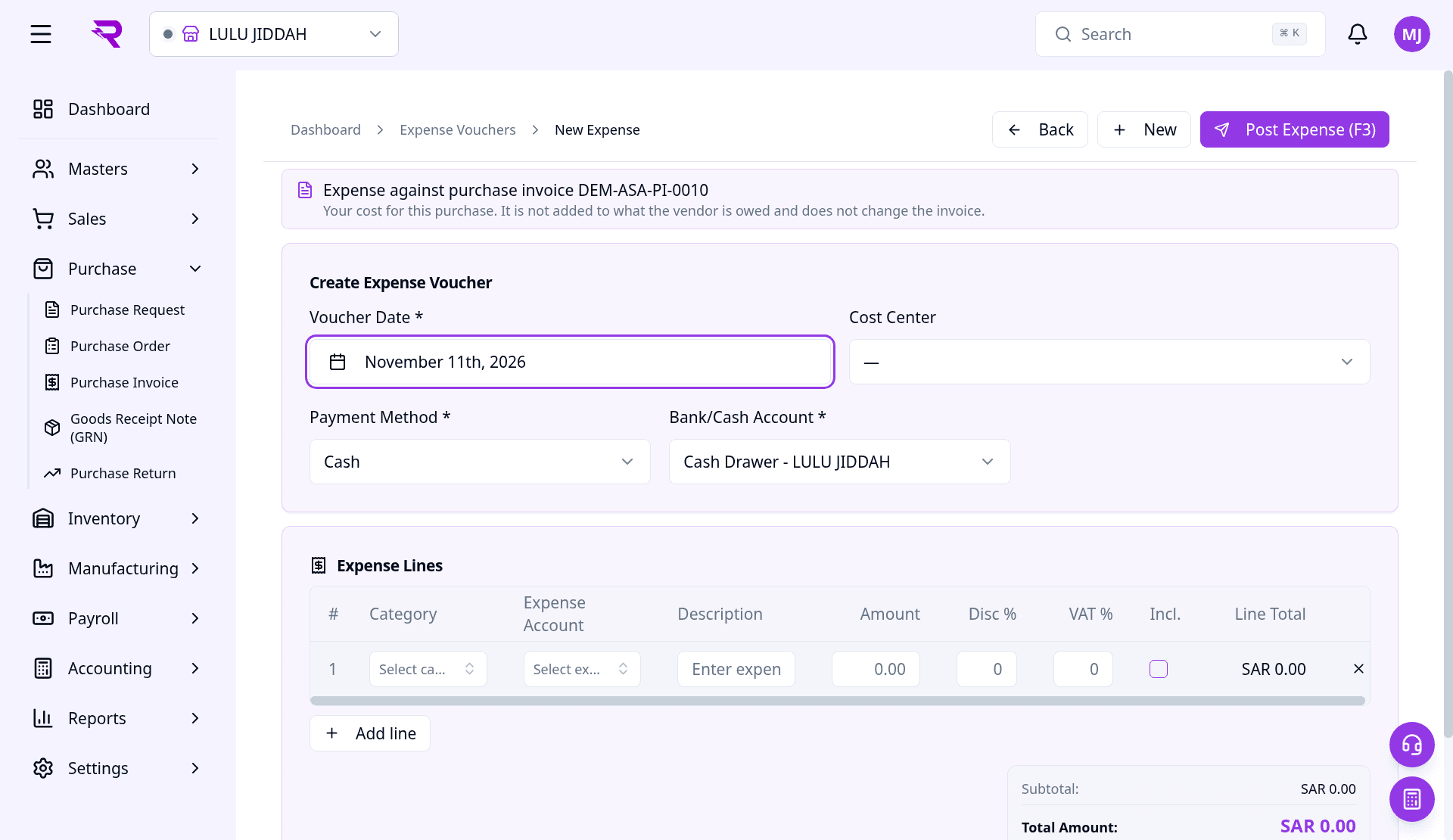
Step 2: Enter the expense details
Enter Voucher Date, Payment Method, and Bank/Cash Account (required when Payment Method is Cash). In Expense Lines, enter Category, Expense Account, and Amount.
Step 3: Click Post Expense (F3)
Click Post Expense (F3) to post the expense immediately. No draft button was shown.
Step 4: Confirm the expense
The expense appears under Expenses on this purchase. It is a separate cost and is not added to what the vendor is owed.