Use opening balances when you are migrating a client's existing books. They apply to balance-sheet accounts only. For adding an account, see Adding an Account to the Chart of Accounts. For registering an asset account, see Registering an Asset Account in the Chart of Accounts.
Go to: Accounting > Chart of Accounts
Step 1: Click Add Account
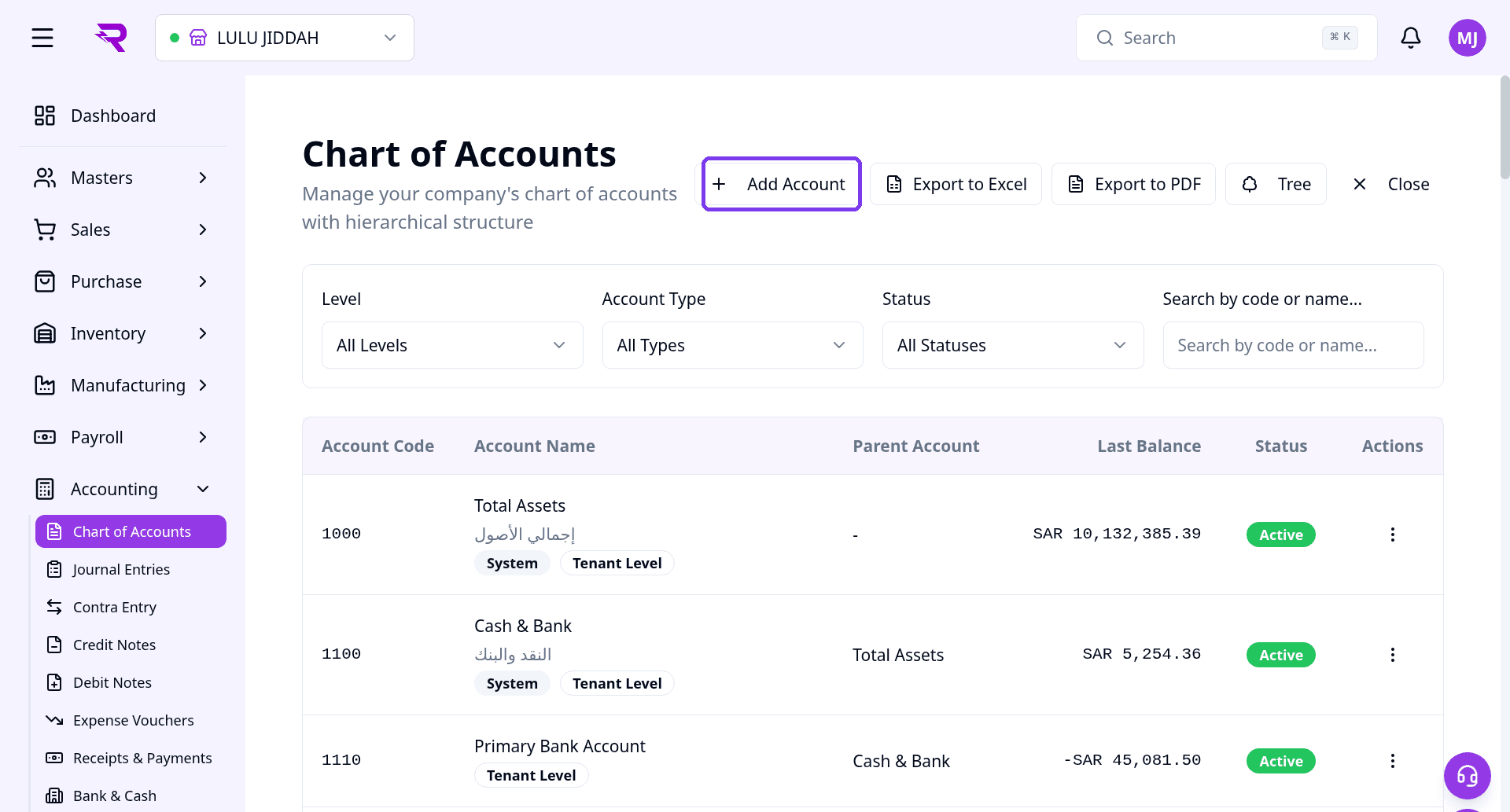
The Chart of Accounts list opens. Click Add Account and fill in the account details for a balance-sheet account.
Step 2: Enter the opening balance and as-of date
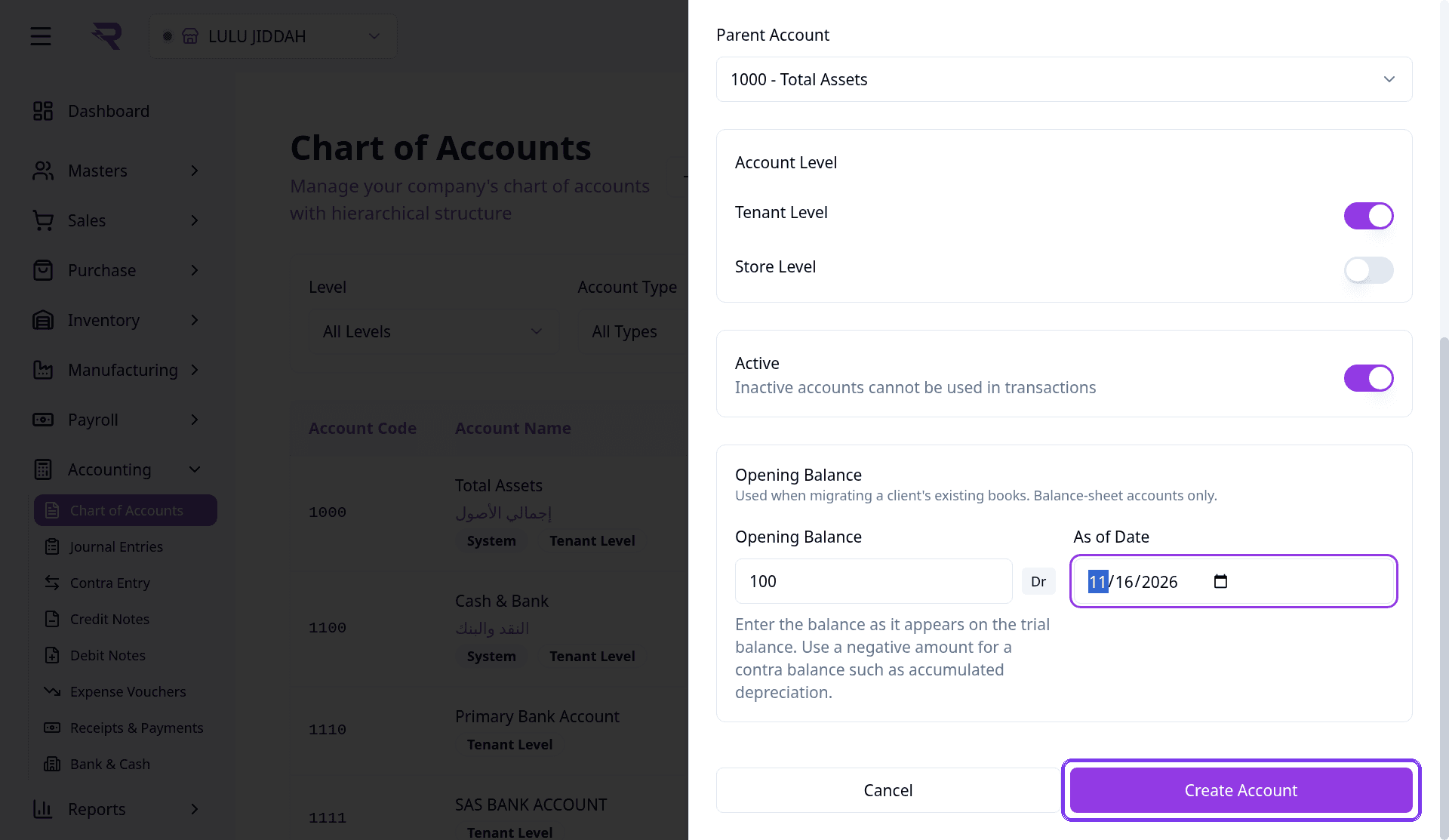
Enter the Opening Balance and the As of Date. Enter the balance as it appears on the trial balance, and use a negative amount for a contra balance such as accumulated depreciation. Click Create Account.
Step 3: Check the account in the list
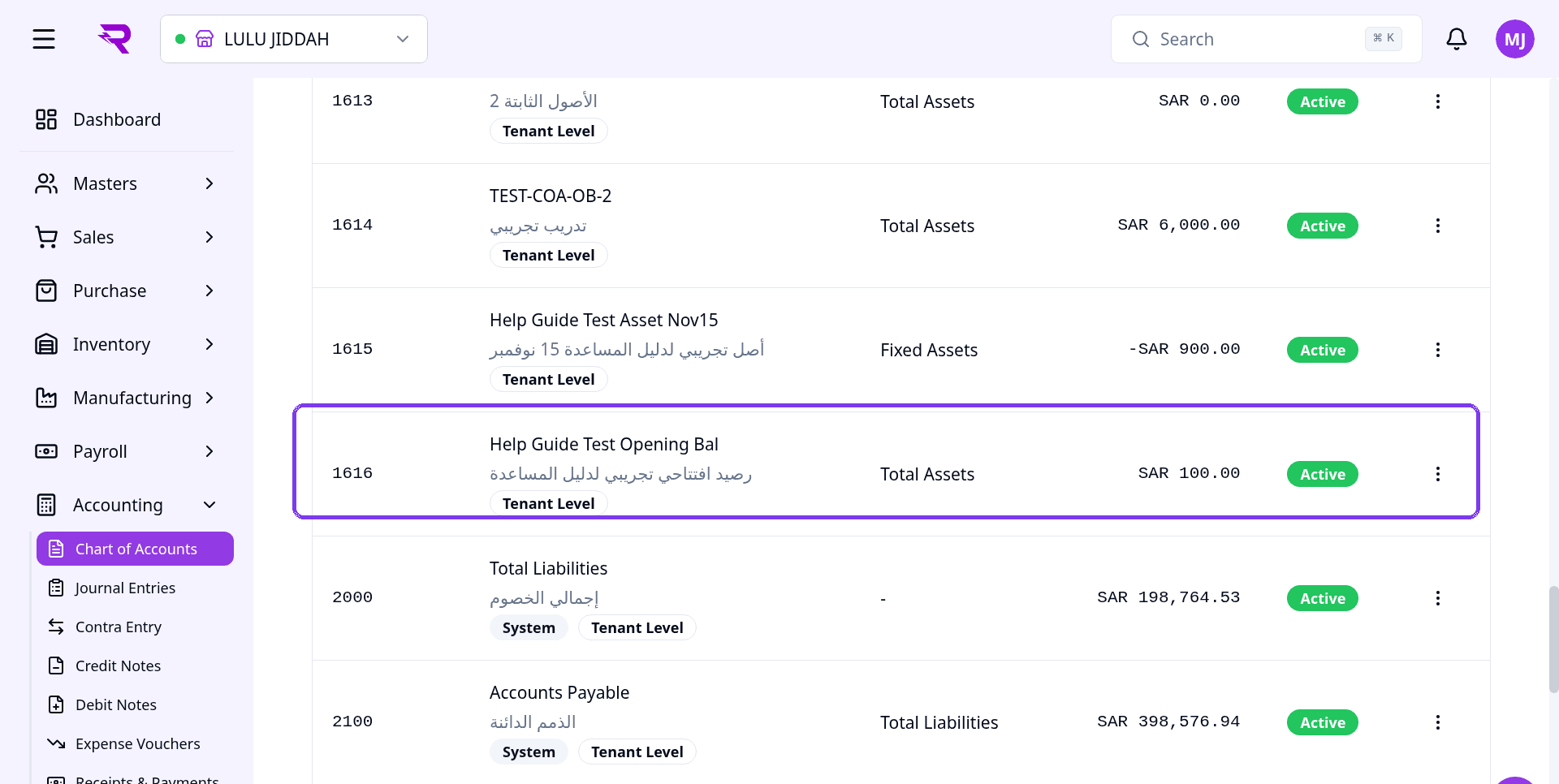
The new account appears in the Chart of Accounts with its opening balance. That balance also appears on the Balance Sheet as of the date you entered.