
This guide shows you how to add a unit variant to a product in RAAD ERP.
Go to: Masters > Products
Step 1: Open the product
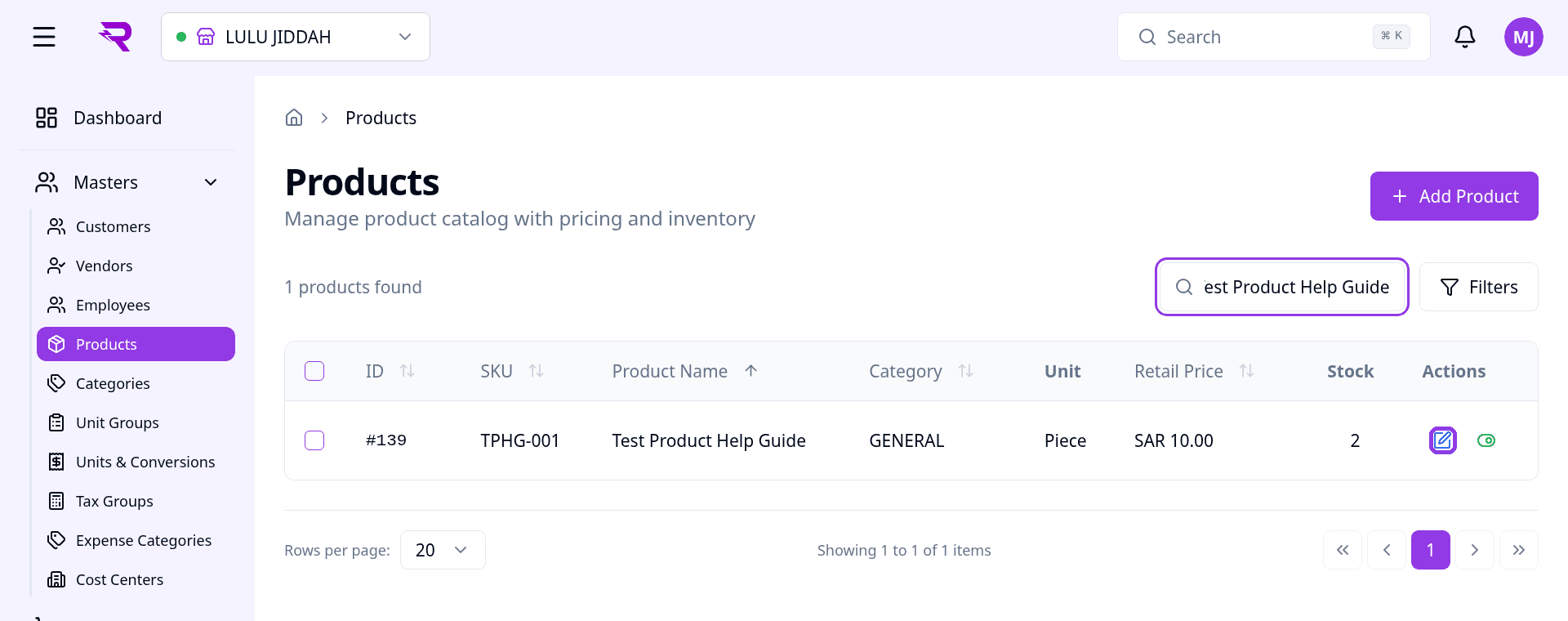
Find the product and click Edit.
Step 2: Click Add variant
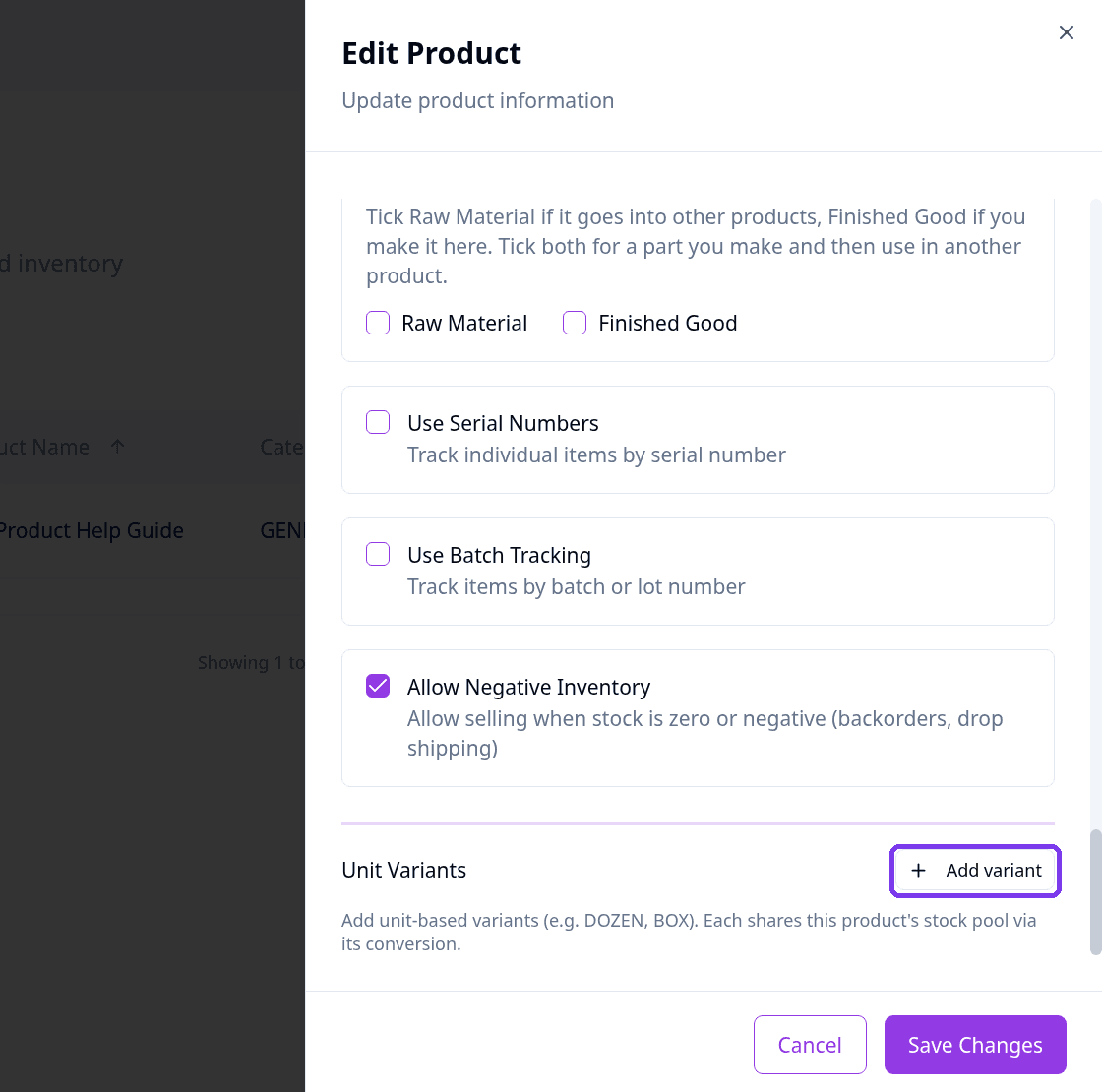
In Unit Variants, click Add variant.
Step 3: Choose Unit and enter Conversion
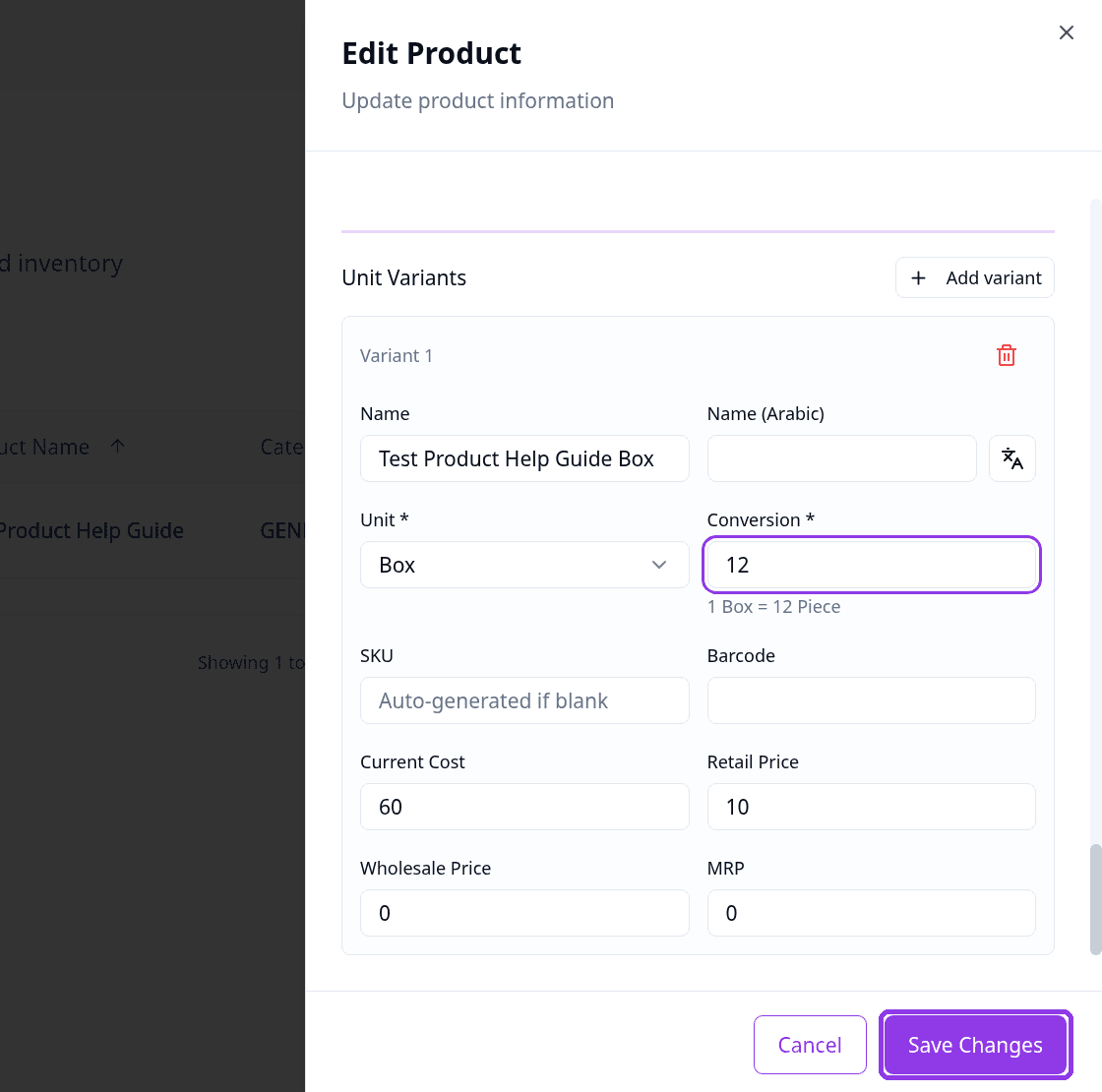
Unit and Conversion are required. For example, Unit Box and Conversion 12 are shown as 1 Box = 12 Piece.
Step 4: Click Save Changes
Click Save Changes. A toast confirms “Product updated successfully”.
Step 5: Confirm the new unit
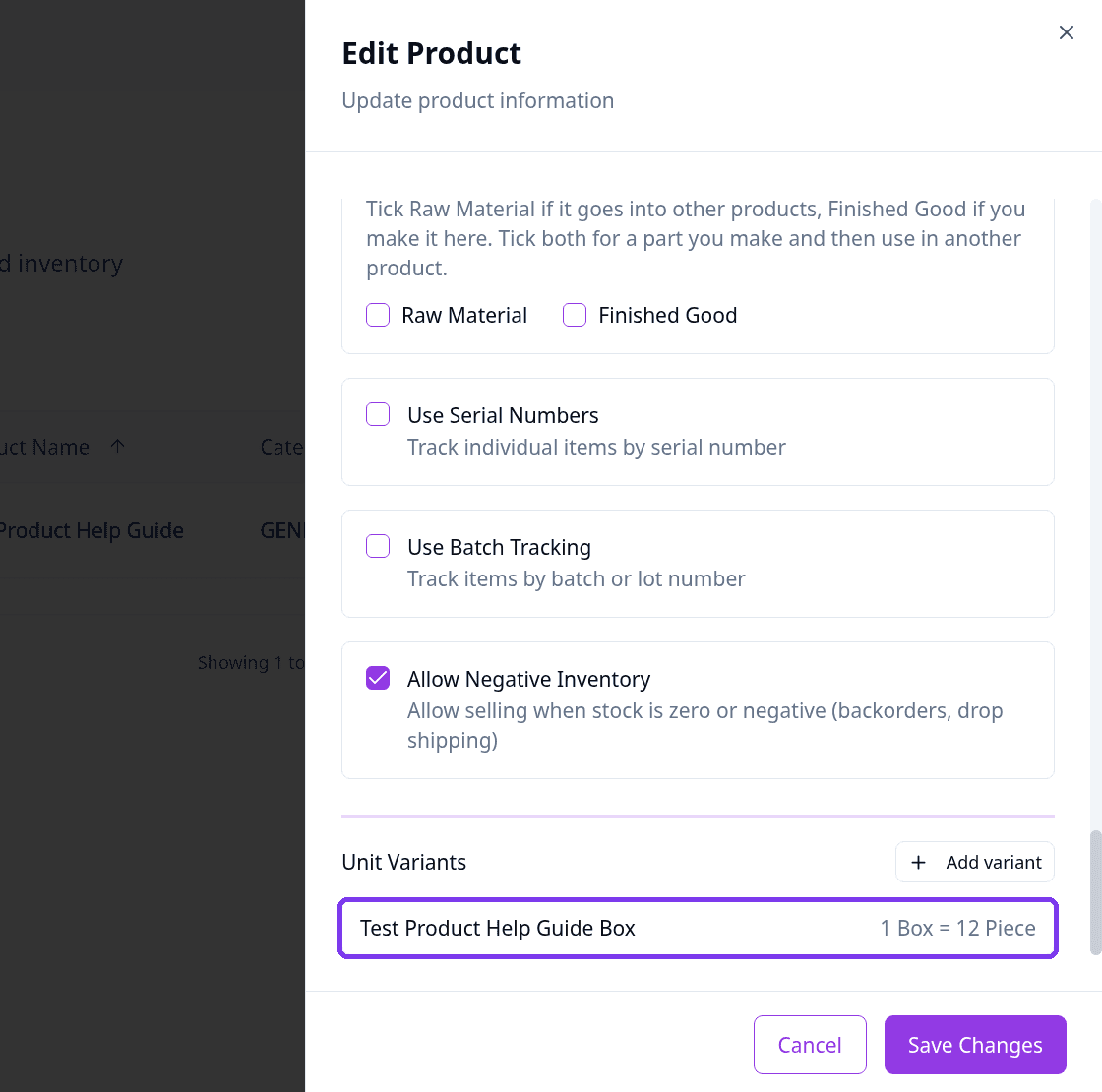
The Unit Variants list shows the new unit and its conversion, for example 1 Box = 12 Piece.
Important Notes
- Unit and Conversion are required, and Conversion must be greater than 0.
- Save Changes stays disabled until both are provided.
- Each variant shares the product’s stock pool via its conversion.