
This guide shows you how to create a unit group in RAAD ERP. A unit group holds related units, such as weight or length. After you save, the group appears in your Unit Groups list.
Go to: Masters > Unit Groups
Step 1: Open the Masters menu
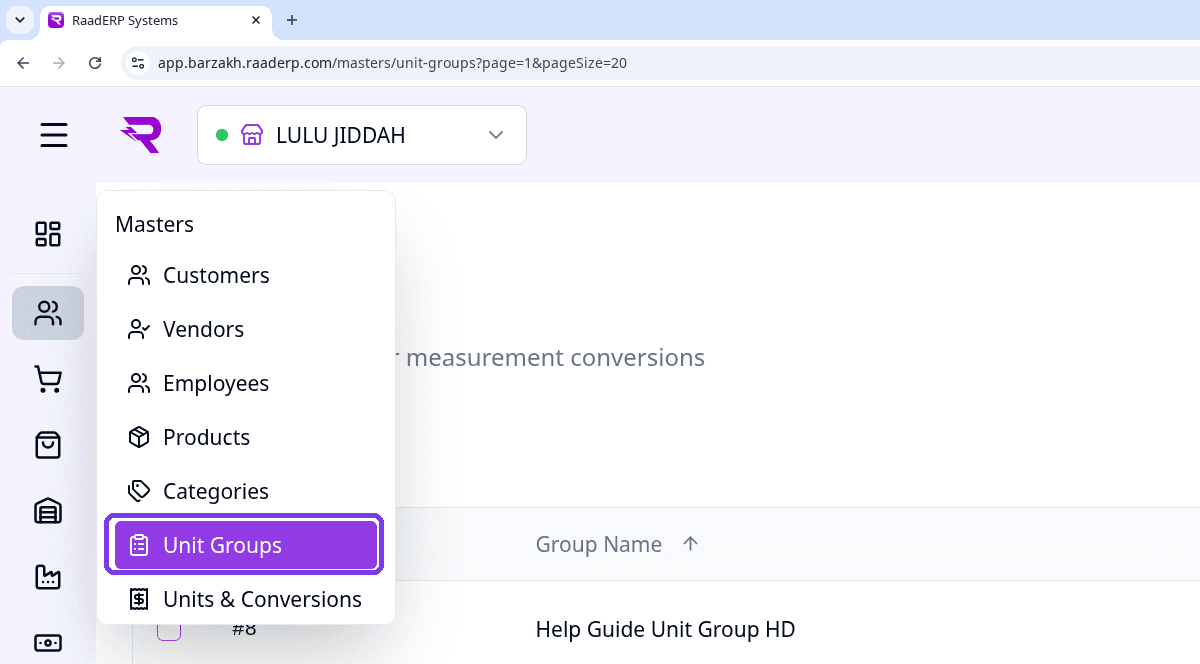
On a computer, point your mouse at the people icon in the left sidebar. On a phone, tap the menu button (☰) at the top left, then tap Masters. The Masters menu opens.
Step 2: Select Unit Groups, then click + Add Unit Group
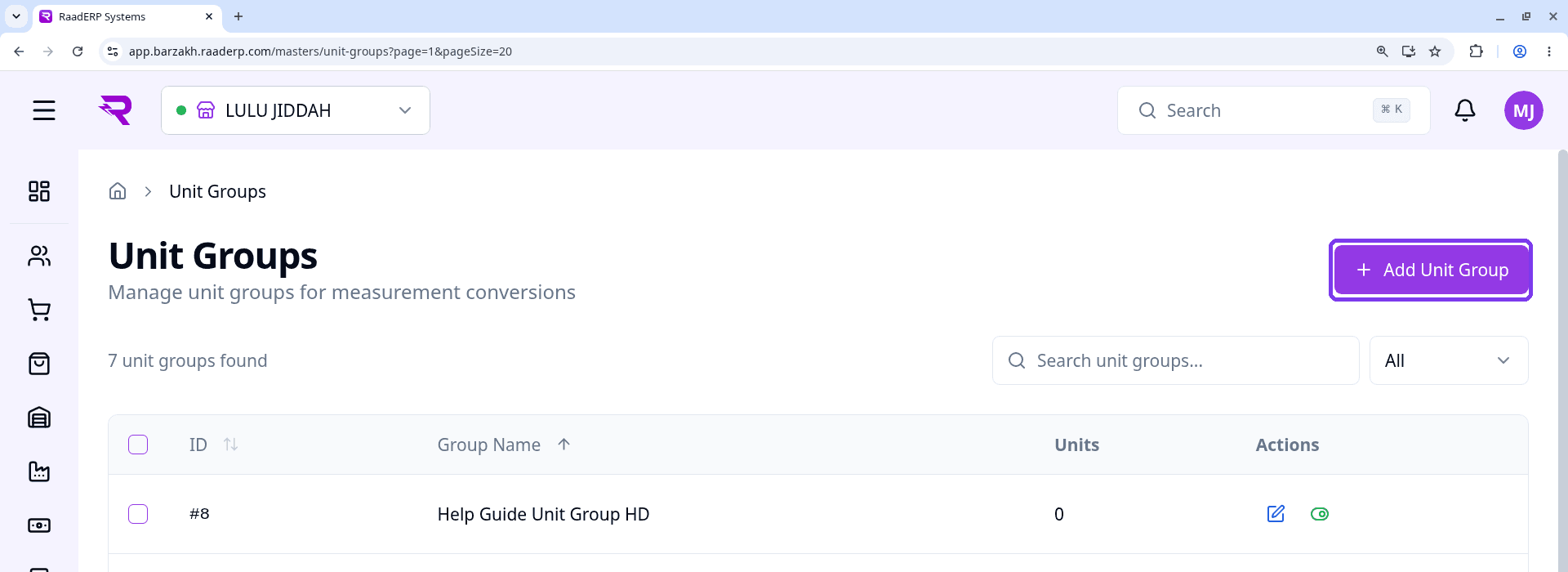
In the Masters menu, click Unit Groups. The Unit Groups page opens.
Click + Add Unit Group at the top right. A form opens on the right.
Step 3: Enter the group name
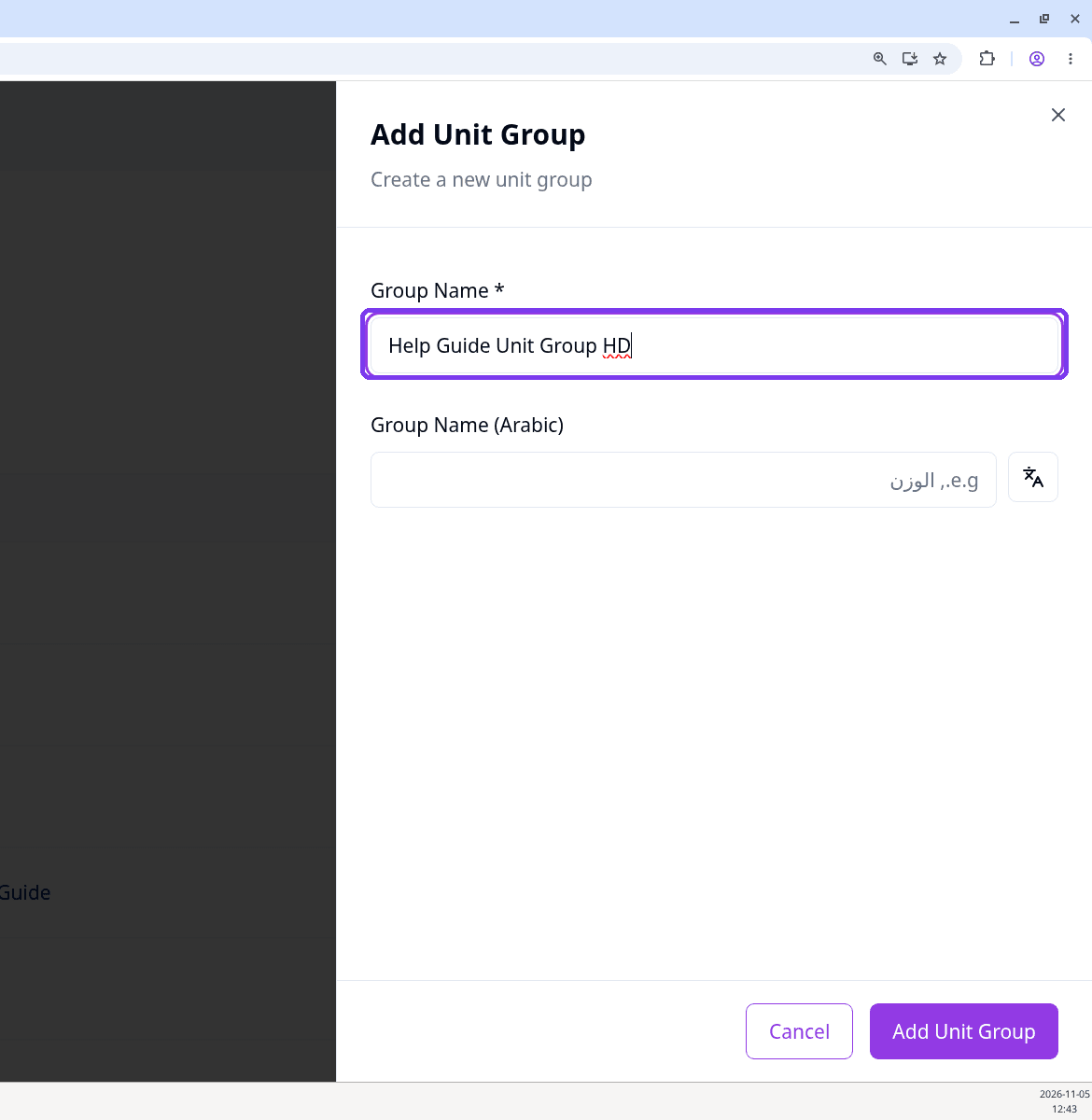
Type the Group Name, for example Weight. This is the only required field.
The Arabic name is optional.
Step 4: Click Add Unit Group to save
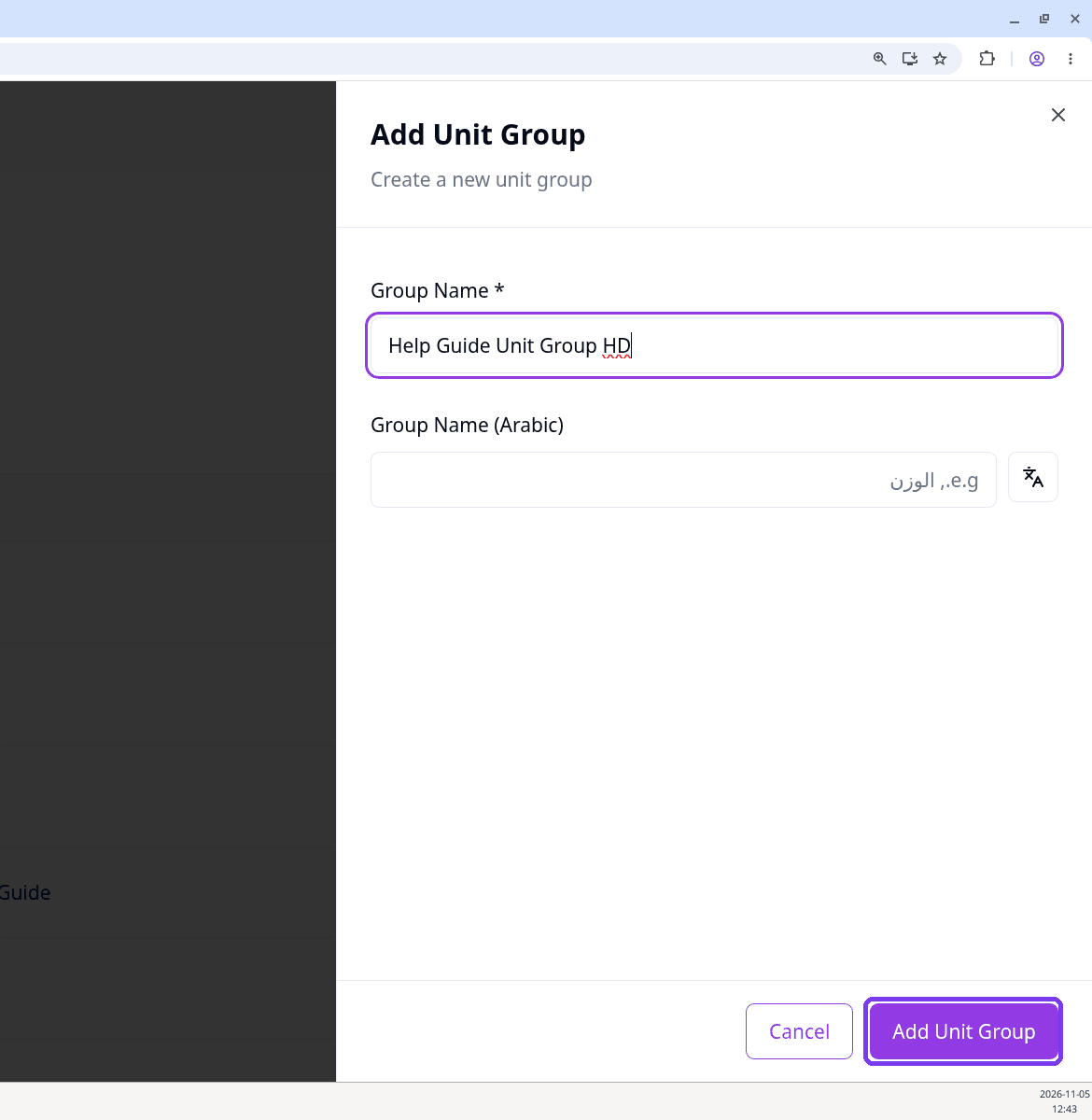
Click Add Unit Group at the bottom of the form.
You will see the message "Unit group created successfully".
Step 5: Find the new unit group in the list
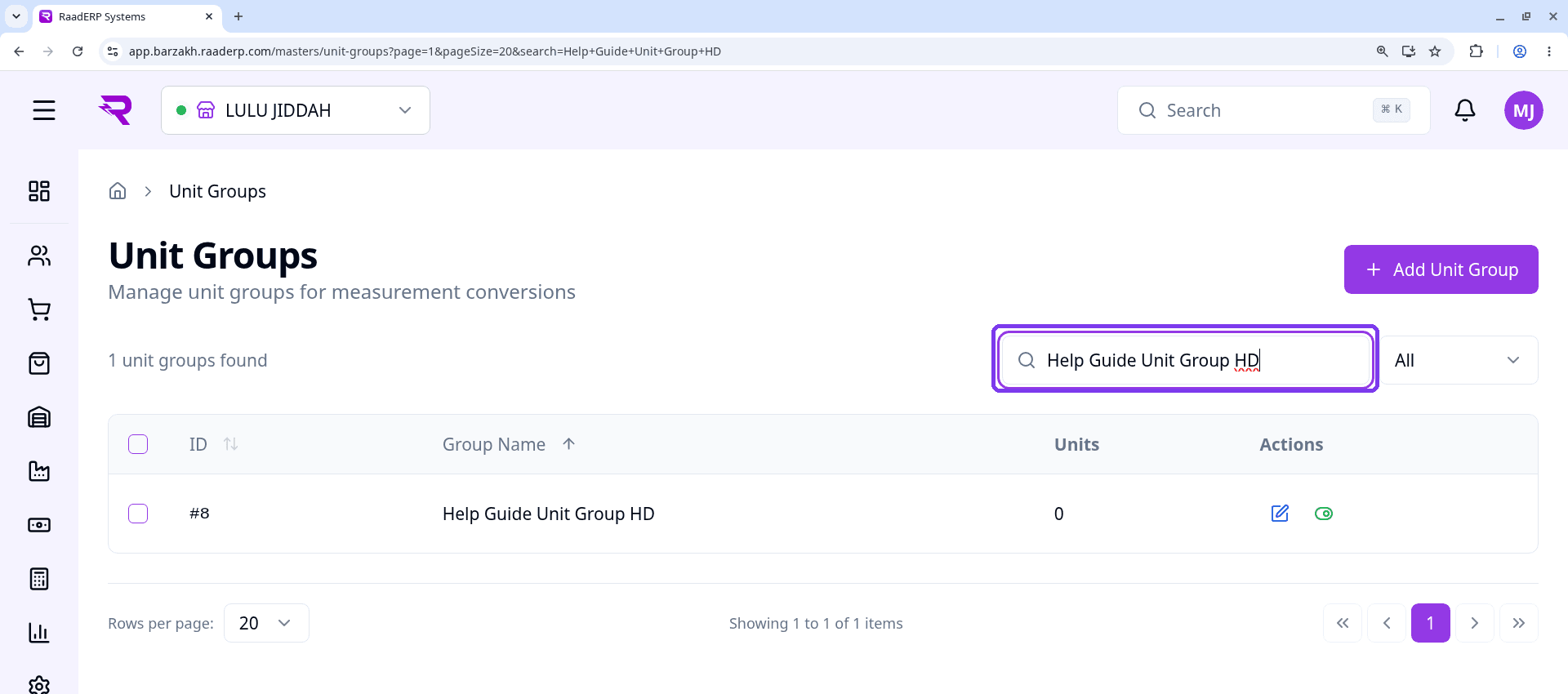
Your new unit group now appears in the Unit Groups list. To find it, type its name in the search box.
Important Notes
- Fields marked * are required. Only Group Name is required.
- A new unit group has no units yet. You add units separately under Masters > Units & Conversions.