
This guide shows you how to add an employee in RAAD ERP.
Go to: Masters > Employees
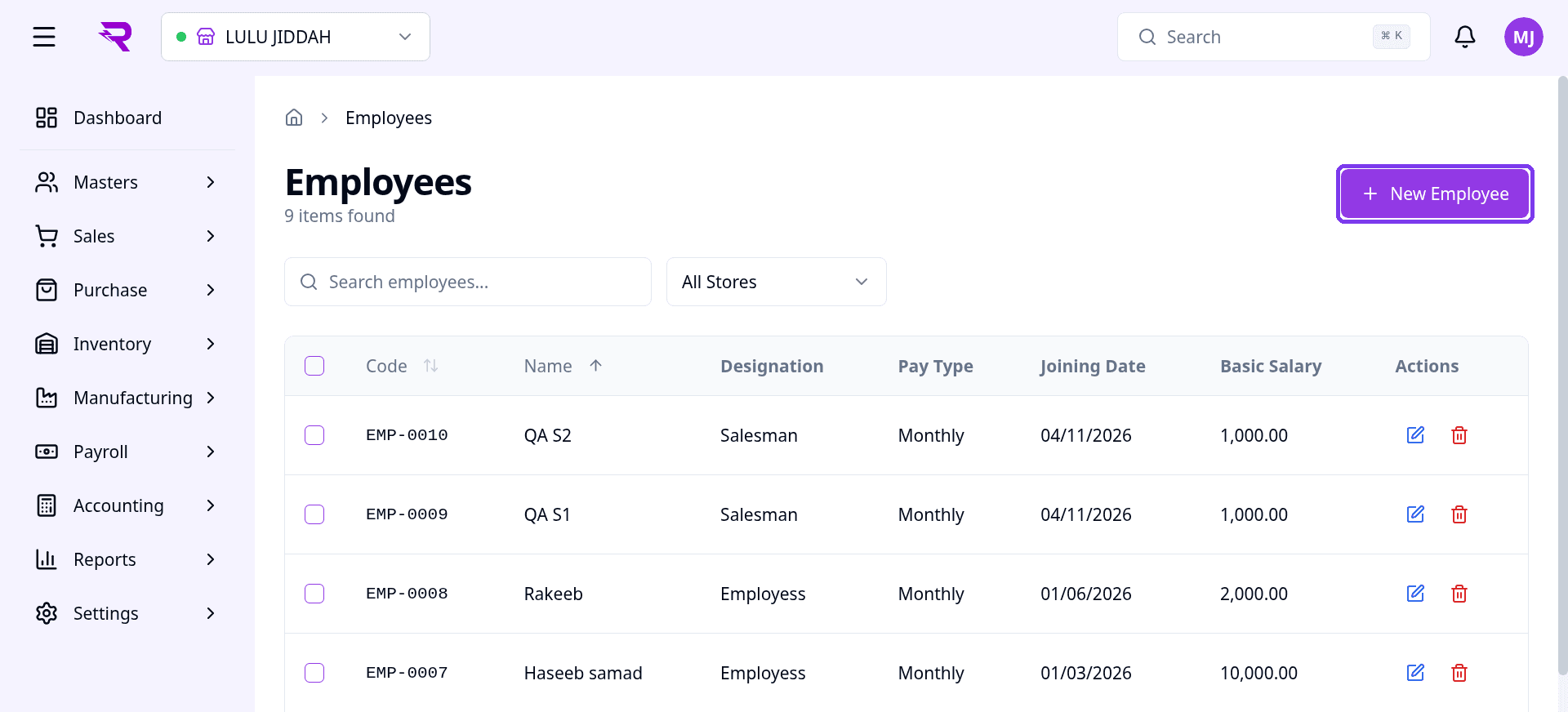
Step 1: Click New Employee
Click New Employee to open the form.
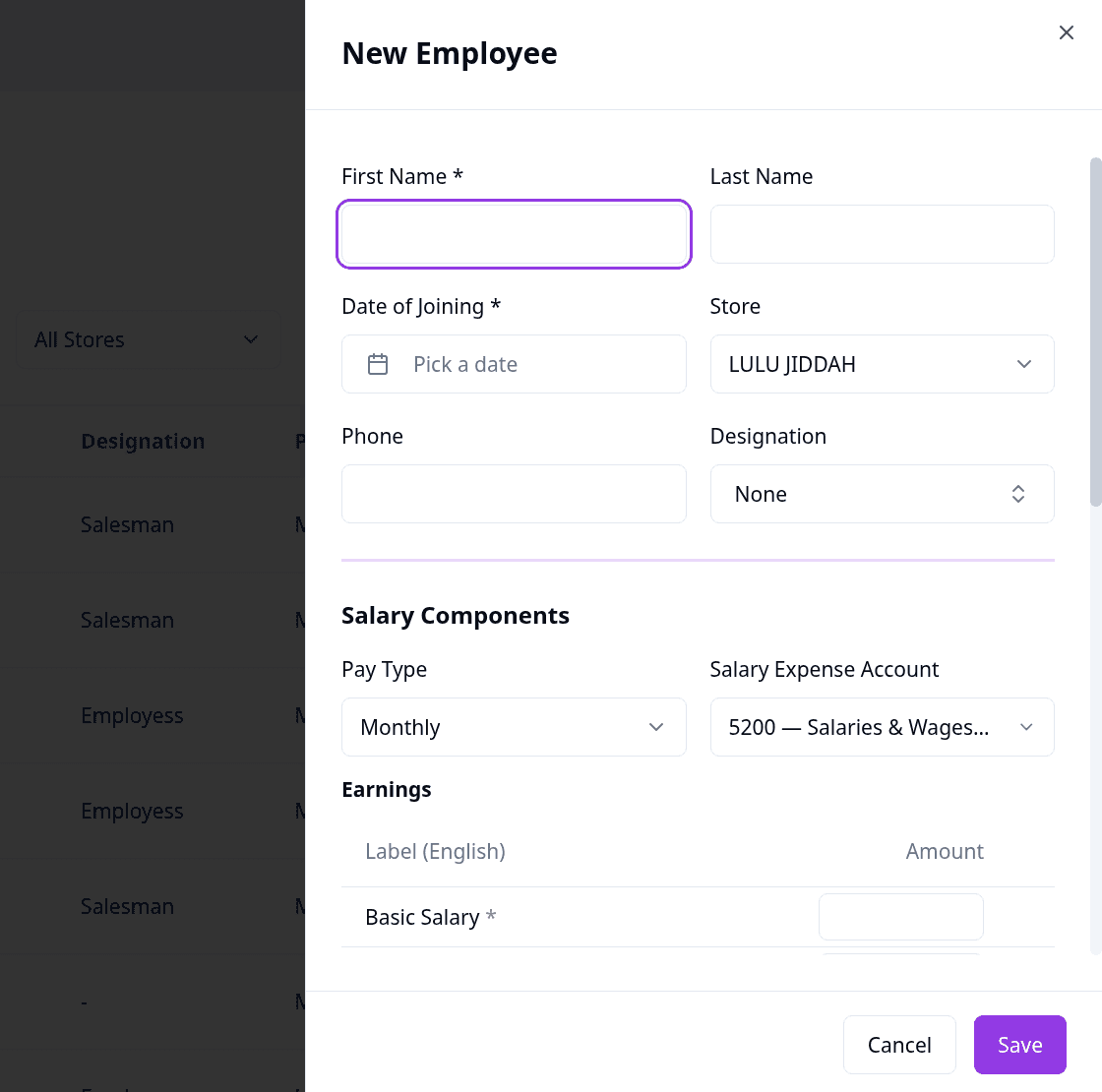
Step 2: Enter the required details
Enter First Name, Date of Joining, and Basic Salary.
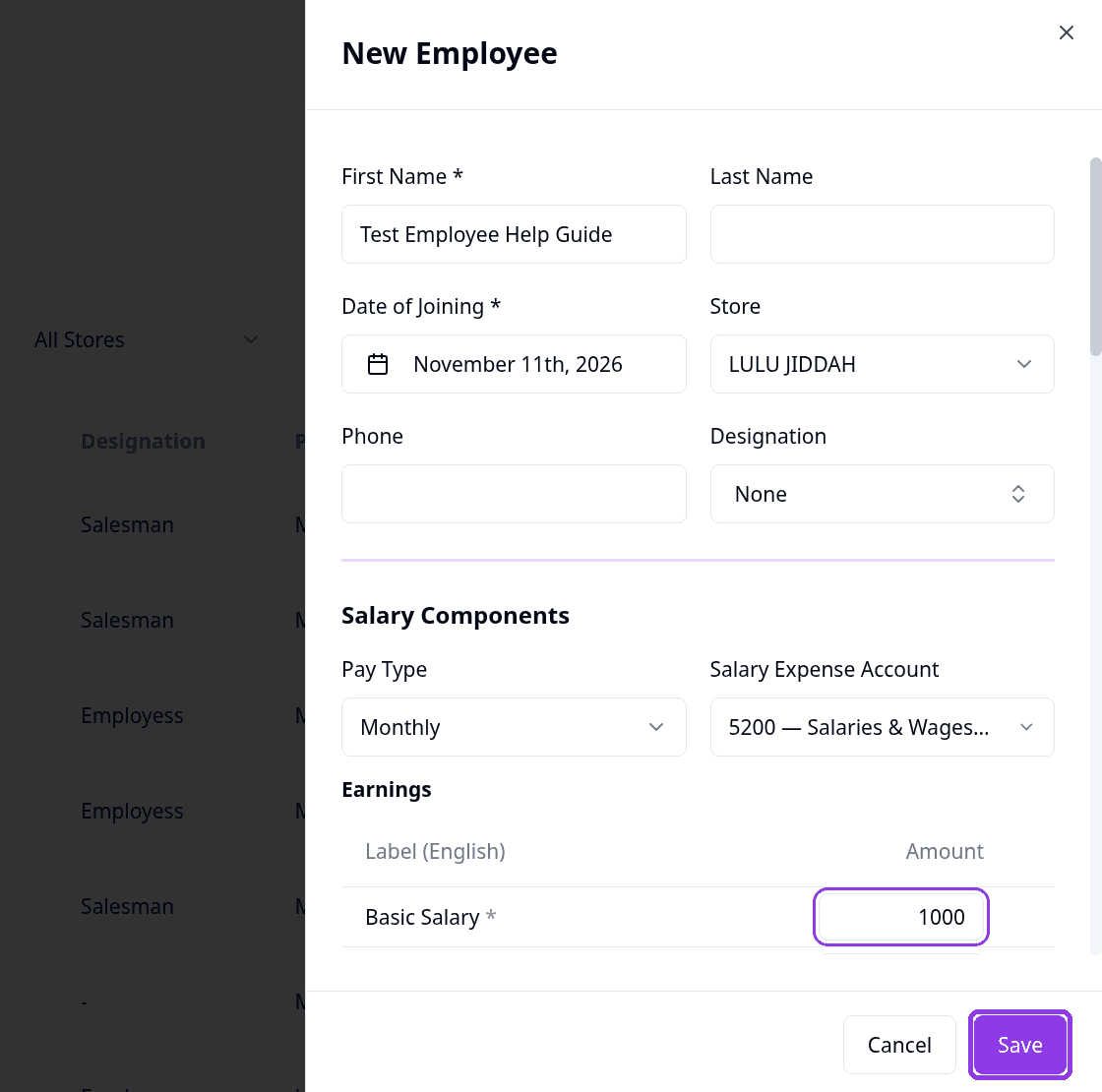
Step 3: Click Save
Click Save. A toast confirms “Employee created successfully”.
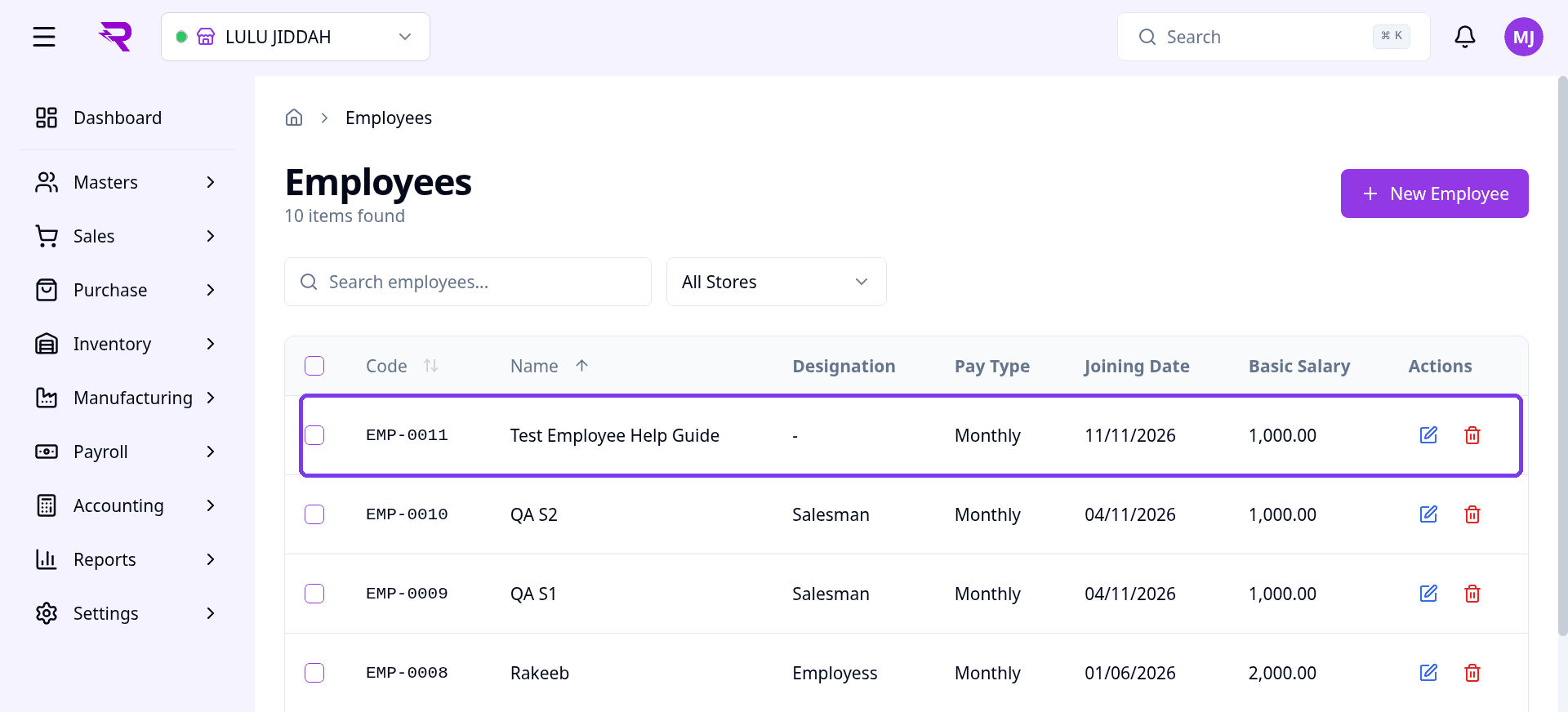
Step 4: Find the new employee
The new employee appears in the list with an automatically assigned code, such as EMP-0011.
Important Notes
- First Name, Date of Joining, and Basic Salary are required.
- An employee code is assigned automatically.