
This guide shows you how an active employee loan appears as a deduction on a payslip.
Before you start
The employee must have an active loan. To create one, see Providing a Loan to an Employee.
Go to: Payroll > Payslips
Step 1: Click New Payslip and select the employee
Click New Payslip and select the employee. The form loads the employee's earnings and deductions.
If the employee has an active loan, an Active Loan Deductions box shows the loan, the outstanding amount, the auto installment and an Override toggle. Leave Override off to use the auto installment.
Step 2: Click Save & Approve
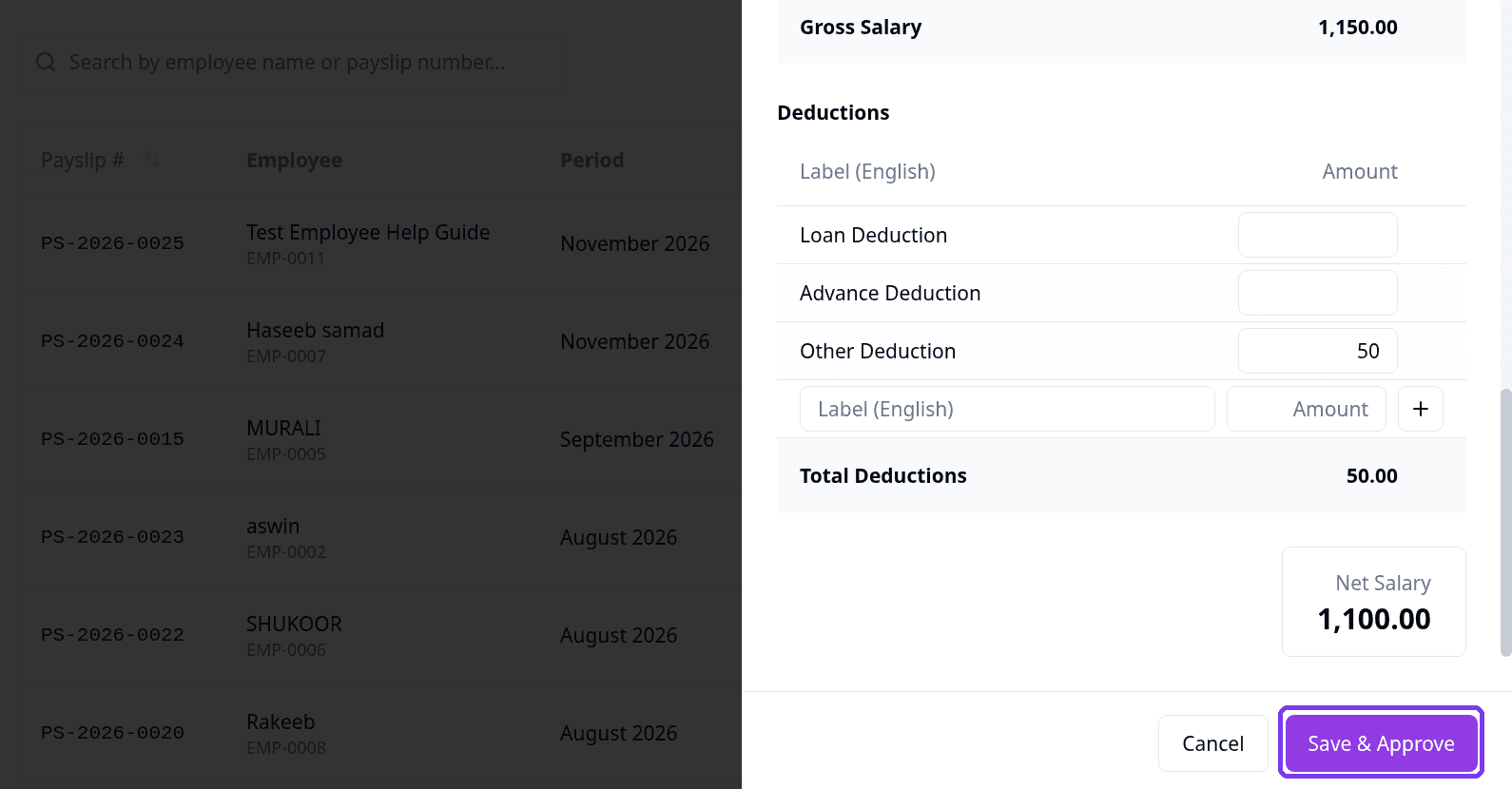
Click Save & Approve. The Loan Deduction row in the Deductions table stays blank — the installment is applied when you save.
Step 3: Check the Salary Breakdown
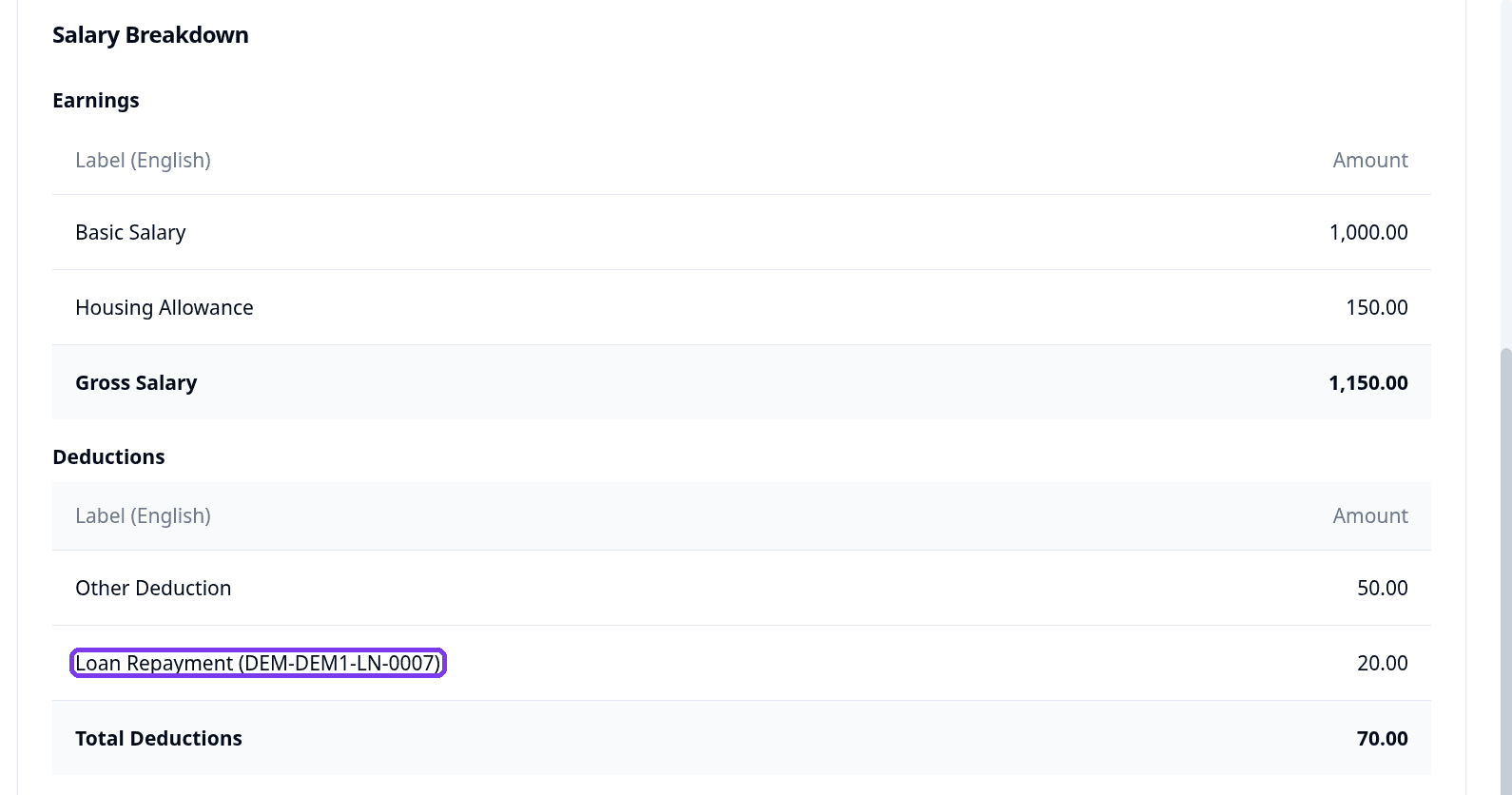
On the payslip, the installment appears under Deductions as a Loan Repayment line with the loan number in brackets. Total Deductions and Net Salary include this amount.
Step 4: Check the loan
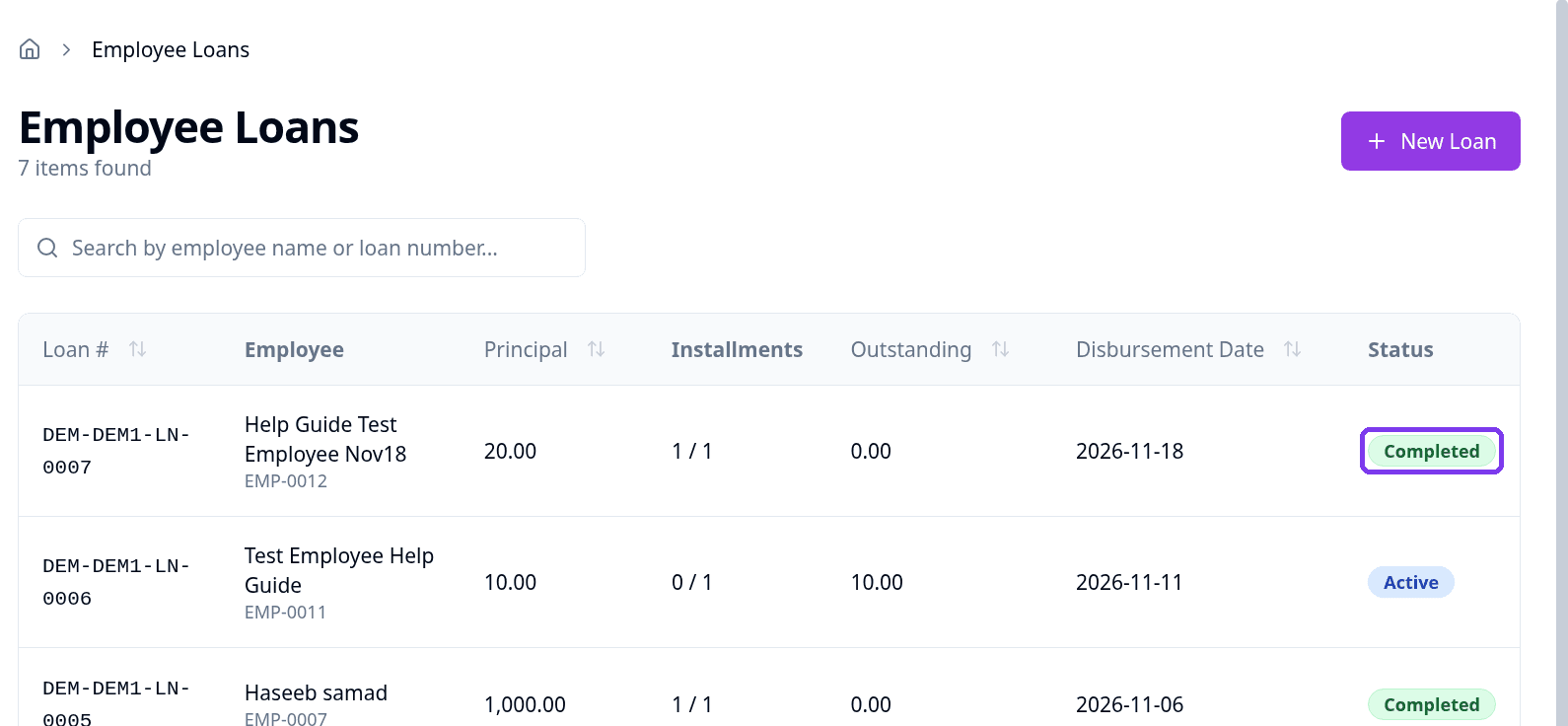
Go to Payroll > Loans. The loan's installment count and outstanding balance are updated, and the loan shows Completed when the last installment is applied.
Important Notes
- Do not enter the amount in the Loan Deduction row. It is applied automatically on Save & Approve.
- To create a payslip, see Generating an Employee Payslip.
- To add other allowances or deductions on the employee, see Adding Allowances and Deductions to an Employee.