
This guide shows you how to add allowances and deductions to an employee.
Before you start
The employee must already exist. To add one, see Creating an Employee. You can also enter allowances and deductions when you create the employee.
Go to: Masters > Employees
Step 1: Open the employee
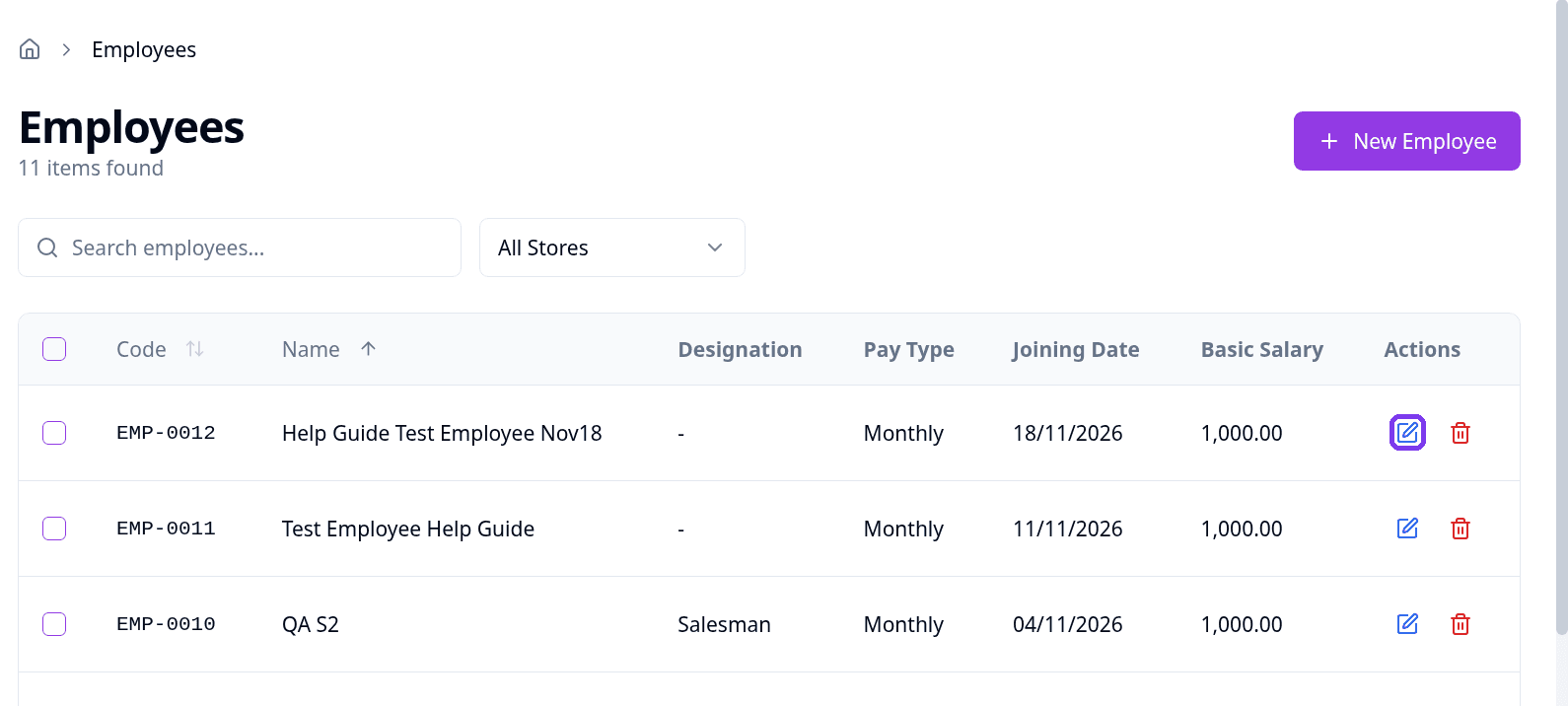
Click the edit icon for the employee.
Step 2: Enter allowances in Earnings
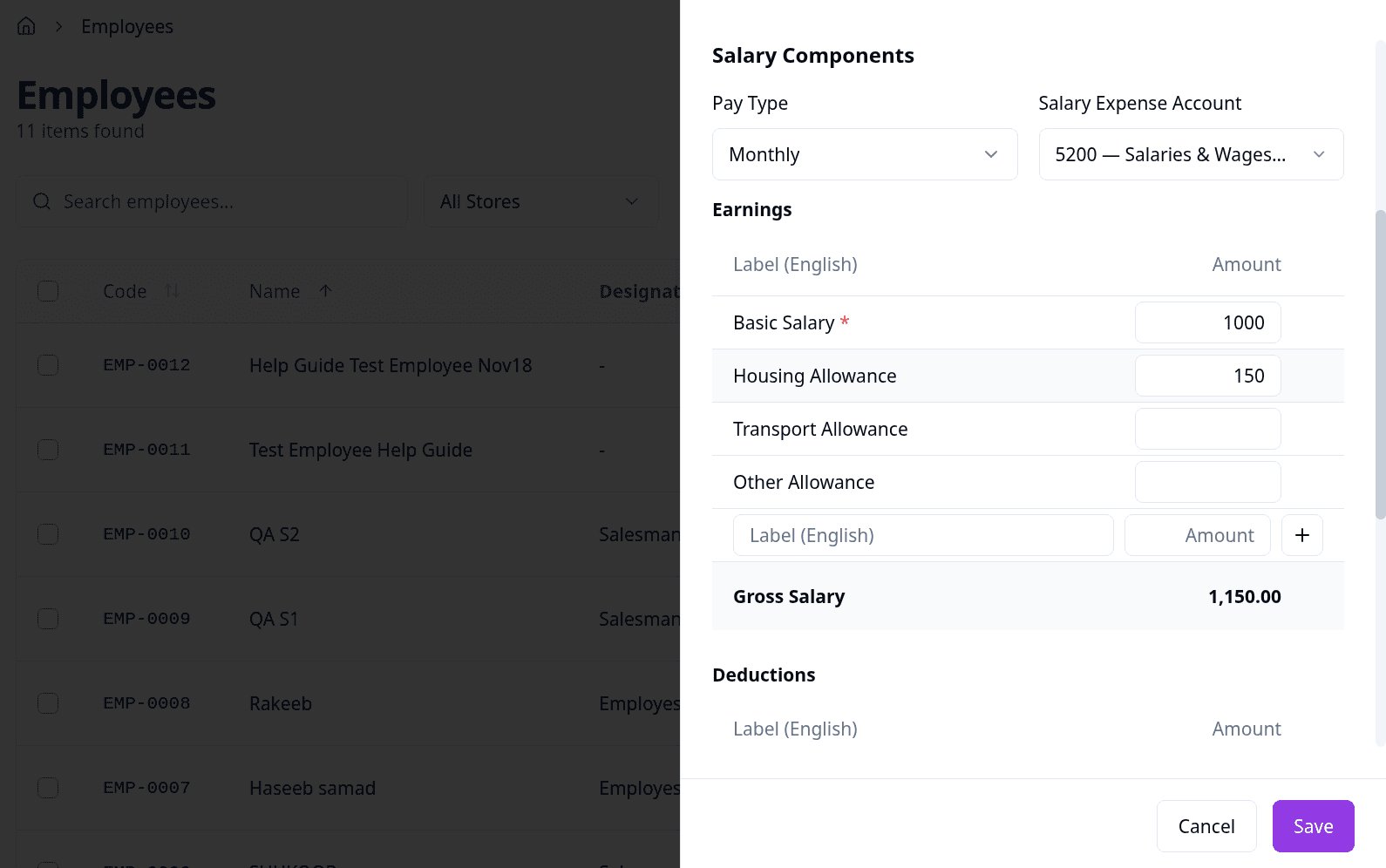
In Salary Components, under Earnings, enter amounts for the allowance rows, such as Housing Allowance, Transport Allowance or Other Allowance. You can also add a custom allowance with the + button, and Gross Salary updates as you type.
Step 3: Enter deductions and click Save
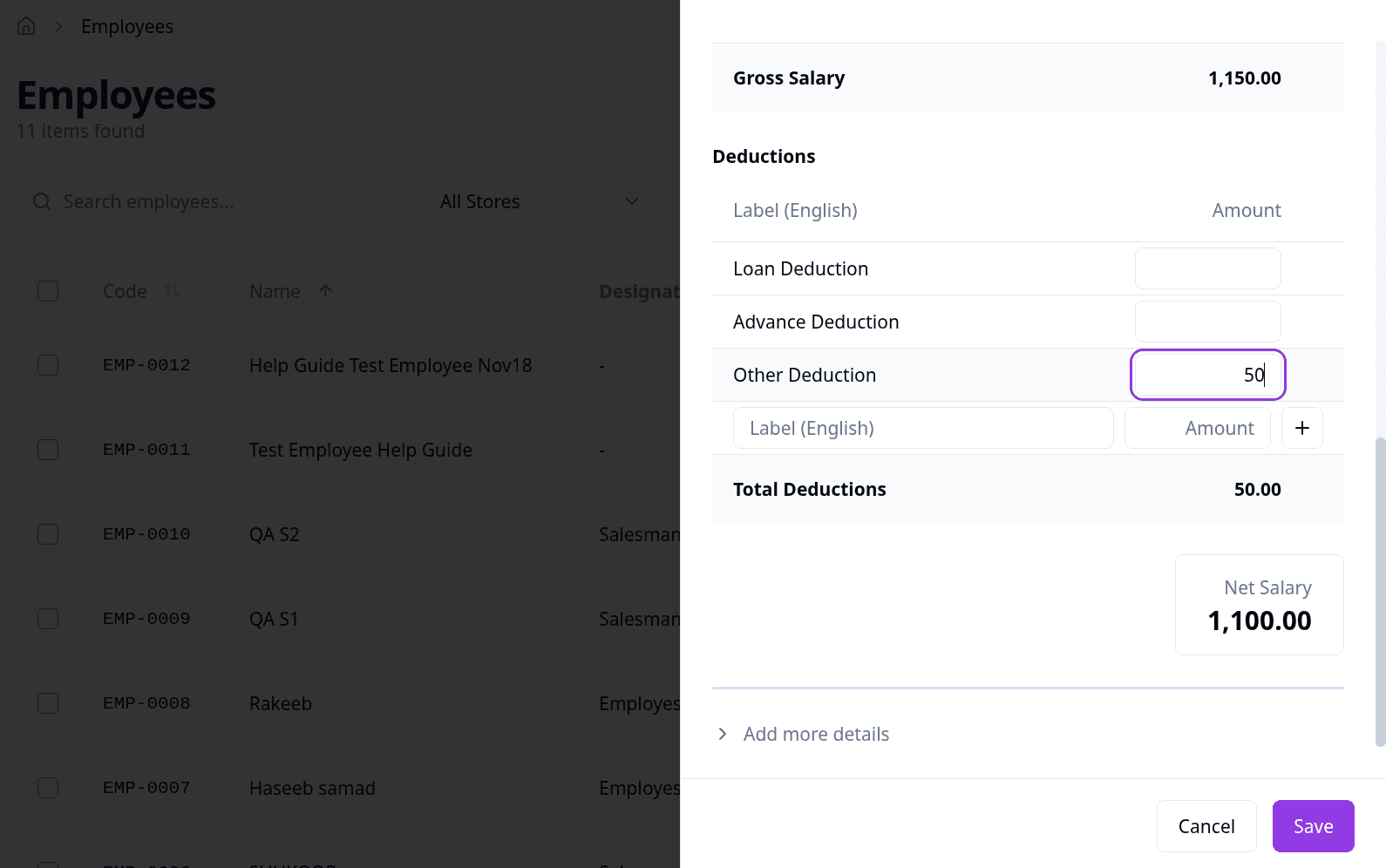
Scroll to Deductions and enter amounts for the deduction rows, such as Loan Deduction, Advance Deduction or Other Deduction. Click Save.
Important Notes
- Allowance and deduction amounts are optional.
- You can also add a custom deduction with the + button.
- The Basic Salary column in the Employees list shows the basic salary only.
- These amounts are used when you generate a payslip. See Generating an Employee Payslip.