
This guide shows you how to mark an approved payslip as paid.
Before you start
The payslip must be Approved. To create one, see Generating an Employee Payslip.
Go to: Payroll > Payslips
Step 1: Click Mark as Paid
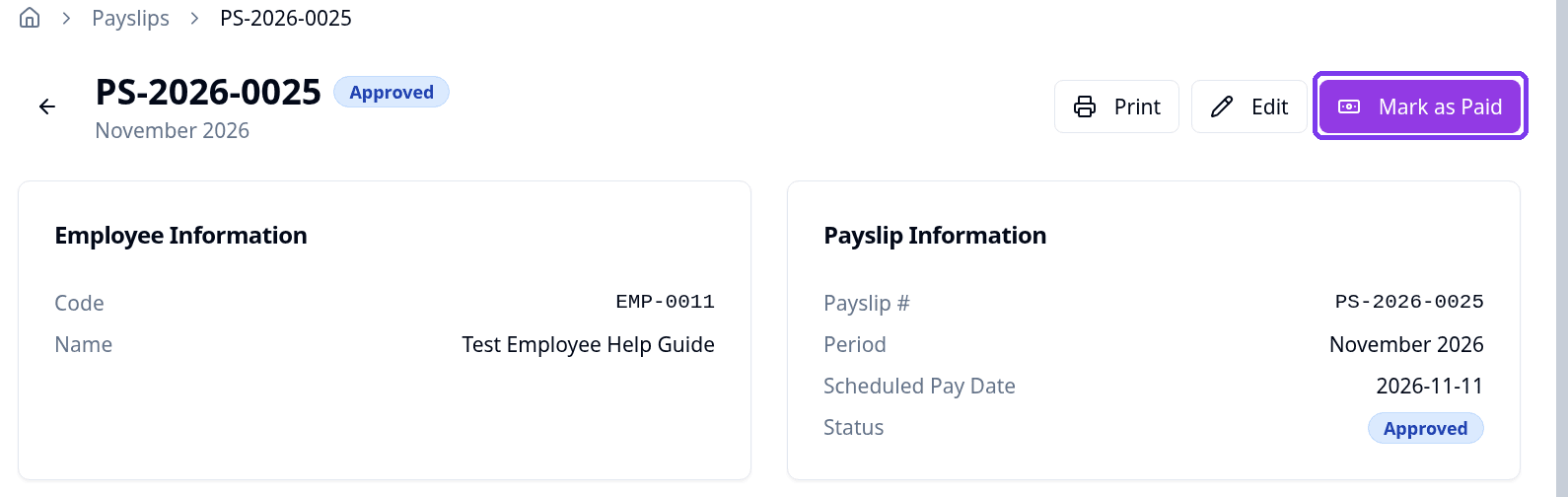
Open the approved payslip and click Mark as Paid.
Step 2: Enter the payment details
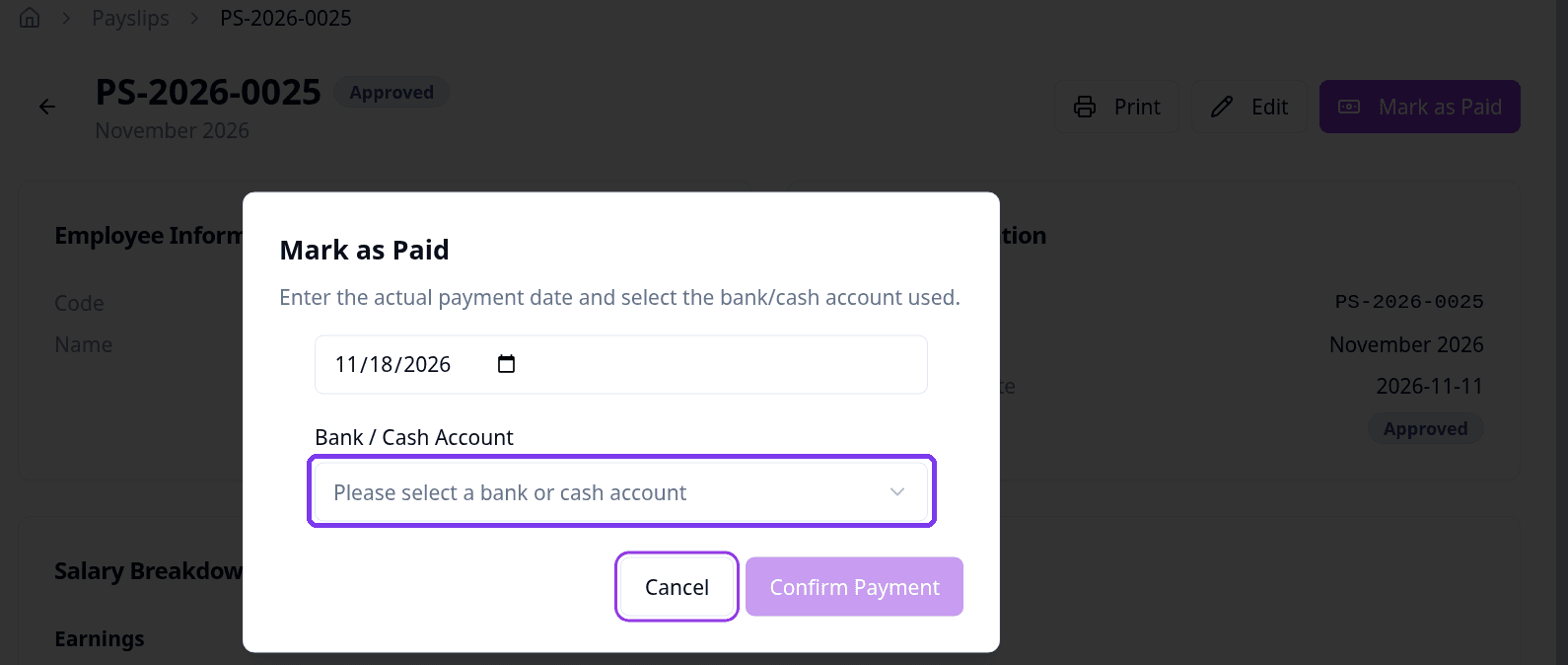
Enter the payment date and select the Bank / Cash Account. Confirm Payment stays disabled until you select an account.
Step 3: Click Confirm Payment
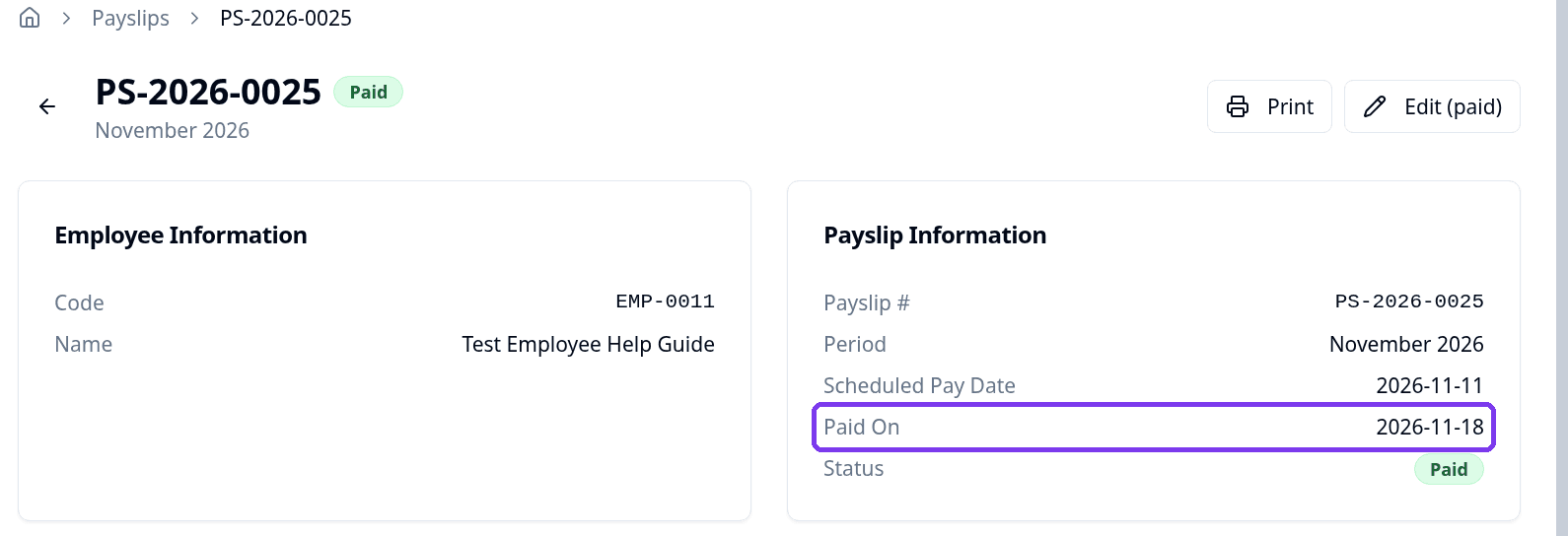
Click Confirm Payment. A “Payslip marked as paid” message confirms it, and the payslip shows Paid with a Paid On date.
Step 4: Check the list
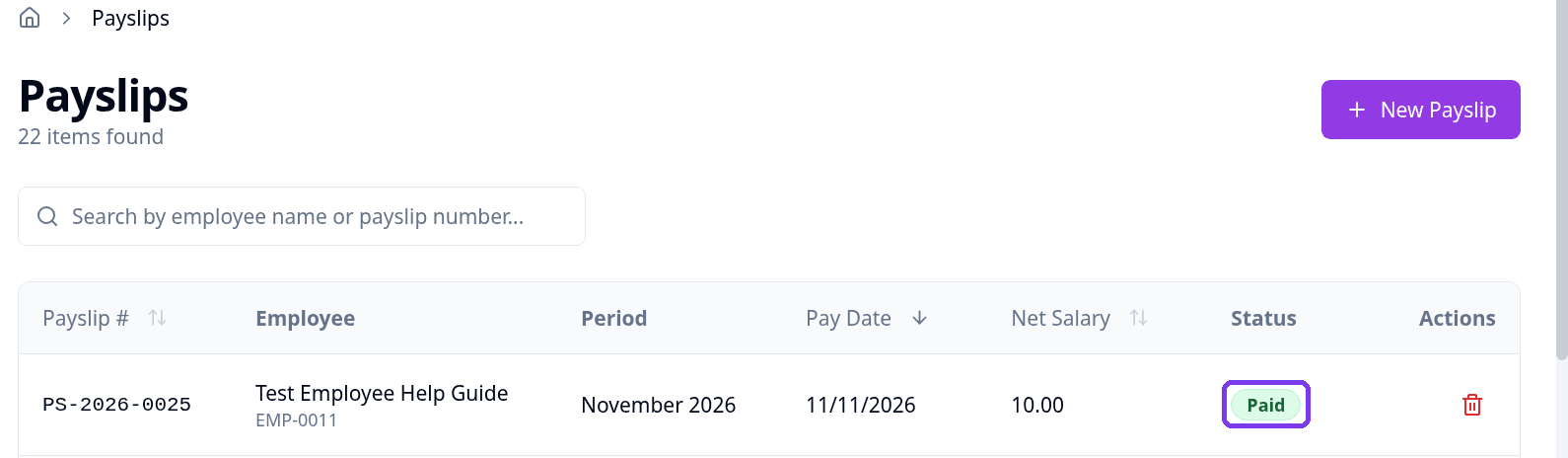
In the Payslips list, the payslip shows status Paid.
Important Notes
- Mark as Paid no longer appears once the payslip is Paid.