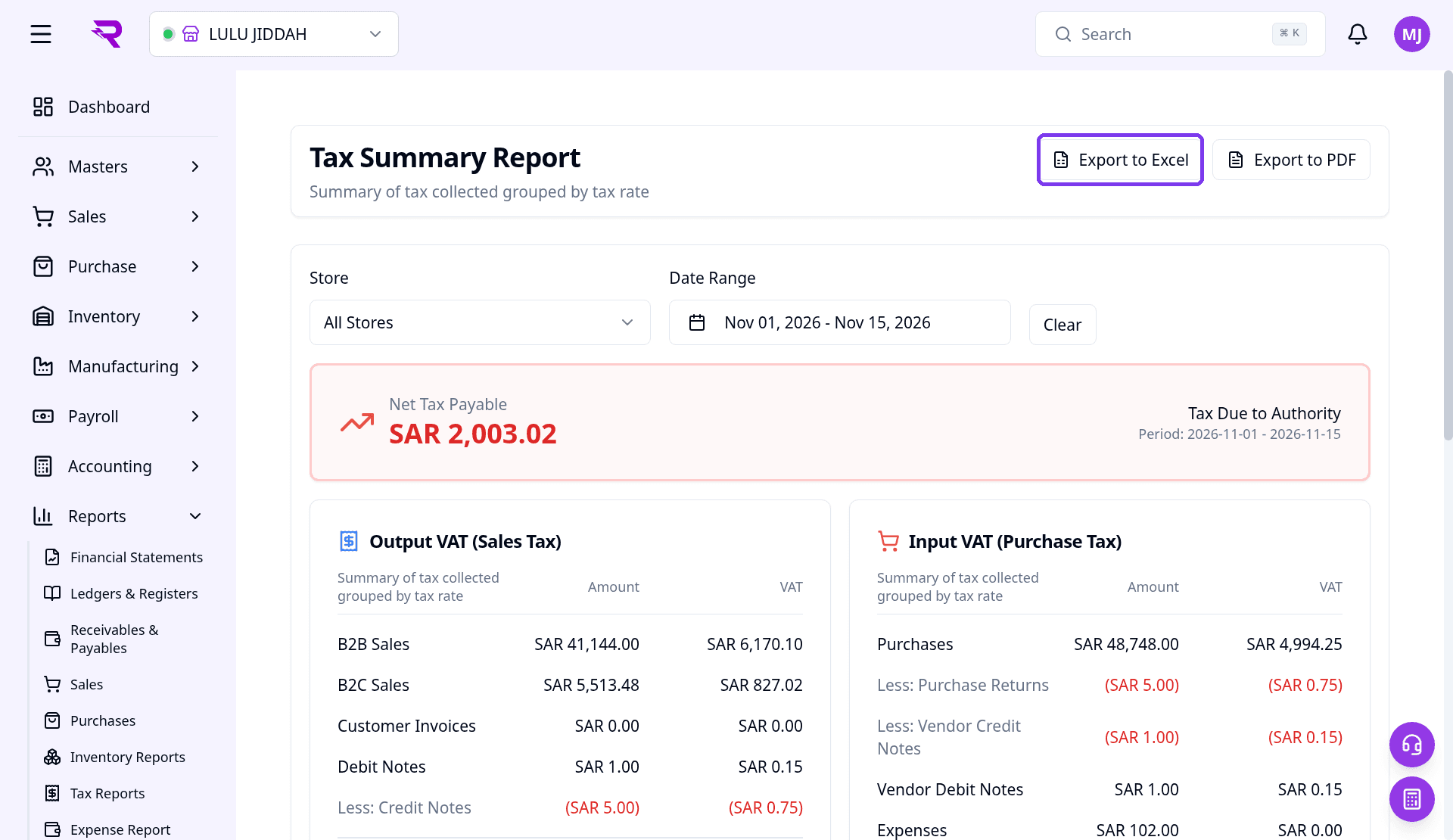
This guide shows you how to open a tax report and export it in RAAD ERP.
Go to: Reports > Tax Reports
Step 1: Open a tax report
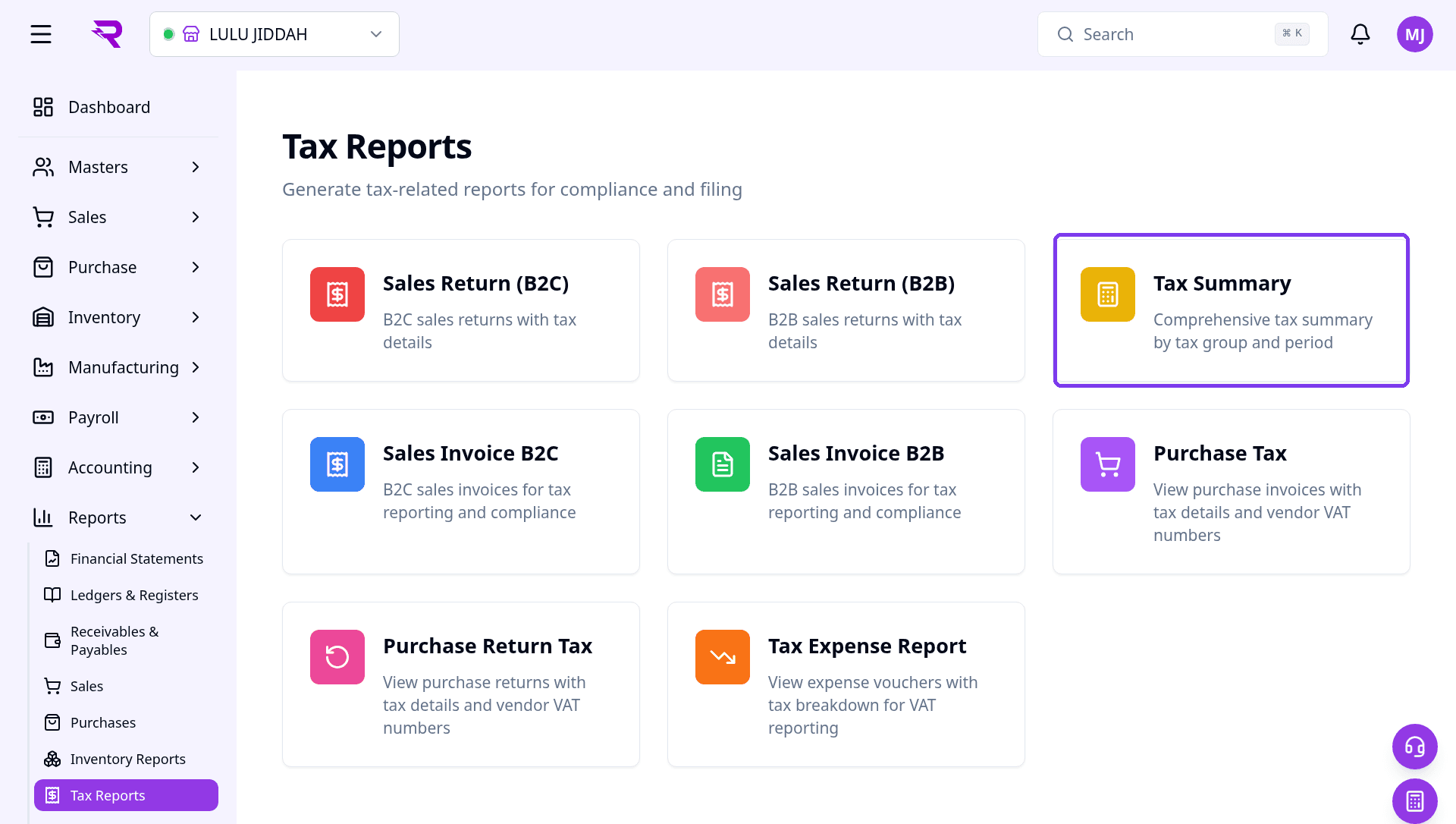
The Tax Reports page lists reports such as Tax Summary, Sales Invoice B2B, Purchase Tax, and Tax Expense Report. Open Tax Summary, or another tax report you need.
Step 2: Set the filters
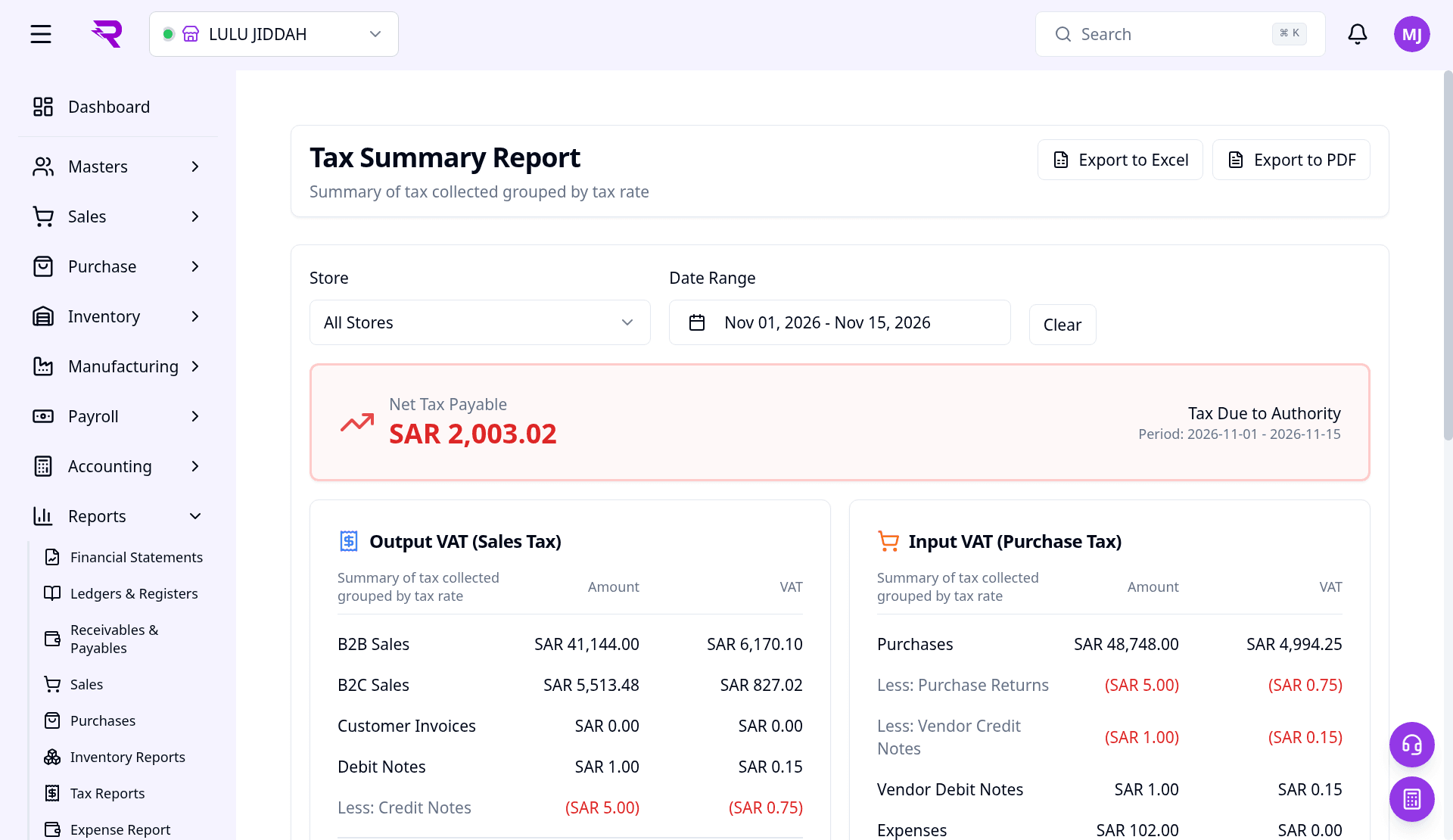
Store defaults to All Stores and Date Range defaults to the current month through today. Change them if needed; the report fills in automatically — there is no Generate button.
Step 3: Export the report
Click Export to Excel or Export to PDF. The file downloads directly.