
This guide shows you how to turn on serial numbers or batch tracking for a product.
Before you start
This guide covers only these settings. For the other product fields, see Adding a New Product in RAAD ERP.
Go to: Masters > Products
Step 1: Open the product form
Click Add Product, or click the edit icon on an existing product.
Step 2: Choose the tracking option
In Additional Settings, tick Use Serial Numbers to track individual items, or Use Batch Tracking to track items by batch or lot number.
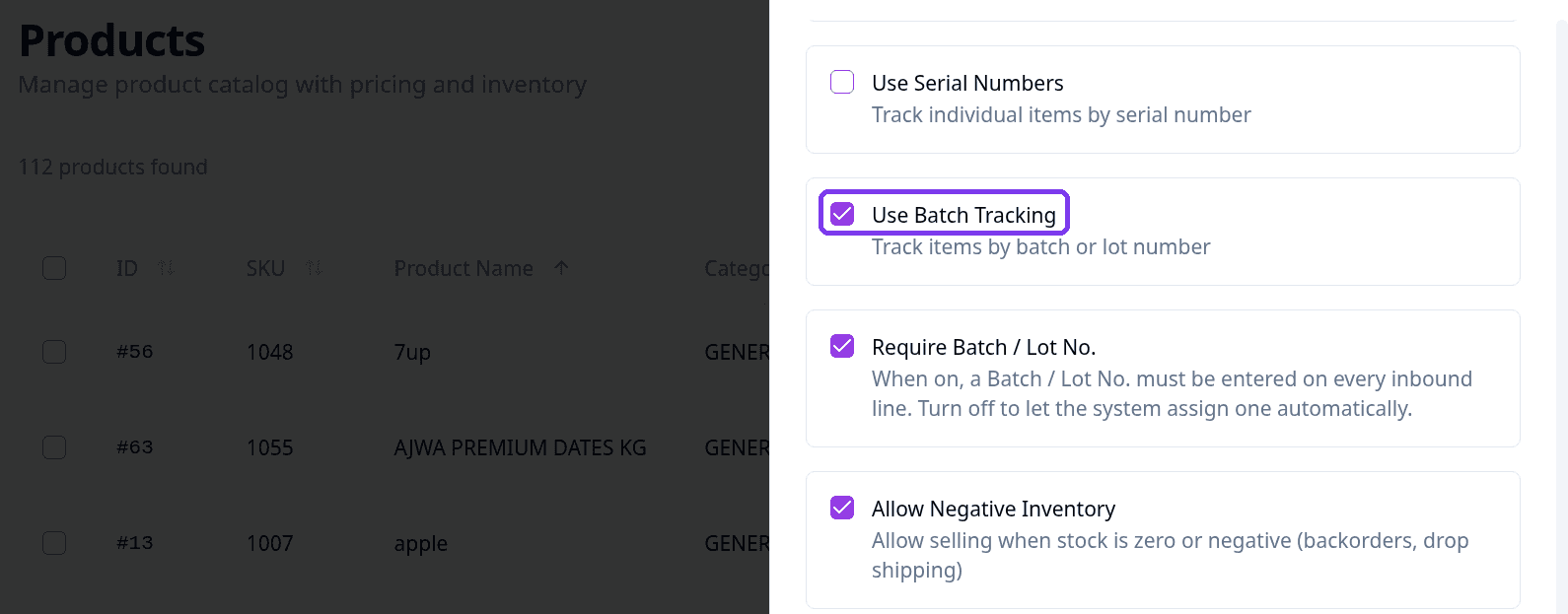
Step 3: Check Require Batch / Lot No.
Ticking Use Batch Tracking shows Require Batch / Lot No., which is ticked. When on, a Batch / Lot No. must be entered on every inbound line; turn it off to let the system assign one automatically.
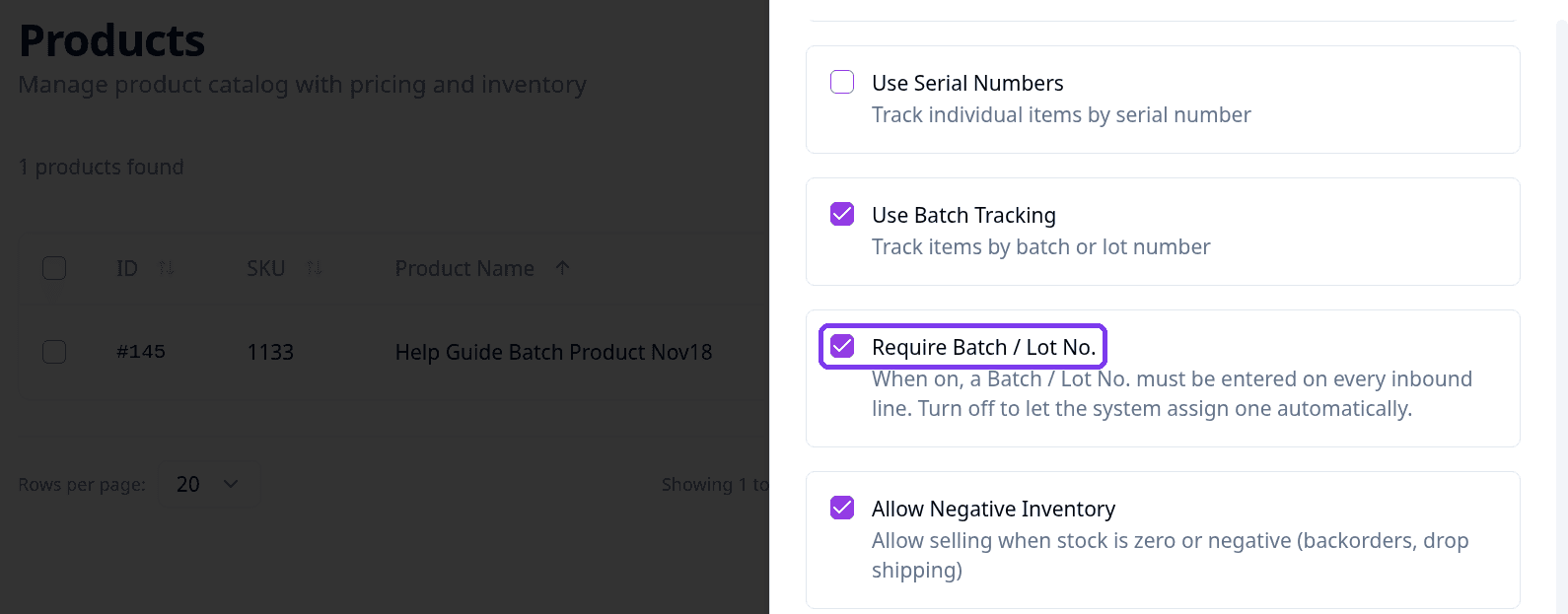
Step 4: Save the product
Click Add Product to save a new product.
Important Notes
- A finished product needs Use Batch Tracking before you can create its bill of materials. See Creating a Bill of Materials.
- These checkboxes stay editable in Edit Product.