
This guide shows you how to convert an approved inventory order into a stock transfer and post it from the source store.
Before you start
The order must be Approved. To approve an order, see Submitting and Approving an Inventory Order.
Go to: Inventory > Inventory Order
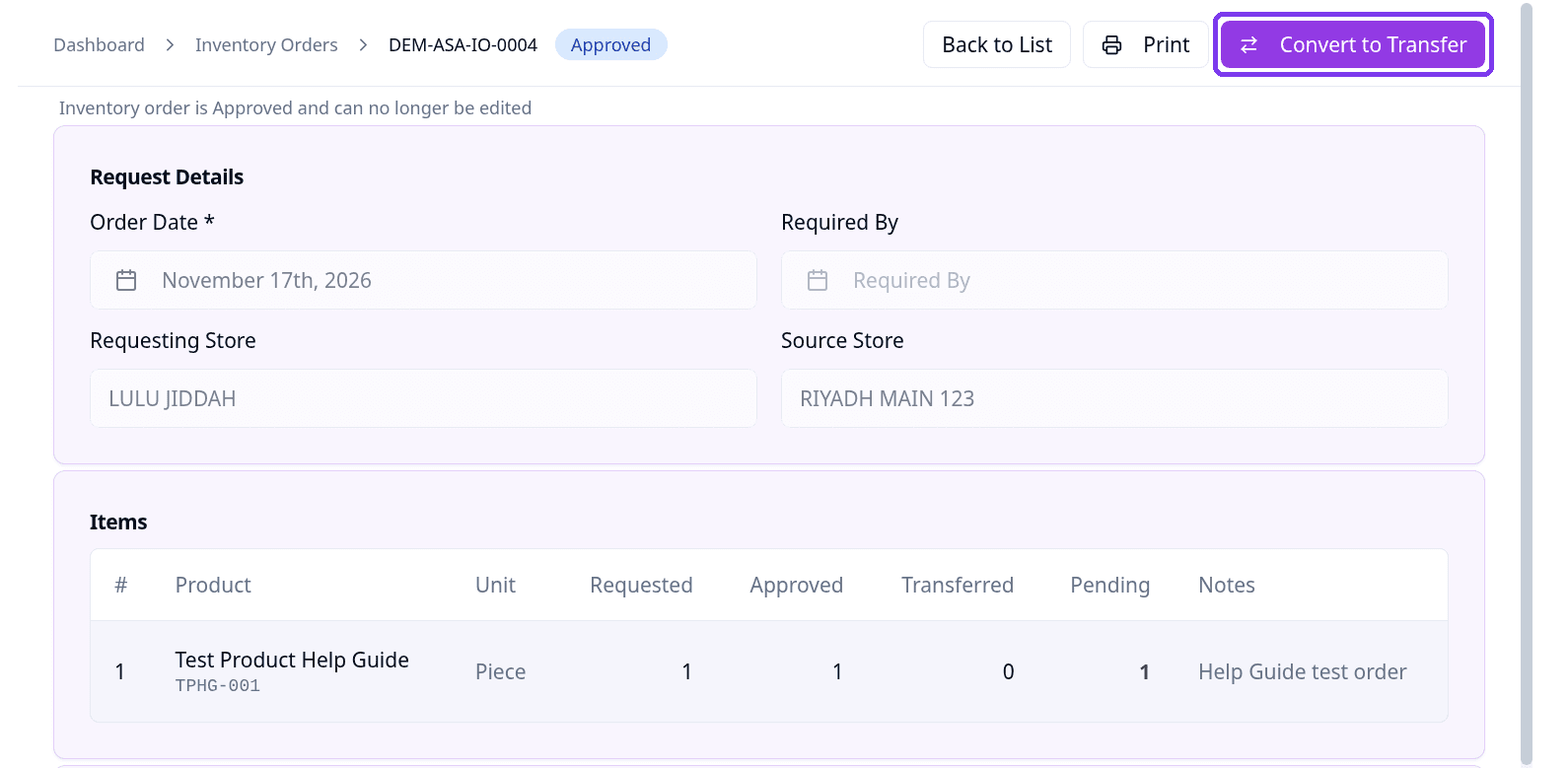
Step 1: Click Convert to Transfer
Open the approved order and click Convert to Transfer.
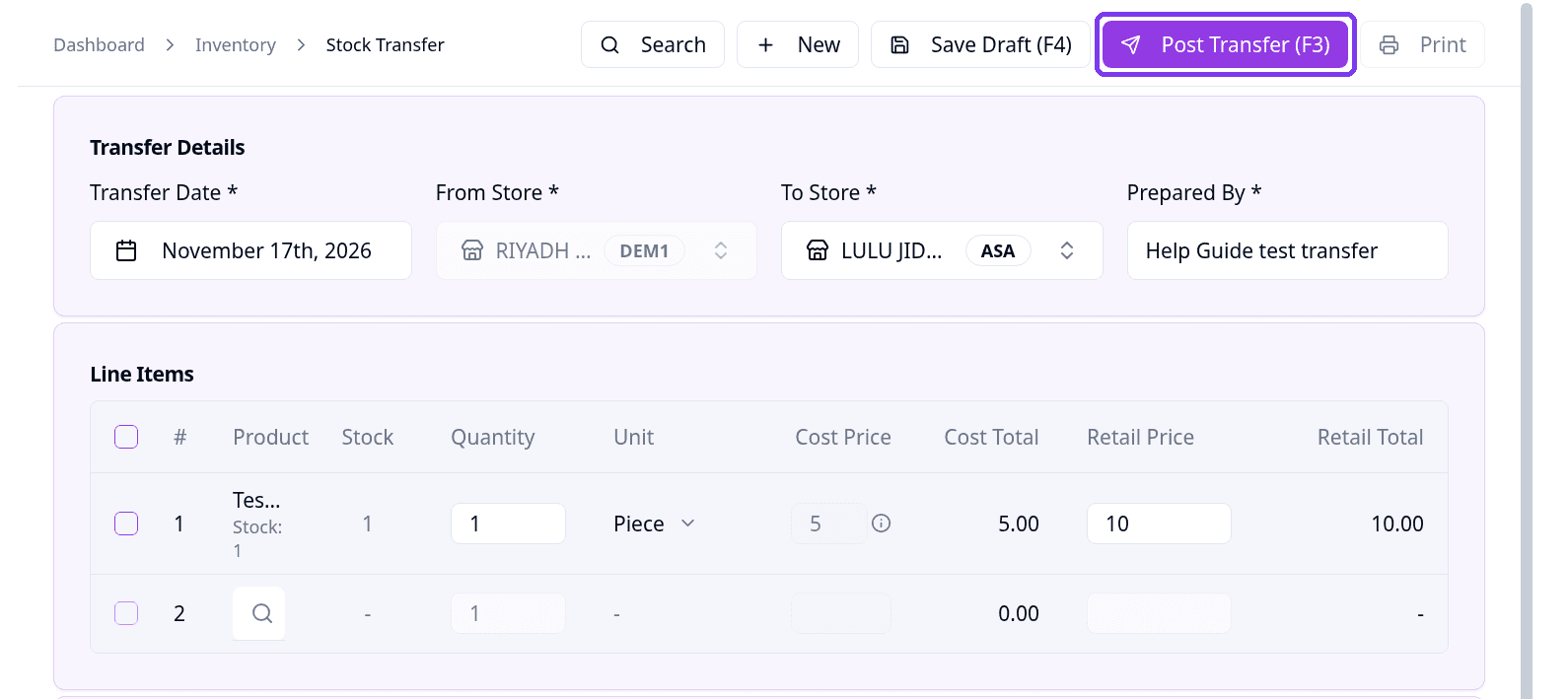
Step 2: Check the details and post
Check From Store, To Store and the line items, and enter Prepared By. Then click Post Transfer (F3).
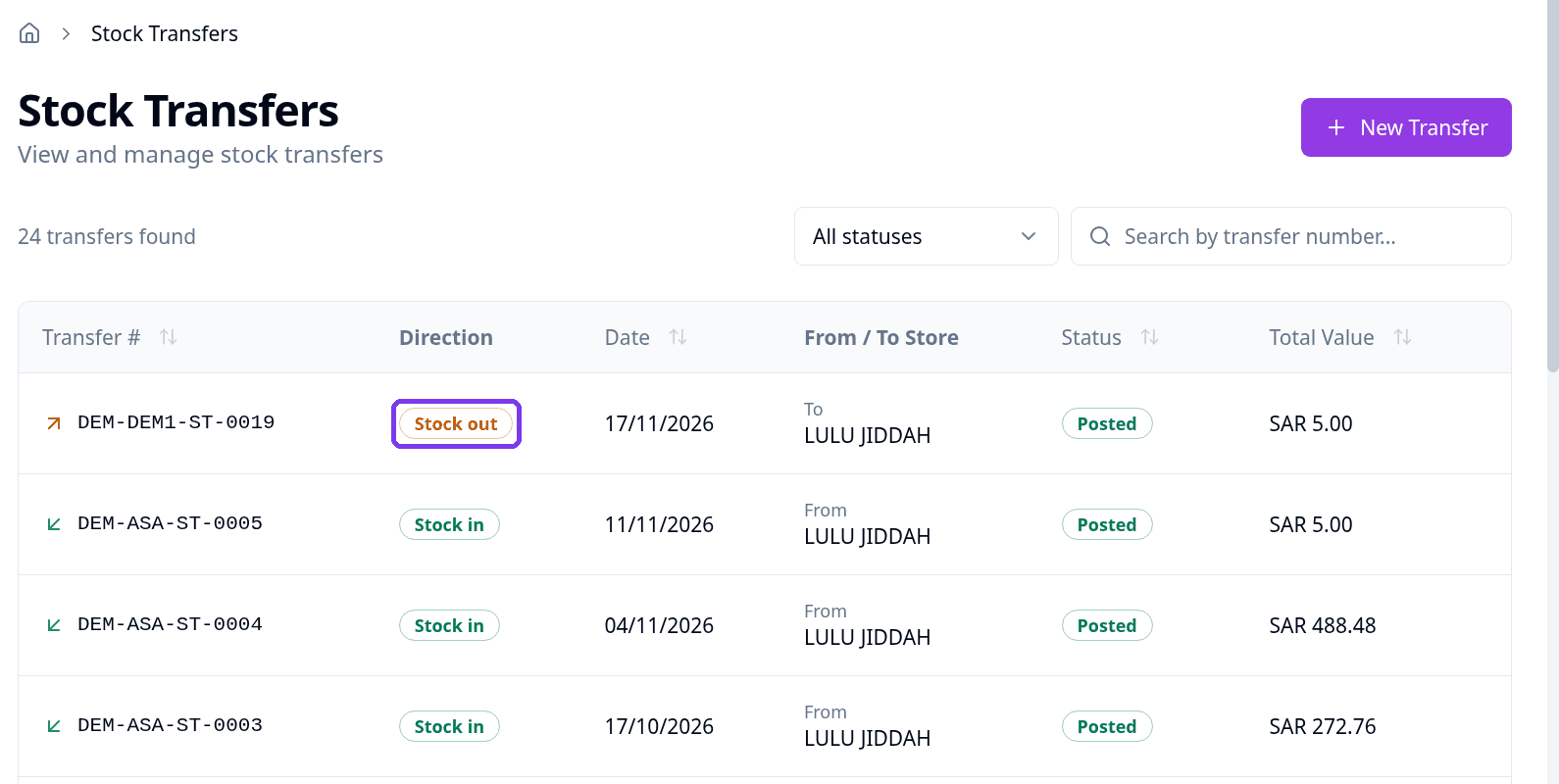
Step 3: Find the posted transfer
Go to Inventory > Inter-Store Transfer. The transfer shows as Stock out with status Posted.
Important Notes
- Wait for the store fields to finish loading before you click Post Transfer (F3). Posting too early shows “Please select destination store”.
- No receive step is needed. At the destination store, the transfer shows as Stock in with status Posted.
- To transfer stock without an inventory order, see Transferring Stock Between Two Stores.