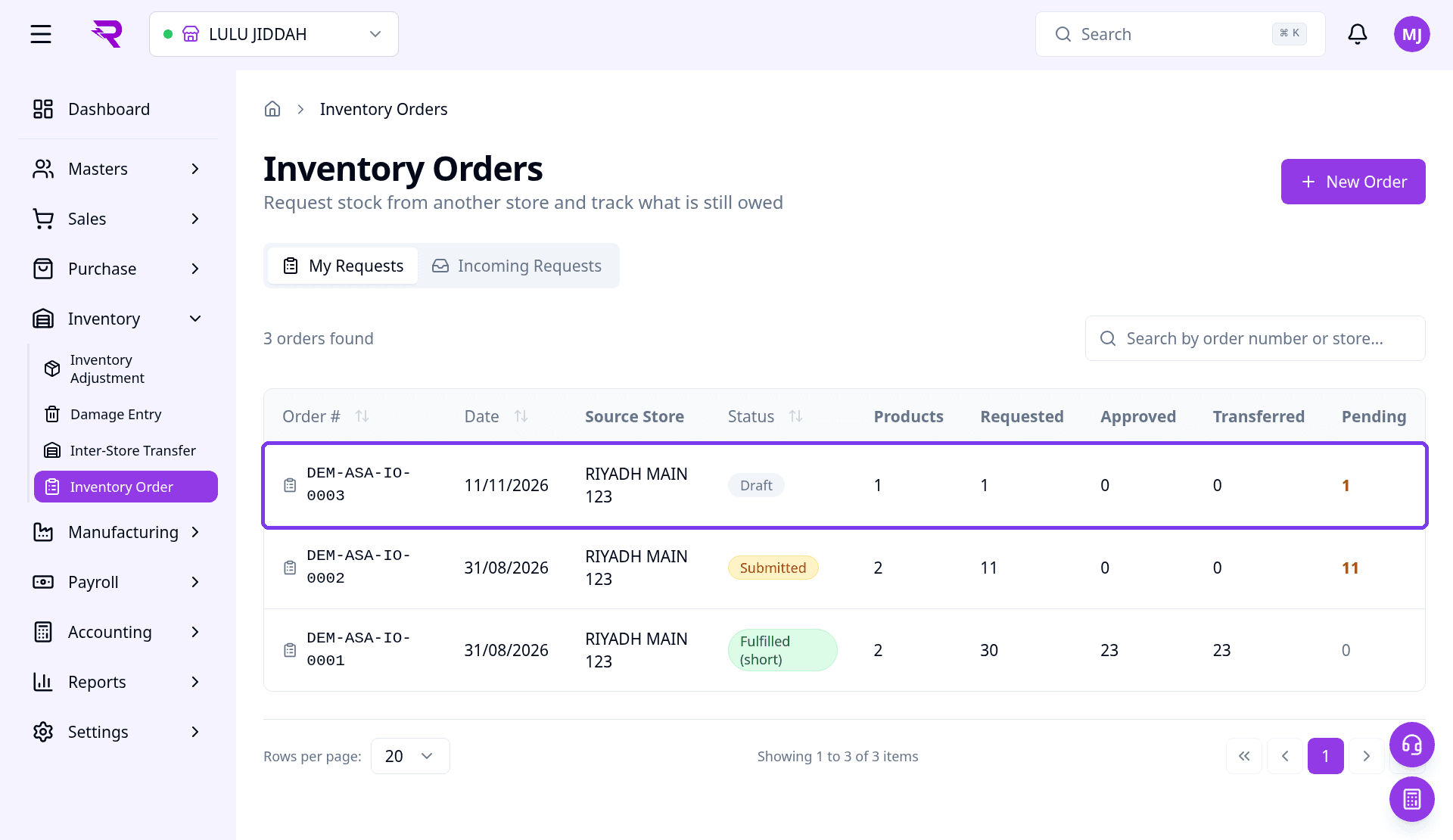
This guide shows you how to create an inventory order as a draft in RAAD ERP.
Go to: Inventory > Inventory Order
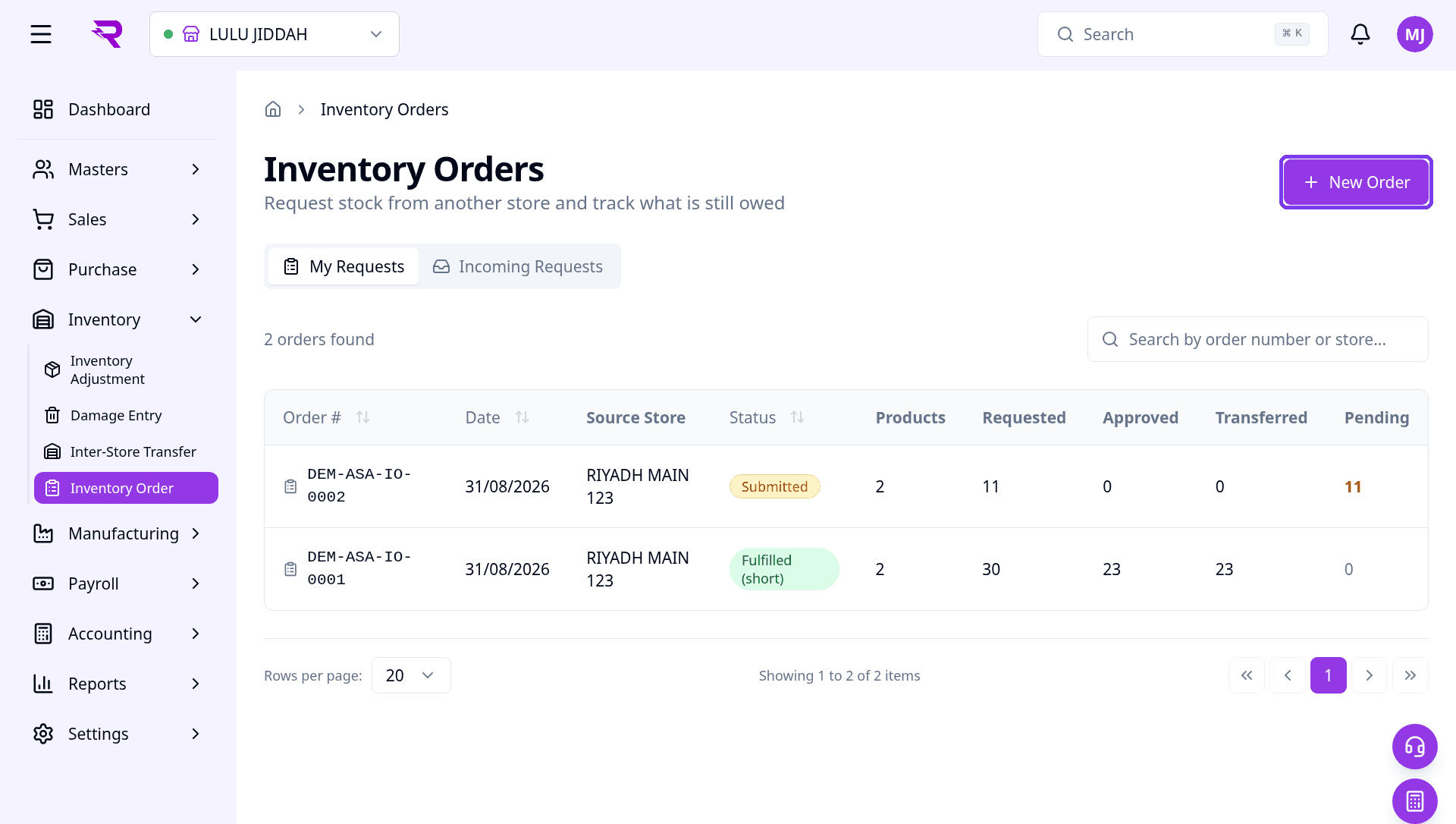
Step 1: Click New Order
Click New Order to open a new inventory order.
Step 2: Enter the order details
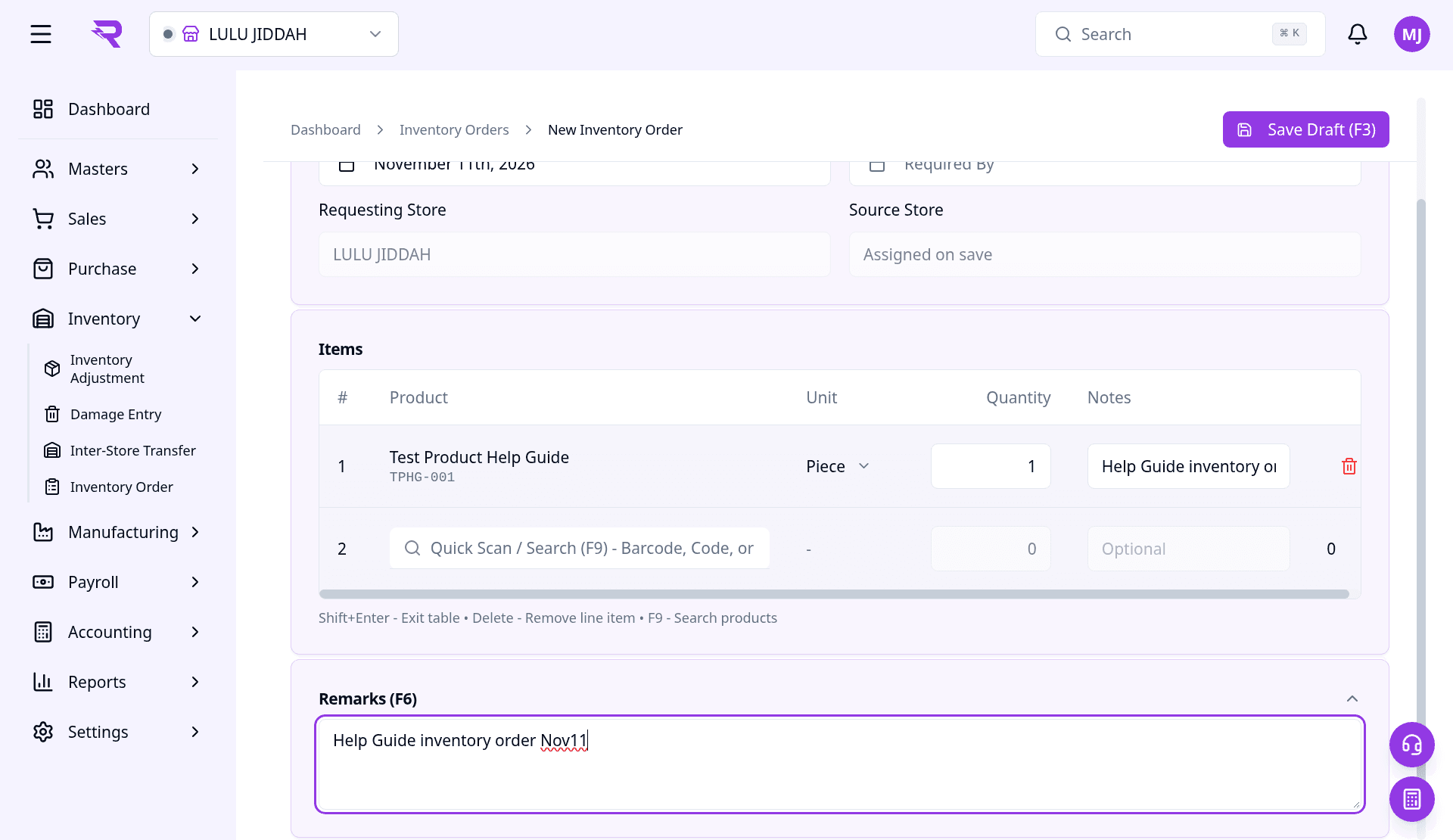
Enter Order Date, then add a product and Quantity. Source Store is assigned when you save.
Step 3: Click Save Draft (F3)
Click Save Draft (F3) to create the order in Draft. Source Store is assigned on save.
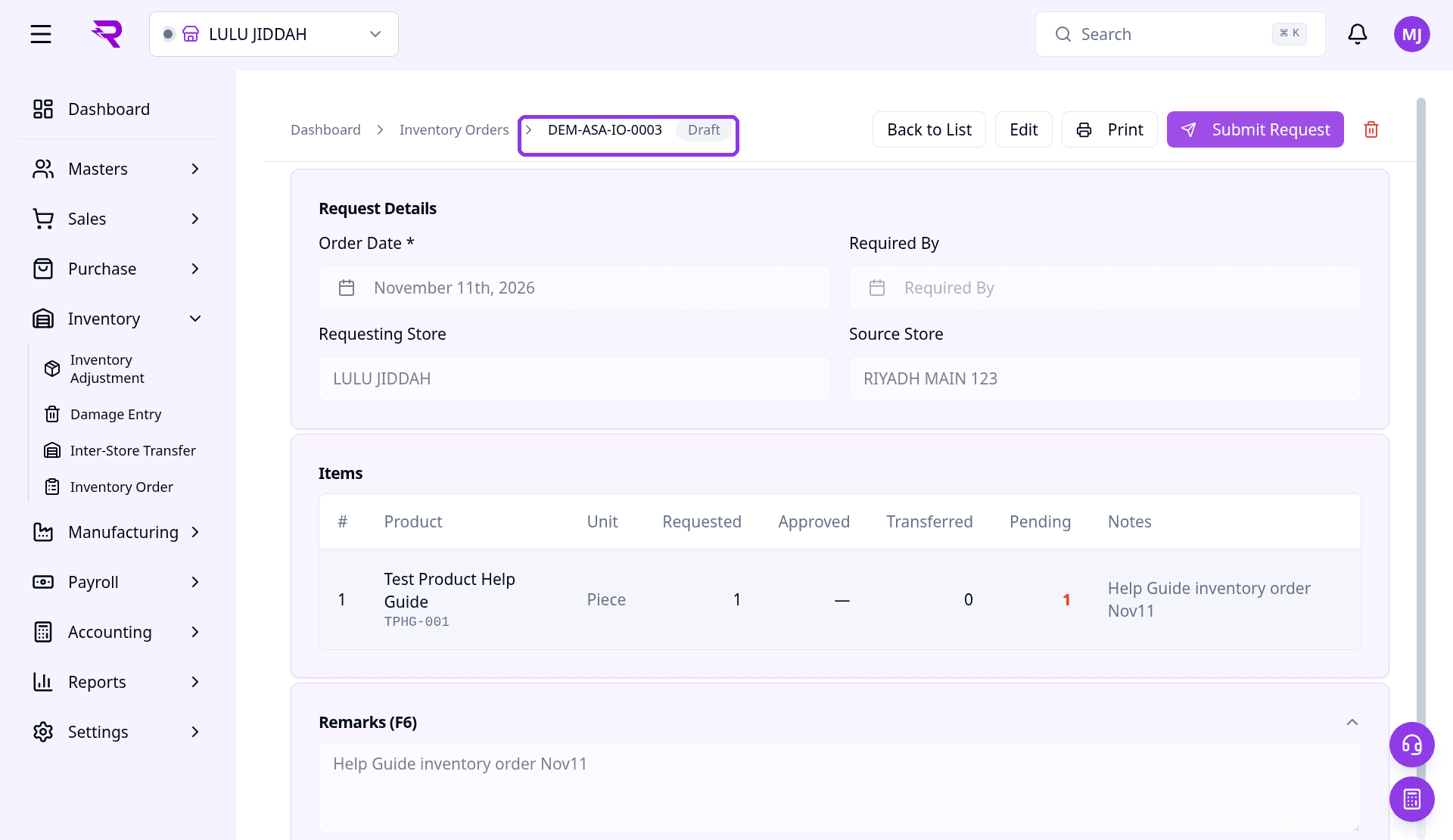
Step 4: Confirm the order
The order appears in the Inventory Orders list as Draft.