
This guide shows you how to set a product's opening stock and reorder levels in Inventory Settings.
Before you start
This guide covers only Inventory Settings. For the other product fields, see Adding a New Product in RAAD ERP.
Go to: Masters > Products
Step 1: Click Add Product
Click Add Product and fill in the required product details.
Step 2: Enter the inventory settings
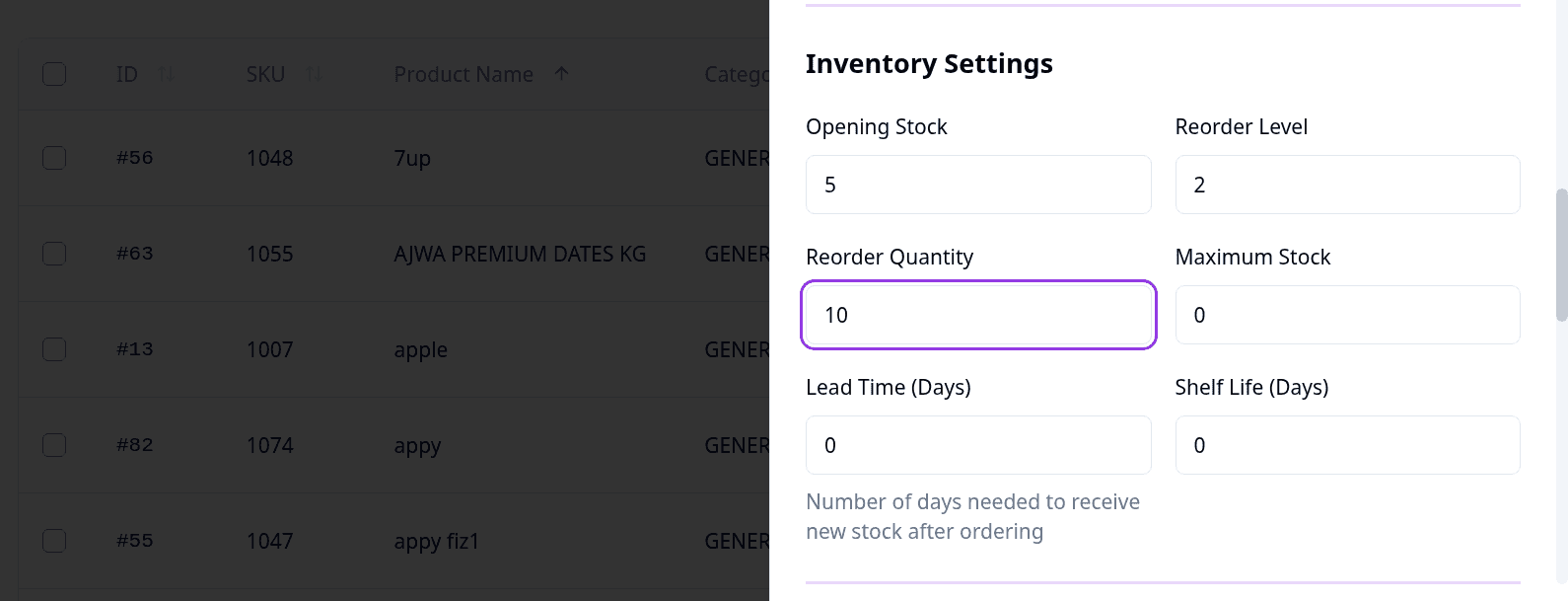
In Inventory Settings, enter Opening Stock, Reorder Level and Reorder Quantity. Then click Add Product.
Step 3: Check the stock in the list
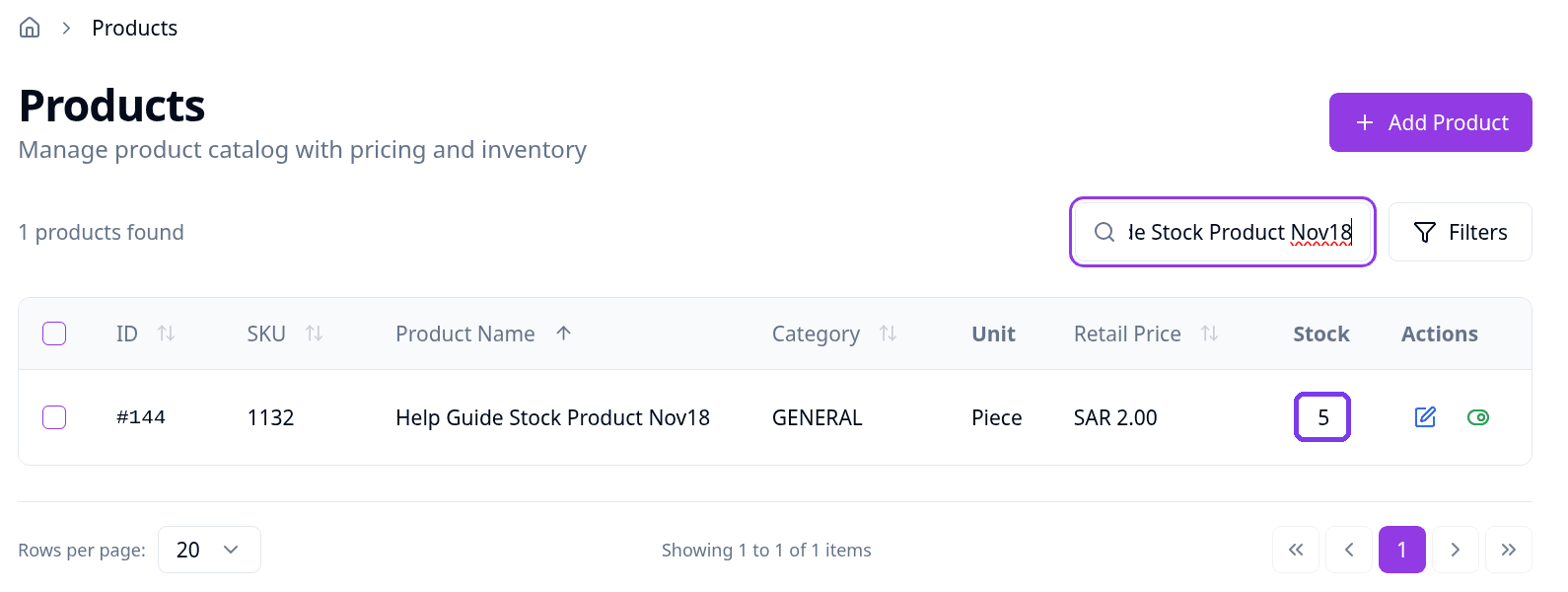
Search for the product. The Stock column shows the opening stock.
Step 4: Open an existing product
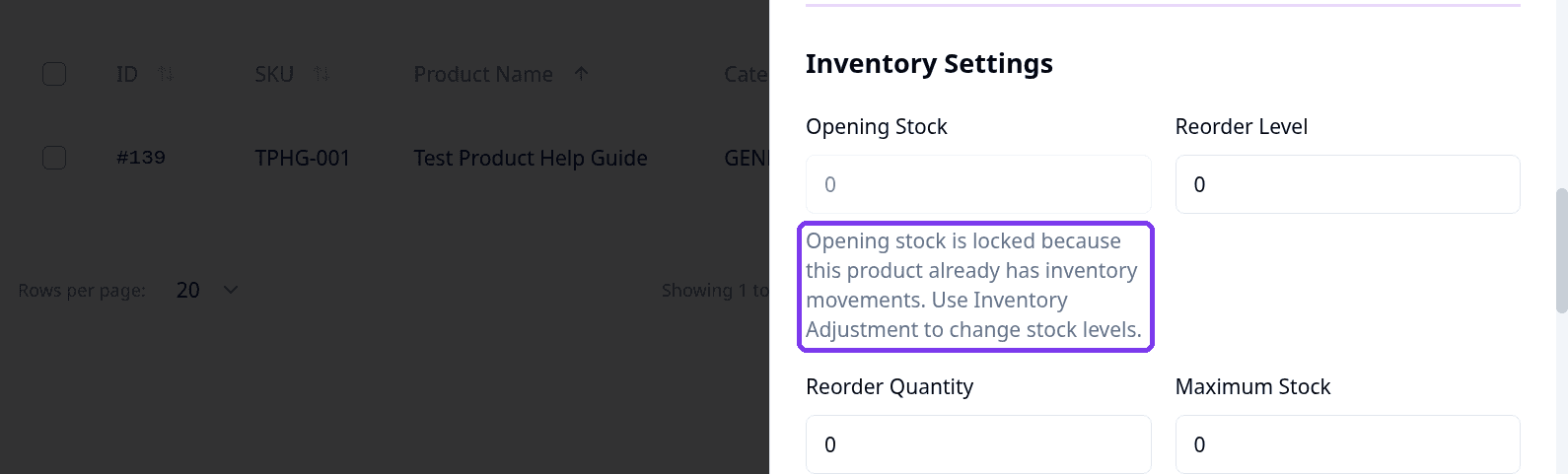
Click the edit icon on a product to open its Inventory Settings. If the product already has inventory movements, Opening Stock is locked.
Important Notes
- To change stock levels on a product with inventory movements, see Performing an Inventory Adjustment.