
This guide shows you how to submit a draft inventory order and approve it at the source store.
Before you start
Start from a draft inventory order. To create one, see Creating an Inventory Order.
Go to: Inventory > Inventory Order
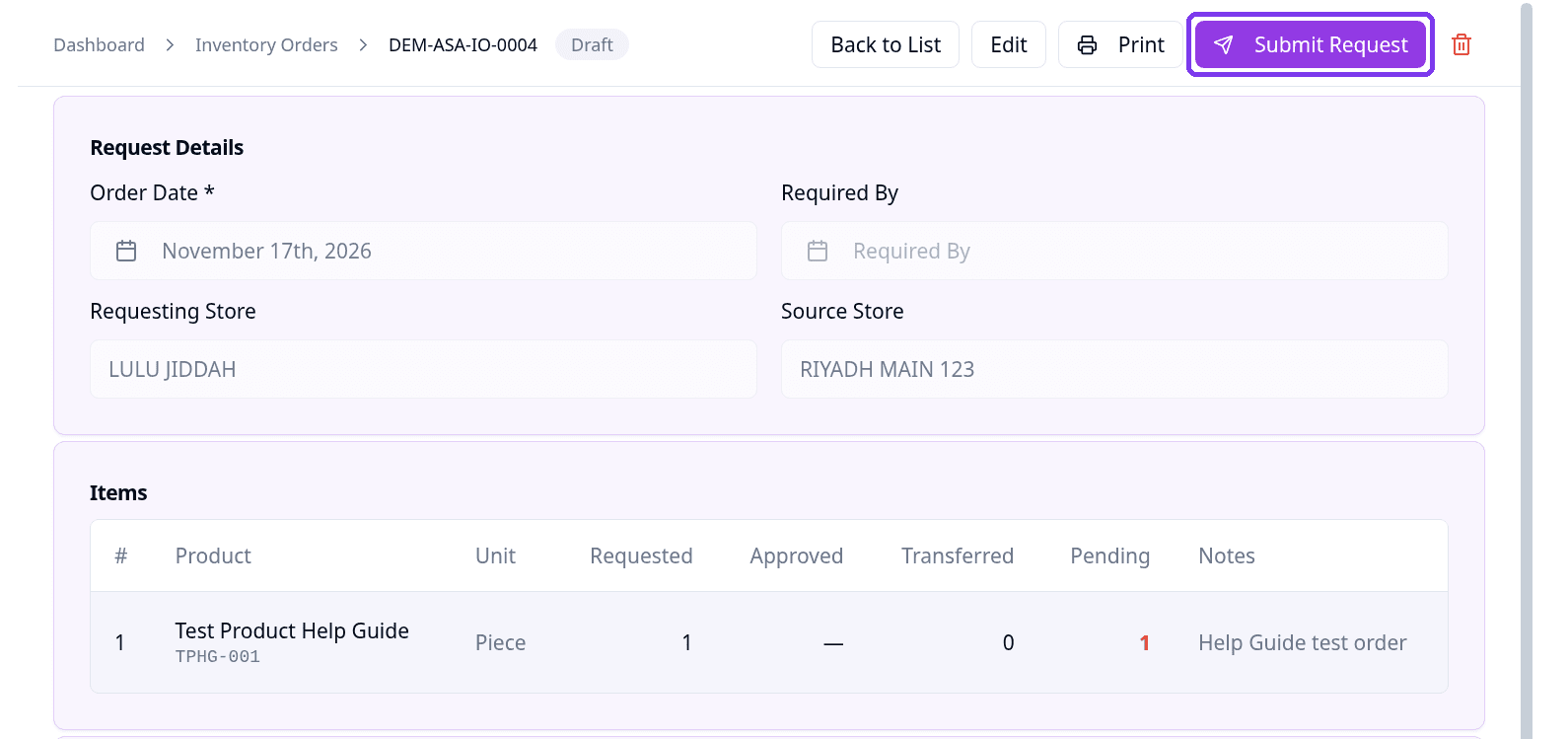
Step 1: Click Submit Request
Open the draft order and click Submit Request.
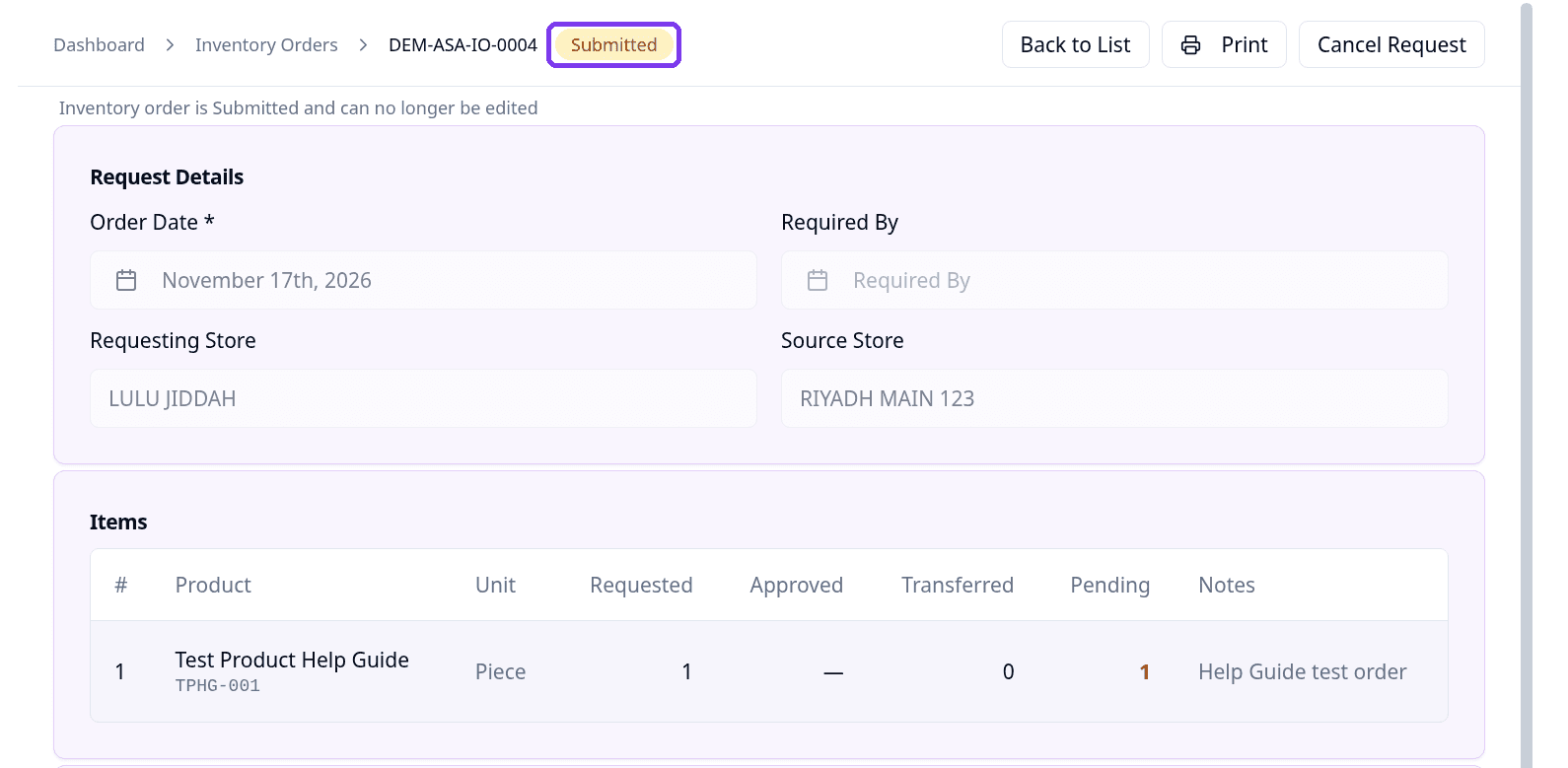
Step 2: Check the Submitted status
The status changes to Submitted, and the order can no longer be edited.
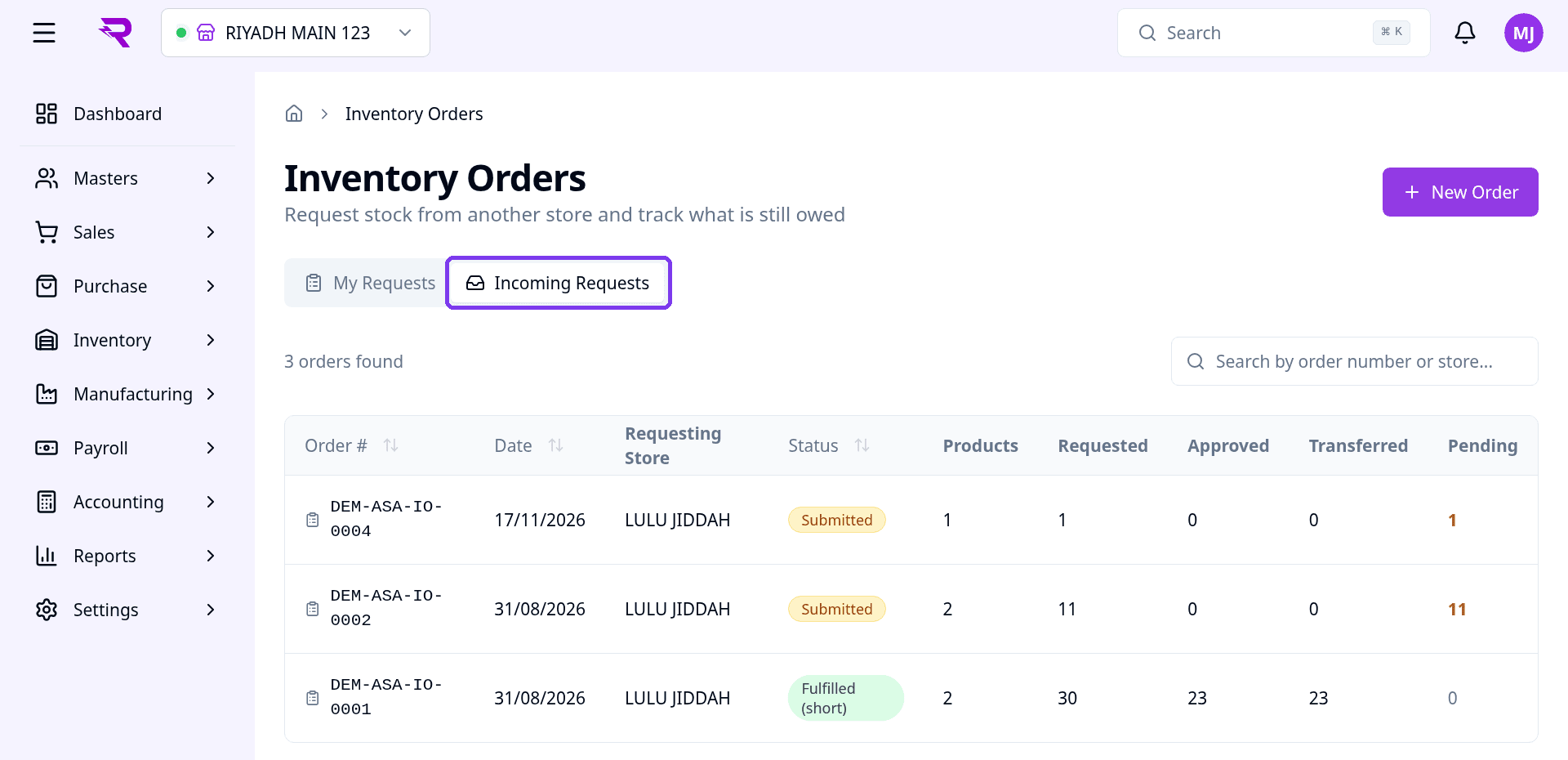
Step 3: Switch to the source store
In the header store selector, select the order's Source Store. Then open the Incoming Requests tab.
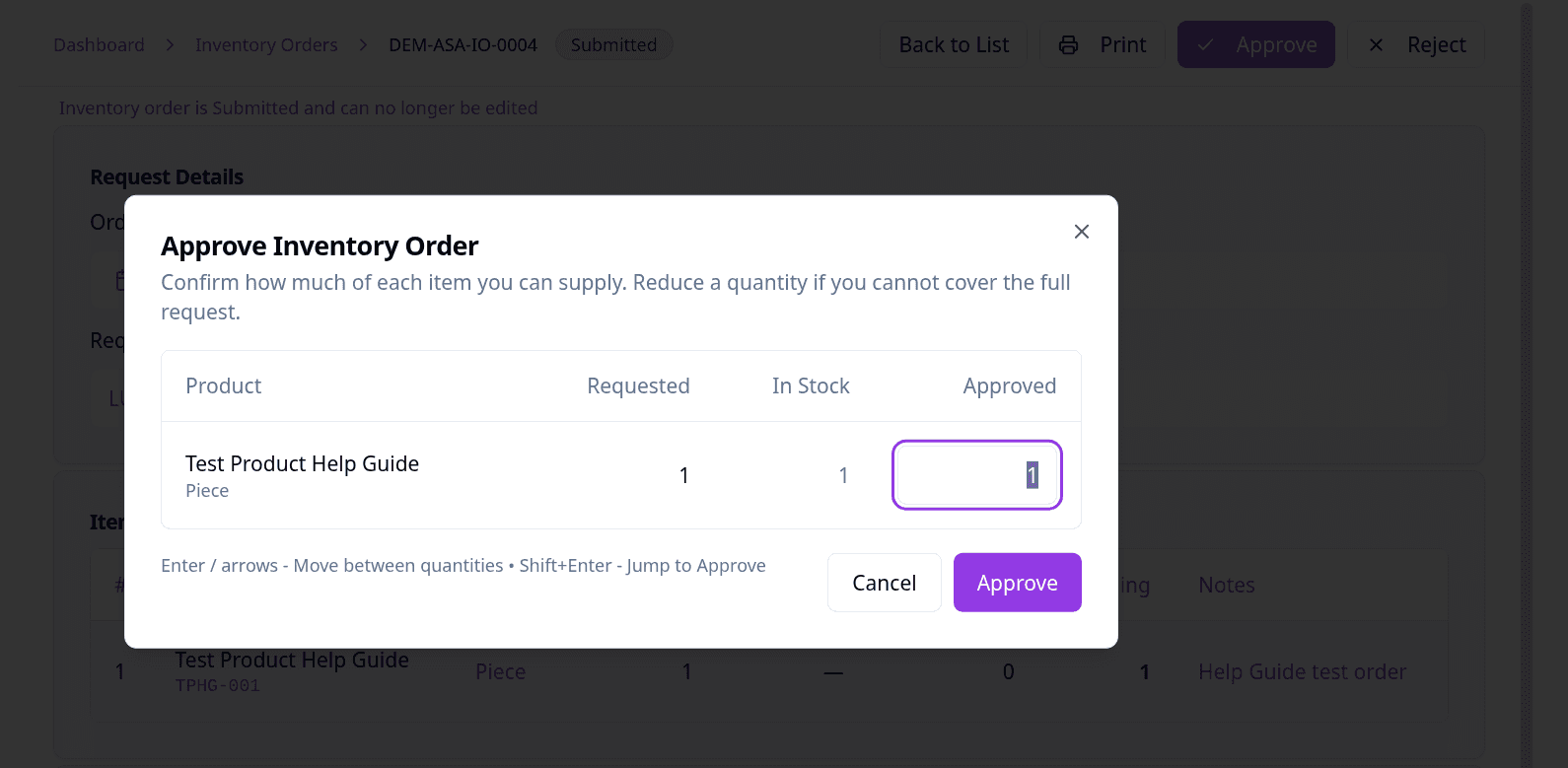
Step 4: Click Approve and check the quantities
Open the order and click Approve. In the Approve Inventory Order dialog, check the Approved quantity for each item and reduce it if you cannot supply the full request.
Step 5: Confirm the approval
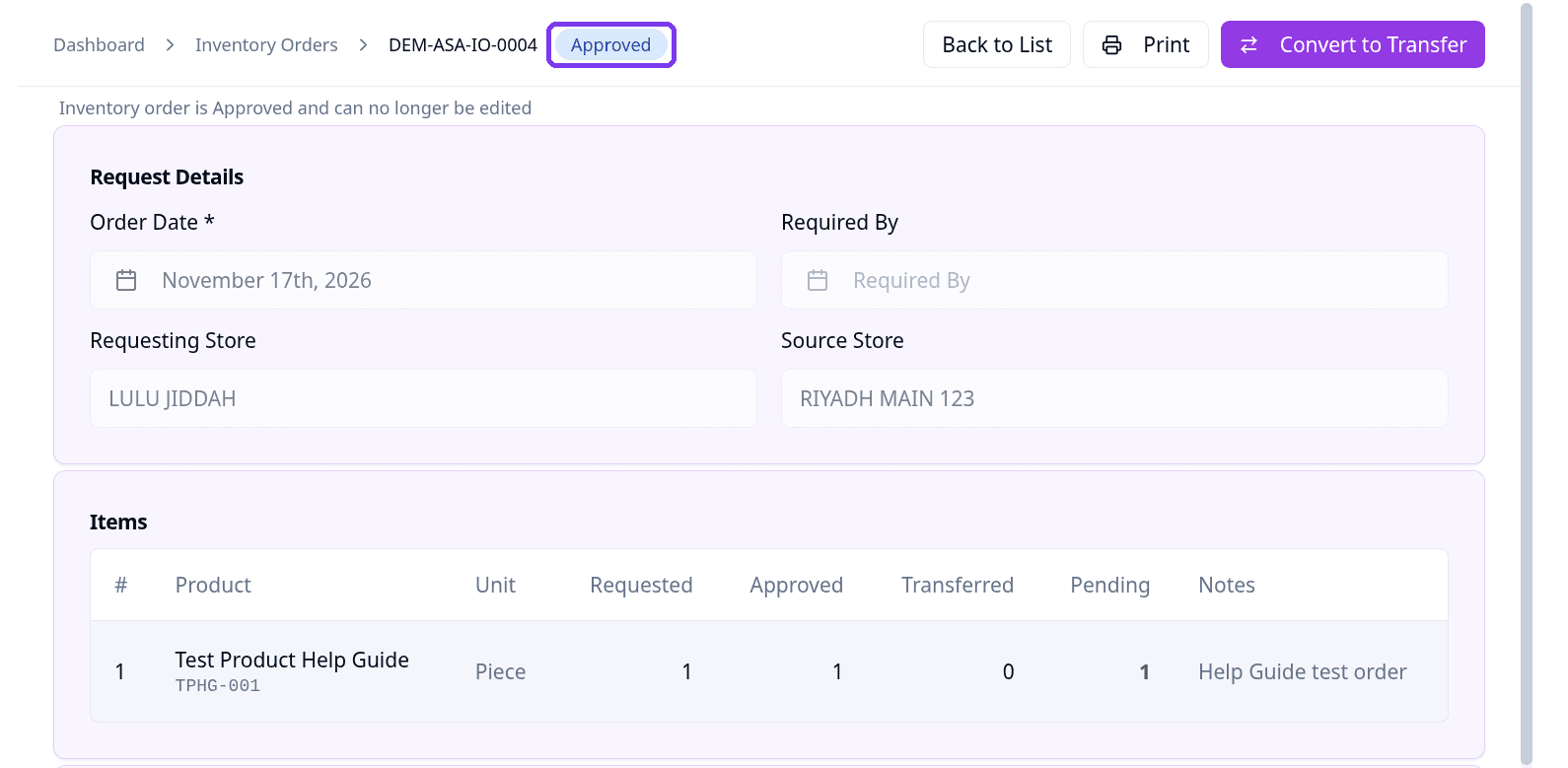
Click Approve in the dialog. The status changes to Approved and the approved quantity shows in the Items table.
Important Notes
- If a print prompt appears after approval, choose Skip to continue without printing.
- To send the approved stock, see Transferring Stock Against an Approved Inventory Order.