This guide shows you how to reverse a completed production batch.
Before you start
The batch must be completed. See Creating a Production Batch.
Go to: Manufacturing > Production Batches
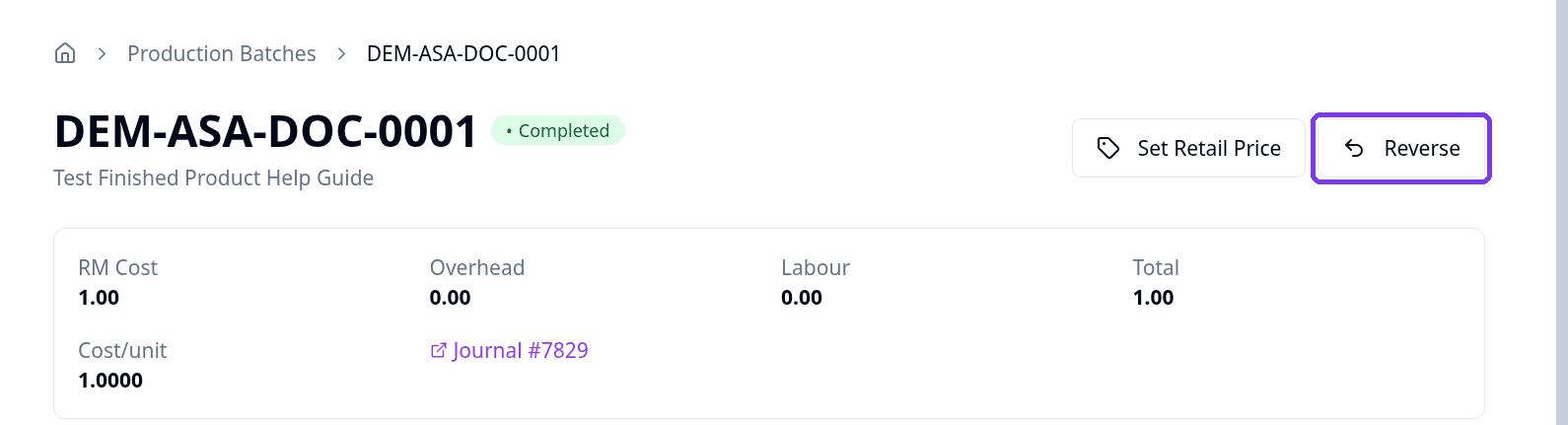
Step 1: Click Reverse
Open the completed batch and click Reverse.
Step 2: Confirm the reversal
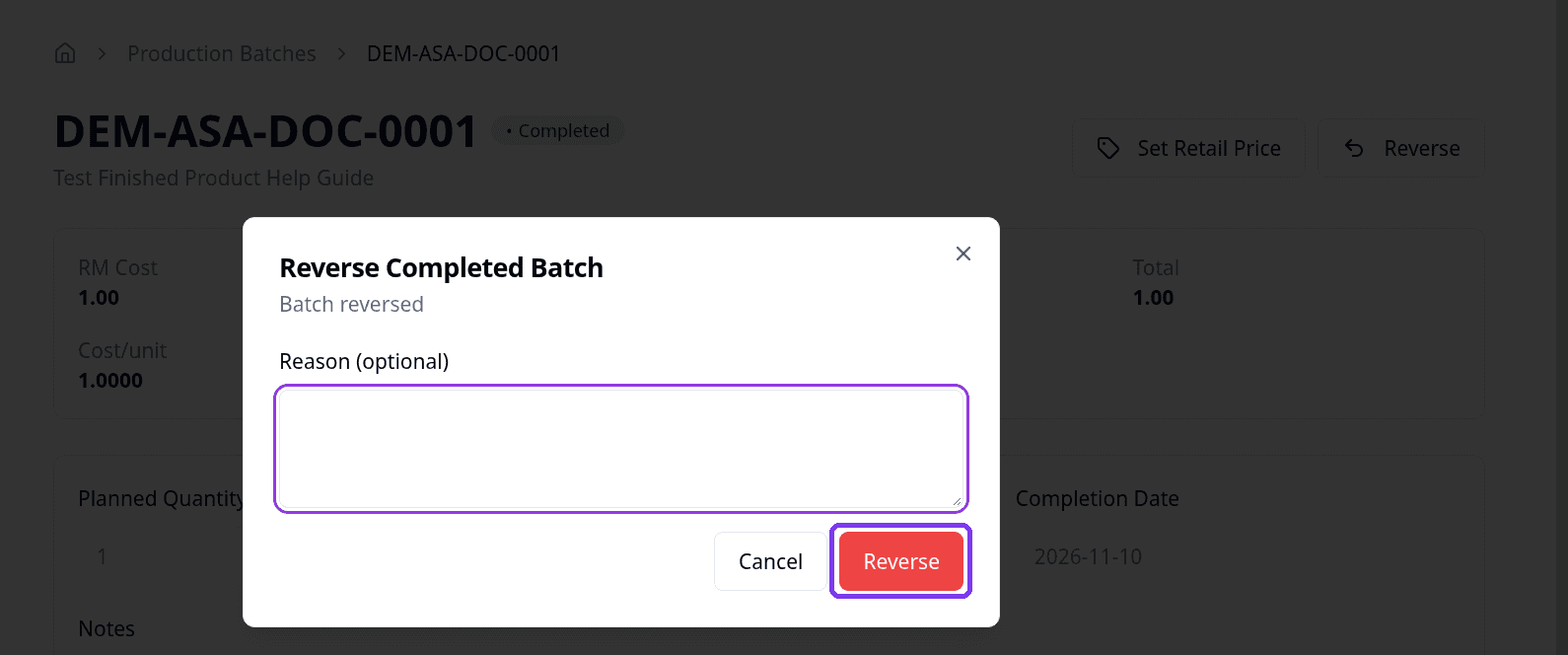
In the Reverse Completed Batch dialog, enter a reason if needed and click Reverse. A “Batch reversed” message confirms it.
Step 3: Check the batch status
The batch status changes to Reversed. A Reversed card at the top links to the original journal and the reversal journal.

Step 4: Find the batch in the list
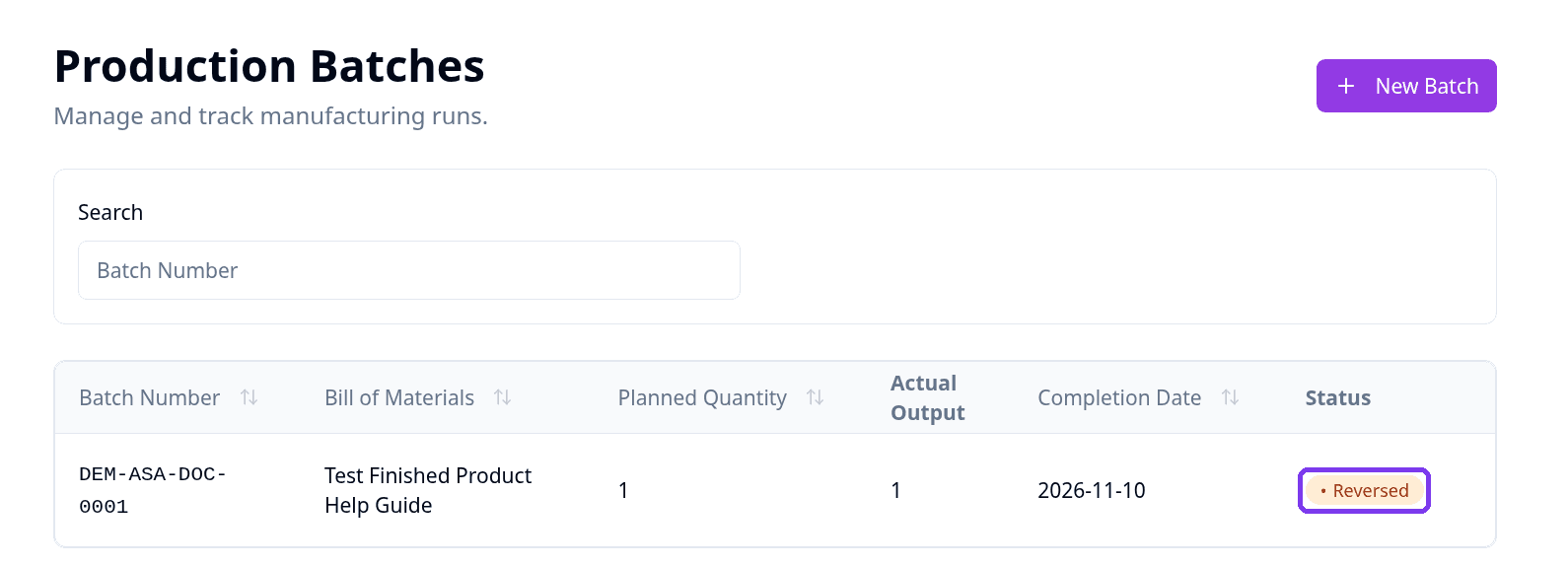
In Production Batches, the batch shows status Reversed.