
This guide shows you how to create a bill of materials (BOM) for a finished product.
Before you start
The finished product must have Use Batch Tracking turned on, or you cannot select it.
Go to: Manufacturing > Bill of Materials
Step 1: Click New BOM
Click New BOM to open the form.
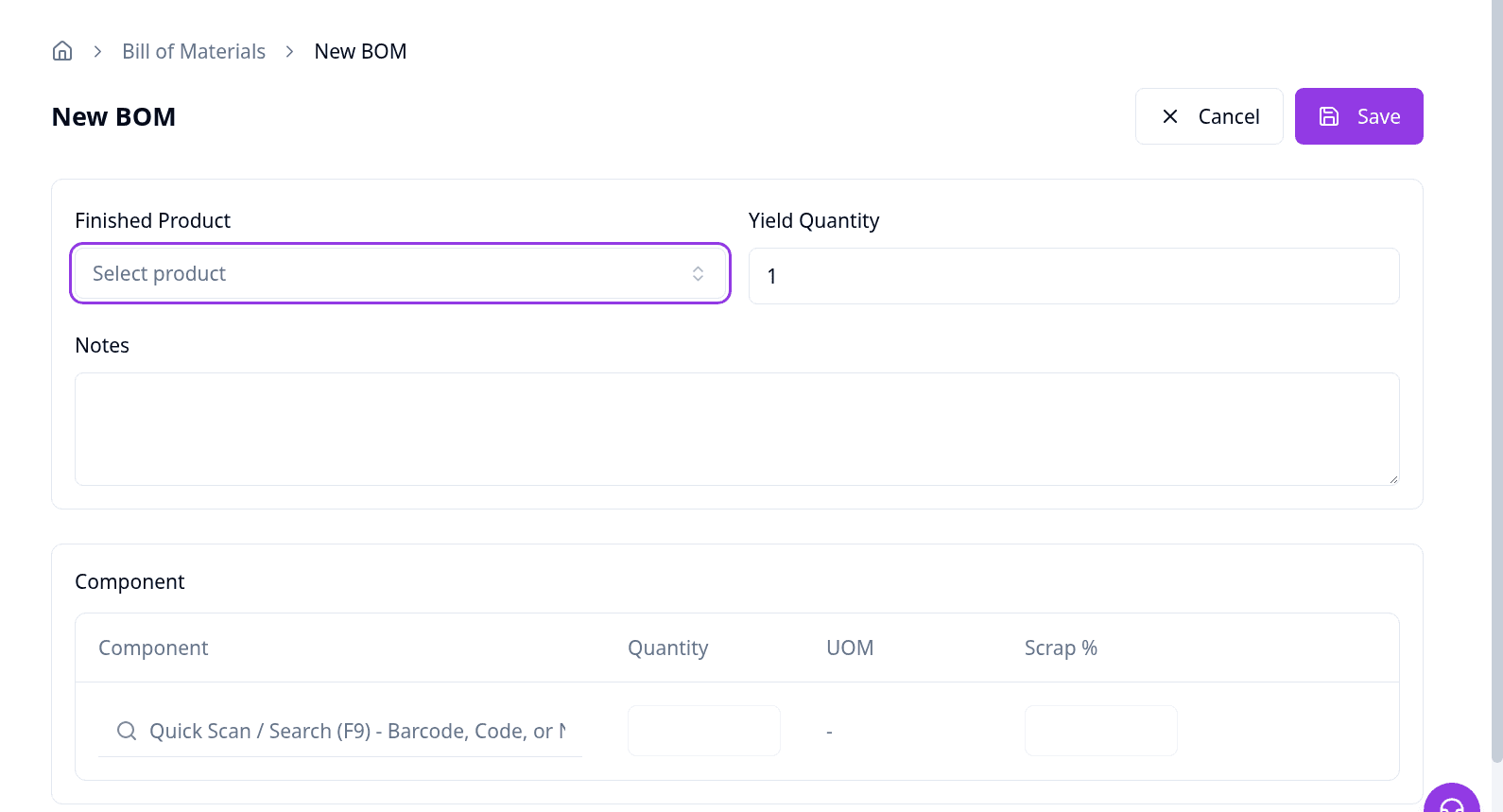
Step 2: Select the finished product
Select the Finished Product and enter the Yield Quantity.
Step 3: Add the components
In the Component table, search for each component and enter its Quantity. A component without a quantity shows “Quantity must be greater than zero.”
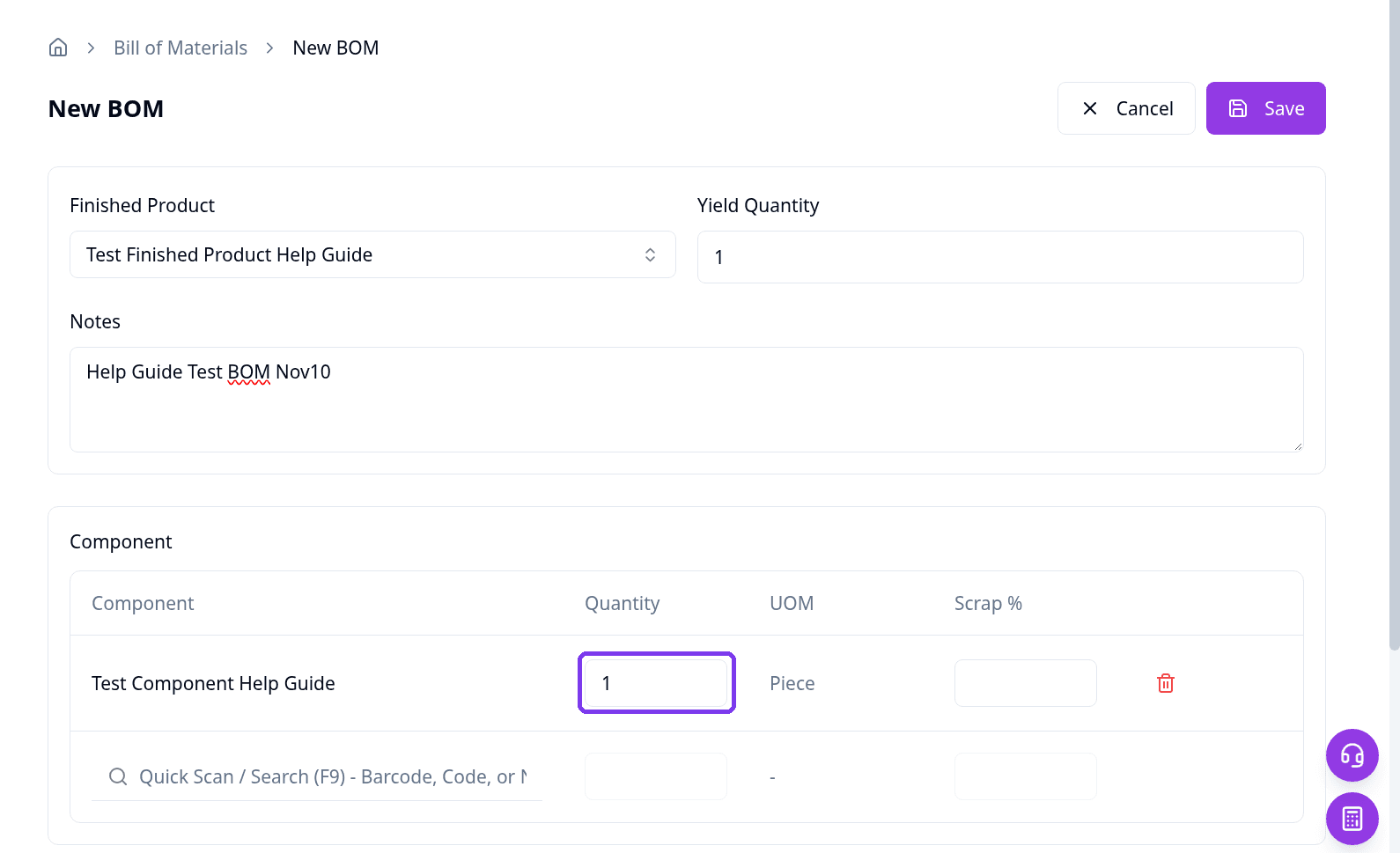
Step 4: Click Save
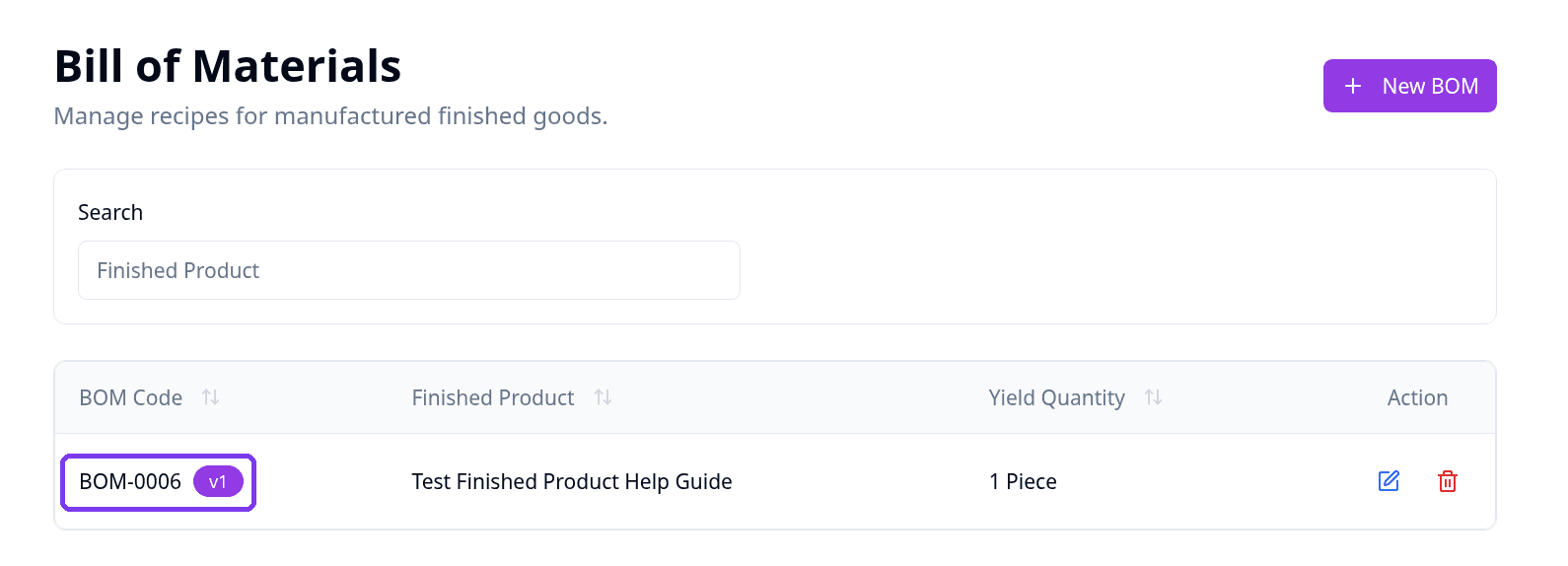
Click Save. The message “BOM created” confirms the save, and the BOM appears in the list with its BOM code and version.
Important Notes
- There is no BOM name field. Notes is free text, not a name.
- To produce the finished product, see Creating a Production Batch.