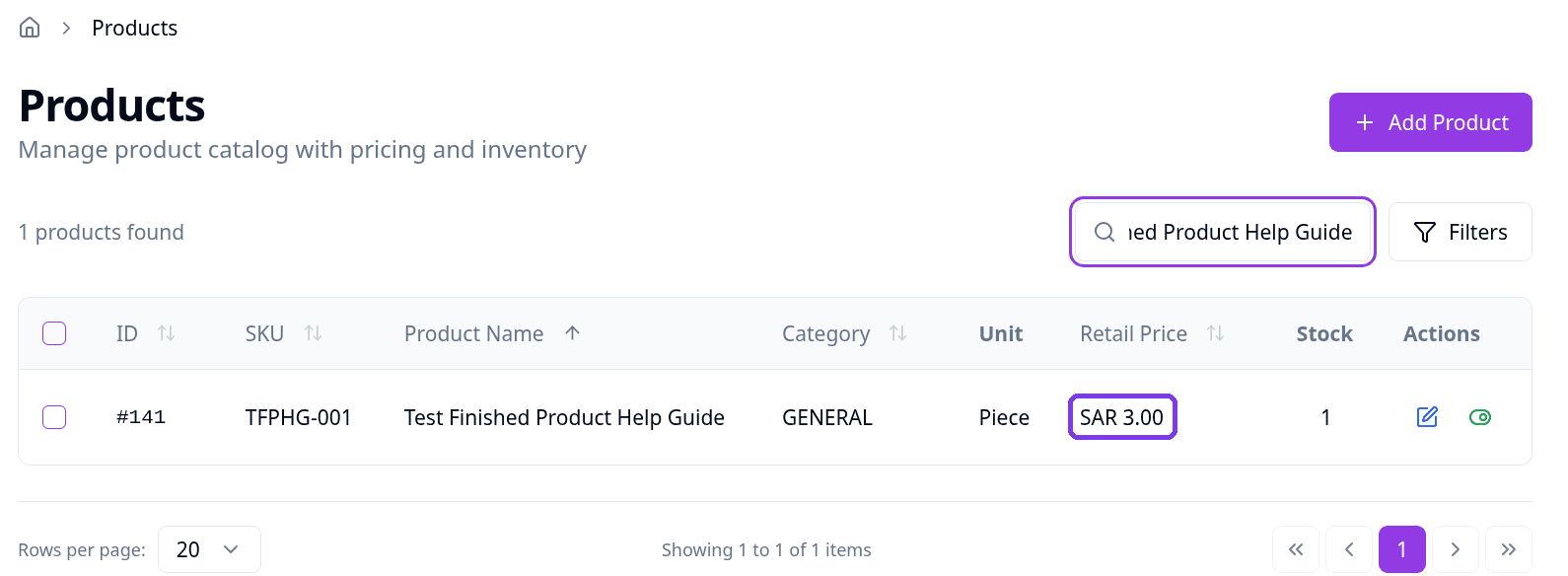
This guide shows you how to set the finished product's retail price from a completed production batch.
Before you start
To create and complete a batch, see Creating a Production Batch.
Go to: Manufacturing > Production Batches
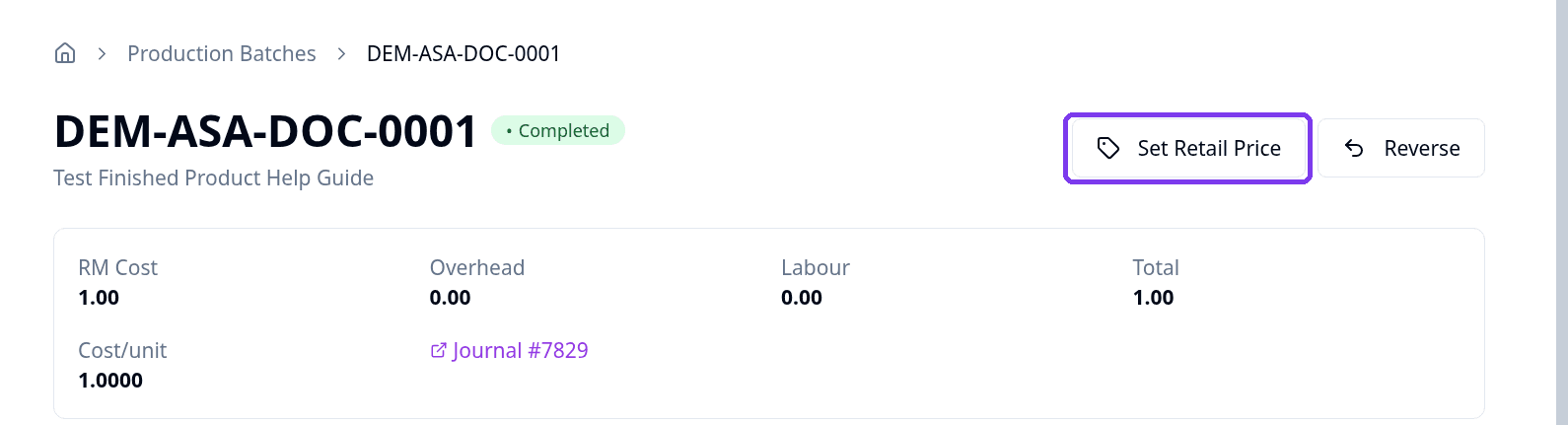
Step 1: Click Set Retail Price
Open the completed batch and click Set Retail Price.
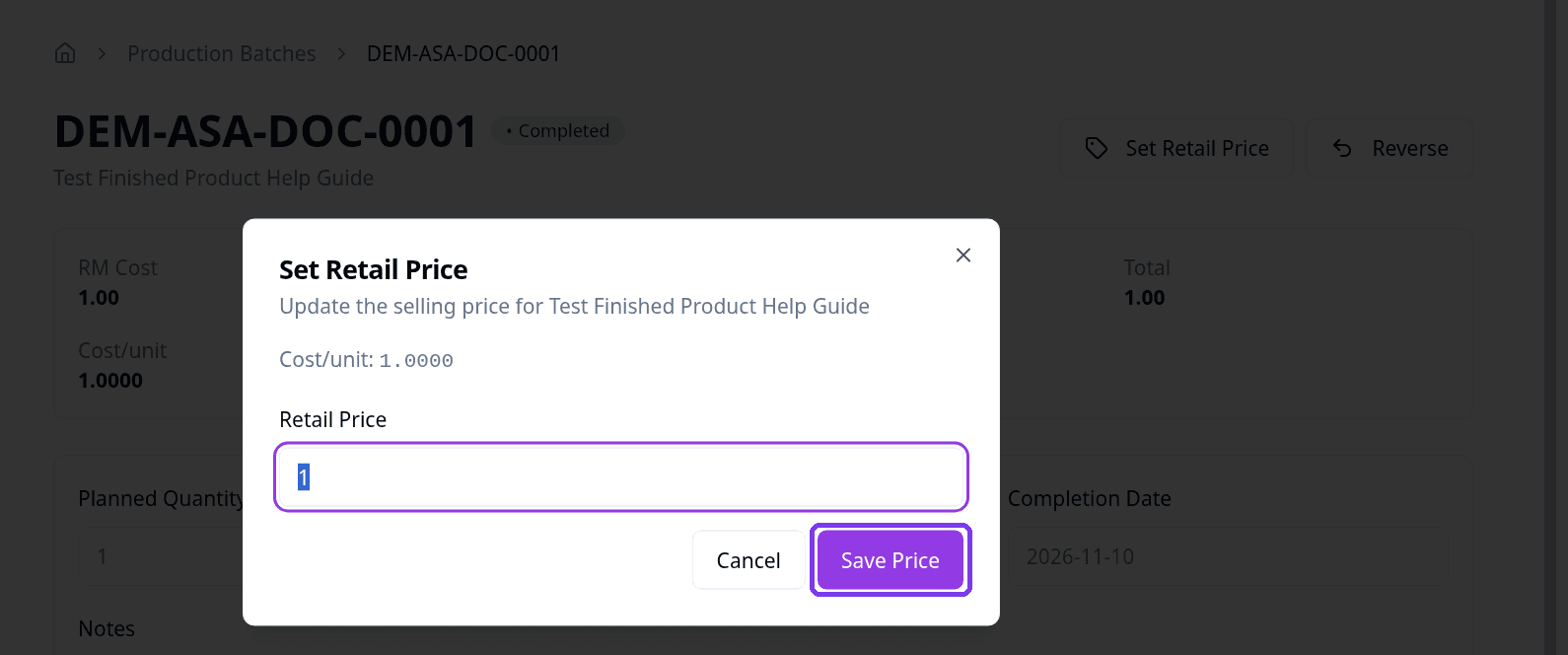
Step 2: Enter the price and save
The Set Retail Price dialog shows the Cost/unit. Enter the Retail Price and click Save Price.
Step 3: Check the product price
A “Product updated successfully” message confirms the change. In Masters > Products, the finished product shows the new Retail Price.