
This guide shows you how to add bank account details for the company and for a store. Company details are shown on sales invoice and quotation prints, or hidden if left blank. Store details override the company details on that store's prints, or fall back to the company details if left blank.
Company bank details
Go to: Settings > Company Profile
Step 1: Open the Bank tab
The Company Profile page has General, Contact, Tax, Bank, and Data Sync tabs. Open the Bank tab.
Step 2: Click Add bank
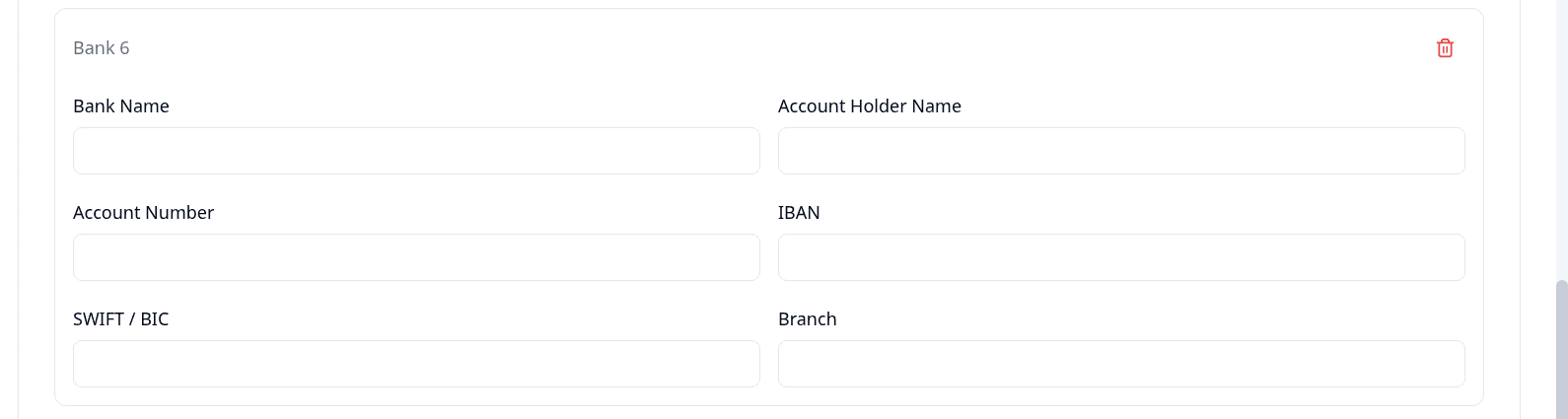
Scroll below the existing bank cards and click Add bank. A new empty card appears on the same page.

Step 3: Fill in the details and save
Fill in Bank Name, Account Holder Name, Account Number, IBAN, SWIFT / BIC and Branch, then click Save Changes. None of these fields are marked required.
Store bank details
Go to: Settings > Stores
Step 1: Select the store and open the Bank tab
In the top-left store selector, pick the store you want to update. Go to Settings > Stores and open the Bank tab.

Step 2: Click Add bank
Click Add bank. A new empty card appears on the same page.
Step 3: Fill in the details and save
Fill in the same six fields, then click Save Changes. None of these fields are marked required.
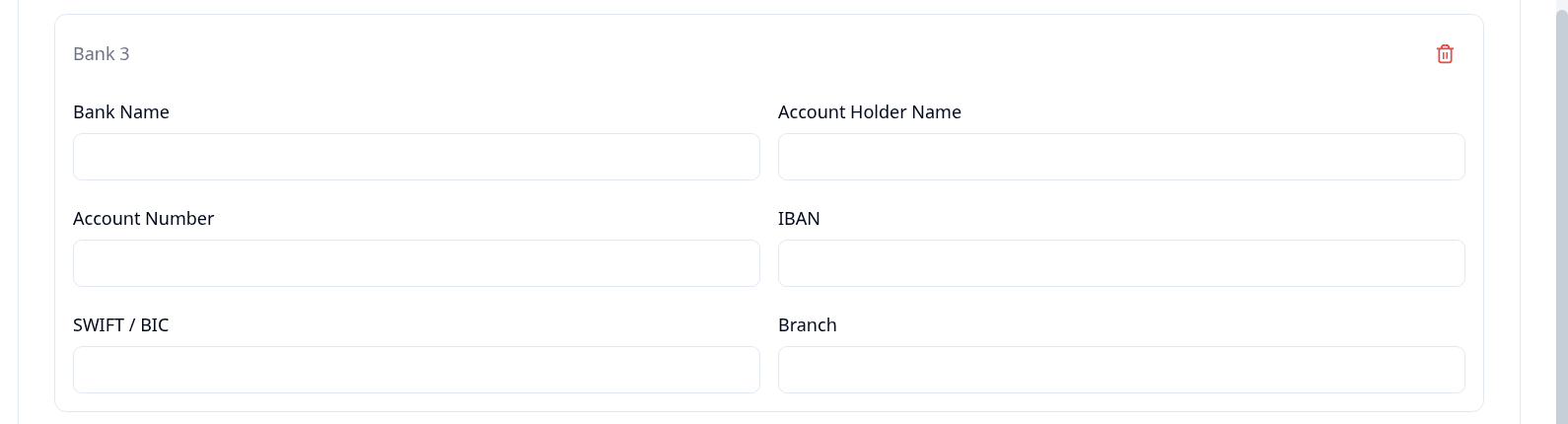
The trash icon on a card removes that bank.