
This guide shows you how to create a purchase return against a purchase invoice and post it.
Go to: Purchase > Purchase Return
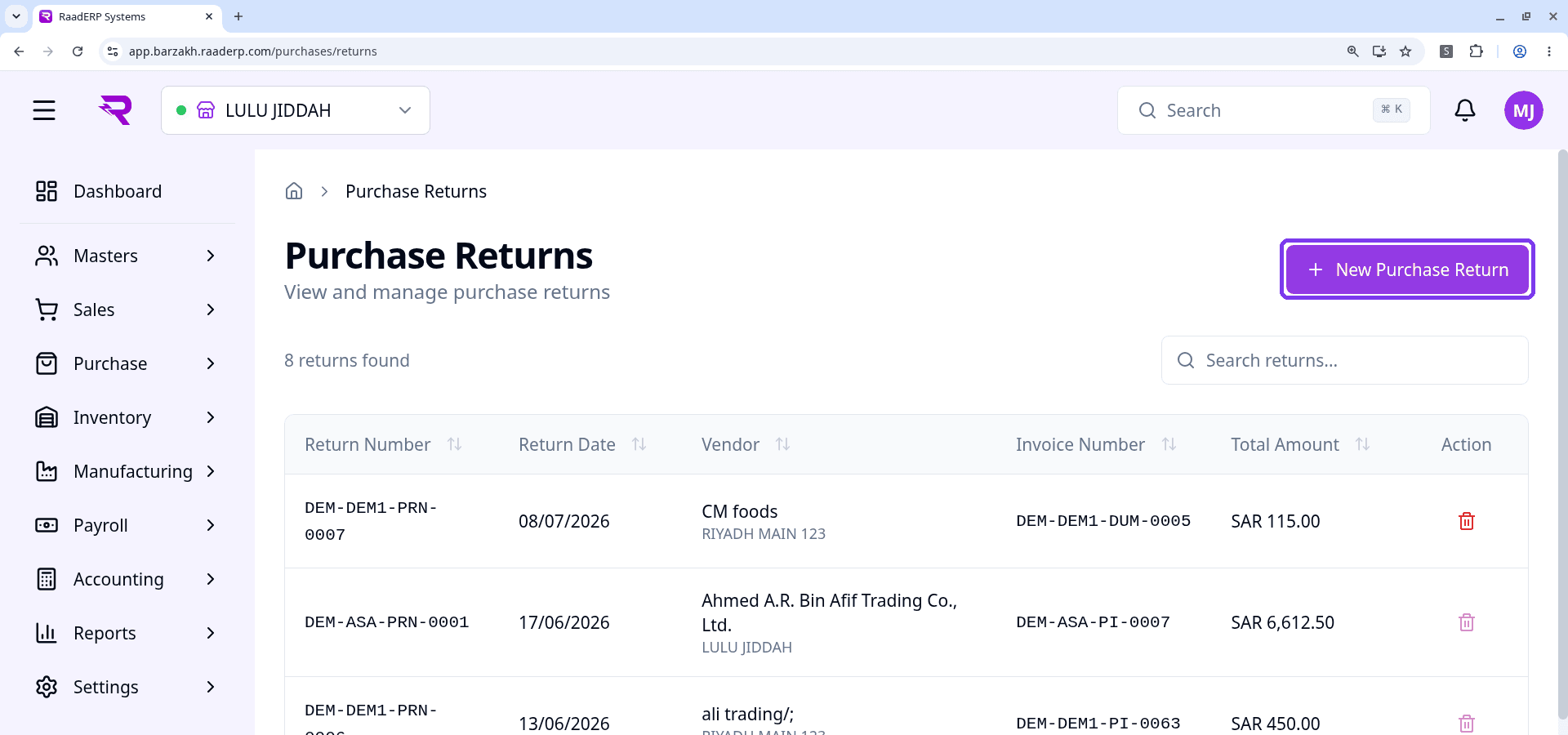
Step 1: Click New Purchase Return
Click New Purchase Return. The New Return form opens.
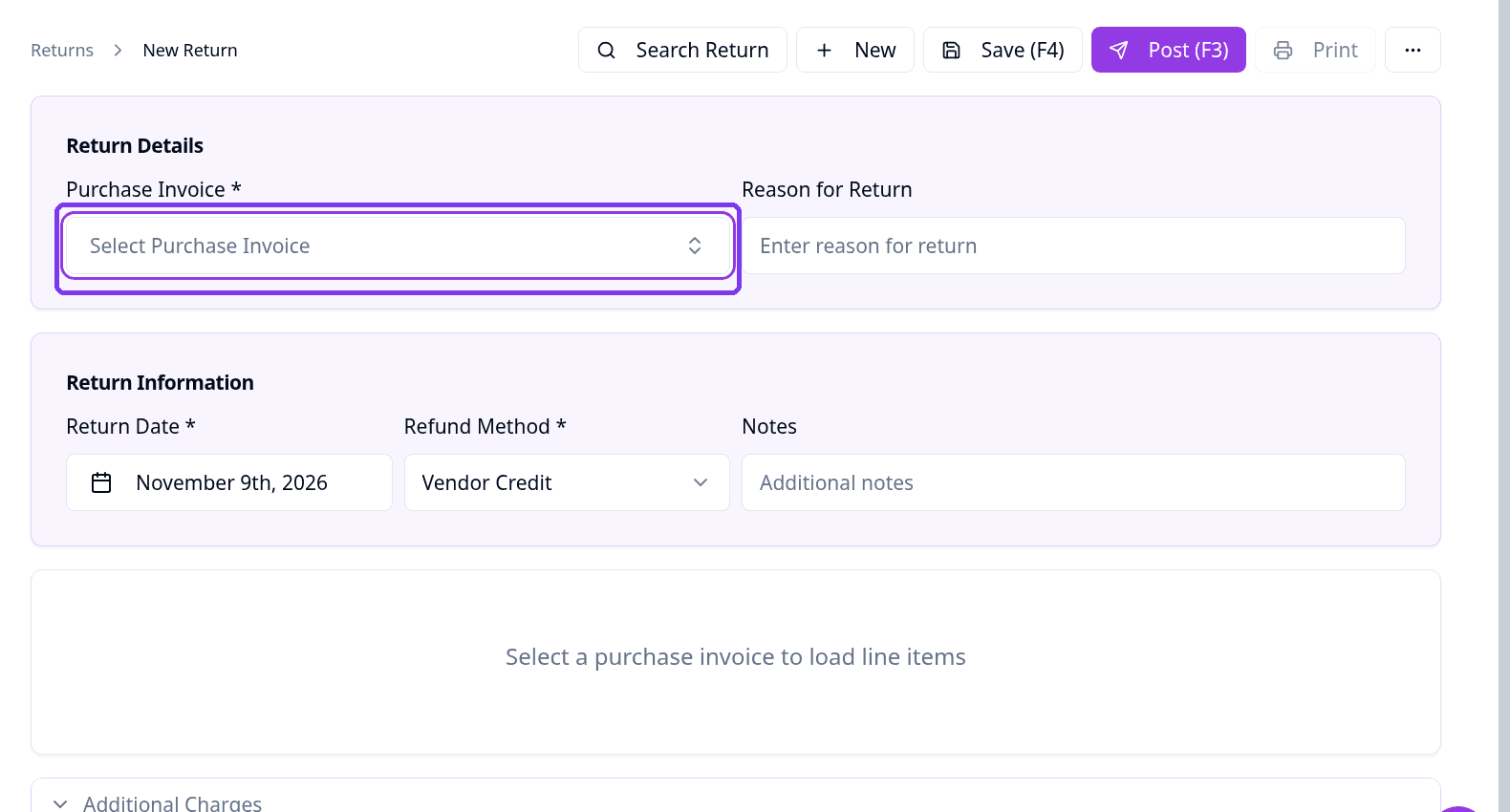
Step 2: Choose the purchase invoice
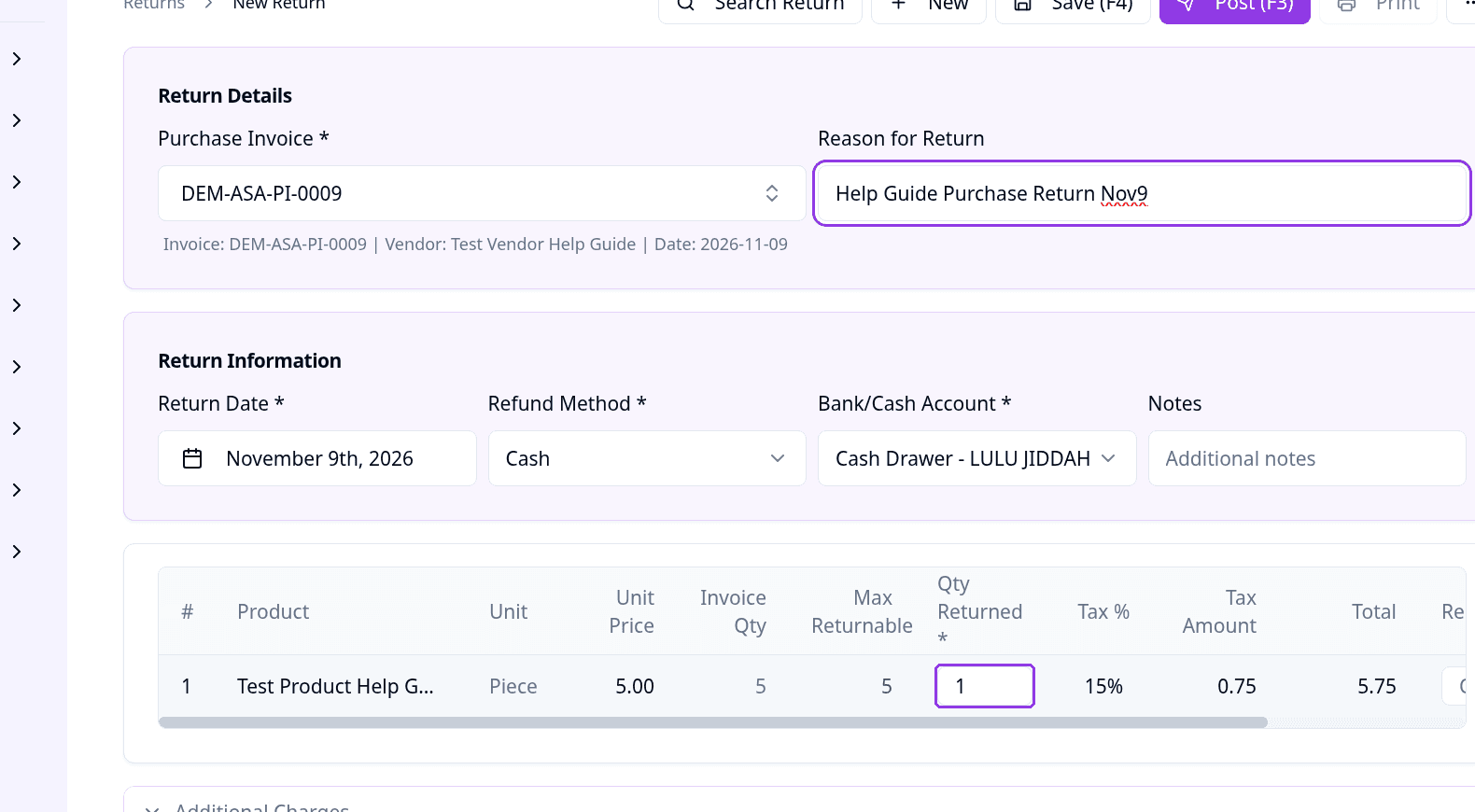
Choose the purchase invoice. You need a posted purchase invoice before you can create a return.
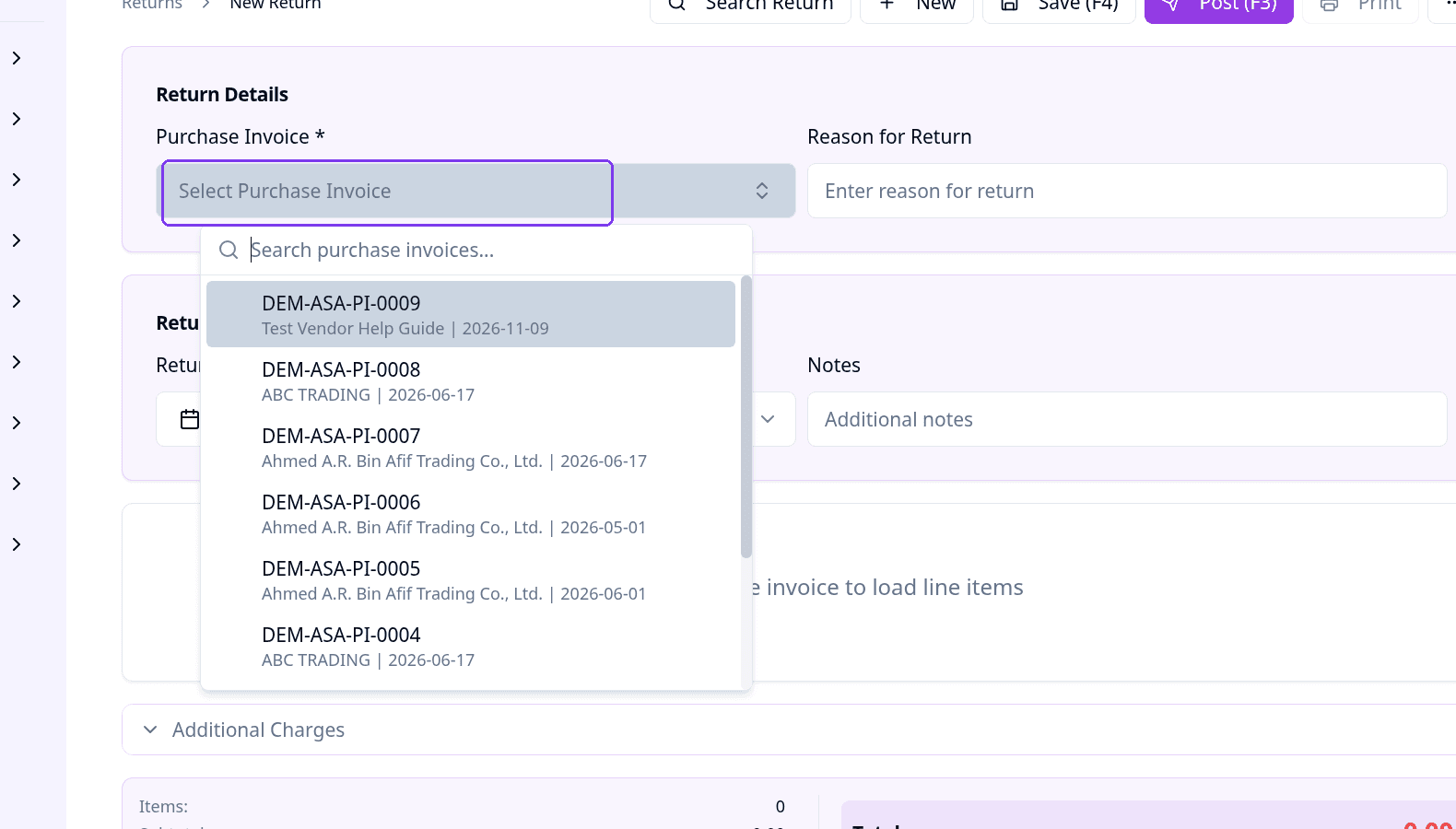
Step 3: Enter the quantity to return
Enter the Qty Returned on each line you are returning.
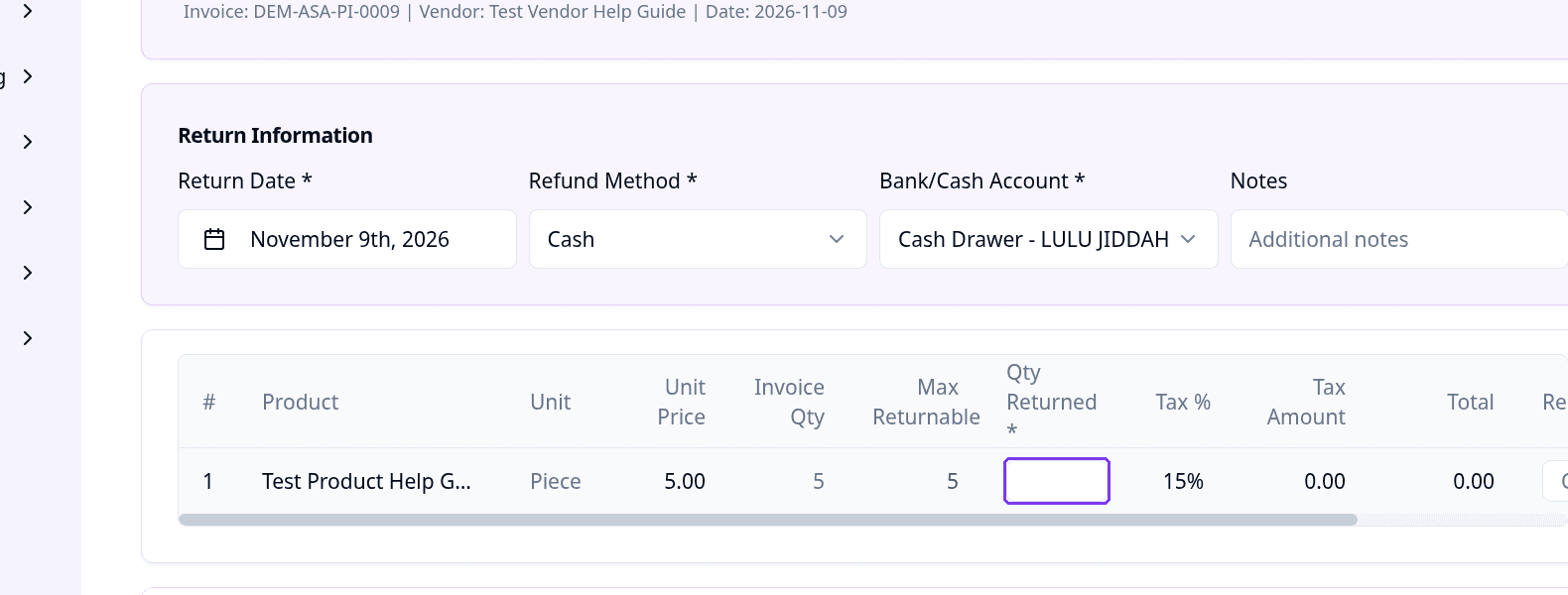
Step 4: Check the return details
Check the Refund Method. If the method is Cash, choose a Bank/Cash Account.
Step 5: Save as a draft (optional)
Click Save (F4) to save a draft if you need to. Find it later under Search Return > Draft Returns.
Step 6: Post the return
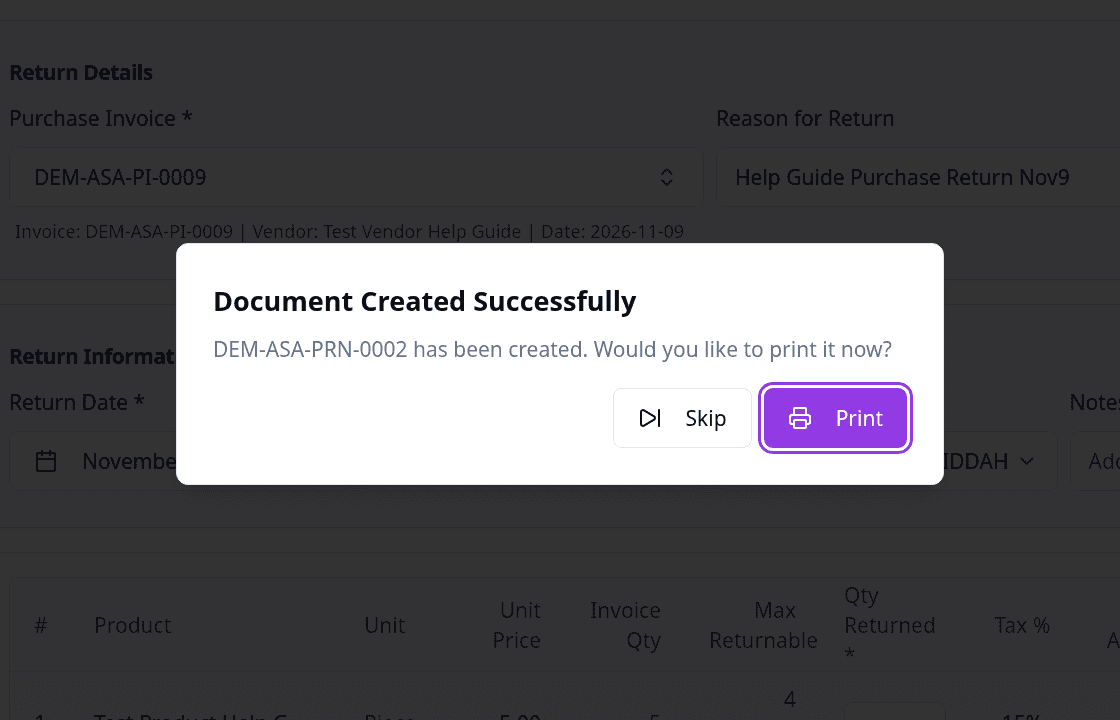
Click Post (F3). A dialog shows the new return number. You can click Print or Skip.
Step 7: See the return in the list
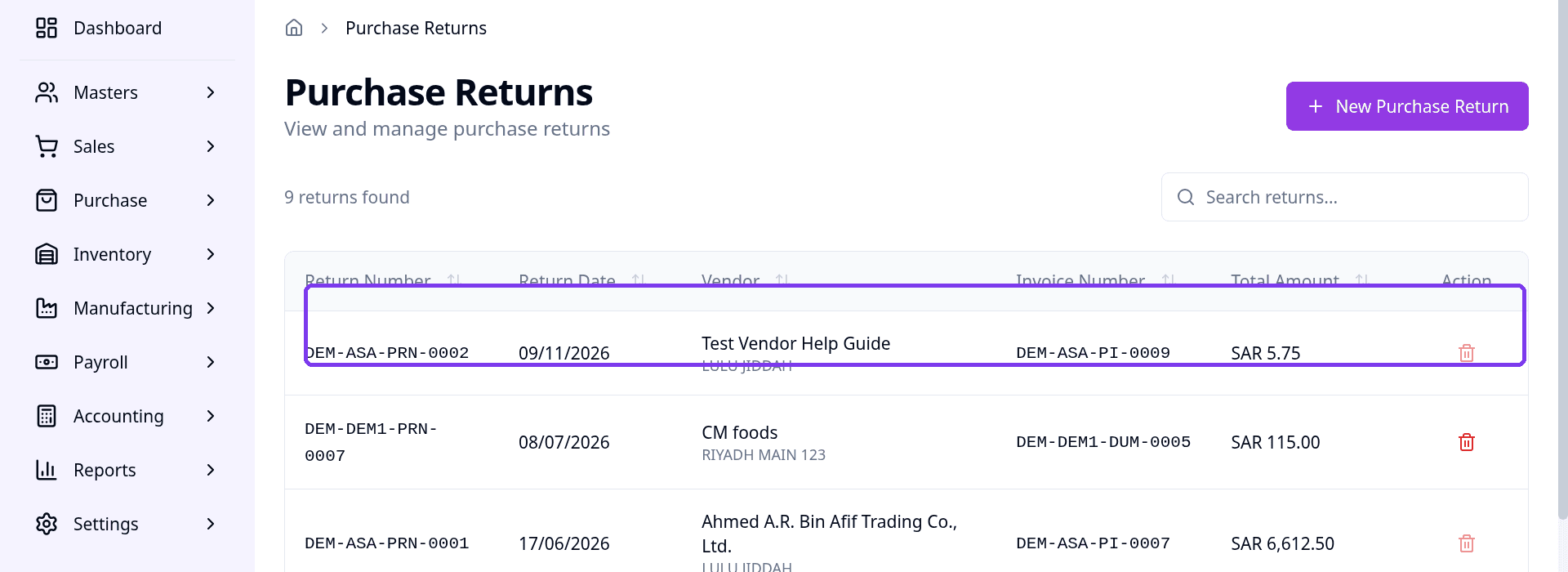
Your new return appears in the Purchase Returns list.
Important Notes
- You need a posted purchase invoice before you can create a purchase return.
- Save (F4) saves a draft without a return number. Post (F3) creates the return.