
This guide shows you how to create a purchase invoice and save it as a draft.
Go to: Purchase > Purchase Invoice
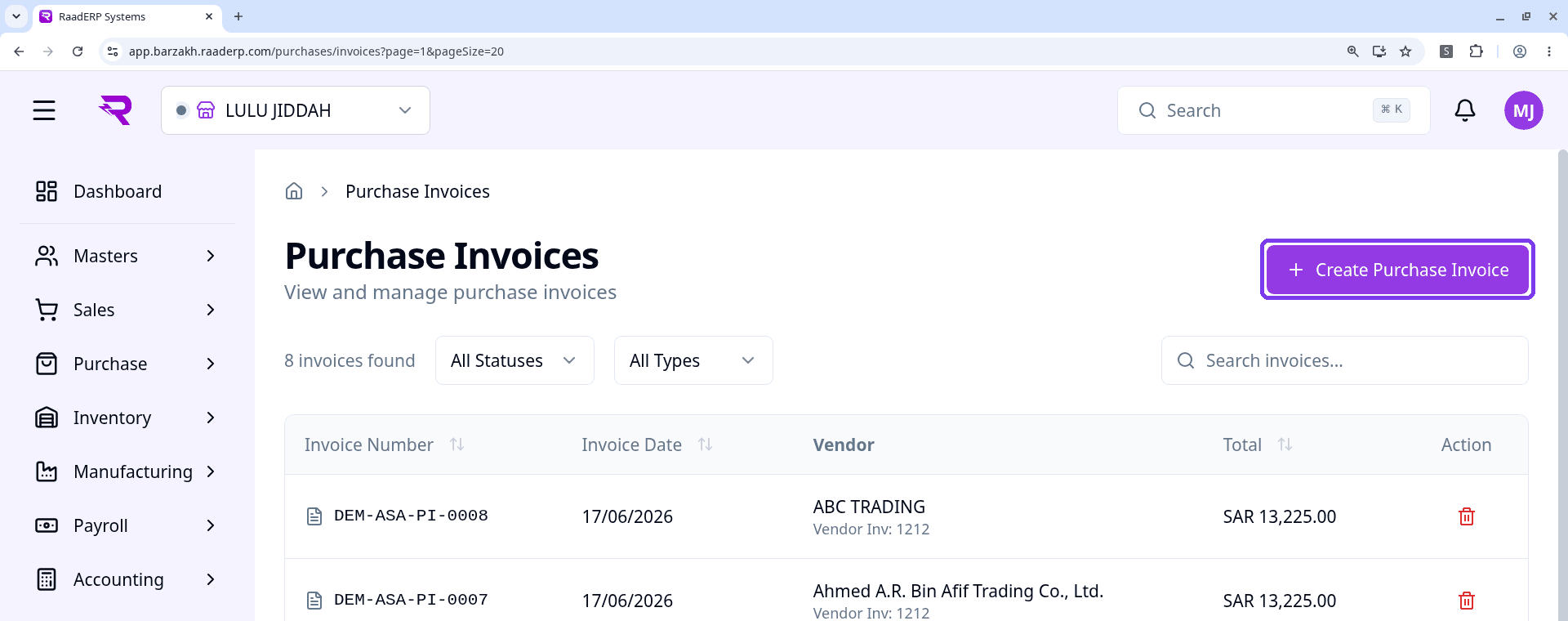
Step 1: Click Create Purchase Invoice
Click Create Purchase Invoice. The New Invoice form opens.
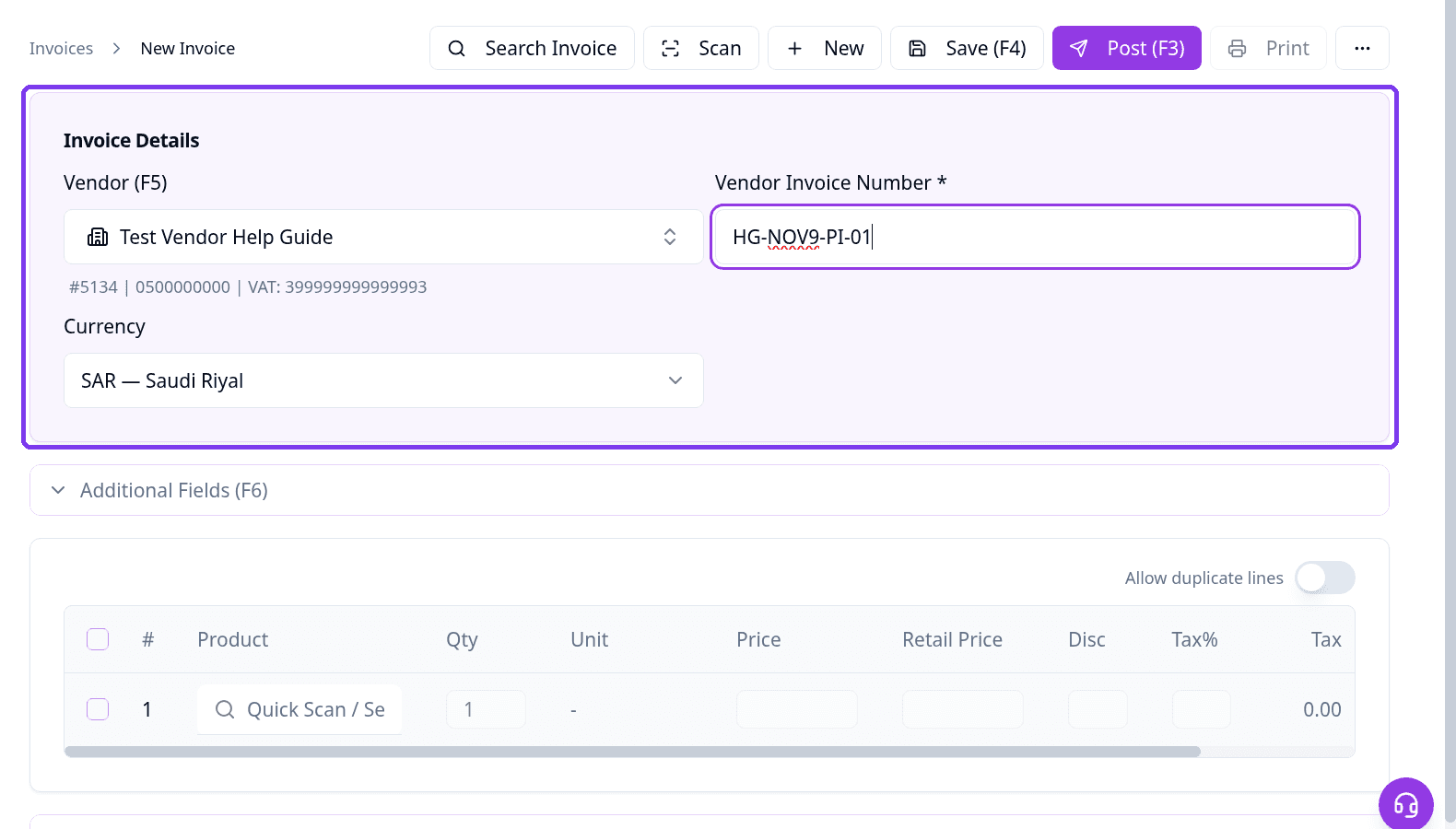
Step 2: Choose the vendor and enter the bill number
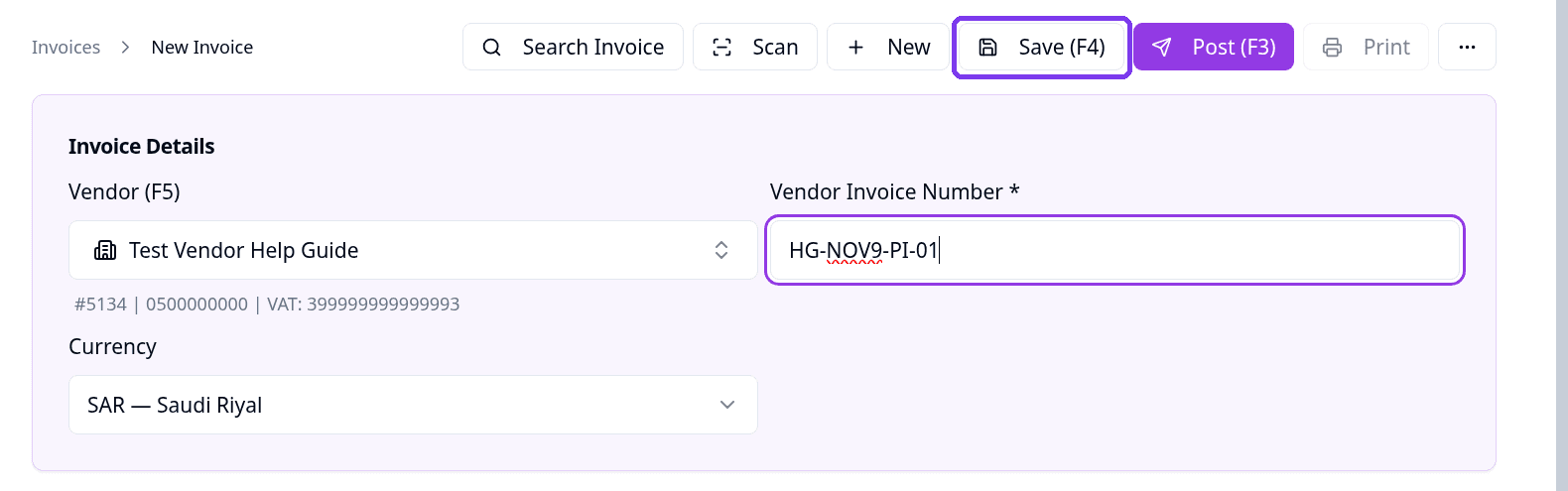
Choose the vendor, then enter the Vendor Invoice Number. This field is required.
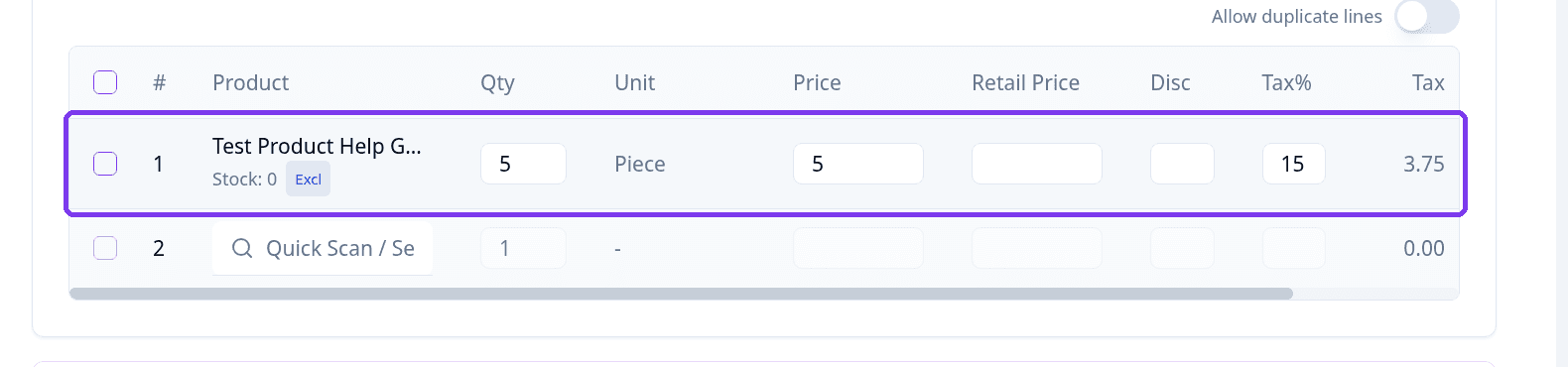
Step 3: Add products
Search for a product, then enter the Qty.

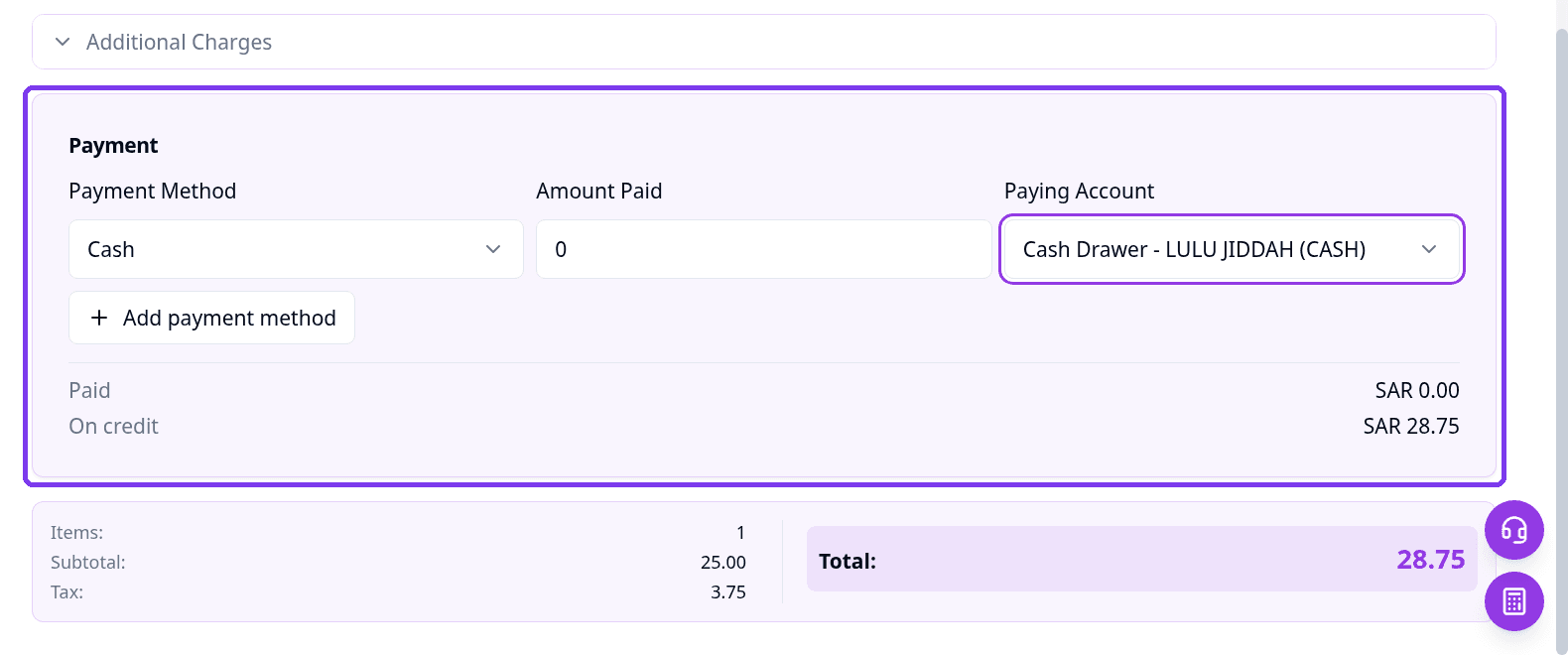
Step 4: Enter the payment
Choose the Payment Method and the Paying Account, then check the Amount Paid. If you have not paid yet, set Amount Paid to 0.
Step 5: Check the additional fields
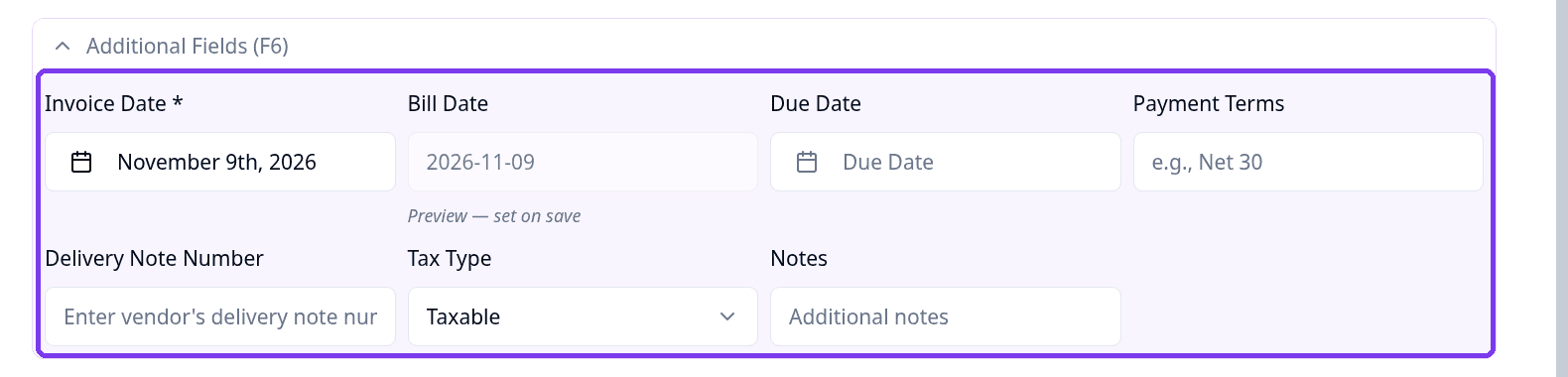
Open Additional Fields (F6) if you need to change the Invoice Date.
Step 6: Save the invoice as a draft
Click Save (F4). A message confirms that the draft is saved. The form then clears so you can start a new invoice.
Step 7: Find your saved draft
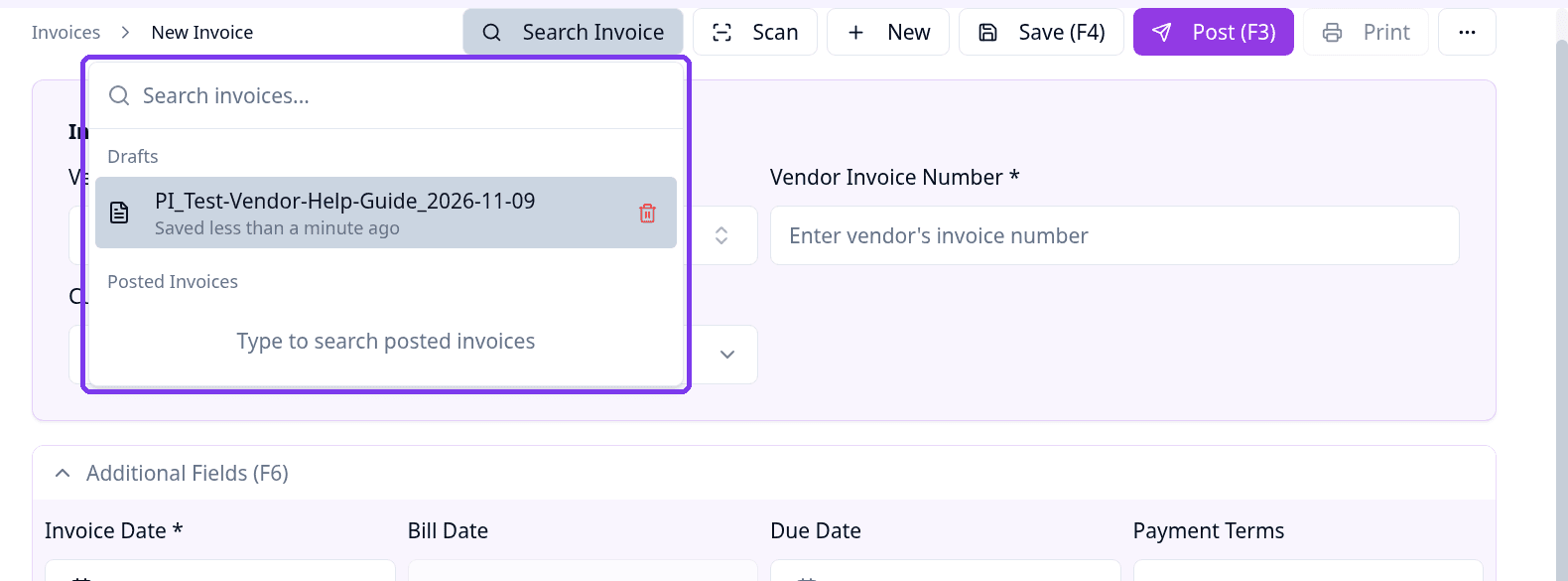
Drafts do not show in the Purchase Invoices list. Click Search Invoice and look under Drafts.
Important Notes
- Save (F4) saves the invoice as a draft. Post (F3) is not covered in this guide.
- Check Amount Paid before you save, so it matches what you paid the vendor.